
How to write an article?
Sign in to your account and open Creator Studio → Articles. Click New to Add New Article, fill in required details like title, thumbnail, category, language, and privacy, write your content using the editor, add tags and choose viewing permissions, then Publish to share your article on Gan Jing World.
After signing in, go to the Creator Studio and open the Articles section, then click New to start a draft. Provide essential details including the title, thumbnail, category, and content language, then compose your article using the editing interface that supports text and multimedia elements. You can also add up to 15 tags to help with content aggregation and visibility. Set the privacy level (public, unlisted, or private) and optionally schedule a publish time before clicking Publish to make your article live on the platform.
- 1
Sign In & Access Creator Studio
Sign in to your Gan Jing World account, click the + (plus) icon in the top-right corner of the homepage, and select Creator Studio.
Sign In & Access Creator Studio - 2
Open Articles Menu
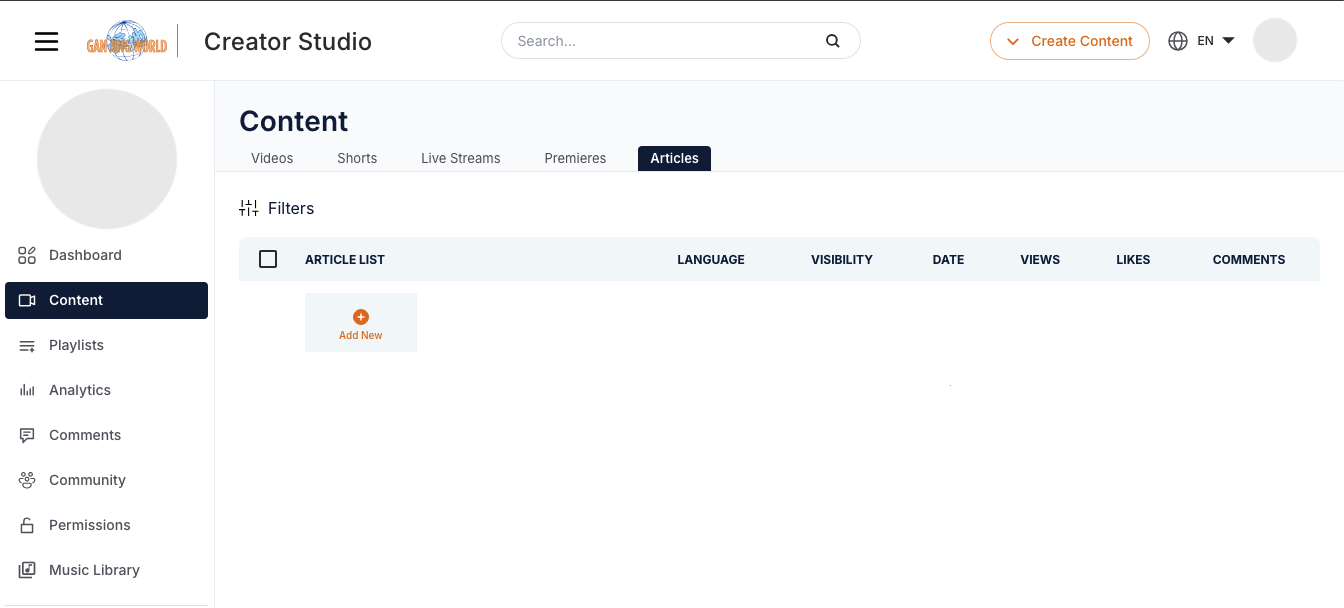
In Creator Studio, click Articles then New → Add New Article.

Open Articles Menu - 3
Enter Article Details
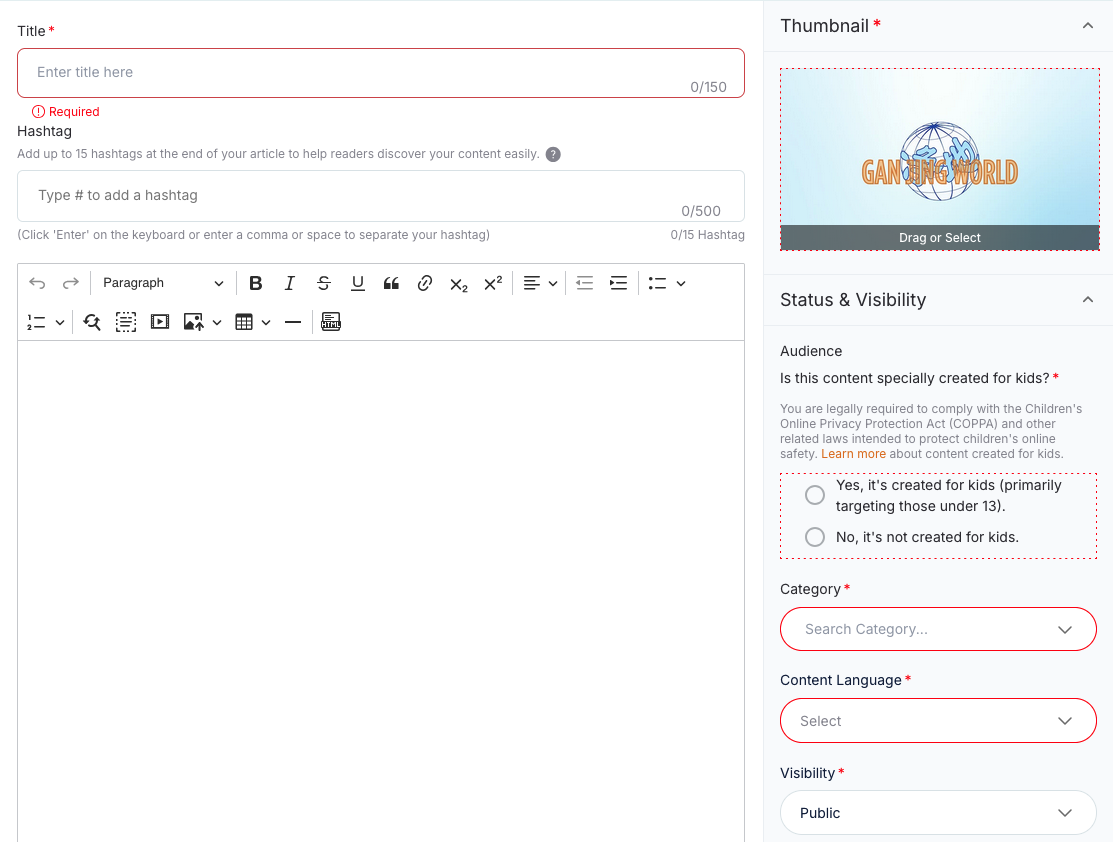
Fill in the article details: a short, descriptive title (max 150 characters); a required thumbnail (recommended size 1920×1080); the appropriate category and content language; and the privacy level — public, unlisted, or private.
Enter Article Details - 4
Write Your Content
Use the editor to compose your article with text, images, or embedded media. You can also use HTML syntax if needed.

Write Your Content - 5
Add Tags & Keywords
Add up to 15 tags (#hashtags) to help readers discover your content and enable tag aggregation. Optionally add keywords to boost searchability.

Add Tags & Keywords - 6
Schedule or Publish
Choose whether to publish immediately or schedule a later time, then click Publish. Your article is now live on Gan Jing World.
Tips for Better Articles#
- Compelling Title: Make it clear and relevant to your subject.
- Use Multimedia: Add images or media to support your points and improve engagement.
- Tags & Descriptions: Proper tags improve content reach and organization.
- Proofread: Review for clarity and quality before publishing.