
Meet your channel and Studio
Account, channel, content, and payment details in screenshots are fictional examples. Enter your own information when using the product.
Understand where you manage your content and what your viewers see.
| Where you are | What it is for |
|---|---|
| Channel homepage (viewer-facing) | Introduce yourself and let viewers explore your content and series. |
| Creator Studio (management workspace) | Upload, edit, and manage content, and customize your channel homepage. |
- 1
Sign in and find Creator Studio in your account menu. Its name or location may vary by interface.
- 2
Check the avatar at the top right to confirm which channel you are managing.
- 3
In Channel settings, select View channel to see your public homepage.
Meet Creator Studio#
Learn the main areas of the interface so you know where to find each feature.
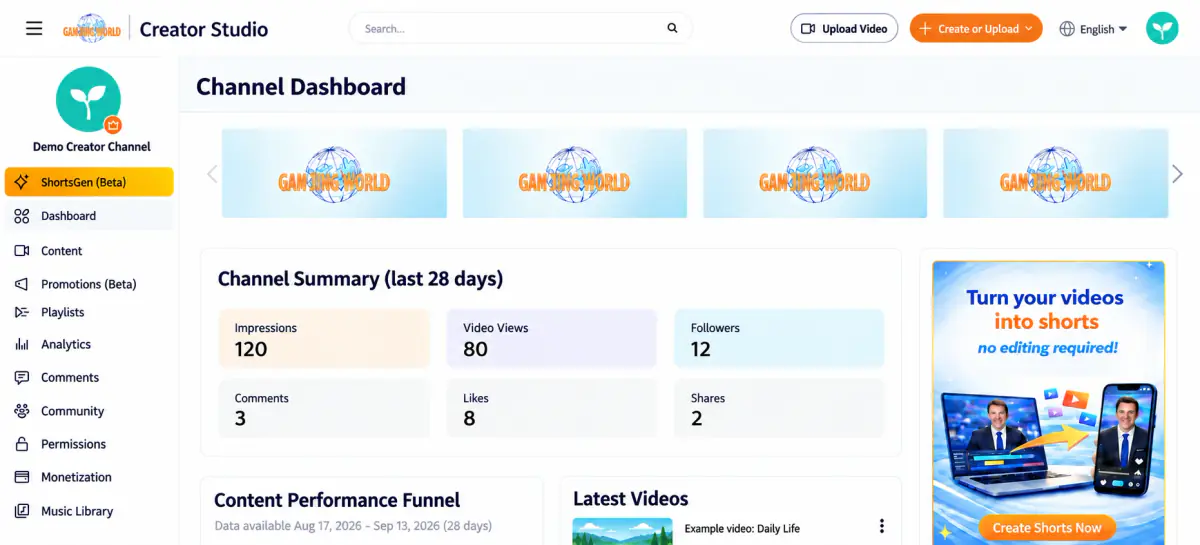
Top toolbar
| Item | Purpose |
|---|---|
| Search box | Search your own content by title or keyword |
| Upload videos | Open the video upload dialog directly |
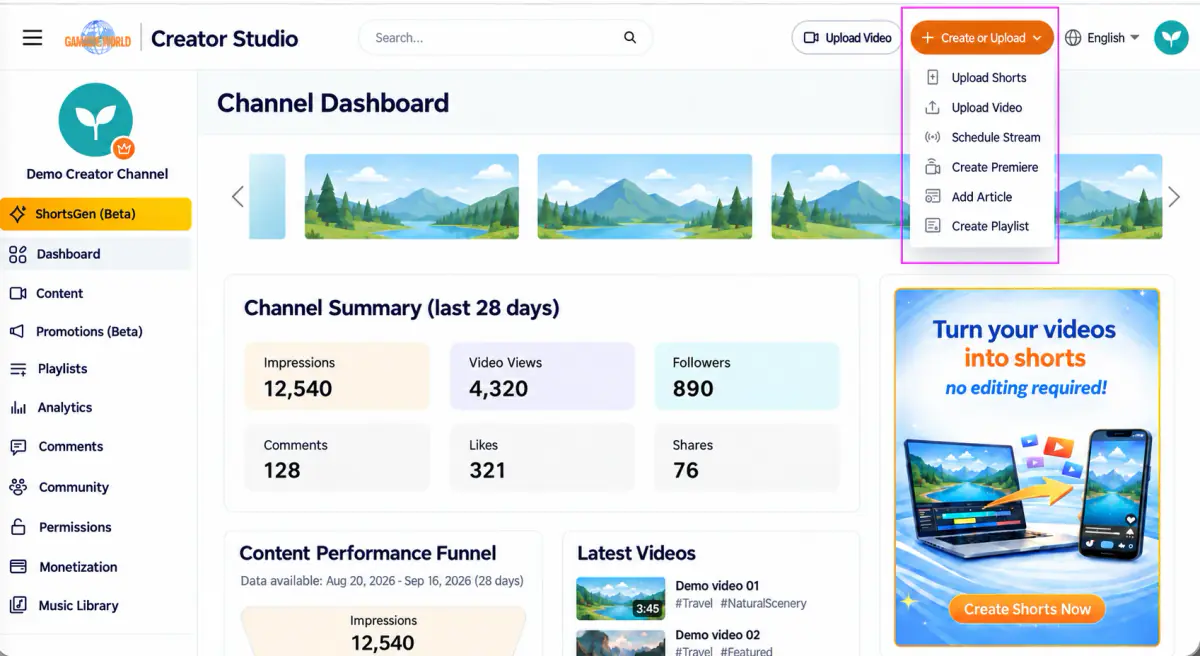
| Create or upload | Open a menu of content types you can create (see below) |
| Language | Change the Creator Studio interface language |
| Top-right avatar | Open the account menu; switch channels here if you manage more than one |
What you can create with “Create or upload”
Upload short · Upload video · Schedule livestream · Create premiere · Create article · Create playlist · Create paid playlist.
Main menu
For your first visit, start with these three entry points. You do not need to configure every other feature before uploading.
| Entry point | What to use it for |
|---|---|
| Content | Find uploaded content, edit its details, and check its status. |
| Channel Settings | Set up your channel profile and homepage layout. |
| View channel | Open the viewer-facing channel page from Channel Settings. |
Explore the other menus when needed
| Menu | What you can do here |
|---|---|
| ShortsGen (Beta) | An entry point only. Selecting it takes you out of Creator Studio and into the separate ShortsGen interface. |
| Channel dashboard | Channel overview, content performance funnel, latest videos, latest comments, and payout status |
| Content | Manage videos, shorts, livestreams, premieres, and articles |
| Promote (Beta) | Promote videos as paid ads within Creator Studio. View each campaign’s status, dates, spend/budget, impressions, and ad views. |
| Playlists | Free and paid playlists |
| Analytics | Overview, content, audience, and revenue |
| Comments | Manage comments across your channel |
| Community | Live redirects and hidden users |
| Permissions | Invite team members and assign roles |
| Monetization | Revenue sources and payout settings |
| Audio library | Music you can use in your videos |
| Channel Settings | Basic info, layout, member page layout, and advanced settings |
| GJW Premium | GJW+ features |
Missing a menu item? Check the active channel and signed-in account first. Available menus may differ by role or enabled features. If an entry is still missing, check with the channel owner or support.
Managing multiple channels Every action in Creator Studio applies to the currently selected channel. Check the top-right avatar before making changes.