
Check viewer access
Account, channel, content, and payment details in screenshots are fictional examples. Enter your own information when using the product.
Once you have the link, confirm that the intended audience can actually view the content.
| What to check | Question to answer |
|---|---|
| Publish | Has publication completed, or is it waiting for a scheduled time? |
| Processing | Has uploading and processing finished, and can the video play normally? |
| Visibility | Does the setting match the audience you want to allow? |
The right combination for future public publication To let general viewers watch at a future time: Visibility: Public → Enable Schedule → Set a future date and time and check the time zone → Submit the schedule. Visibility does not change automatically at that time. Scheduling a Private or Unlisted video does not make it Public. See the video scheduling guide.
Distinguish publication status, processing, and viewer access#
Draft and Scheduled describe publication status; Public, Unlisted, and Private describe who can watch. They may appear in the same menu, but they mean different things. Videos also need to finish uploading and processing before they can play normally.
| Option | What it means |
|---|---|
| Public | Open to general viewers; paid content may still require payment or eligibility. |
| Unlisted | Anyone with the link can view it. An unlisted video in a public playlist may also be discovered through that playlist. |
| Private | Accessible to you and people with the appropriate channel permissions. Sharing the link alone is not suitable for submitting work to others. |
| Members only | The channel must have the relevant membership feature enabled, and viewers must be eligible. Available options differ by content type; use the options shown in the Shorts upload dialog. |
| Channel followers only | An article visibility option, separate from paid membership. |
| Draft / Scheduled | Check whether content is unpublished or waiting for its scheduled time. Also verify the time zone and visibility. |
Before submitting, check the options available for that content type. The Content list guide below explains how to manage them.
Content list and everyday management#
Location: Content
All your videos, shorts, livestreams, premieres, and articles are managed in Content, a common starting point for daily work in Studio.
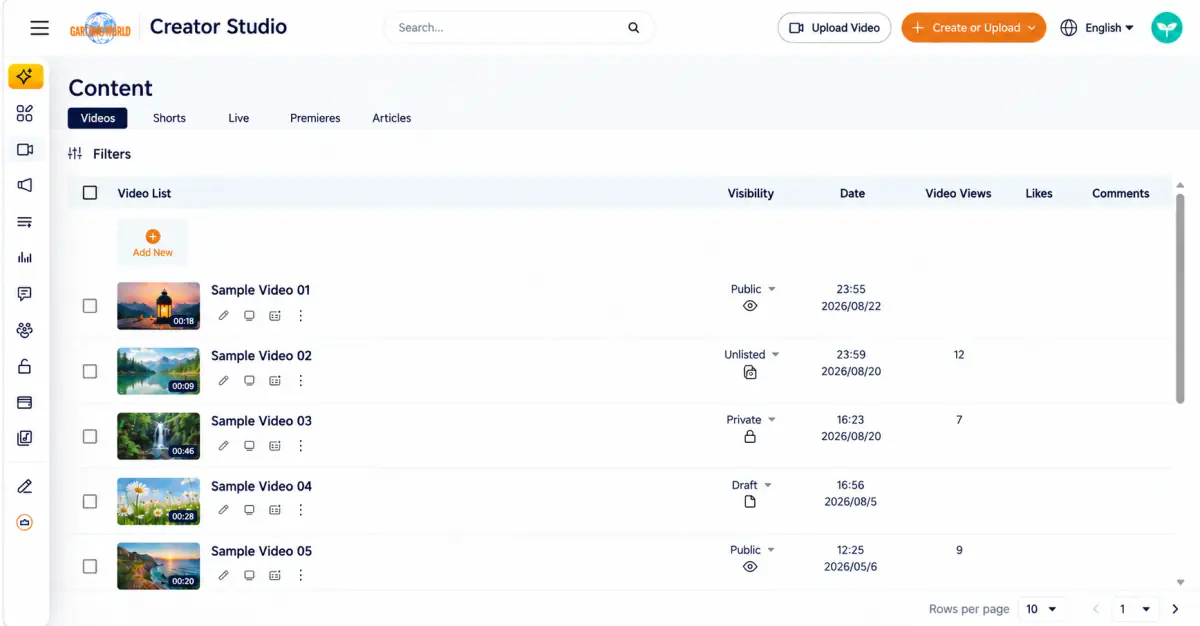
Five content tabs
The Content page has five tabs. Switching tabs changes the content type shown in the list; familiar list controls remain available. The five tabs are separate; there is no All or Overview tab combining every content type. To see articles, open Articles; they do not appear under Videos.
| Tab | Related guide |
|---|---|
| Videos | Upload and manage videos |
| Shorts | Shorts: from upload to publication |
| Live streaming | Live streaming: setup, broadcast, and replay |
| Premieres | Premieres: creation and scheduling |
| Articles | Articles: write, publish, and manage |
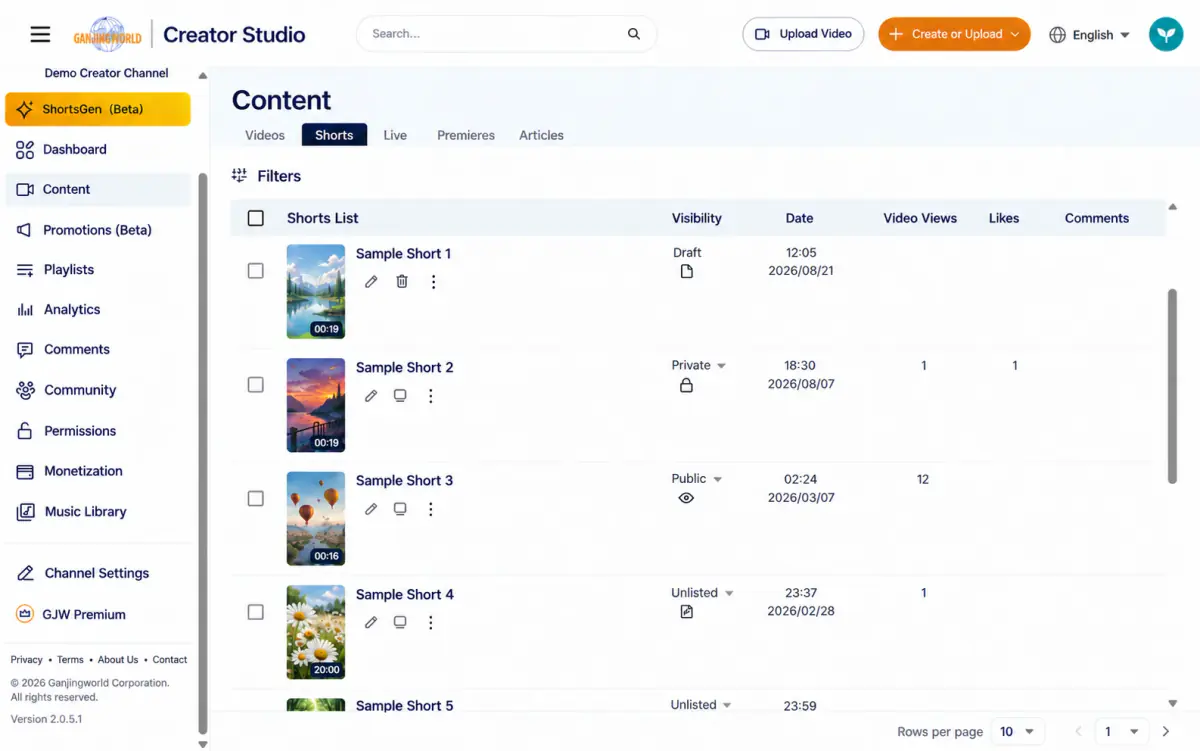
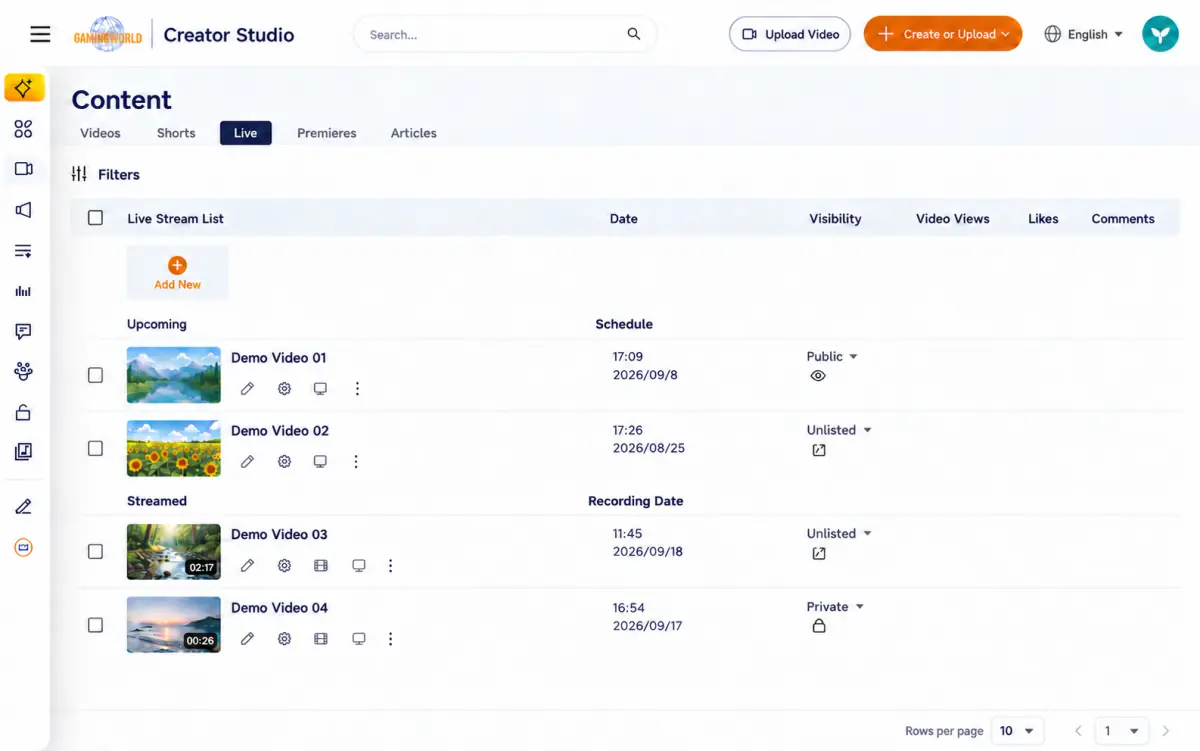
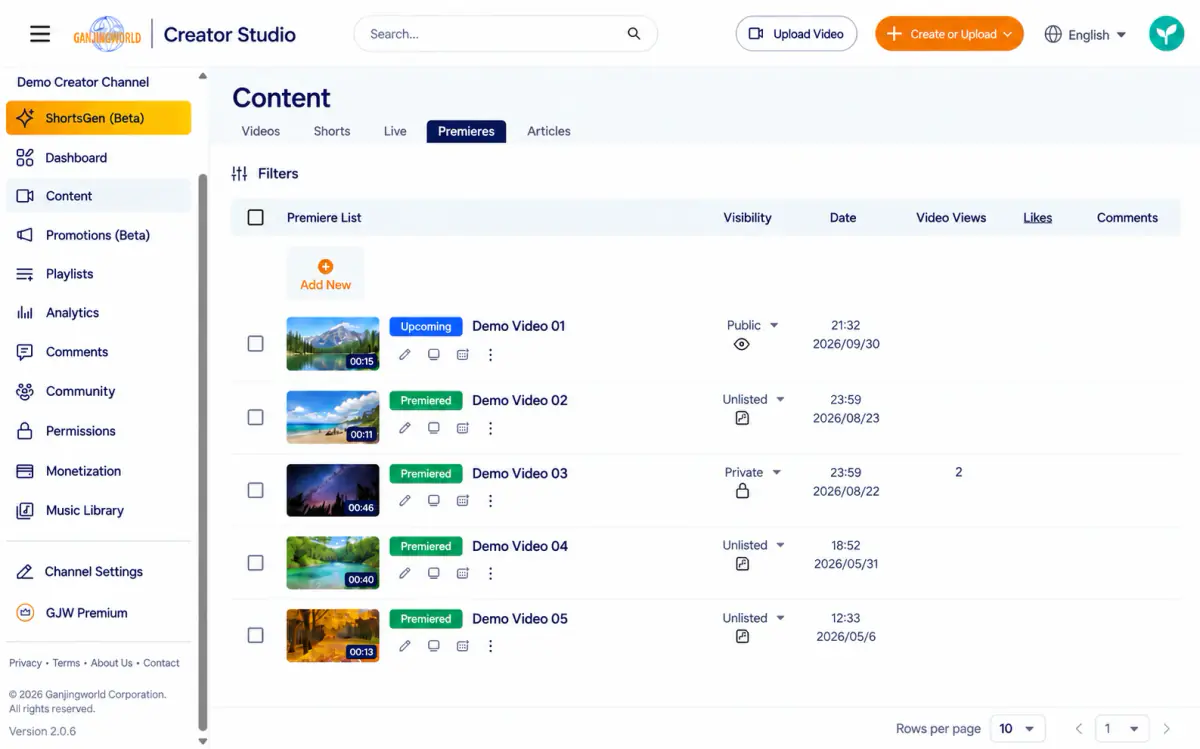
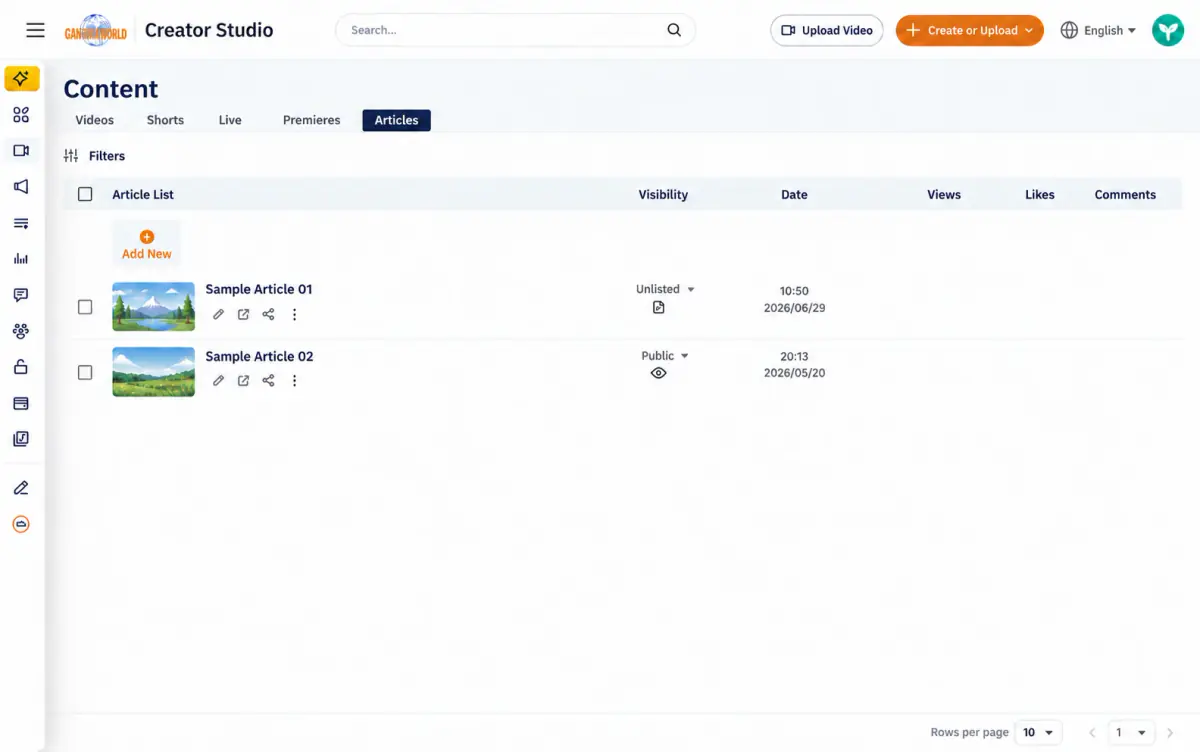
Content status and paid labels
A small label before a title may indicate the content’s current status. Common labels include:
| Label | Meaning |
|---|---|
| Scheduled | A future publication time is set; this status remains until then |
| Upcoming premiere | The premiere has not started (Premieres tab only) |
| Premiere ended | The premiere has finished (Premieres tab only) |
| Paid viewing | Payment is required to watch this video |
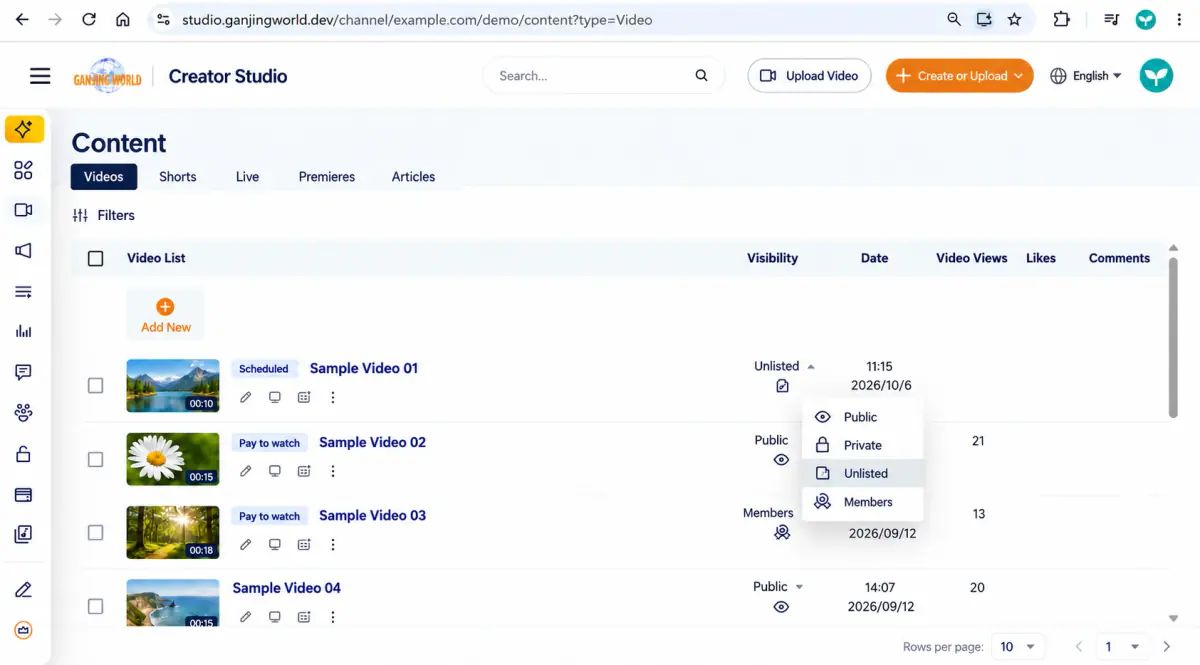
A reminder from Get to know Studio Changing Visibility changes who can view the content; it does not necessarily publish it. Because visibility can be changed directly in the list, it can be mistaken for publication.
Manage content: common actions
Find your content and hover over an action icon to see its name. Open ··· for more options, then choose the action you need. Available actions depend on the screen.
| Option | What it does |
|---|---|
| Edit (pencil) | Open the editor to change details and settings. |
| Edit title and description / Edit title | Quickly change the title or description. |
| Watch / Preview | Open the viewer page to check video playback or article presentation. |
| Subtitles | Manage subtitles and language versions. See the subtitles guide. |
| Stream settings (gear) | Open the live control page to configure the stream and manage broadcasting. See the livestream guide. |
| Analytics | View performance data for this content. |
| Share | Get a link or use sharing options. Check viewing permissions before sharing. |
| Promote | Set up paid promotion to advertise the content. |
| Download | Download the content file to your computer. |
| Delete | Remove the content. Verify its title and read the confirmation dialog before proceeding. |
Visibility and quick changes
Change viewer access directly in the content list without opening the editor.
- 1
Find the item and select its current status in the Visibility column.
- 2
Choose the intended visibility from the menu.
- 3
Confirm that the row displays the updated setting.
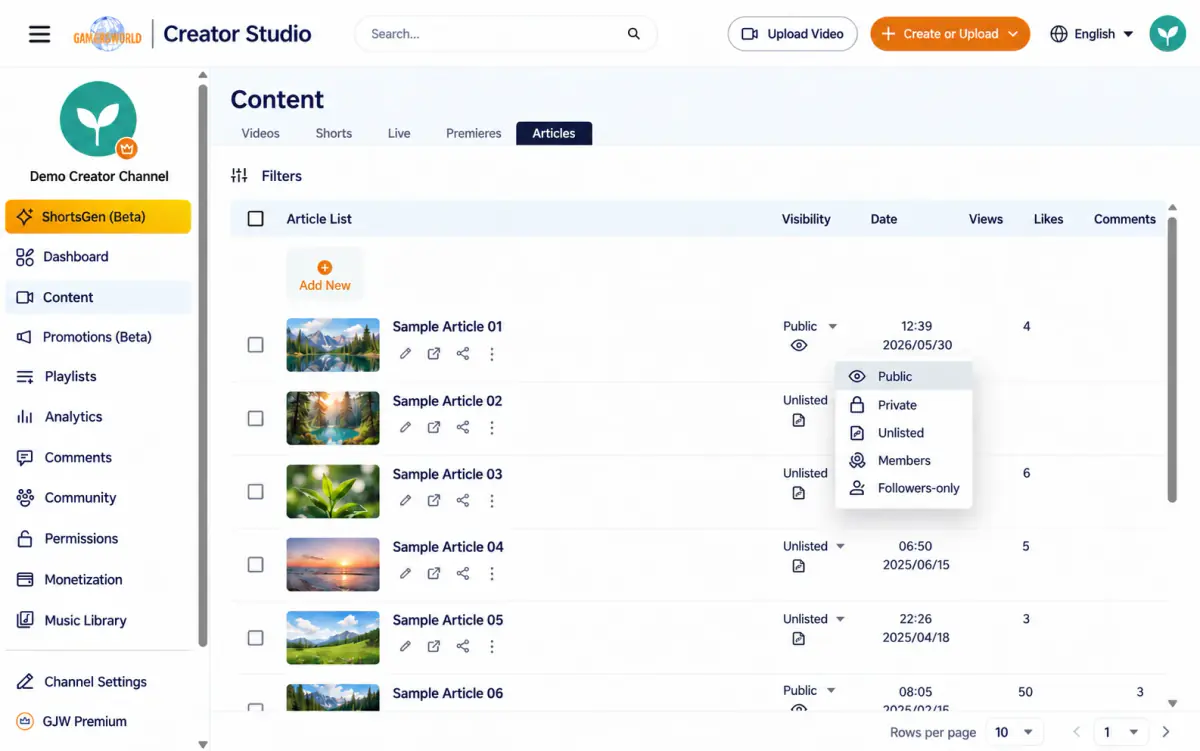
Available options depend on content type and enabled channel features. Members only and Channel followers only represent different access requirements.
Not sure which option to choose? See the viewer-access explanation. To make a video public at a future time, use Public + Schedule to configure scheduling.
Bulk actions
Selecting multiple items reveals a toolbar above the list. All five tabs support bulk actions, including changes to visibility, category, and made-for-children settings, as well as deletion. Bulk visibility options match the options for individual items and depend on content type and membership availability.
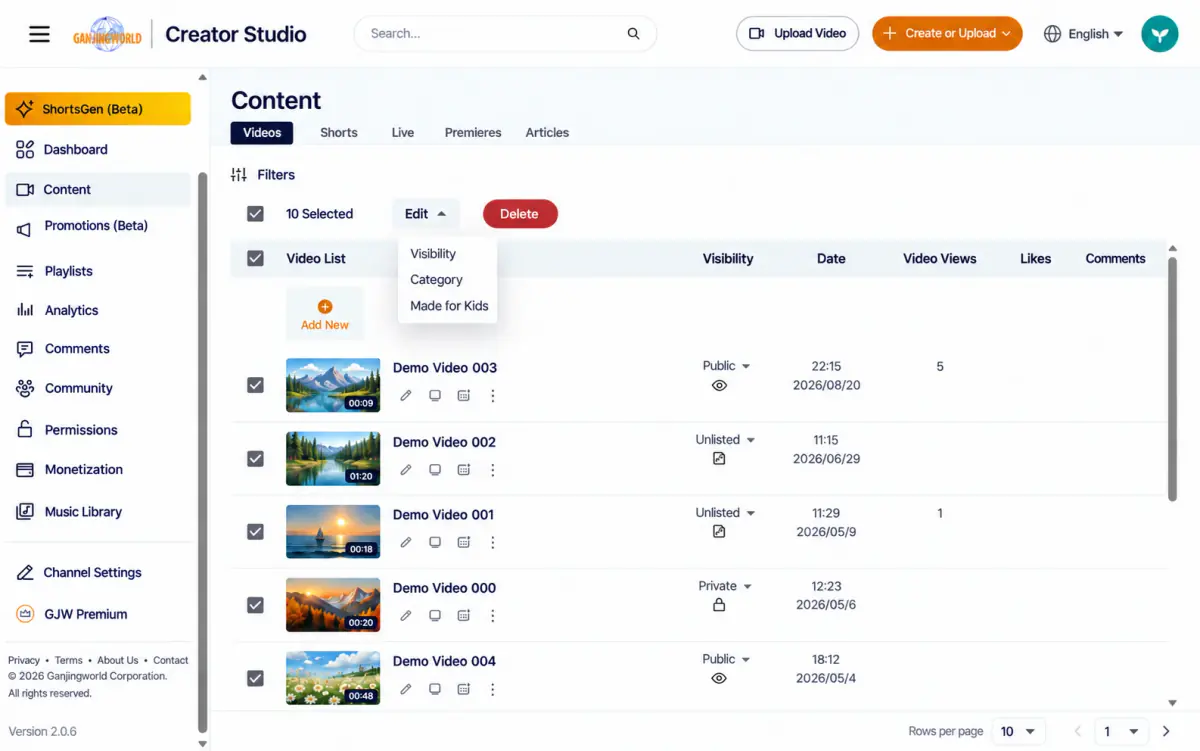
Choose a field from Edit to open its panel. The toolbar changes from Edit/Delete to Cancel / Save. Select Save to apply the changes:
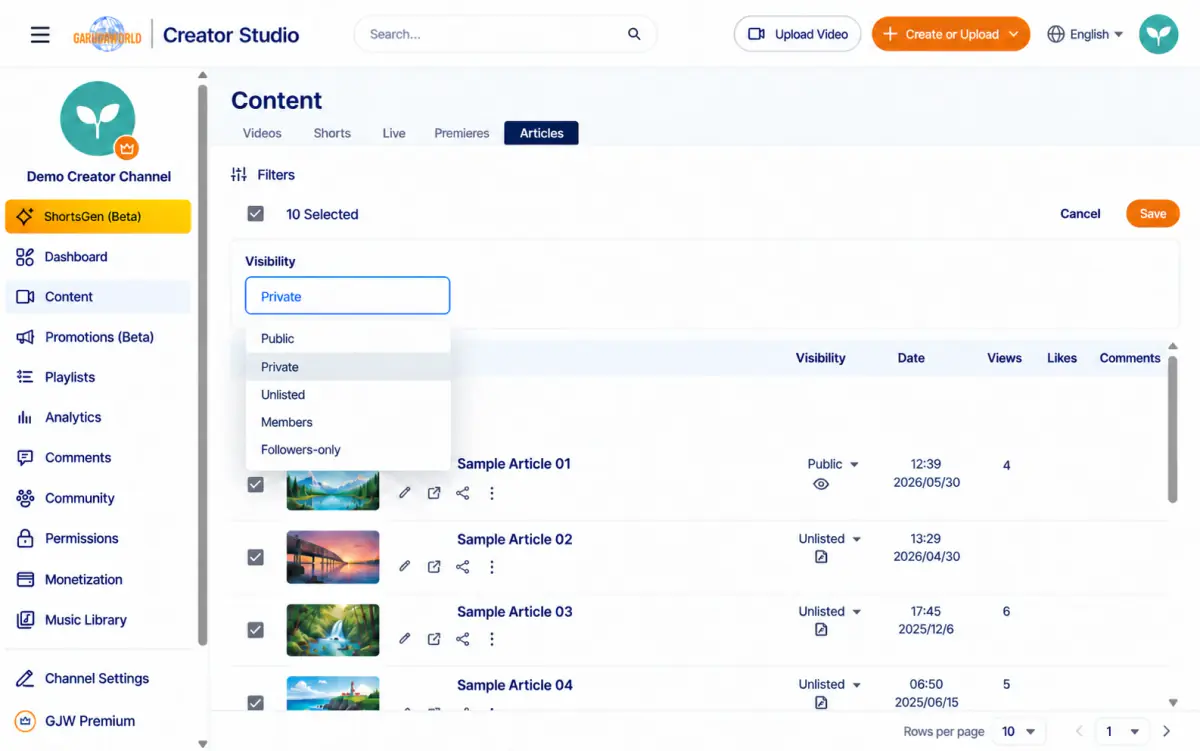
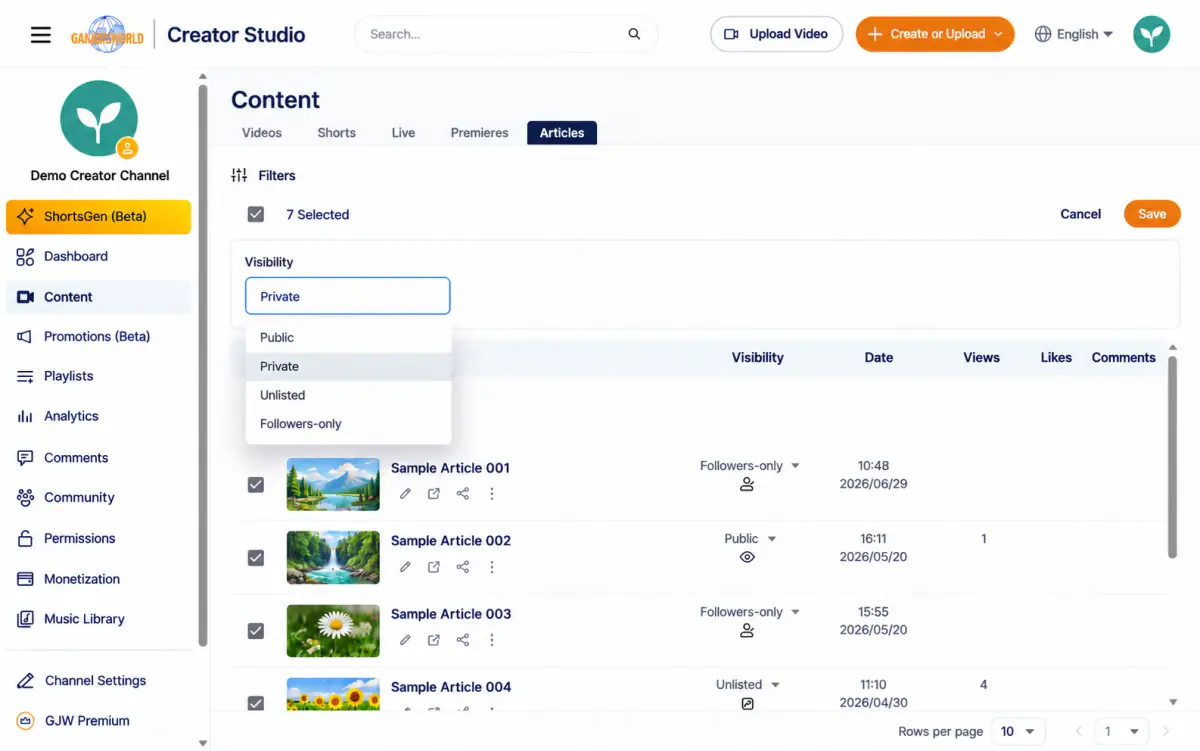
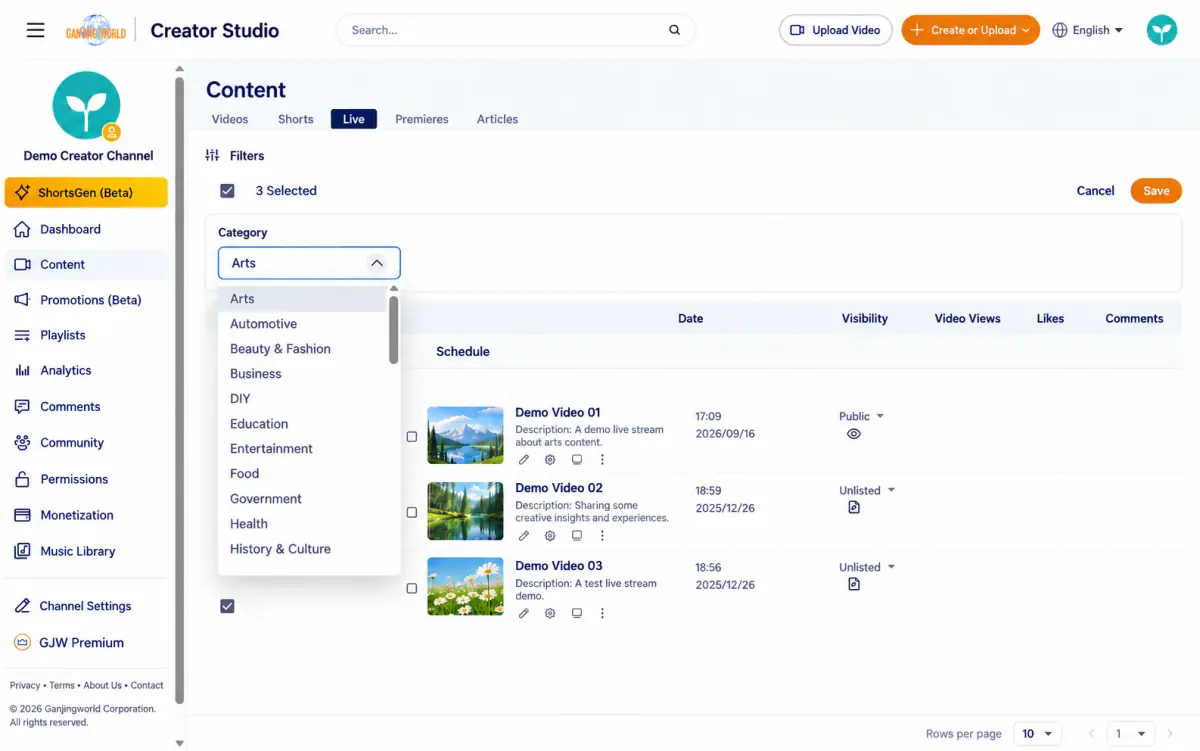
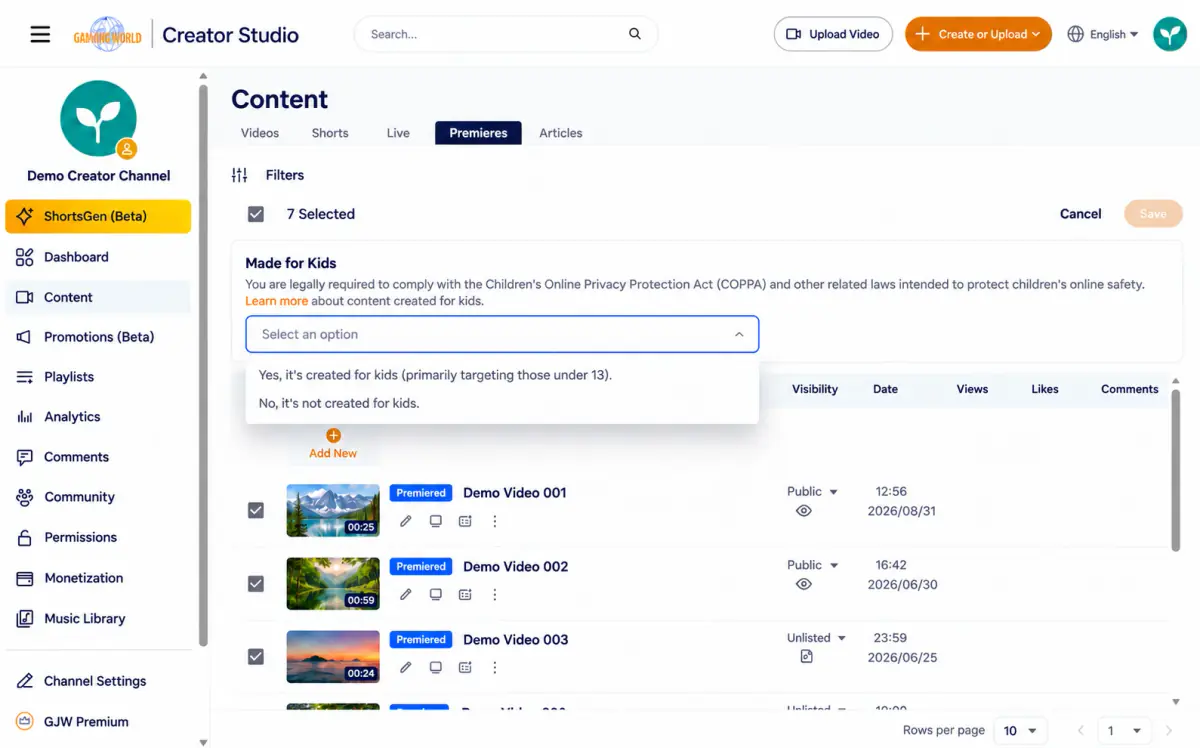
Filter
Select the separate Filter button with the sliders icon below the tabs and above the bulk toolbar. The observed filter is Visibility. Its panel lists the visibility options available for that tab, as described in Visibility and quick changes.
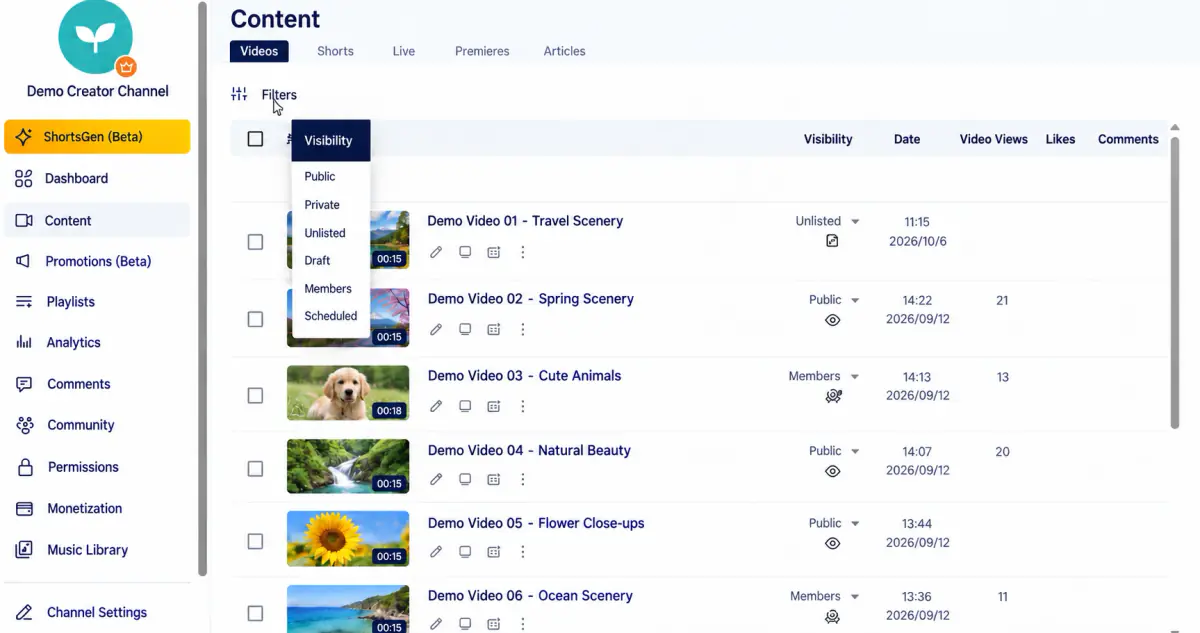
Choose an option such as Public. The panel closes and a filter chip appears: Visibility: Public. Select ✕ to remove it. The list reloads to show only matching items.
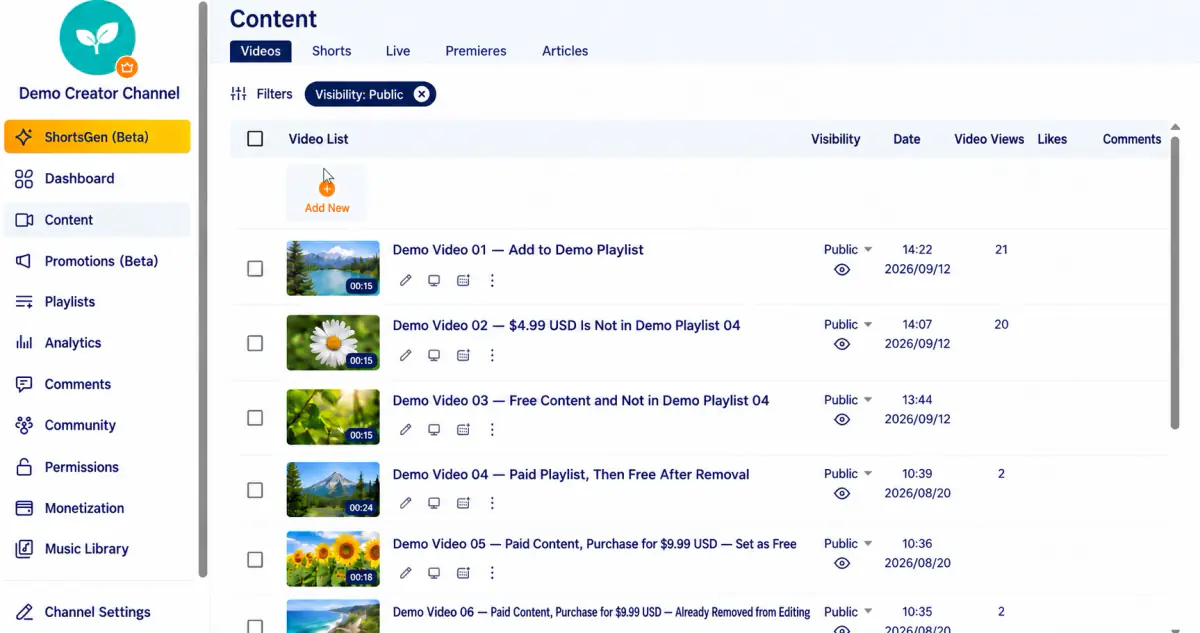
Switching tabs resets filters Filters are not retained across tabs. Switching, for example, from Premieres to Articles clears the chip and restores the unfiltered list. Set filters separately for each tab.
Check as a viewer#
- 1
Get the link from the content list and open the viewing page.
- 2
Check public or unlisted content in a signed-out browser window. For member content, use an account with the required access.
- 3
Confirm that the title, thumbnail, video playback, or article body displays correctly.
- 4
If access fails, check publication, processing, visibility, and review notices in that order.