
Upload defaults
Account, channel, content, and payment details in screenshots are fictional examples. Enter your own information when using the product.
Location: Channel settings → Advanced settings. Click “Save” after making changes.
Advanced: Upload defaults and channel settings#
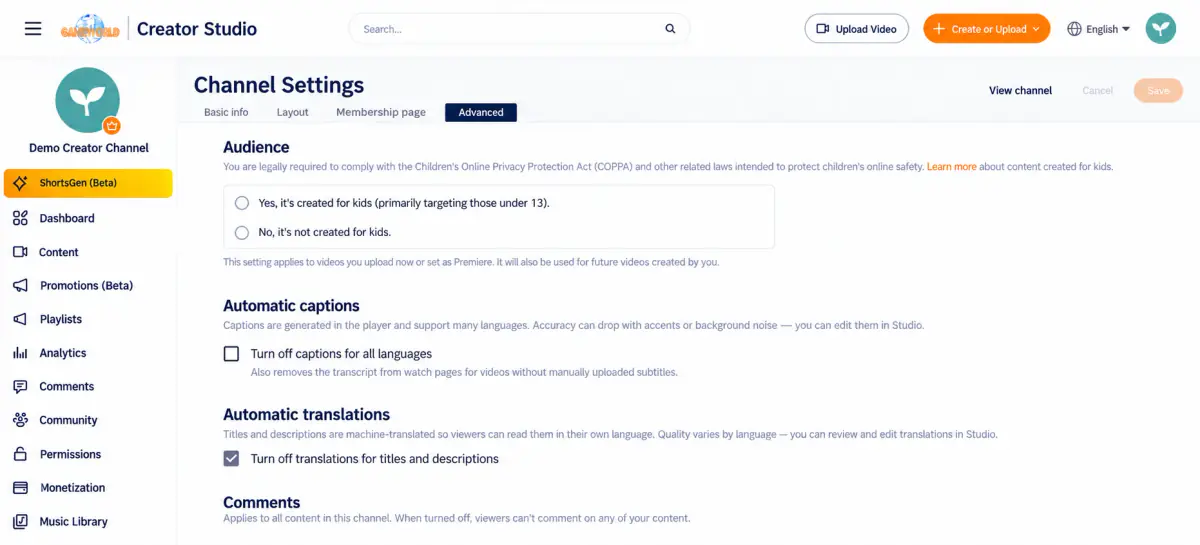
The interface explains that upload defaults apply only to videos uploaded through a web browser. You can set default visibility, titles, and descriptions.
Defaults for new video uploads
For videos uploaded through a web browser, defaults can prefill commonly used information. Review and adjust it for each video.
| Section | Description |
|---|---|
| Title / Description | Text automatically filled in for each upload (125 / 5,000 characters) |
| Visibility | Default visibility, or “Choose for each upload” |
| Audience | Default made-for-kids setting. Creators can override it for individual videos |
| Keywords | Default keywords, up to 500 characters |
Channel-wide settings
These controls are not details for a single upload. Read their scope and helper text before changing them so you do not confuse channel-wide settings with settings for one video.
| Section | Description |
|---|---|
| Automatic captions | Select “Disable automatic captions for all languages” to turn them off channel-wide |
| Automatic translation | Select “Disable automatic translation of video titles and descriptions” to turn it off channel-wide |
| Comments | “Disable all comments” prevents comments on all channel content |
What disabling automatic captions also affects The interface notes: “For videos without manually uploaded subtitles, this also removes the transcript from the watch page.” Disabling automatic captions also removes those transcripts. To change only one video, use that video's Subtitles tab.