
Set up your channel
Account, channel, content, and payment details in screenshots are fictional examples. Enter your own information when using the product.
Help viewers understand who you are and what you share. Prepare an avatar, banner, and short channel description.
Location: Channel settings → Basic info
- 1
Enter your channel name and description.
- 2
Add an avatar and banner, and position important text carefully.
- 3
Select Save, then View channel to review the result.
Basic info#
See the full steps for replacing and adjusting your banner →
| Field | Description |
|---|---|
| Channel cover | Hover over the banner to replace, remove, or reposition it |
| Channel avatar | Recommended minimum: 640 × 640 pixels, No larger than 2 MB; supports JPEG, JPG, PNG, WEBP, and GIF |
| Channel name * | Up to 50 characters |
| Handle | Your unique @ handle; letters and numbers only. Can be changed once every 14 days |
| Channel ID | Generated by the system and read-only; use the copy button on the right |
| Channel description | Up to 2,000 characters |
| Channel name and description in other languages | Provide a localized name and introduction for viewers who speak different languages |
Replace and adjust your channel banner#
Location: Channel settings → Basic info
To replace the image: Change banner → Choose image → Adjust banner → Apply → Save. To reposition the existing image, select Reposition and start at step 3.
Step 1: Replace or reposition the image
Hover over your current banner, then select Change banner or Reposition. Remove banner at the top right deletes the current image; you do not need to remove it before replacing it.
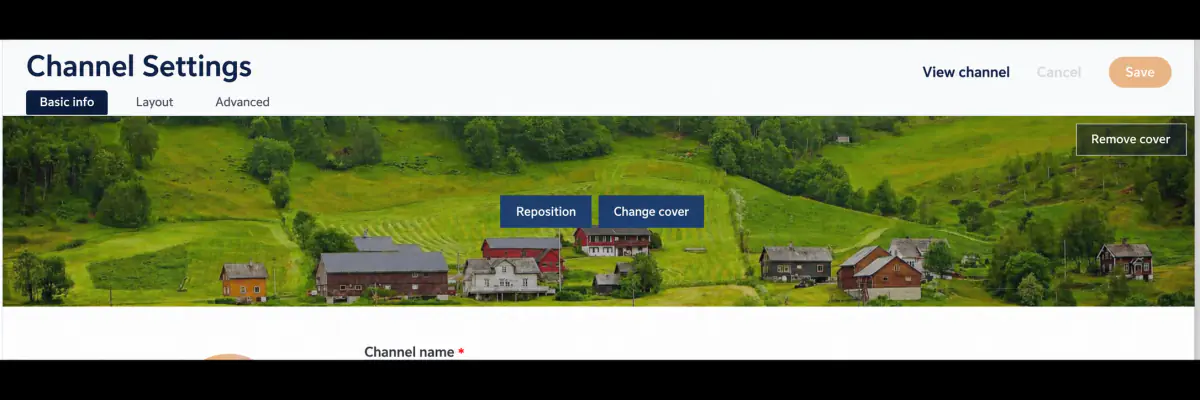
Step 2: Choose a recommended image or upload your own
In Choose banner, select a recommended image or go to Your own image and select Upload image, then choose a file.
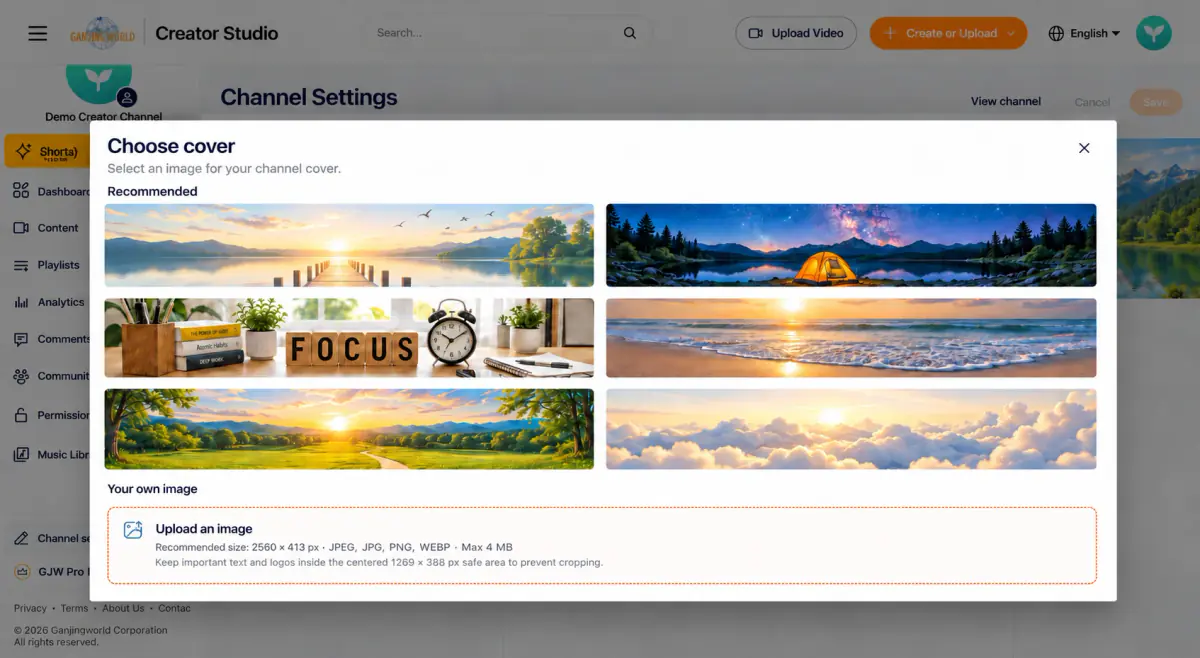
| Upload item | On-screen requirement |
|---|---|
| Recommended size | 2560 × 413 px |
| Supported formats | JPEG, JPG, PNG, WEBP |
| File size | Maximum 4 MB |
| Important text and logos | Keep within the central 1269 × 388 px safe area |
Step 3: Adjust position and zoom, then check the visible area
In Adjust banner, drag the image to reposition it. Use the Zoom slider or −/+ controls to resize it. Check the guides to keep your channel name, tagline, and logo from being cropped.
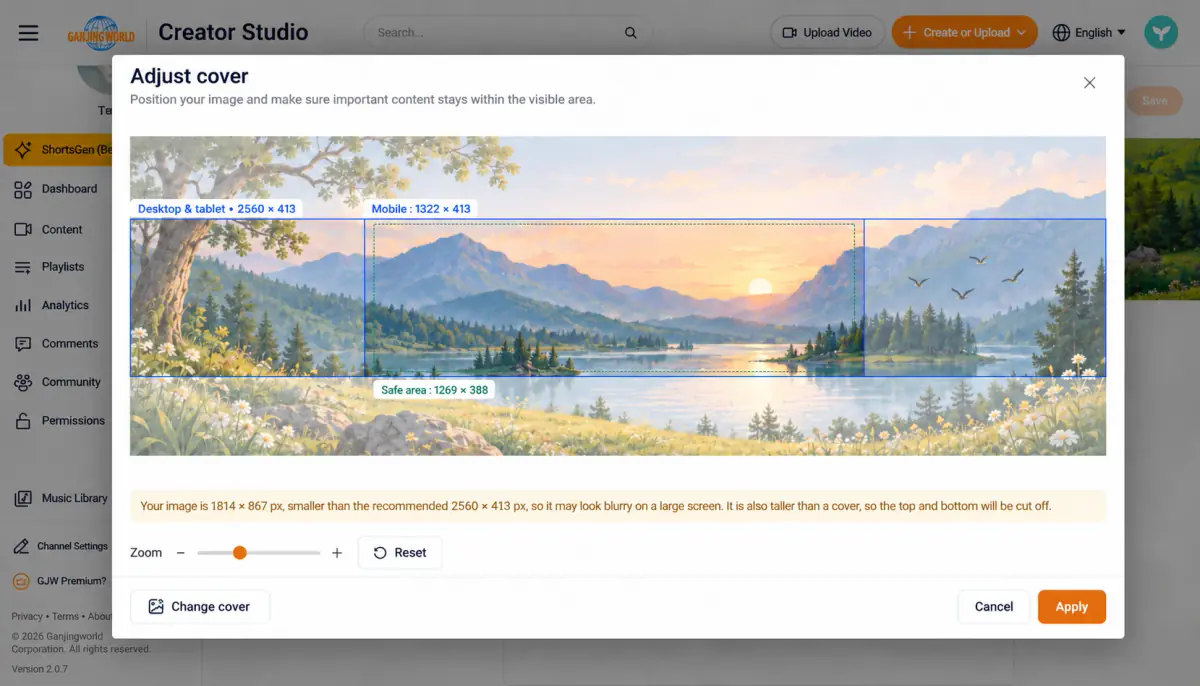
| On-screen guide | Size | What to check |
|---|---|---|
| Desktop and tablet | 2560 × 413 | Check the overall composition of the wide banner. |
| Mobile | 1322 × 413 | The visible area is narrower; make sure the subject remains clear. |
| Safe area (green dashed box) | 1269 × 388 | Place important text and logos inside this smaller central area. |
If a resolution or cropping warning appears The example image is 1814 × 867 px, narrower than the recommended 2560 px and taller in proportion. The warning explains that it may look blurry on large screens and be cropped at the top and bottom. This is the example image size, not the recommended upload size. Adjust the composition first. If important content is still cut off, prepare an image at the recommended size and select Change banner at the bottom left.
Reset lets you start adjusting again; Cancel discards the adjustment. To use another image, select Change banner at the bottom left of this dialog.
Step 4: Apply, then save on the settings page
- 1
Check the subject, text, and logo positions, then select Apply.
- 2
Return to Channel settings → Basic info, check the banner preview, then select Save.
- 3
Use View channel to check the viewer-facing banner. Also check it on a phone to make sure text and logos are not cropped.
Before uploading many items, you can also configure Upload defaults.