
Premieres: creation and scheduling
Account, channel, content, and payment details in screenshots are fictional examples. Enter your own information when using the product.
Premieres#
Premieres let you release a prepared video at a specified time. Viewers can visit its page beforehand and watch together when it starts.
Location: Content → Premieres Create: Create or upload → Create premiere
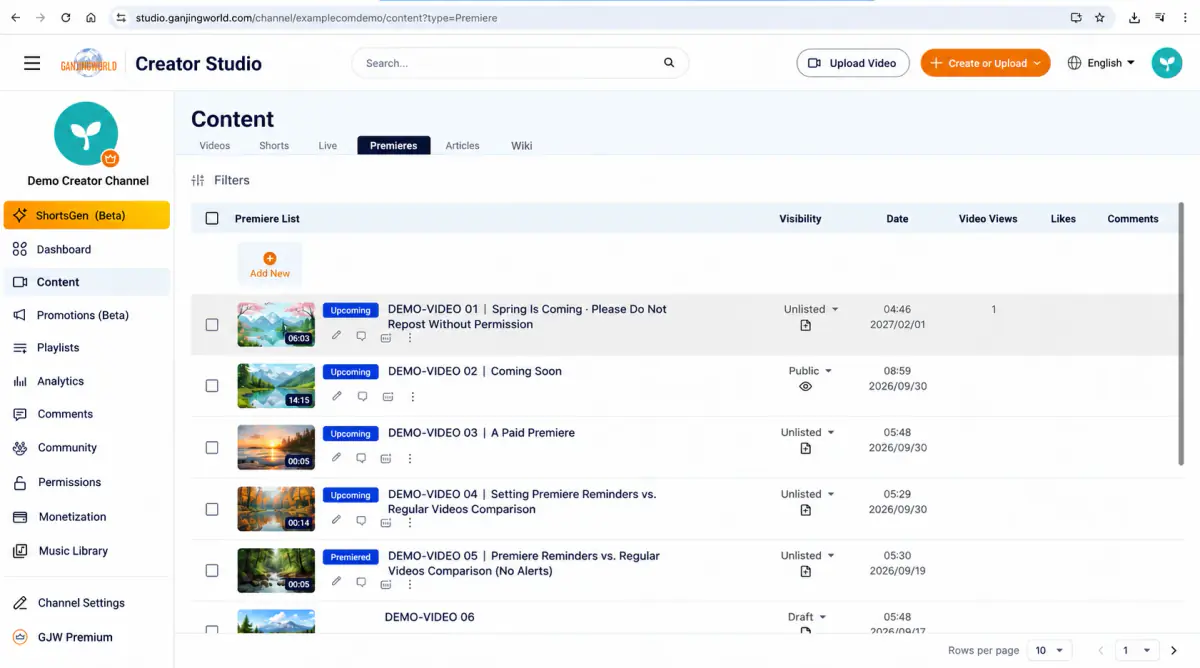
Before you begin: Three premiere states#
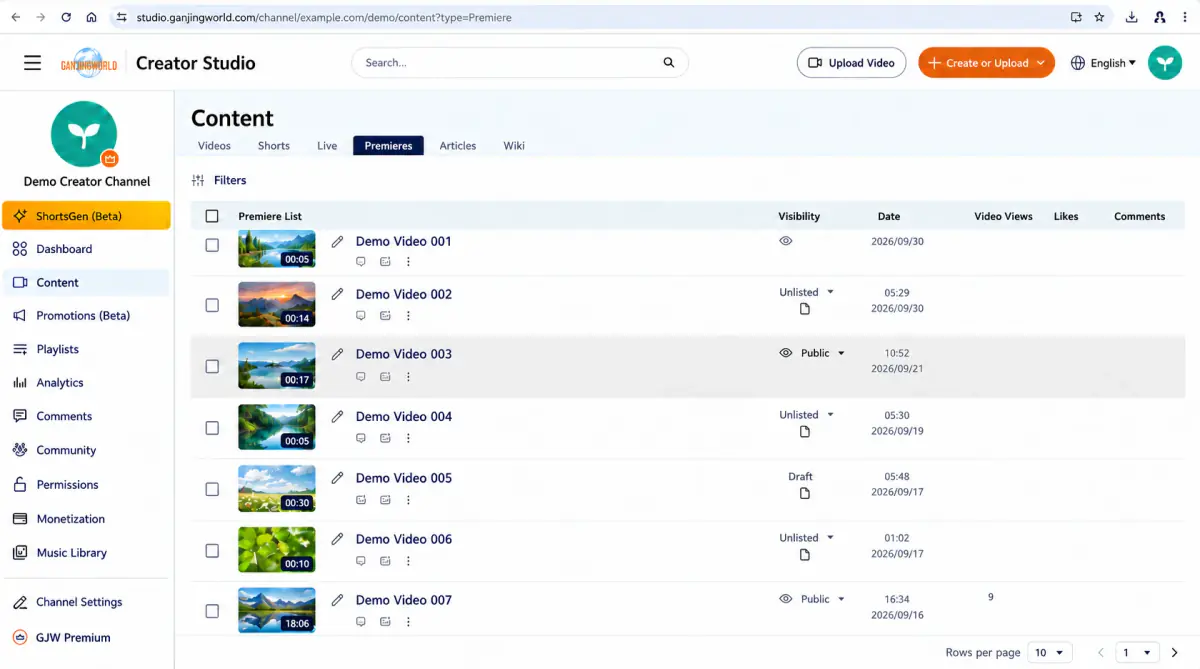
Status labels before each title show whether a premiere is upcoming, in progress, or finished.
| Status | On-screen label | What it means |
|---|---|---|
| Upcoming premiere | Upcoming premiere | The premiere is created and scheduled but has not started. Check its title, visibility, and scheduled date/time in the list, and edit it before it begins if needed. |
| Premiering | Premiering | The premiere is playing now. A red label helps identify active premieres quickly. |
| Premiere ended | Premiere ended | The premiere has finished. It remains in the Premieres list with a Premiere ended label for later management. |
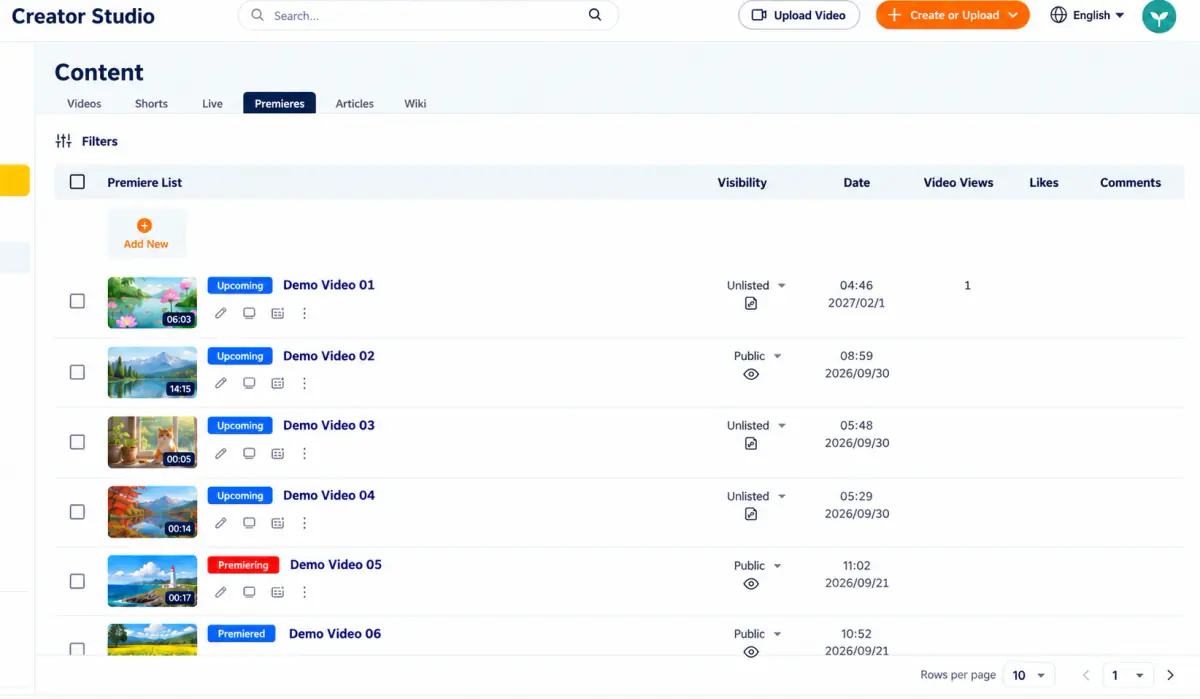
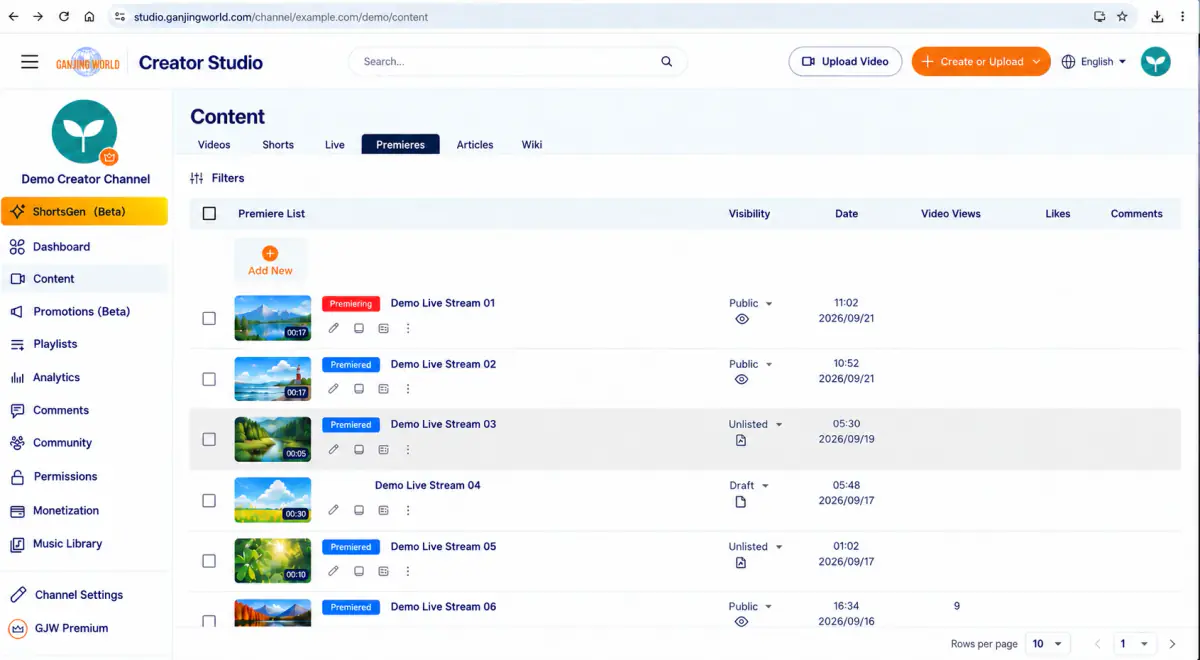
At a glance Upcoming premiere = not started → Premiering = playing now → Premiere ended = finished. Check the label before the title to identify each premiere’s stage.
Step 1: Choose a video to premiere#
- 1
Open Premieres and begin creating a new premiere.
- 2
Select the video file in the upload dialog.
- 3
After file selection, the premiere upload workflow opens.
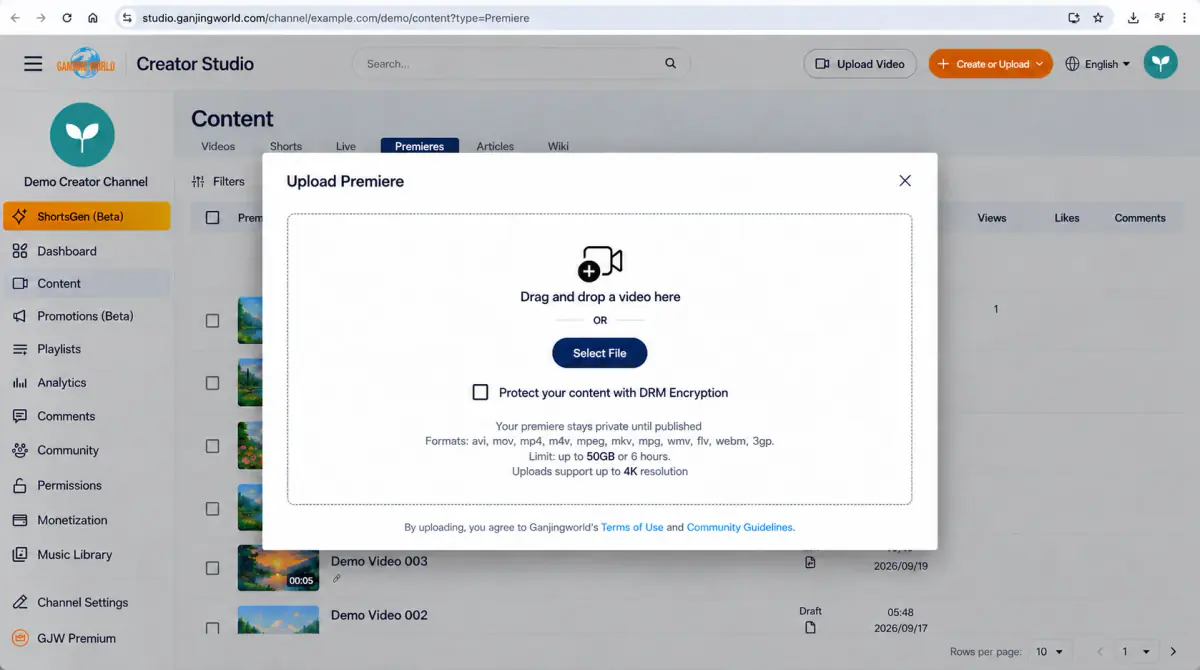
How it works A premiere uses a prepared video file. To broadcast live footage and interact in real time, use Live streaming.
Step 2: Complete Details#
The first stage sets the basic information viewers will see.
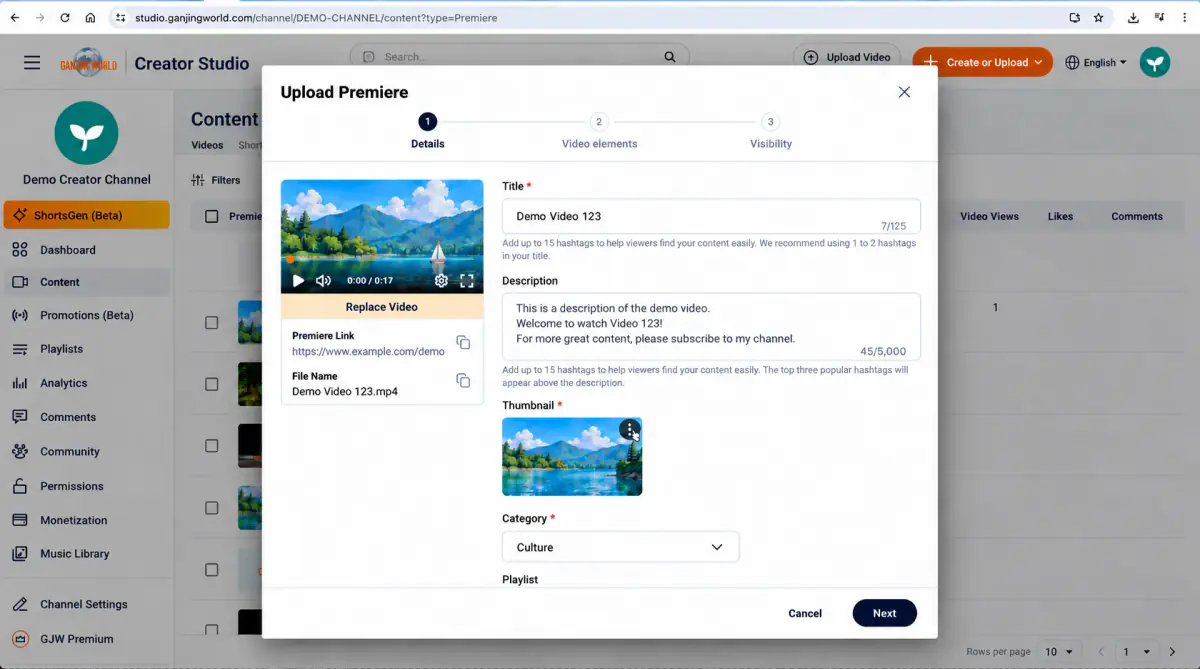
| Option | Purpose and setup |
|---|---|
| Title * | The premiere title identifies the video. The recording shows a 125-character limit. Clearly describe the topic rather than using an uninformative name. |
| Description | Add context or other information within 5,000 characters. Put the most important details first. |
| Thumbnail * | The thumbnail represents the premiere. Check that it fits the content and replace it if needed so viewers recognize the video before it begins. |
| Category * | Choose the best-matching category. The recording uses Culture as an example; choose according to your own content. |
| Playlists | Add the premiere to a playlist if you want to organize it into a series. Otherwise, leave this unset. |
Step 3: Set audience, comments, and keywords#
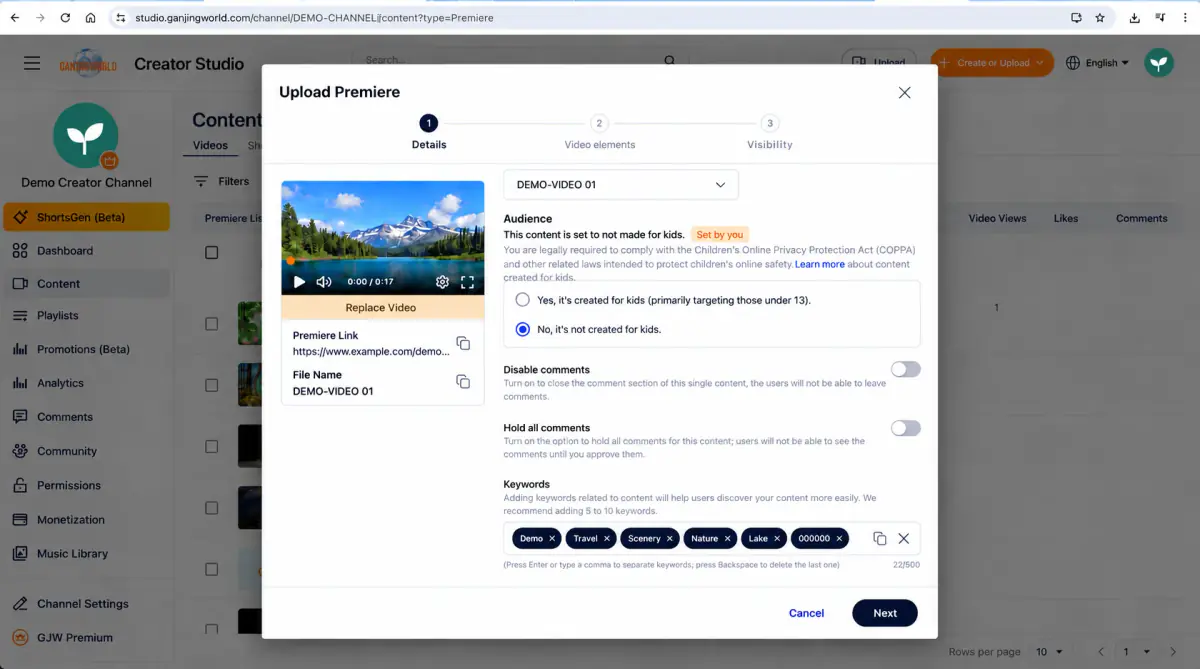
Audience: this example is set to “Not made for kids” Choose based on your actual content. Select either “Yes, it is made for kids” or “No, it is not made for kids.” Use your video's intended audience, rather than copying the example.
| Option | Description |
|---|---|
| Disable comments | Turning this on disables comments. Leave it off if you want viewers to comment. |
| Hold all comments | Turn this on to hold comments for your review before they appear. |
| Keywords | Add relevant keywords to describe the video. The interface recommends about 5–10 keywords. Press Enter to add a keyword or Backspace to remove the last one. |
Complete the required settings, then click “Next”.
Step 4: Set up video elements#
Add subtitles and other elements viewers can use during the premiere.
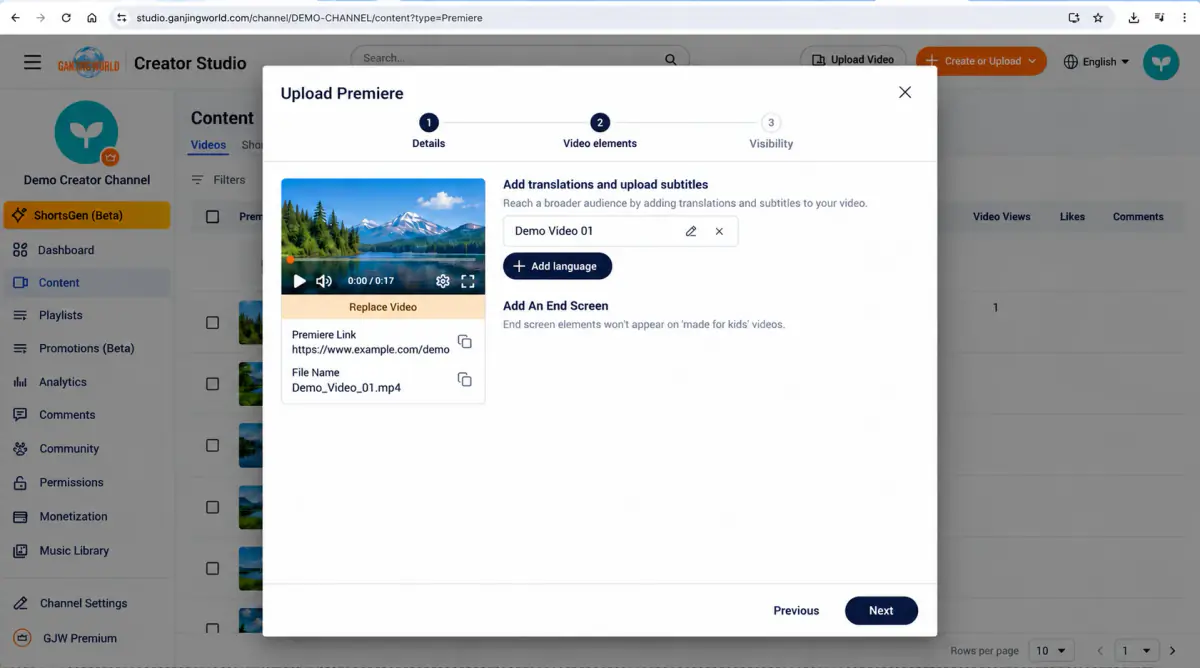
Add translations and upload subtitles Use “Add language” for translated titles, descriptions, or subtitles. Existing languages appear here and can be edited or removed.
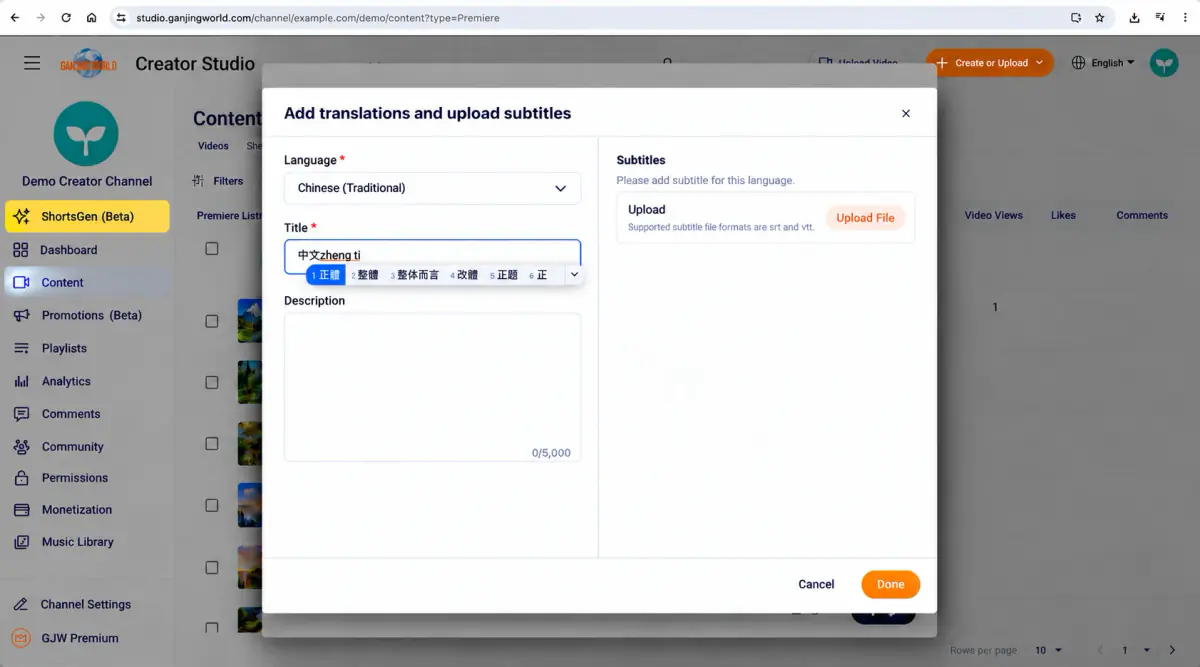
| Field | How to use this |
|---|---|
| Language * | Select the language for this translation or subtitle track, such as Traditional Chinese in the example. |
| Title * | Enter the video title in that language. |
| Description | Enter the description in that language. The interface allows up to 5,000 characters. |
| Upload file | Upload subtitles in that language. The supported formats shown include .srt and .vtt. |
| Done | Save the language/subtitle settings, then return to the premiere setup. |
If no additional translations or subtitles are needed, continue to the next step.
Step 5: Set visibility, a trailer, and the schedule#
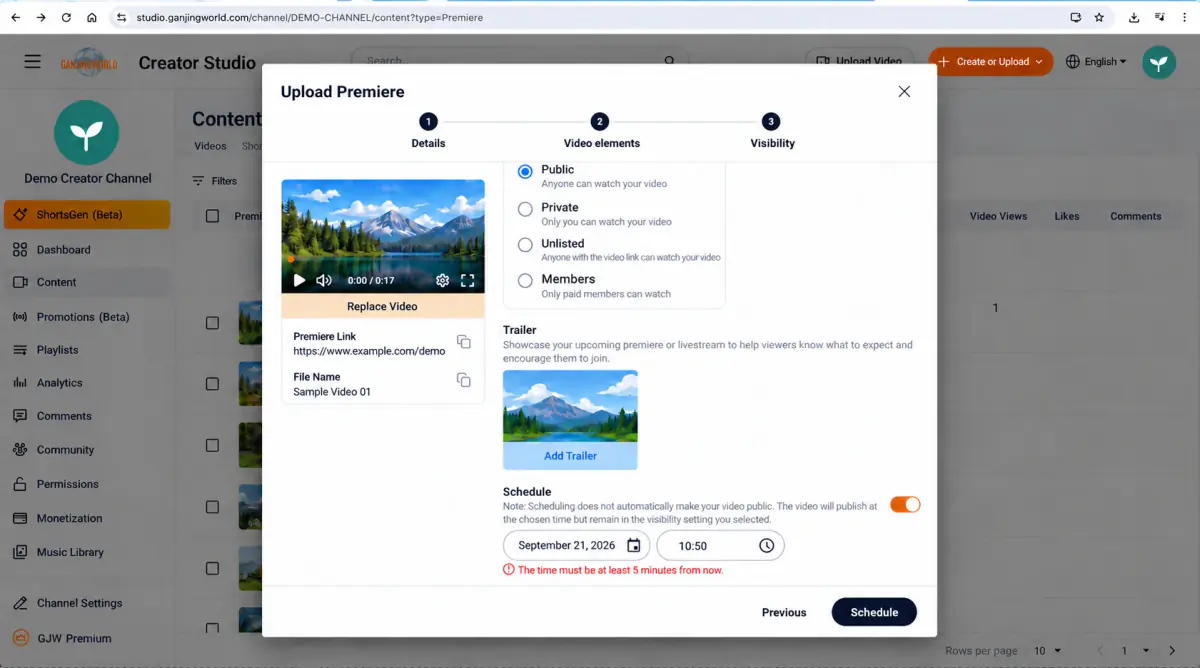
| Visibility option | When to use it |
|---|---|
| Public | Anyone can watch. Use this for a public premiere. |
| Private | You and channel members with the appropriate management permissions can view it. Useful for internal review. |
| Unlisted | Anyone with the link can watch. Use this to share by link without general public exposure. |
| Members only | The interface restricts this option to eligible subscribers/members. Choose it for a members-only premiere when appropriate for your account and content. |
Trailer#
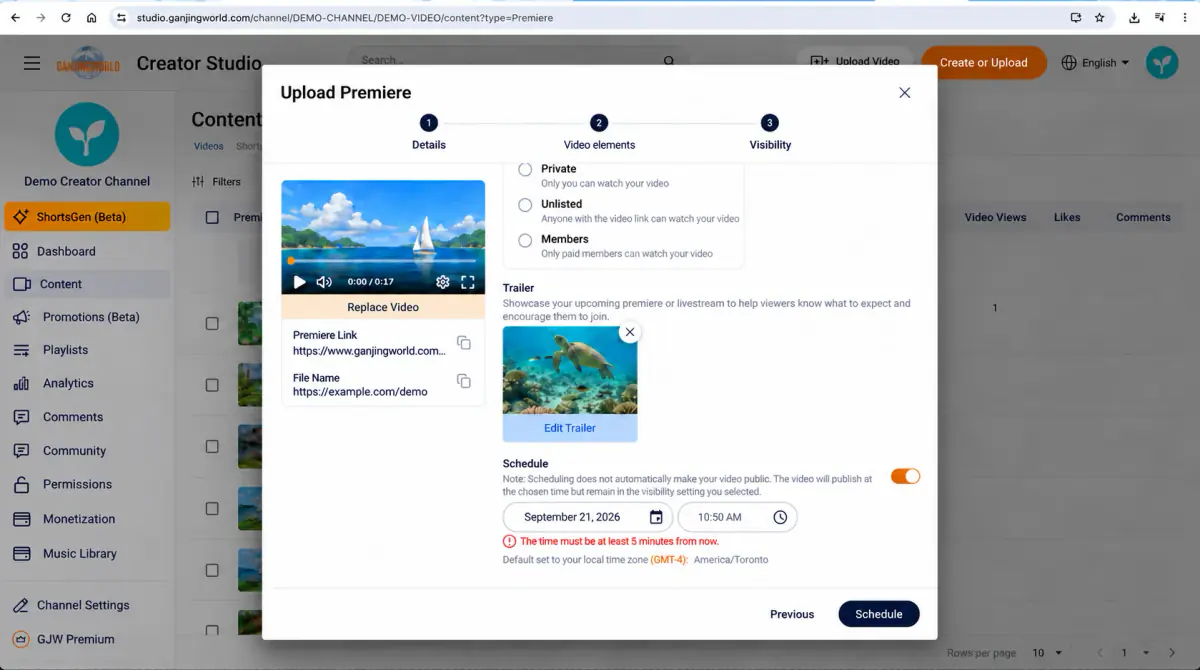
A trailer gives viewers a preview before the premiere starts. It is optional; use Add/Edit trailer when needed.
Schedule#
Turn on “Schedule,” then set the premiere's Date and time. The premiere uses the time zone shown on screen. Check the date, time, and time zone before submitting.
Important The interface requires a minimum interval before the premiere starts. If the selected time is too soon, a red warning appears. Choose a later time and submit again.
After checking all settings, click Schedule to finish creating the premiere.
Step 6: Check the Premieres list#
- 1
Confirm that the new premiere appears in the list.
- 2
Check that its title, visibility, and date/time match your settings.
- 3
Use the edit action in the list if anything needs changing.
One-minute workflow Content → Premieres → Create premiere → Choose video → Enter title, description, thumbnail, and category → Set audience and comments → Add subtitles if needed → Choose visibility → Add a trailer if needed → Set date and time → Schedule → Check the list.