
Live streaming: setup, broadcast, and replay
Account, channel, content, and payment details in screenshots are fictional examples. Enter your own information when using the product.
Create and schedule a livestream#
Location: Create or upload → Schedule livestream; or Content → Live → Add
First enter details and schedule the stream. After creating it, open its management page to go live.
Where to create a livestream#
Choose Schedule livestream from Create or upload, or select Add in Content → Live.
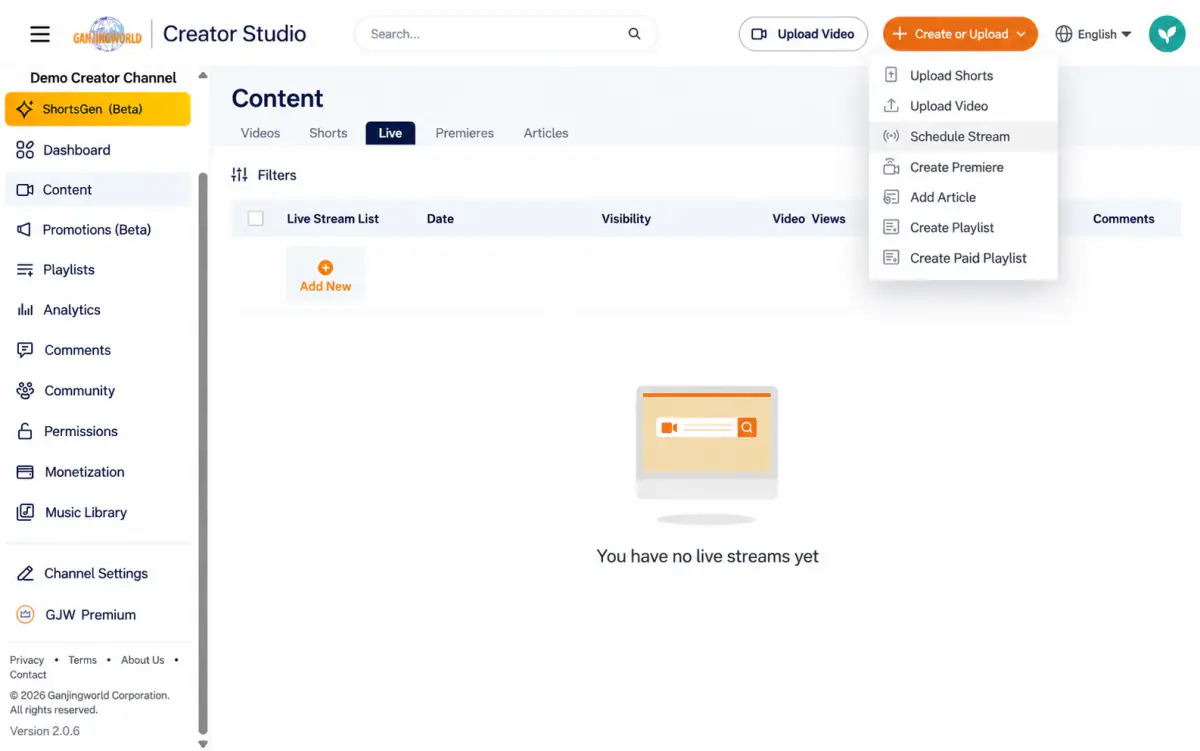
If the channel has at least one completed stream, Schedule using previous settings appears first. Reuse a previous stream’s settings or create a new one:
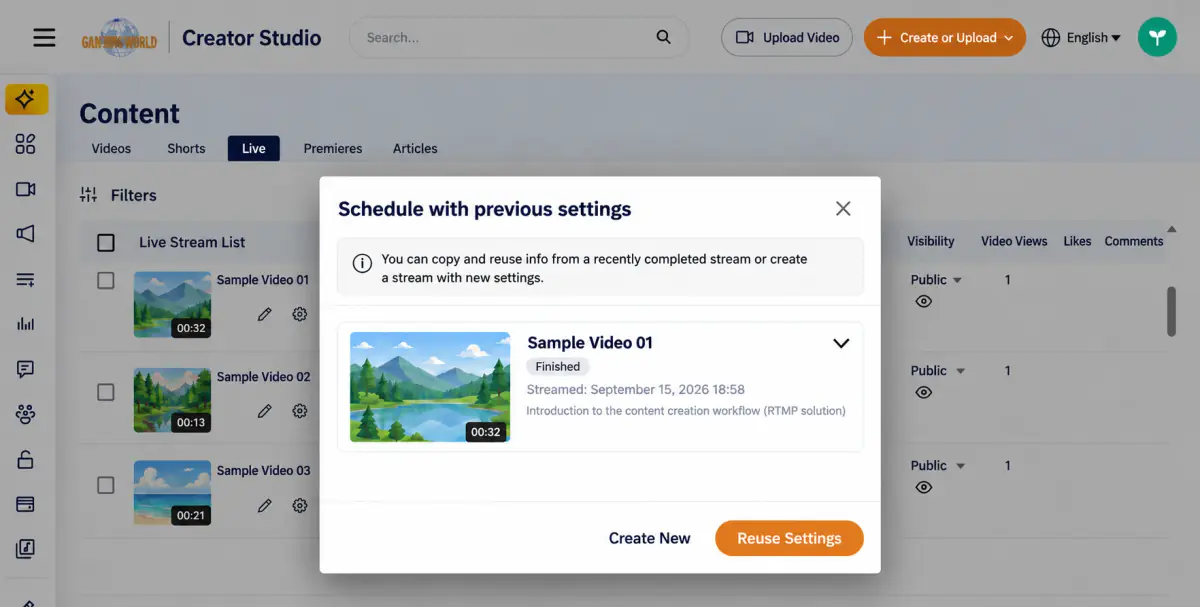
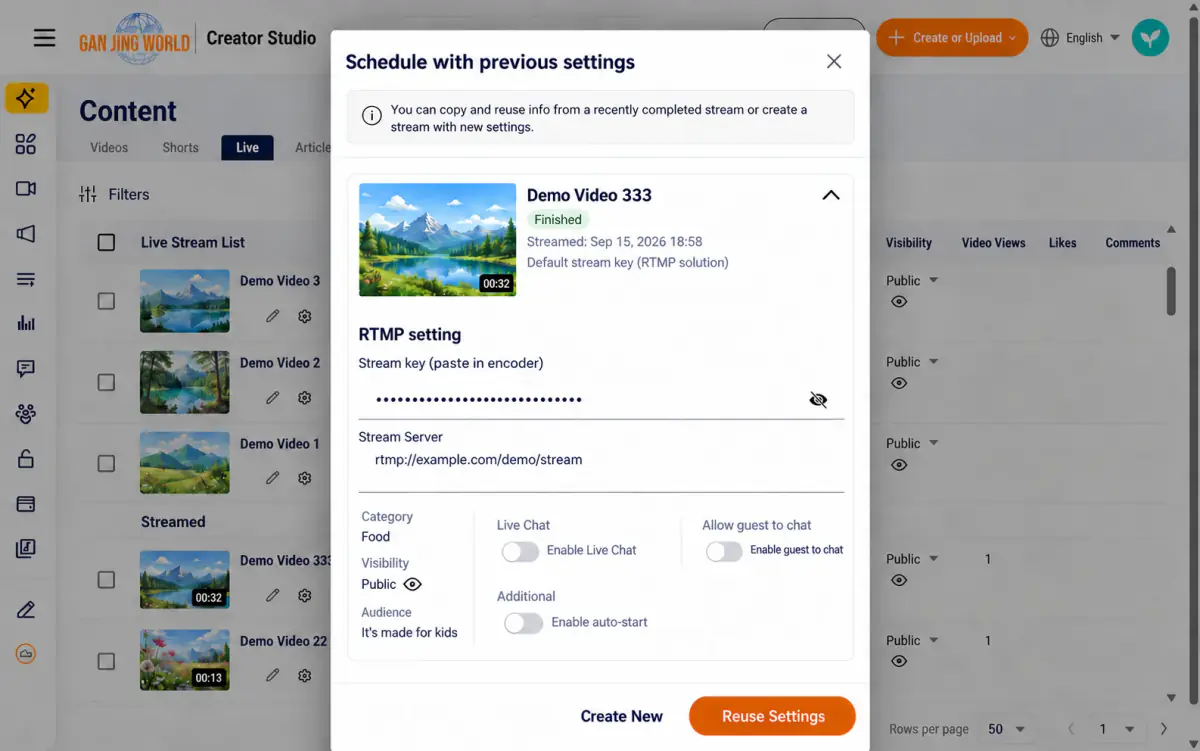
Reuse settings vs. Create new Reuse settings skips the form, reuses the previous title, category, visibility, and stream settings, schedules the nearest available time, and opens the new stream’s control page. Select Edit there to change details. Create new opens a blank Stream settings form, described below.
Enter basic information#
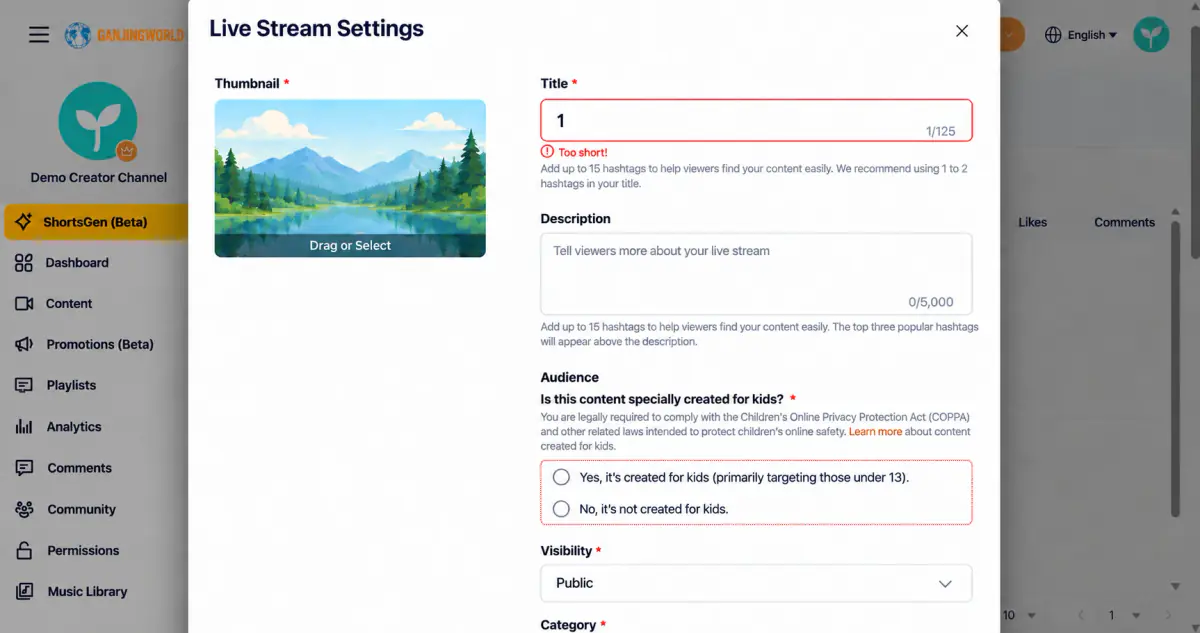
The Stream settings form includes these fields; those marked * are required:
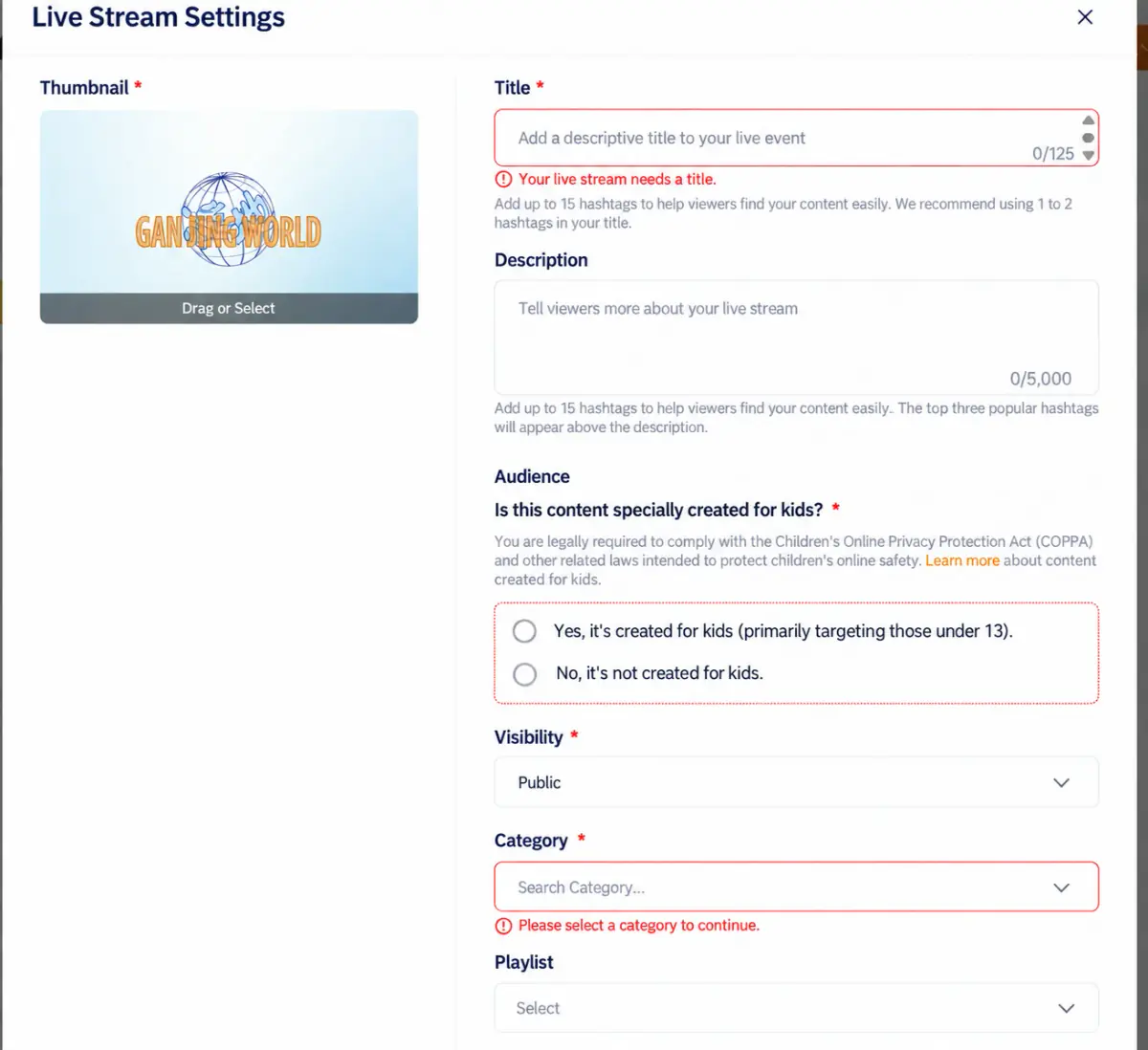
- Title: 2–125 characters. A one-character title triggers “Too short!”
- Description: up to 5,000 characters.
- Category: required; otherwise a prompt asks you to choose a category to continue.
After choosing Yes or No for Audience, Save as default for this channel appears. Check it to use this audience setting automatically for future streams.
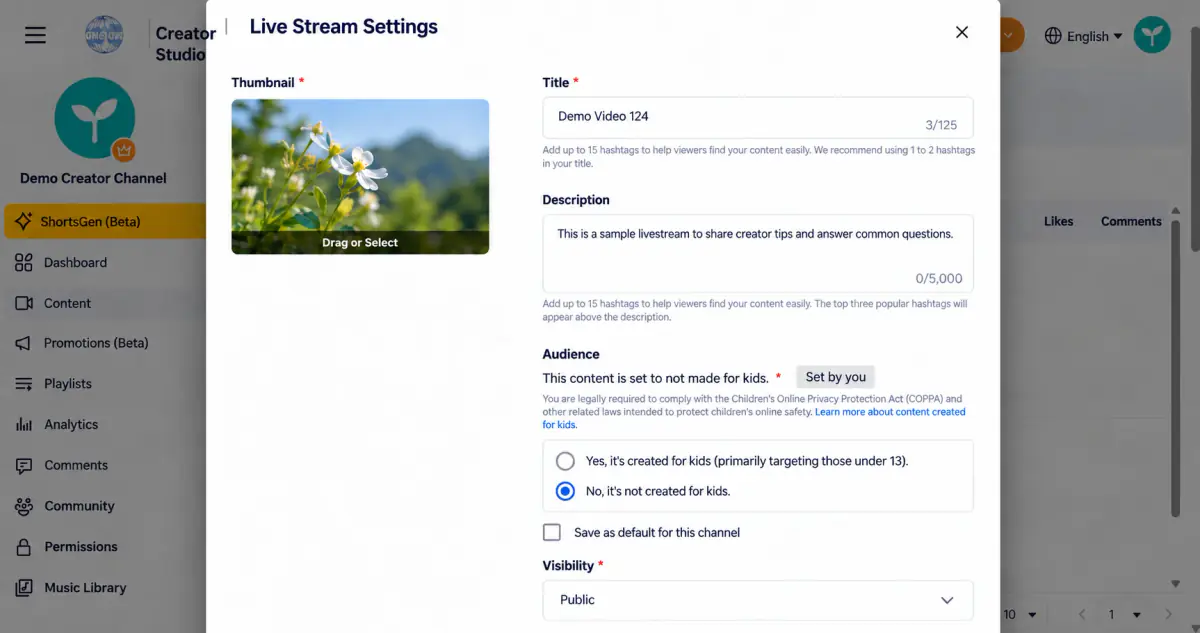
Related to Upload and manage videos The title and description limits match video uploads.
Visibility option#
Visibility choices depend on whether channel membership is enabled:
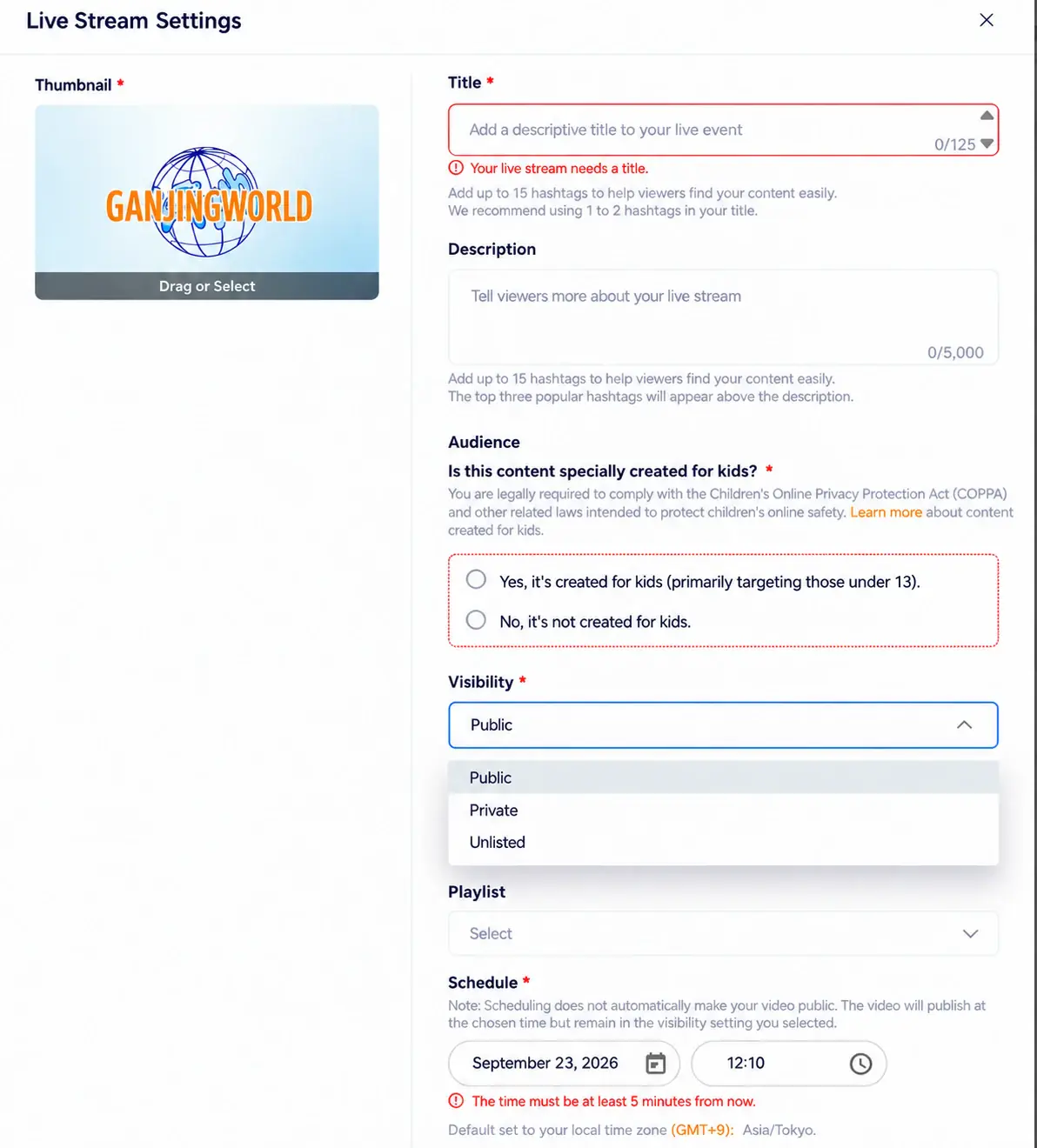
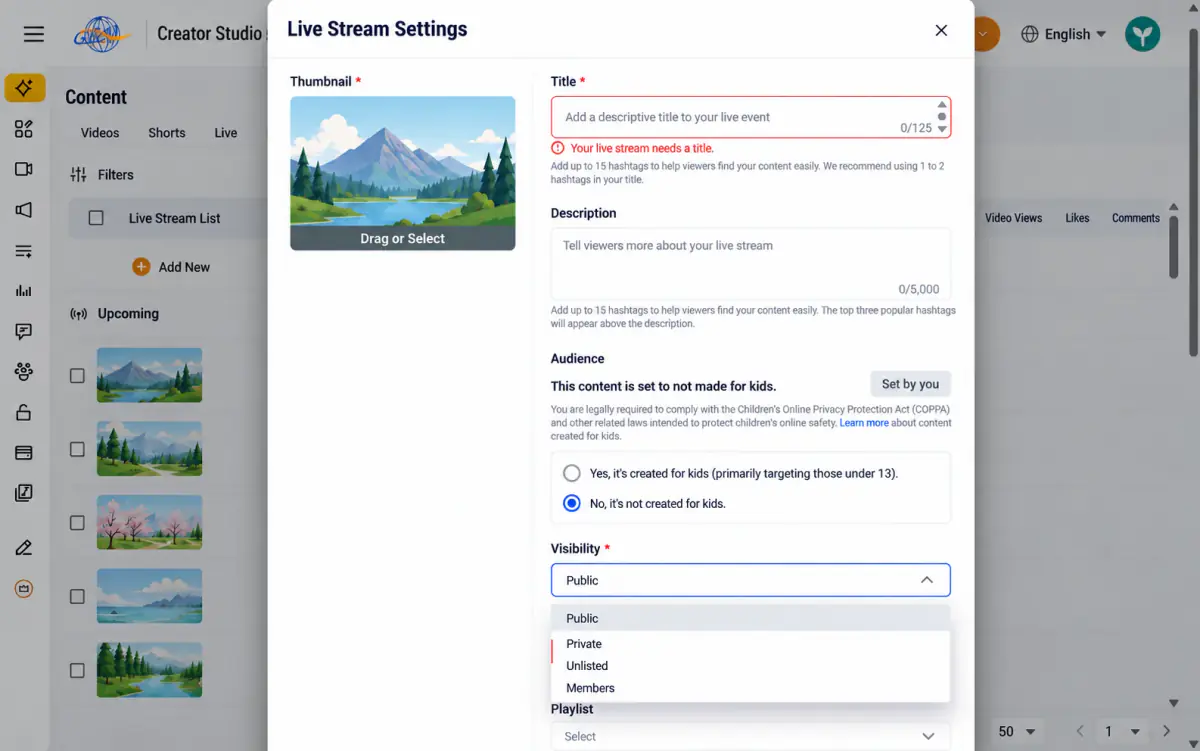
Note Draft and Scheduled are not livestream visibility options. Scheduling uses the separate Schedule field.
Scheduling and other settings#
Scroll down for scheduling and optional settings:
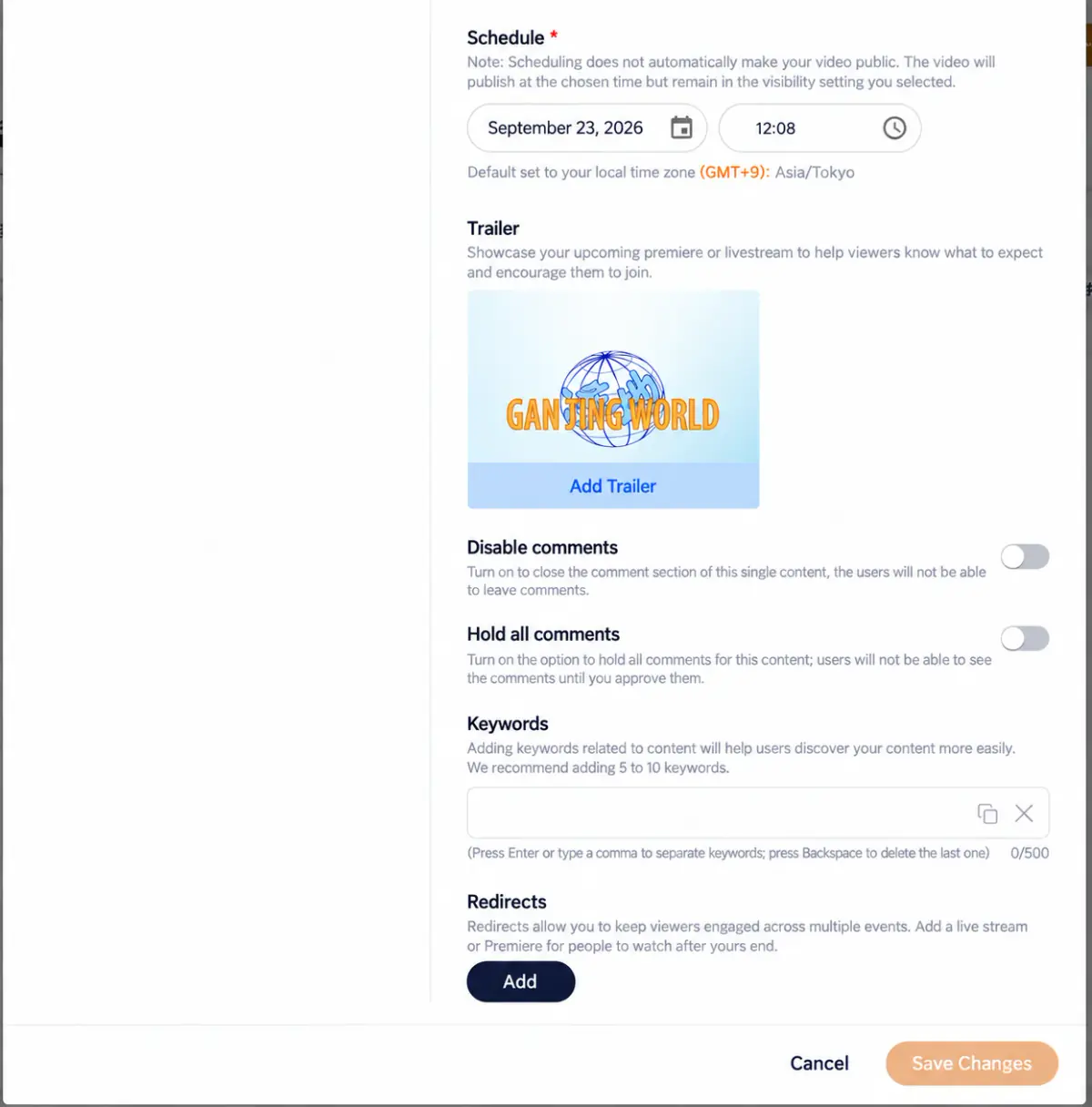
| Field | Description |
|---|---|
| Schedule * | Date and time use your local time zone and must be at least 5 minutes ahead; otherwise a warning appears. |
| Trailer | Upload a preview video to introduce the upcoming stream. |
| Disable comments | When enabled, viewers cannot comment. |
| Hold all comments | When enabled, comments are shown only after your approval. |
| Keywords | Help viewers find the stream; 5–10 keywords are suggested. |
| Live redirect | Send viewers to another livestream or premiere after this stream ends. |
Scheduled time is not the actual start time Creating a live stream starts with scheduling it. The scheduled time alone does not start the stream: select Start Live Stream on the management page, or enable auto-start beforehand. You can also start before the scheduled time. See “Go live”.
Going live and managing a broadcast#
Location: Content → Live → Stream’s gear icon
Use the stream’s own Stream settings page to configure the feed, go live, manage chat, and end the broadcast.
Two screens named Stream settings The creation form sets details such as title, visibility, and time. The control page manages the stream feed, broadcast, and chat. Select Edit on the control page to reopen the details form.
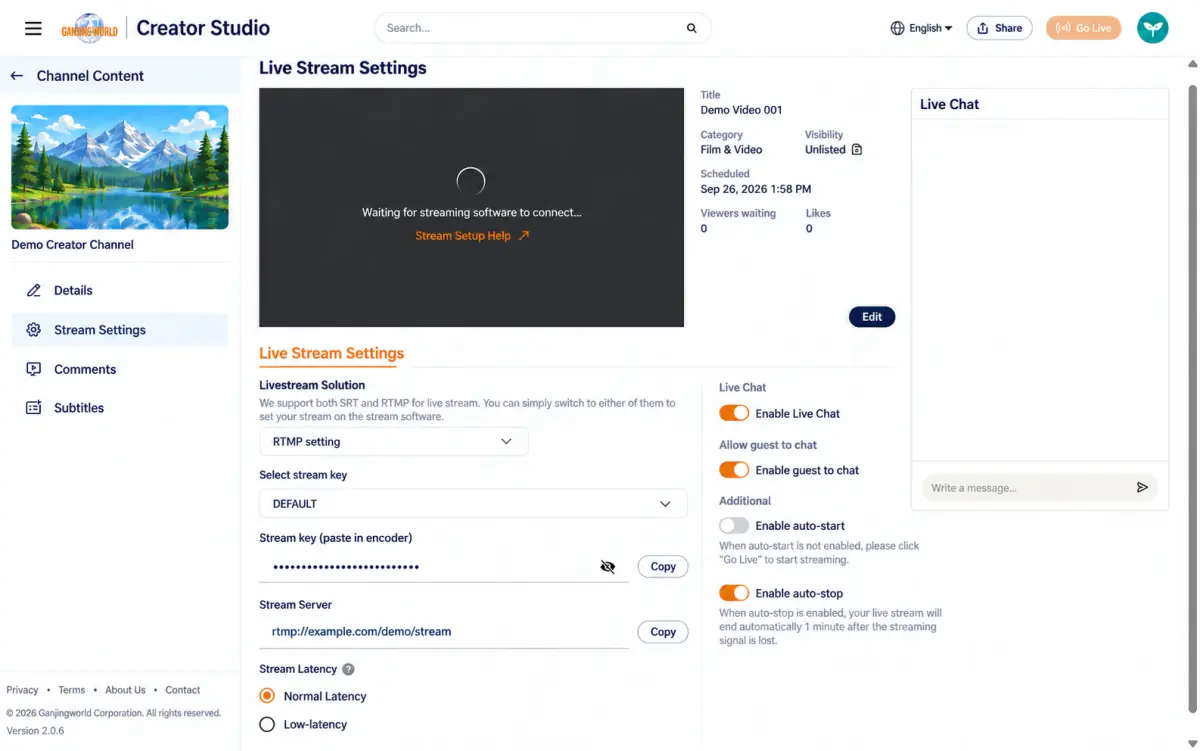
On the first visit after Create new, this notice appears:
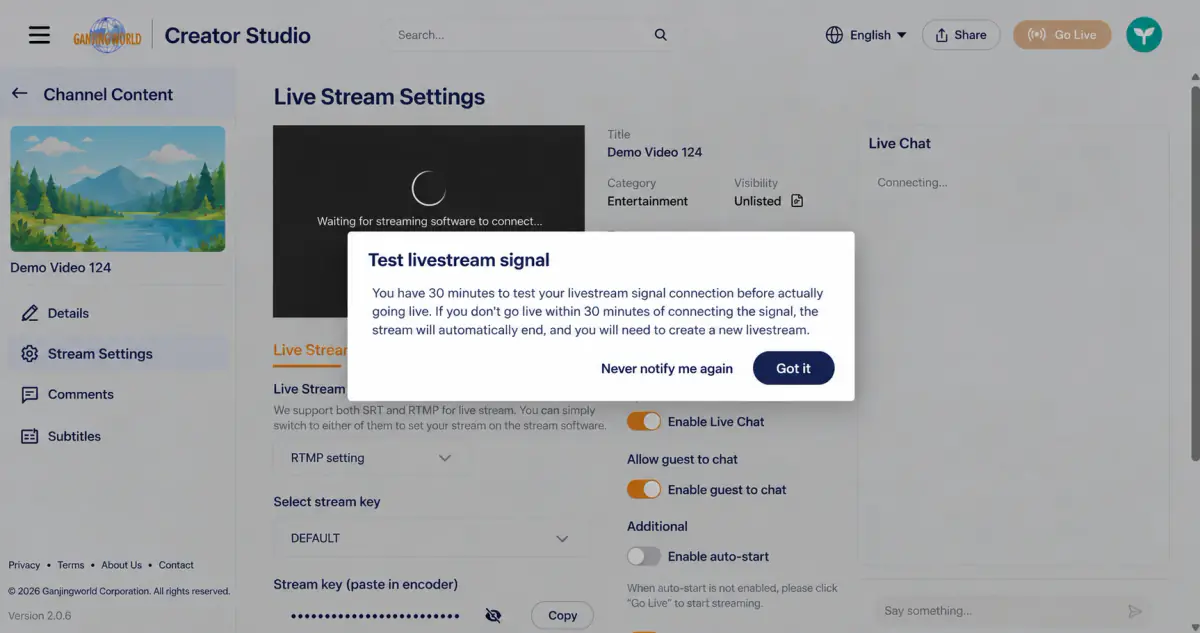
Note the 30-minute limit You can connect streaming software to test the feed. If you do not go live within 30 minutes of receiving a signal, the stream automatically ends and must be recreated.
Stream setup: RTMP or SRT#
Choose RTMP settings or SRT settings under Streaming solution, then copy the connection information into your streaming software, such as OBS.
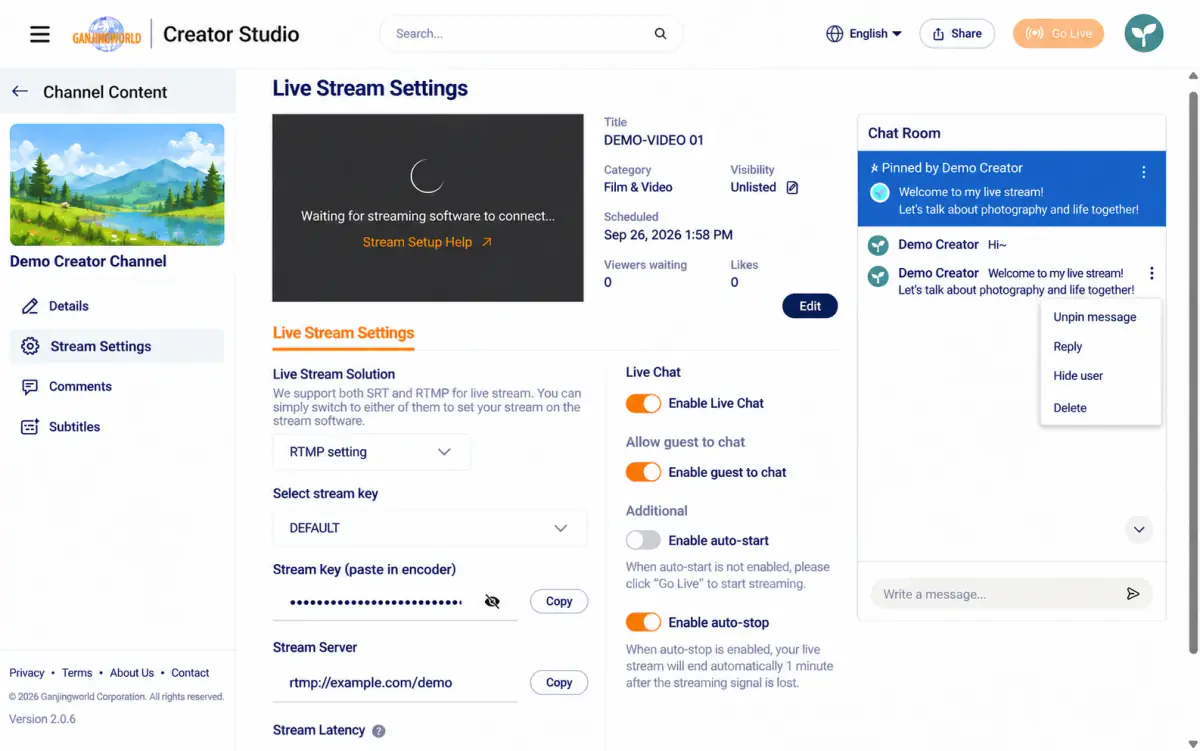
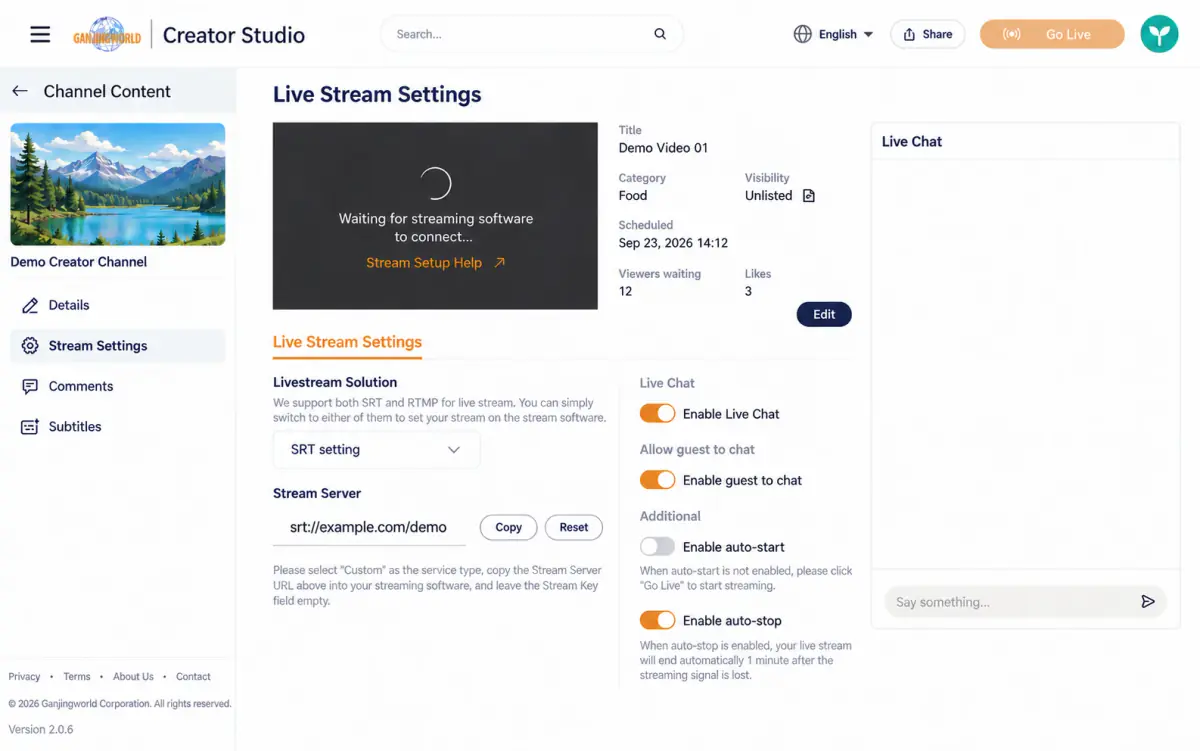
| Method | Information for your streaming software |
|---|---|
| RTMP | Stream URL and stream key; latency can also be selected. |
| SRT | Stream URL only. Choose Custom as the service type and leave the stream key blank as instructed. No latency option is shown. |
Chat and automatic controls#
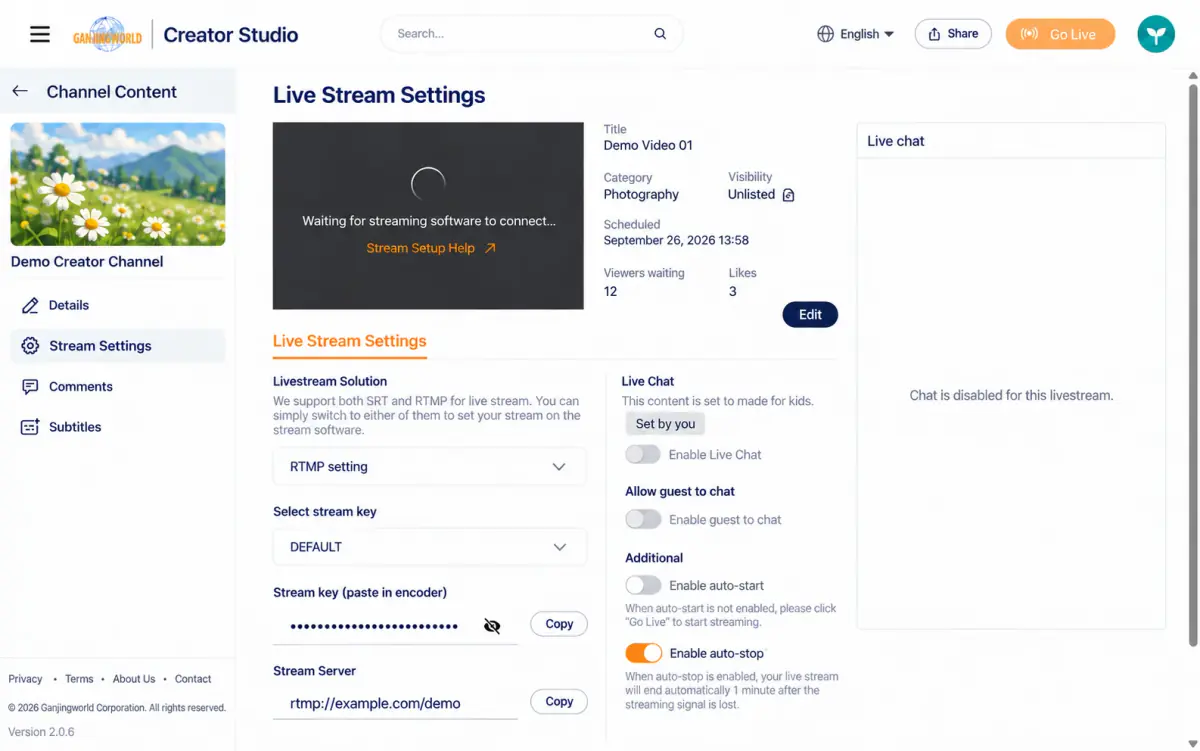
Chat and automatic start/end controls are on the right:
| Item | Description |
|---|---|
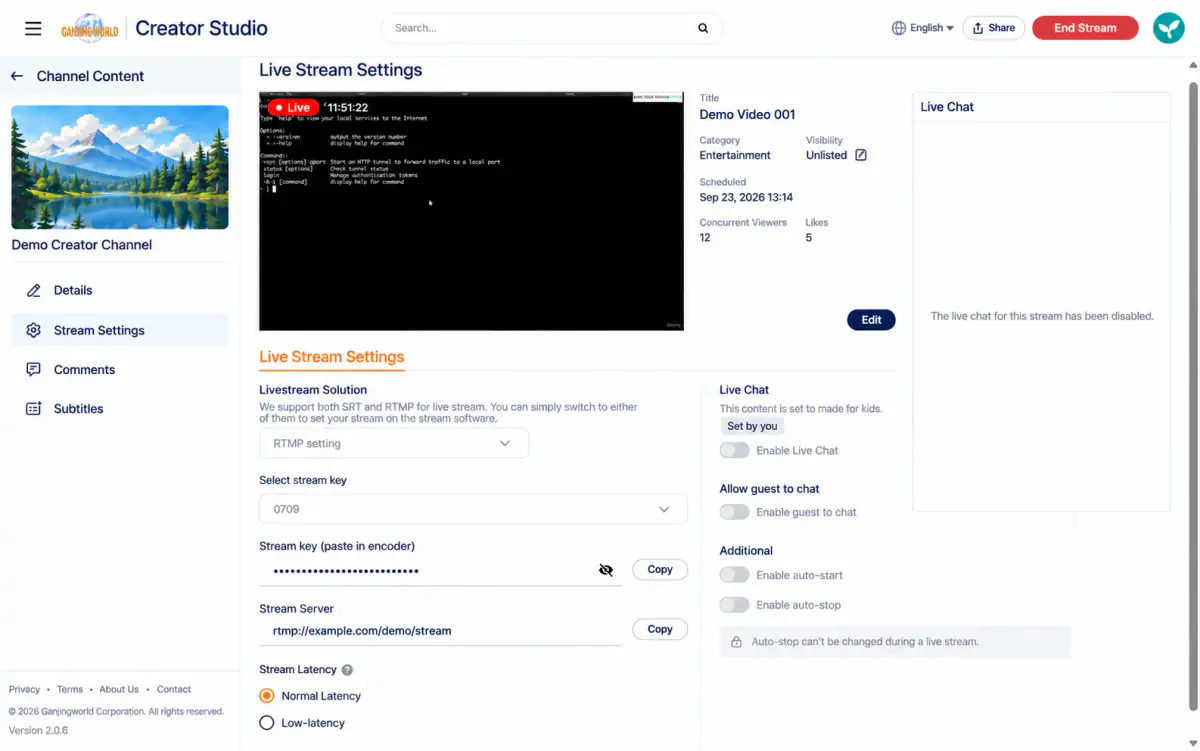
| Enable live chat | When off, the chat panel says chat is disabled for this stream. |
| Enable guest chat | Allow signed-out guests to send chat messages. |
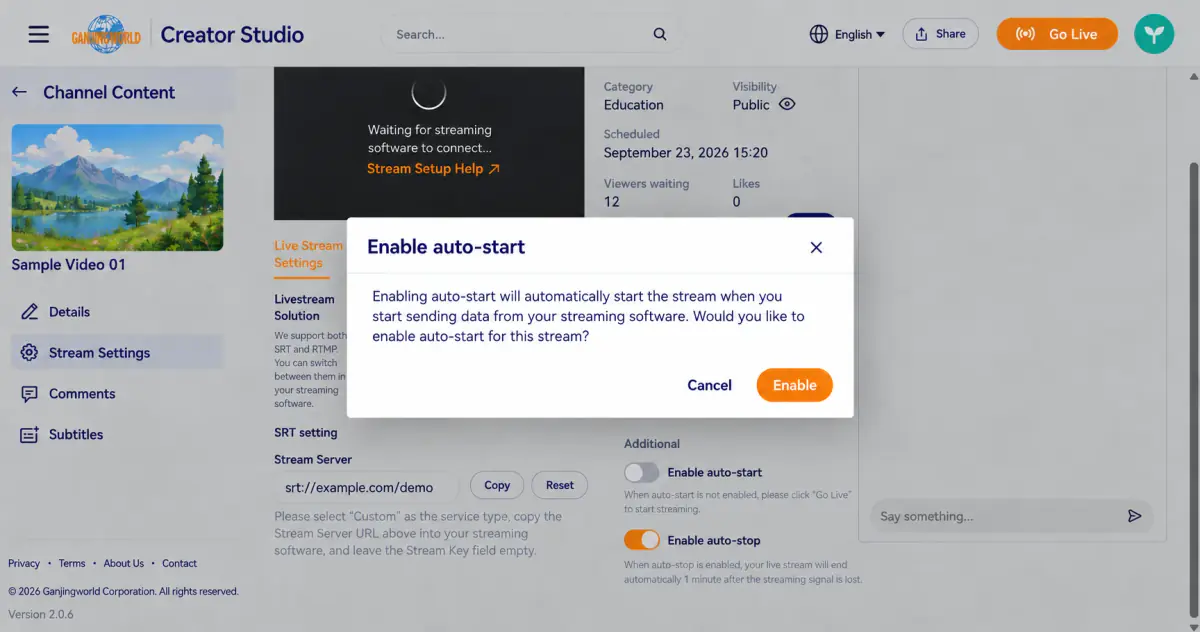
| Enable Auto-start | Off by default. When on, broadcasting starts as soon as the streaming software sends video (see Go live). This cannot be changed while live. |
| Enable Auto-end | When on, the stream ends automatically after the signal is interrupted for one minute. This cannot be changed while live. |
Chat is unavailable for streams made for children With the audience set to made for children, live-chat and guest-chat switches are greyed out and chat is disabled.
Go live#
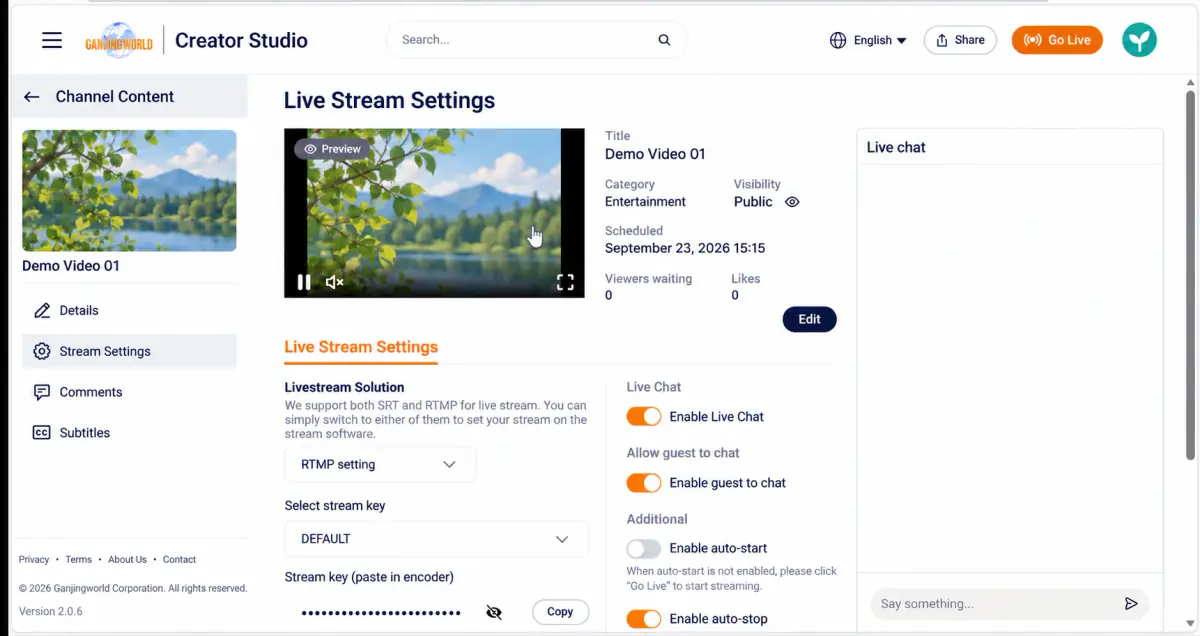
Start sending video from your streaming software. What happens next depends on Auto-start:
- Off (default): the feed appears as Preview; you are not live yet. Check the picture, then select Go live at the top.
- On: broadcasting begins automatically when video is received.
Once live, a red Live label and duration appear. The top button becomes End stream, and the scheduled time changes to the actual start time.
Manage live chat#
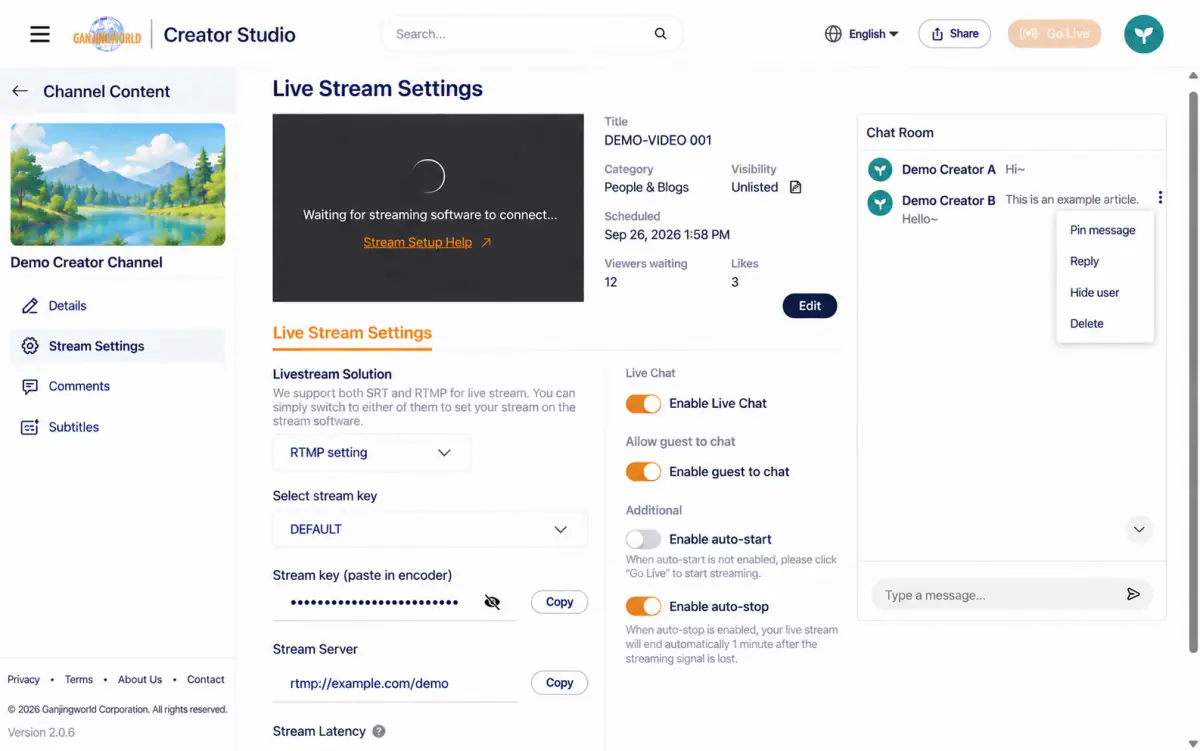
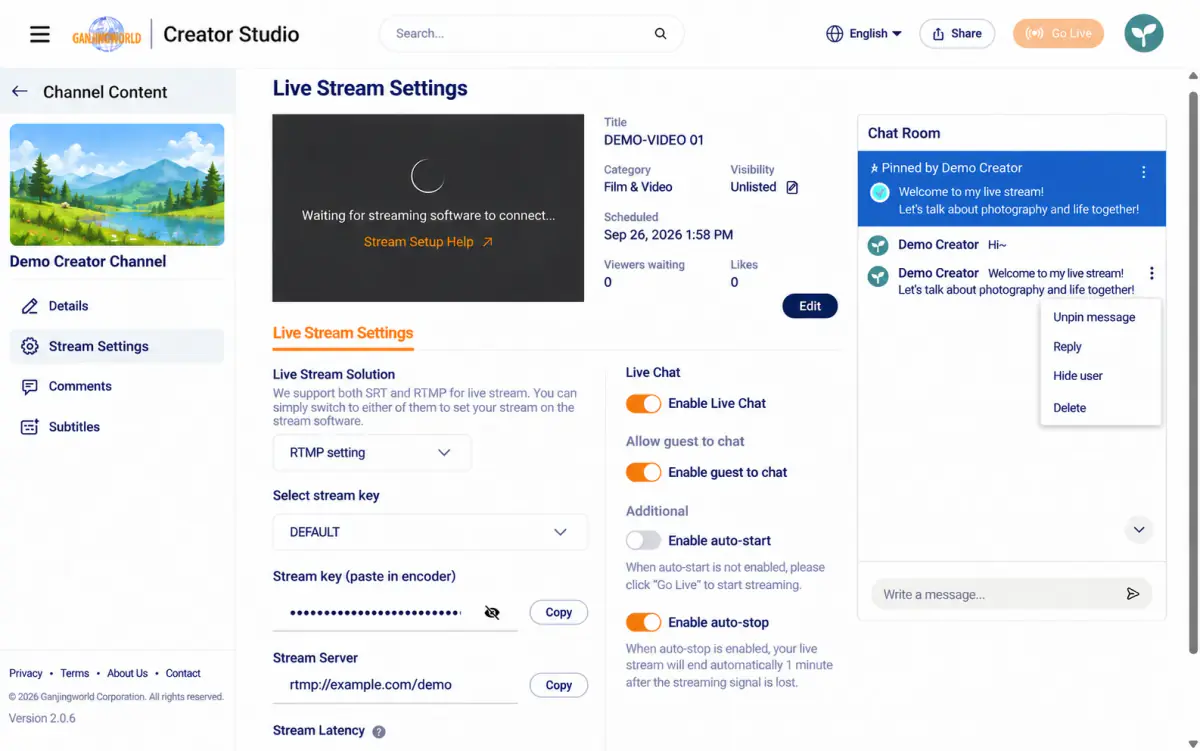
Open the three-dot menu beside a chat message to manage it:
End a livestream#
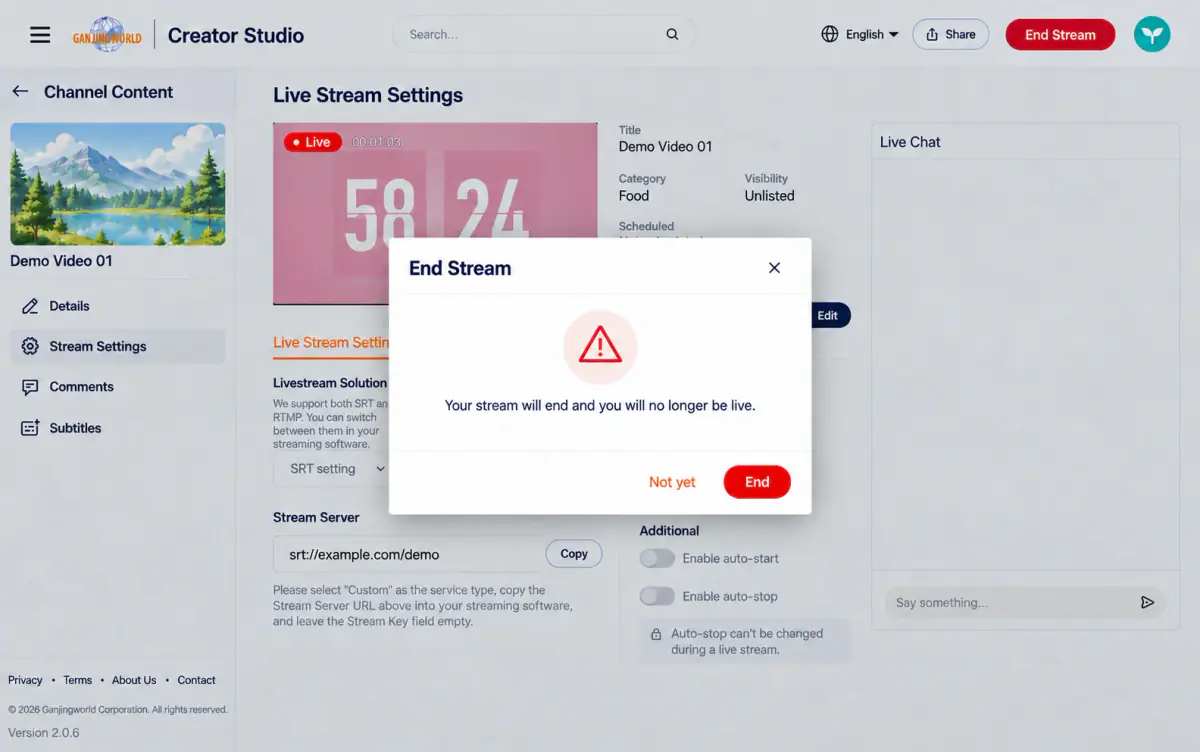
Select End stream at the top to open confirmation:
After the broadcast#
Location: Content → Live
After broadcasting, the stream becomes replay content managed much like an uploaded video.
Groups in the Live tab#
Live groups streams as Live now, Upcoming, and Completed, with corresponding date labels:
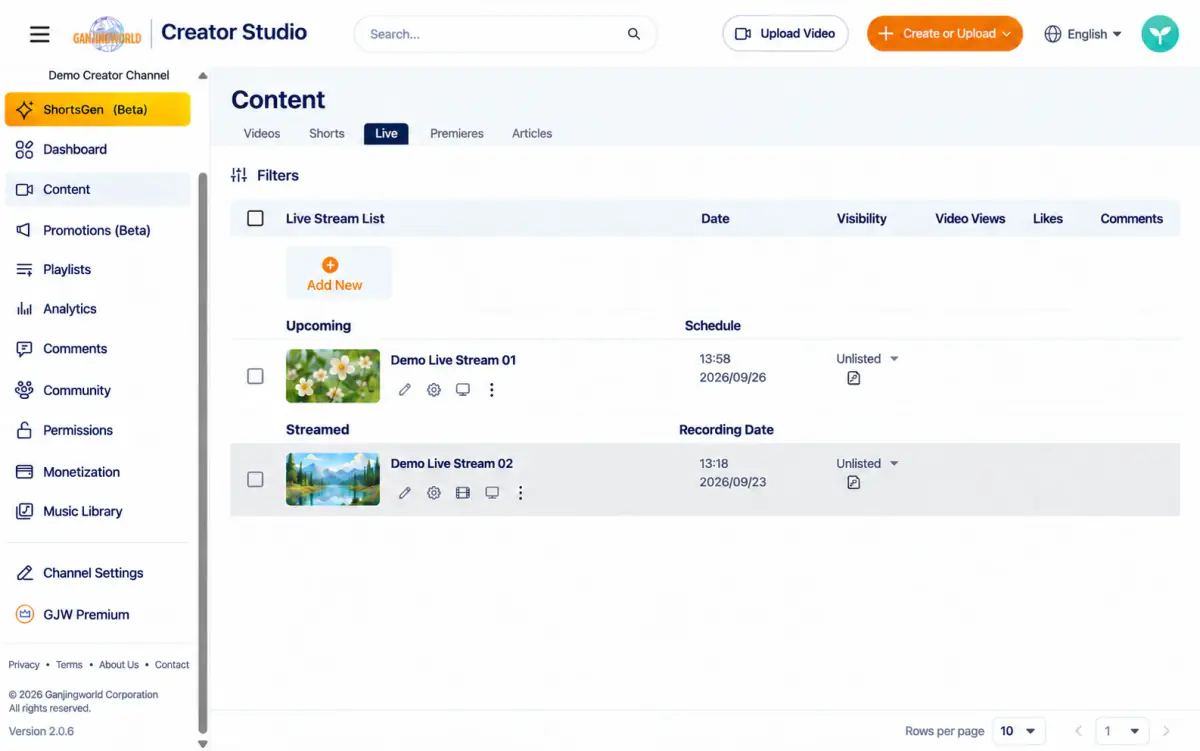
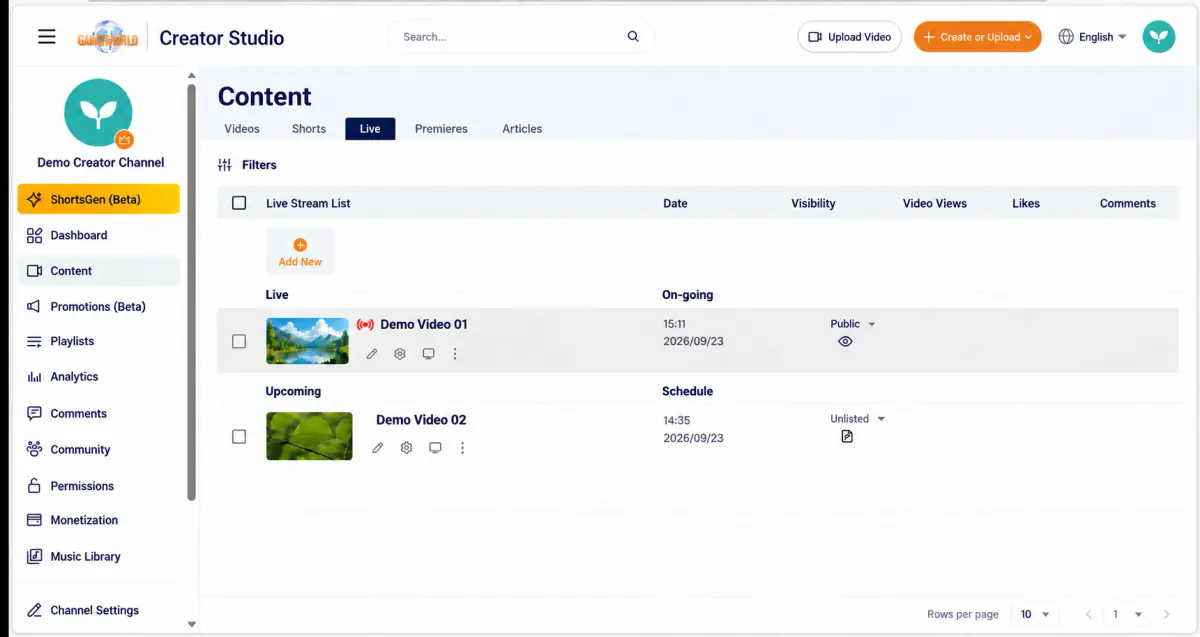
Related to Content list and everyday management Live uses Title → Date → Visibility, whereas other content tabs use Title → Visibility → Date.
Edit a livestream recording#
Completed streams have an editing icon that opens Trim and edit. Upcoming streams have no recording yet and do not show this icon.
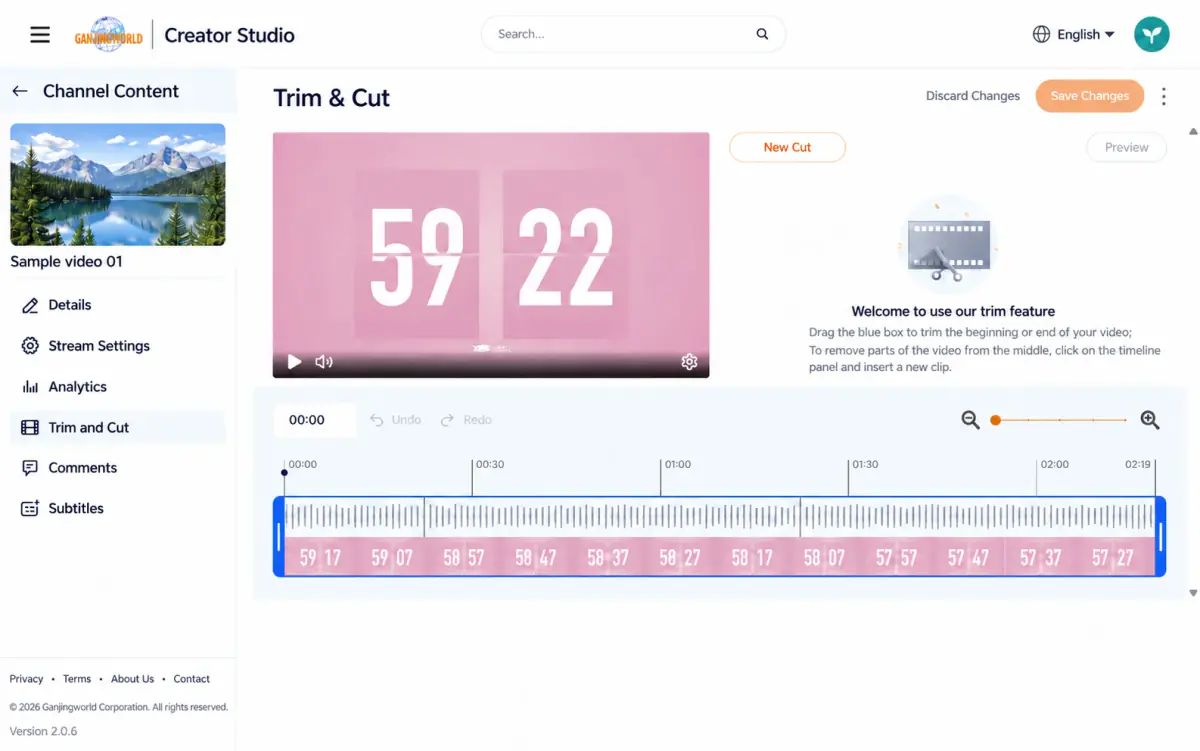
Related to Upload and manage videos This is the same Trim and edit tool used for uploaded videos. See Upload and manage videos for details.
Livestream details#
Select Details in the sidebar to edit the livestream’s information:
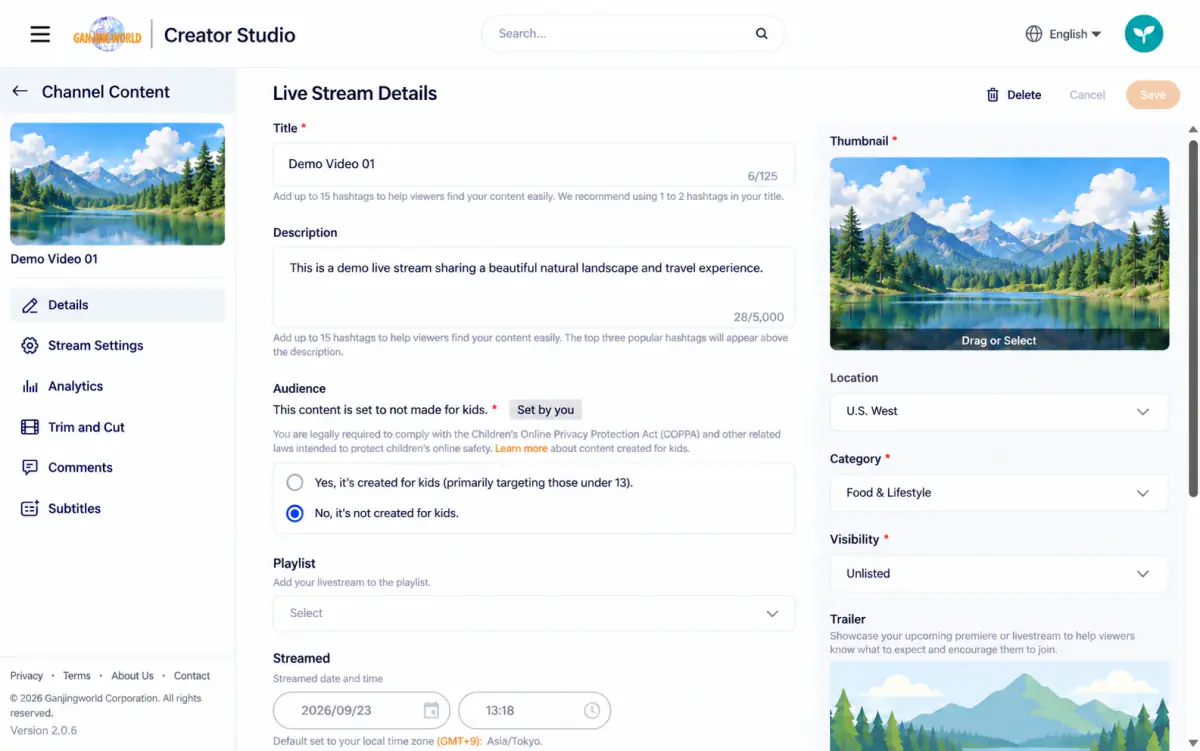
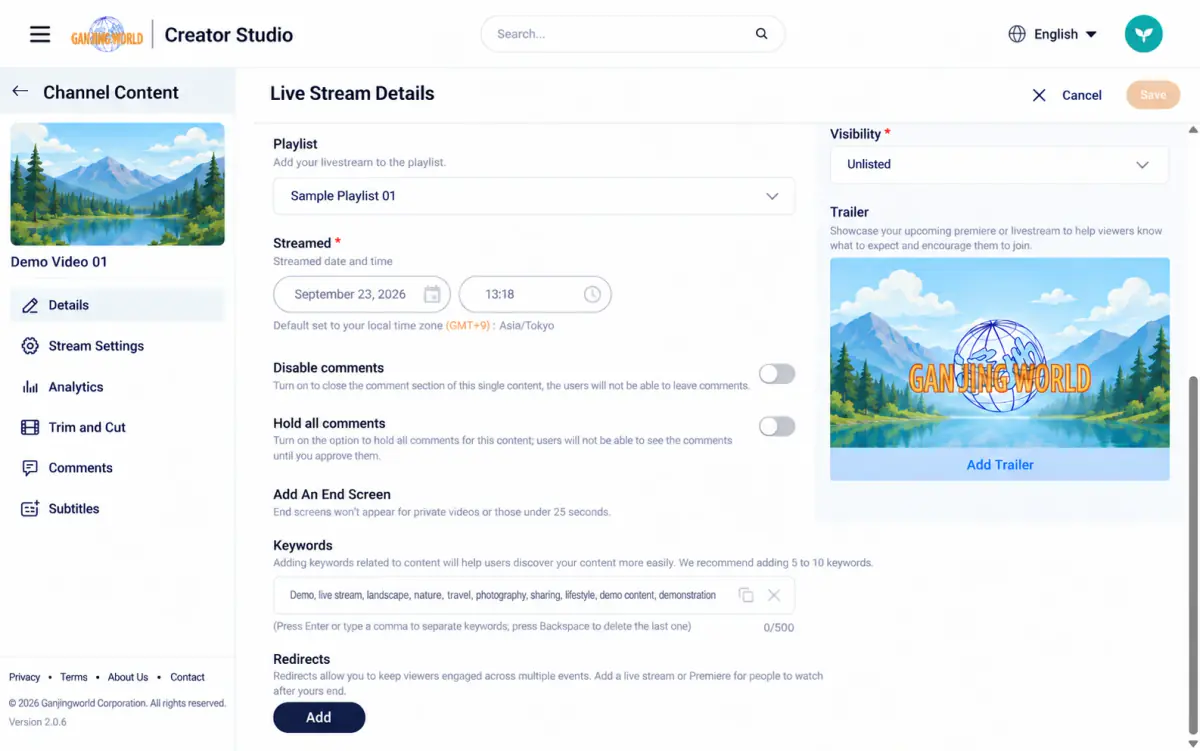
Related to Upload and manage videos End screens follow the same rule as uploaded videos: they do not appear on private videos or videos shorter than 25 seconds.