
Language versions and subtitles
Account, channel, content, and payment details in screenshots are fictional examples. Enter your own information when using the product.
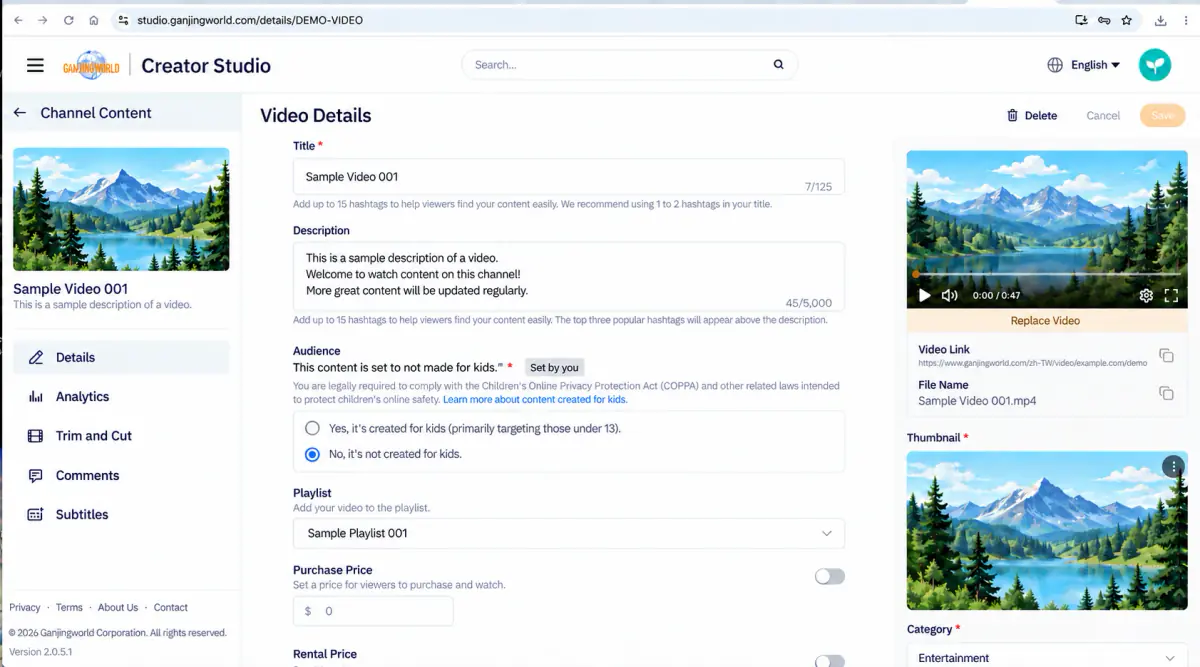
Subtitles is also where you manage language versions. Set a title, description, subtitle file, and thumbnail for each language to provide localized information to different audiences.
Which content types support subtitles? Creator Studio currently supports this for videos, livestreams, and premieres. The workflow is the same: find the content and open its subtitle settings.
Option 1: Content → Videos / Live / Premieres → Subtitles icon
Option 2: Content editor → Sidebar → Subtitles
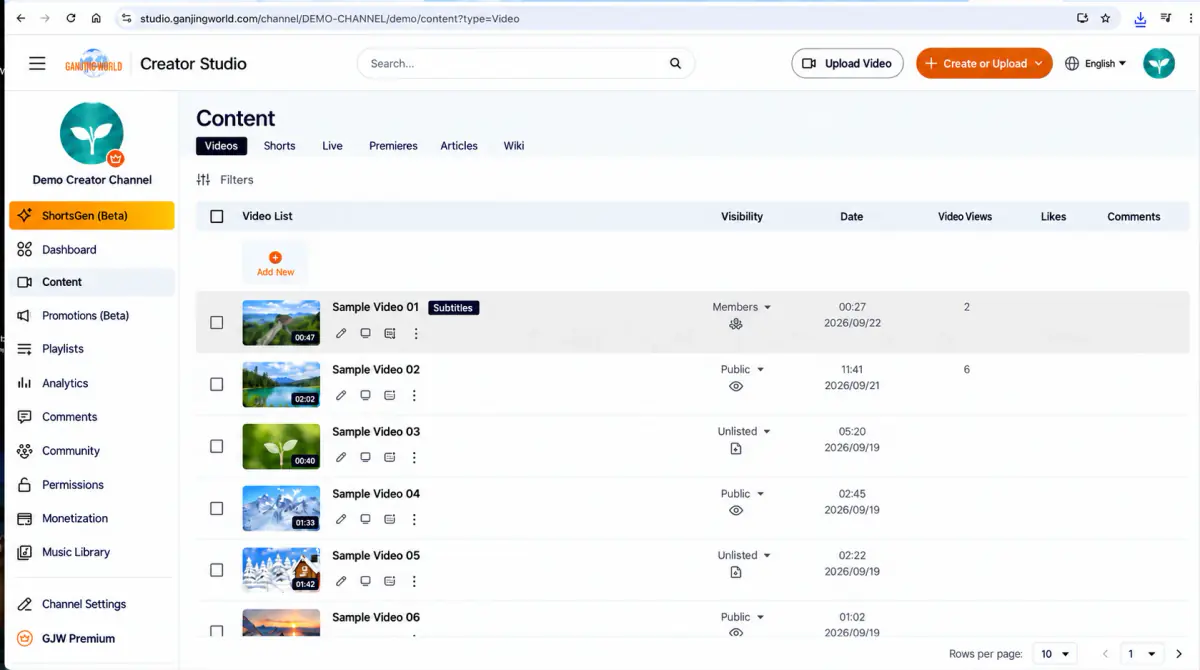
Open subtitles from the content list On the Content page, choose Videos, Live, or Premieres, find the item, then select its Subtitles icon to open language and subtitle management.
Screenshot focus: Find your content, then look at its quick-action icons near the title. The Subtitles icon is the first entry point. If you are already editing content, use Subtitles in the sidebar instead.
Step 1: Two ways to open Subtitles#
These steps apply to videos, livestreams, and premieres. Choose the entry point that matches your current location; both lead to the same type of subtitle/language settings.
Option 1: Use the Subtitles icon in the content list#
- 1
Select Content in the Studio sidebar.
- 2
At the top, select Videos, Live, or Premieres.
- 3
Find the content you want to configure.
- 4
In that row’s quick actions, find Subtitles icon and select it.
- 5
The item’s subtitle/language management page opens.
Key entry point: The Subtitles icon in a content row is the fastest route when you are already in the content list.
Option 2: Select Subtitles in the content editor’s sidebar#
- 1
Open the video, livestream, or premiere’s editing/details page.
- 2
Look at the feature menu on the left.
- 3
Select Subtitles.
- 4
You can then view existing languages or add another language version.
Key entry point: Use Subtitles in the content editor’s sidebar when you are already editing the title, description, or other settings.
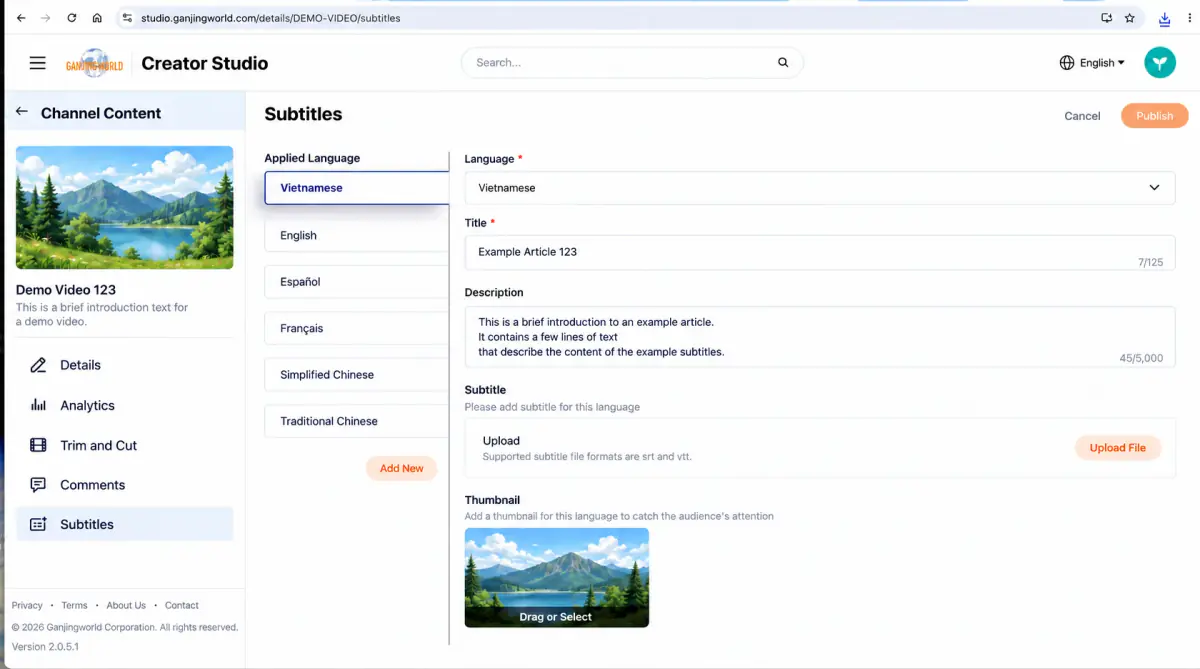
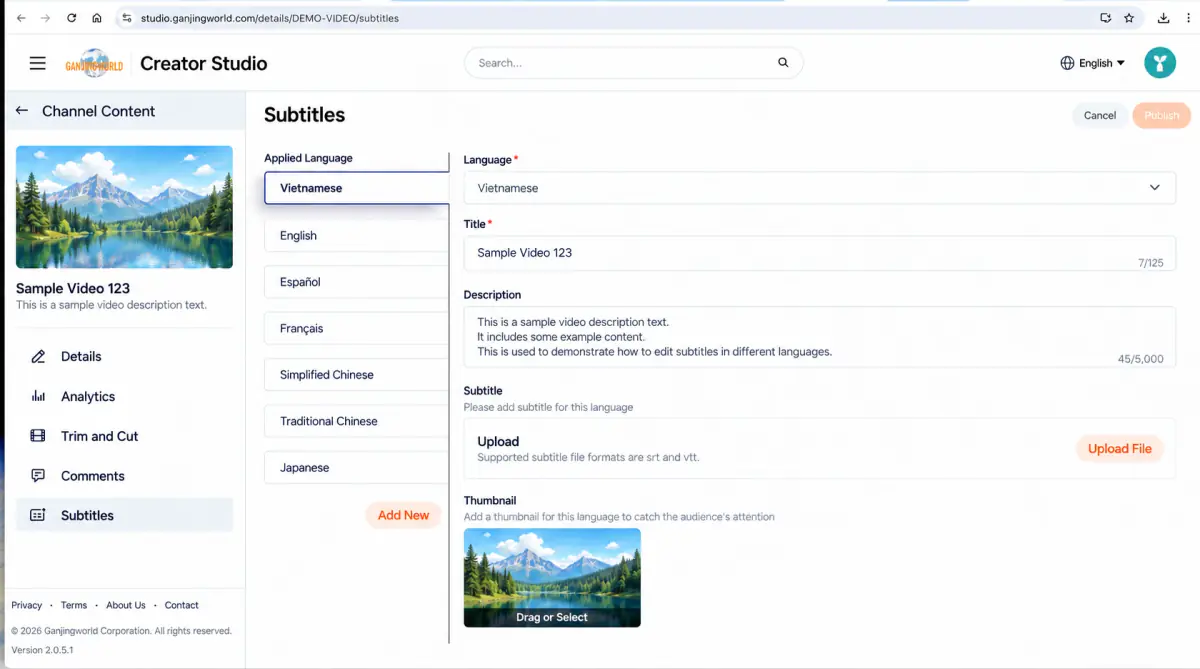
Understand the subtitle management page Applied languages lists existing language versions. Selecting one changes the language, title, description, subtitles, and thumbnail shown in the right-hand editor.
| Area | Purpose |
|---|---|
| Applied languages | Lists existing language versions. Select one to view its title, description, subtitles, and thumbnail. |
| Add | Create another language version for translations and subtitles. |
| Right-hand editor | Edit the selected language’s information. Its contents change when you select another language on the left. |
| Cancel / Publish | Cancel discards unsubmitted changes; Publish submits your completed settings. |
Step 2: Add a language version#
If your language is missing from Applied languages, add it. The recording adds Japanese.
- 1
Below the language list, select Add.
- 2
The Language * field on the right becomes ready for selection.
- 3
Open the language menu and find the language to add.
- 4
After selection, the new language appears on the left. Set its title, description, subtitles, and thumbnail.
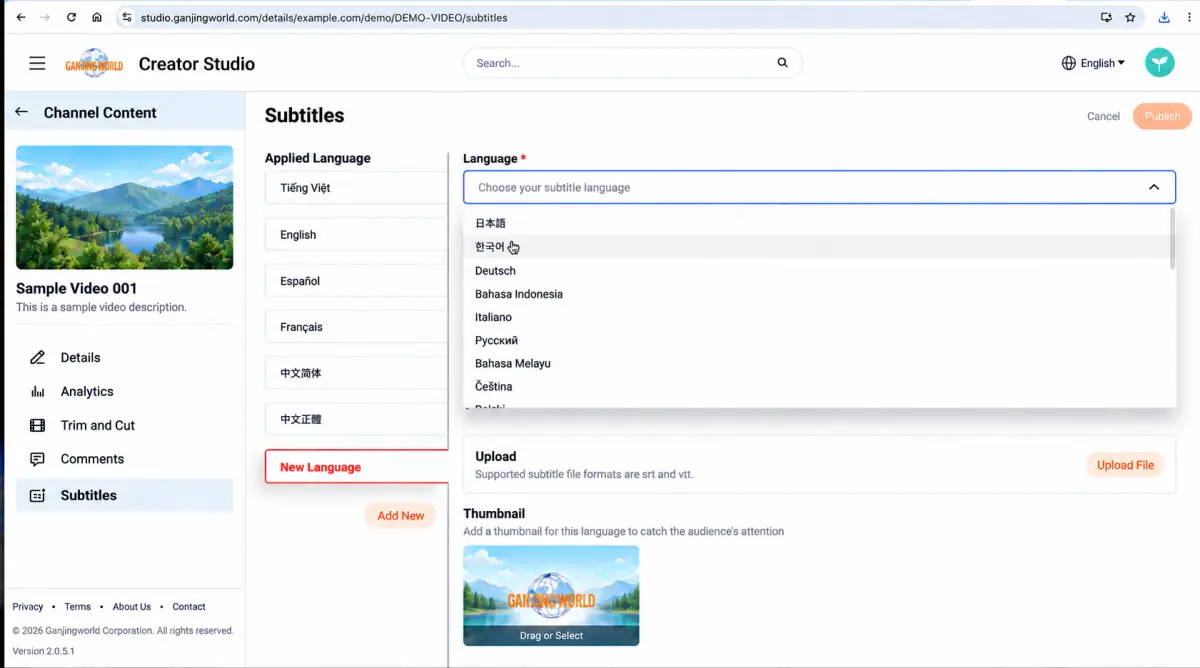
Which language should I choose? Choose the language you will actually provide. For Japanese titles and subtitles, choose Japanese. Match each version’s title, description, subtitles, and any localized thumbnail to that language.
Step 3: Set the language’s title and description#
After adding a language, complete its text information. This is a localized version for that audience, not simply a duplicate of the original metadata.
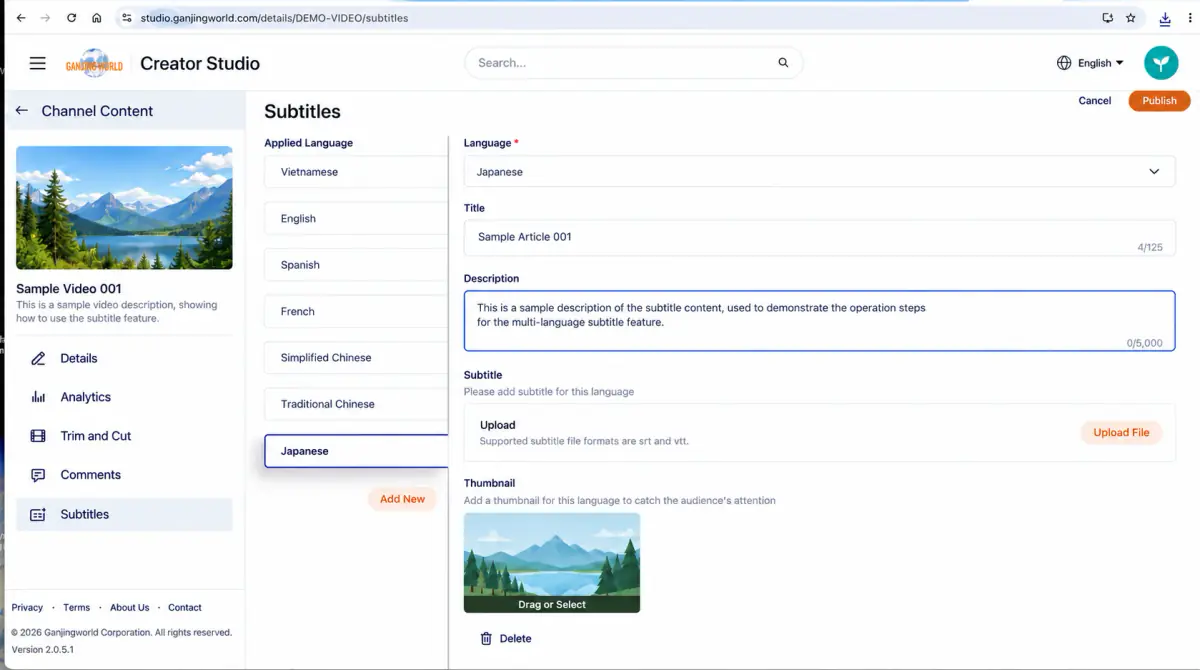
Complete required fields first This guide uses red text for required fields. When you see a red * or Required marker, complete that field before publishing. Required fields visible in the recording include Language * and Title *.
| Option | Purpose | Setup advice |
|---|---|---|
| Language *Required | Identifies the language version you are editing. | Confirm the chosen language before entering content to avoid placing a translation in the wrong version. |
| Title *Required | The title seen by viewers using this language. The recording shows a 125-character limit. | Use a natural, clear localized title. Keep the original wording only when appropriate for the content. |
| Description | The introduction for this language version. The recording shows a 5,000-character limit. | Translate the original description or adapt it to the audience. Put important information first. |
Avoid a common mistake Check the selected language on the left before editing. Otherwise, a title, description, subtitle file, or thumbnail could be assigned to the wrong version.
Step 4: Upload a subtitle file#
Upload subtitles for the selected language in the Subtitles area. The file must match that language version.
How to upload#
- 1
Select the target language on the left.
- 2
Confirm that the Language field matches the subtitle file’s language.
- 3
In Subtitles, select Upload file.
- 4
Choose the subtitle file from your computer.
- 5
Confirm it is the right file, finish the other settings, and publish.
Subtitle file formats The recorded interface lists support for .srt and .vtt formats. Use a format supported by the current interface.
What does a subtitle file do?#
Subtitle files usually contain both text and the timing for each caption. Even a correct translation can appear too early, too late, or out of sync if the timing is wrong.
| Before uploading | What to verify |
|---|---|
| Language | The subtitle text matches the selected language version. |
| Timing | Captions align with the video’s speech or visuals. |
| Text | No obvious typos, missing lines, duplicate captions, or unnecessary symbols. |
| File | Use a supported subtitle format and upload the correct version. |
Step 5: Set thumbnails for different languages#
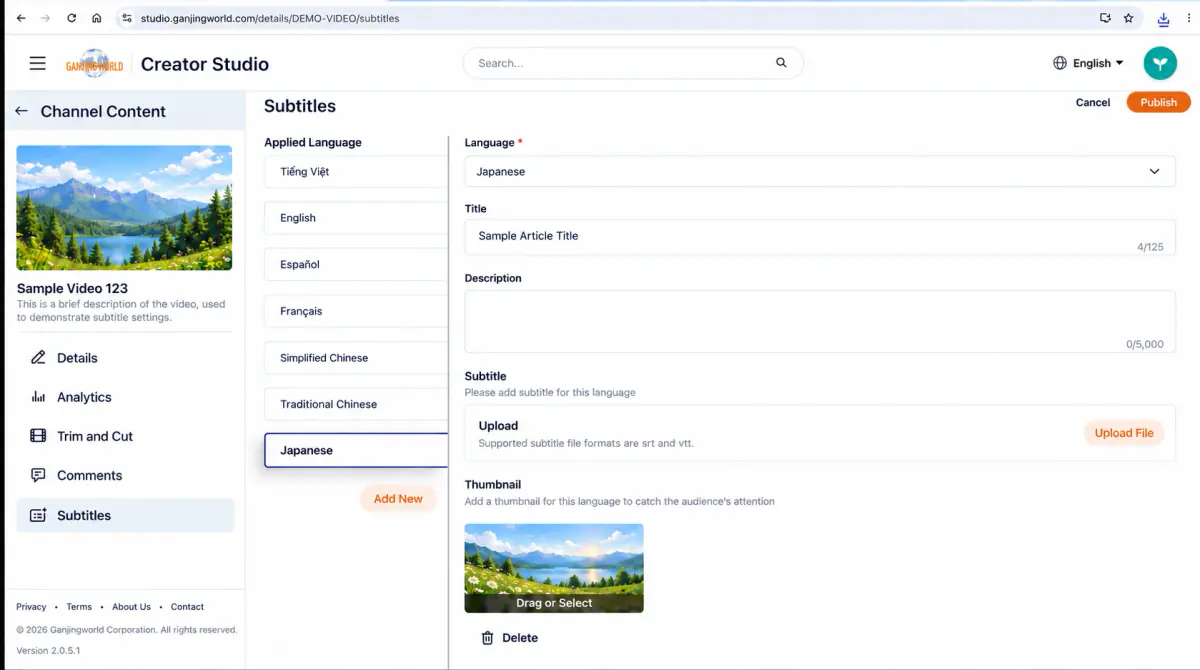
Language versions can have their own thumbnails. This is particularly useful when thumbnails contain text, letting viewers see wording in their own language.
How to replace the thumbnail#
- 1
Select the language version to configure.
- 2
Select a file in the Thumbnail area or drag one in as instructed.
- 3
Confirm that the preview shows the intended image.
- 4
To remove the current language-specific thumbnail, use Delete below it.
When do I need localized thumbnails? If a thumbnail contains a title, tagline, or other text, prepare a version for each language. If it contains only a photo or illustration, decide whether a separate image is useful.
Step 6: Publish and confirm changes#
After setting the language, title, description, subtitles, and thumbnail, submit your changes to apply them.
- 1
Confirm the correct language is selected on the left.
- 2
Check that the title, description, subtitle file, and thumbnail all belong to the same language version.
- 3
At the top right, select Publish.
- 4
Wait for saving to finish and confirm that no changes remain unsubmitted.
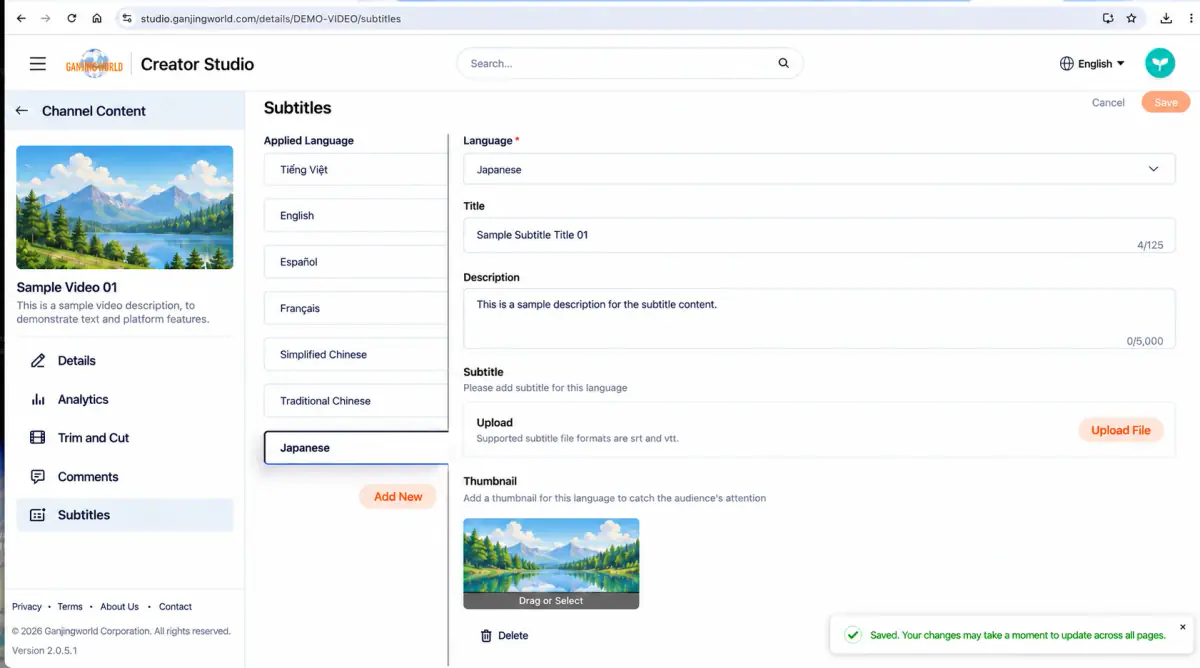
Do not assume an immediate display delay means failure The success message says changes may take a moment to update across all pages. If the viewer-facing page has not updated, wait briefly and refresh.
Step 7: Manage existing language versions#
A video can have multiple language versions. To edit one later, select it under Applied languages; you do not need to create it again.
| Your goal | How to do it |
|---|---|
| View a language version | Select its name under Applied languages. |
| Edit a translated title or description | Select the target language, edit the title or description, then publish. |
| Update subtitles | Select the target language, choose the correct subtitle file, then publish. |
| Update a localized thumbnail | Select the target language, choose a new thumbnail image, then publish. |
| Add another language | Select Add, choose the new language, and complete its information. |
Use case: How should I plan language versions?#
For audiences across countries or languages, treat each version as a localized set of information for the same video.
| Content | Traditional Chinese version | English version | Japanese version |
|---|---|---|---|
| Title | Traditional Chinese title | English title | Japanese title |
| Description | Chinese description | English description | Japanese description |
| Subtitles | Traditional Chinese subtitle file | English subtitle file | Japanese subtitle file |
| Thumbnail | Thumbnail with Chinese text | Thumbnail with English text | Thumbnail with Japanese text |
Suggested workflow Prepare translations → Prepare subtitle files → Prepare localized thumbnails → Add language → Enter title and description → Upload subtitles → Set thumbnail → Publish → Check the viewer-facing page.
Quick reference: Key entry points and buttons in this chapter#
Entry points and submission buttons are easy to miss the first time. Remember these locations.
| Entry point / button | Location | Purpose |
|---|---|---|
| Subtitles icon | Quick actions for each item in the content list | Open subtitle management for that video, livestream, or premiere. |
| Subtitles in the sidebar | Left side of the content editor/details page | Open subtitle settings for the content being edited. |
| Add | Applied languages on the left of Subtitles | Add a language version. |
| Upload file | Subtitles area for the current language | Upload an .srt or .vtt subtitle file. |
| Publish | Top right of the page | Submit changes for the current language version. |
If you cannot find the entry point This tutorial shows videos, livestreams, and premieres. The content-list reference also records a subtitle icon for shorts; check whether your actual row provides it. In the editor, look for Subtitles in the left menu.
FAQ: Common situations#
Q1: Why does Subtitles also include titles, descriptions, and thumbnails?#
The page manages language versions as well as subtitles. Each language can have its own title, description, subtitles, and thumbnail.
Q2: Must I upload subtitles after adding a language?#
The recording marks Language as required and offers a separate Upload file action for subtitles. Whether subtitles are needed depends on your content and publication requirements; the guide does not assume restrictions that the recording does not show.
Q3: Why are changes not visible everywhere immediately after publishing?#
The success message says updates may take a moment to appear across all pages. Wait, refresh, and check the viewer-facing page again.
Q4: How do I avoid editing the wrong language version?#
Before editing, check the selected Applied language and the Language field. Complete and publish one version before moving to the next.
One-minute workflow Content → Find video → Subtitles → Add → Choose language → Enter title/description → Upload .srt or .vtt → Set a localized thumbnail if needed → Publish → Wait for updates → Review.