
Playlists
Account, channel, content, and payment details in screenshots are fictional examples. Enter your own information when using the product.
Group related content into playlists so viewers can watch it in your chosen order.
- 1
Choose related videos your intended audience can access.
- 2
Create a playlist with a name, description, and visibility.
- 3
Add content and arrange it in the intended learning or viewing order.
- 4
Save and open the playlist to check its contents and order.
Create playlists#
Location: Sidebar → Playlists
Playlists group related videos, livestreams, and premieres so viewers can watch a series. If you have not created one, the empty state appears:
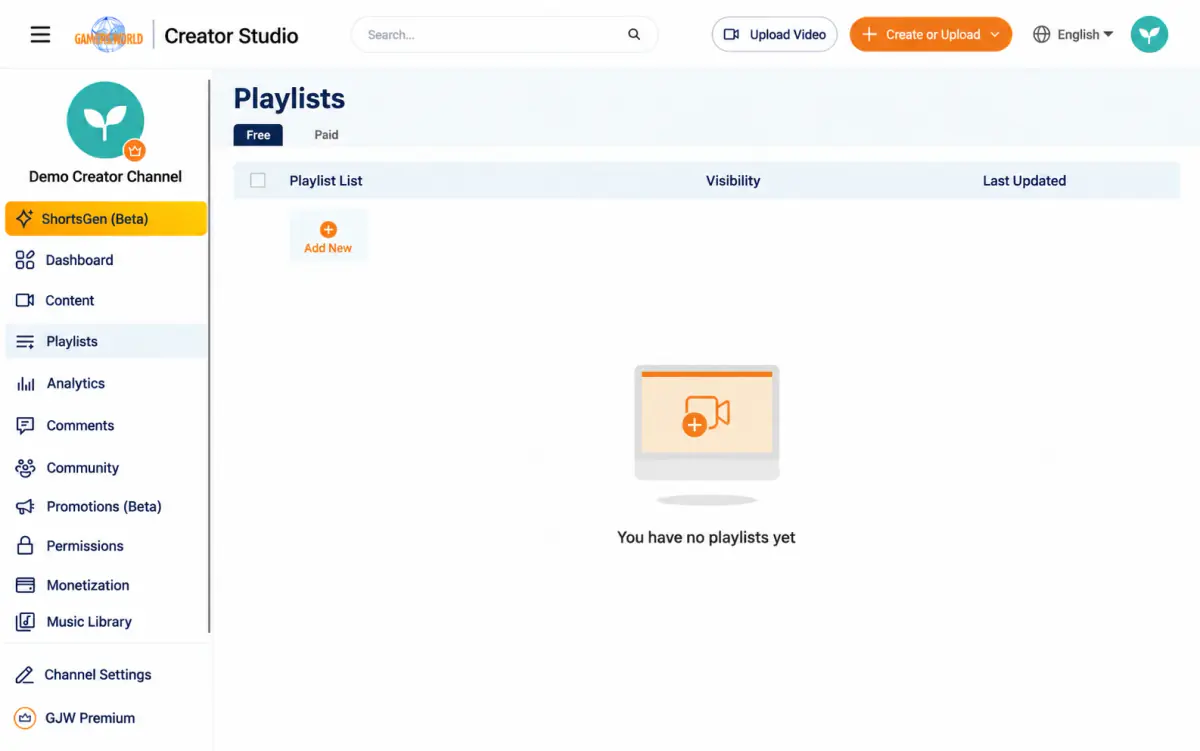
Free and Paid tabs Start with regular playlists to organize your content. To sell a series, go to Monetization and read the paid playlist guide.
Add a playlist#
Select Add to open the basic playlist form:
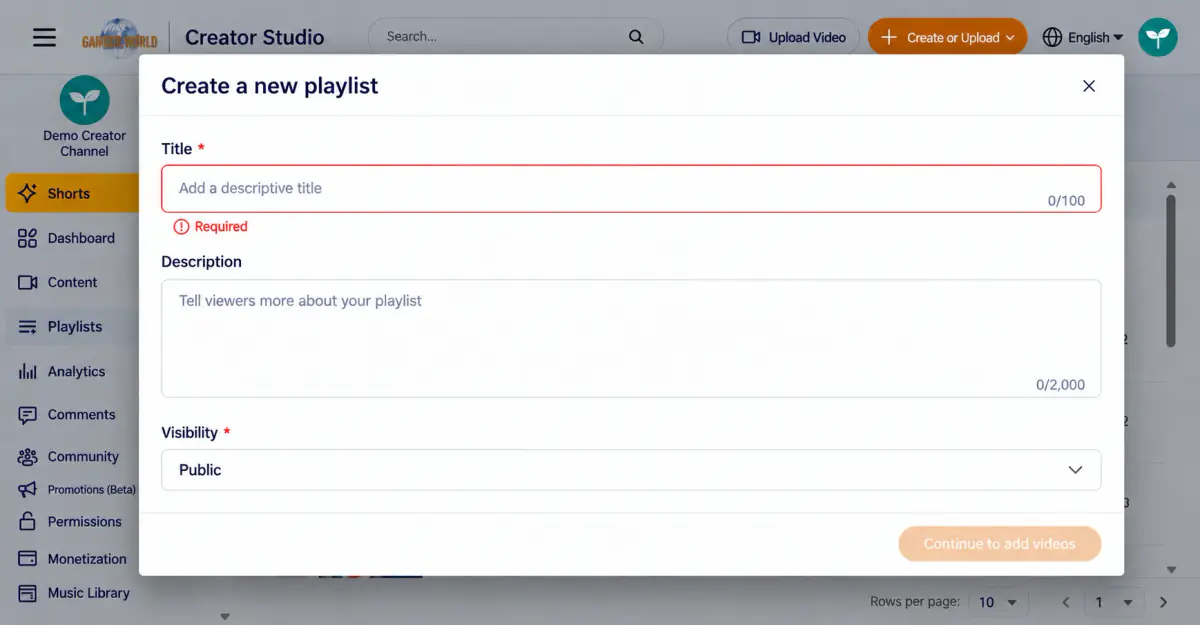
| Field | Description |
|---|---|
| Title * | Maximum 100 characters |
| Description | Maximum 2,000 characters |
| Visibility * | Choose Public, Private, or Unlisted, as with videos. Members only is not offered here. |
Complete the details and select Continue adding videos to open the selection screen:
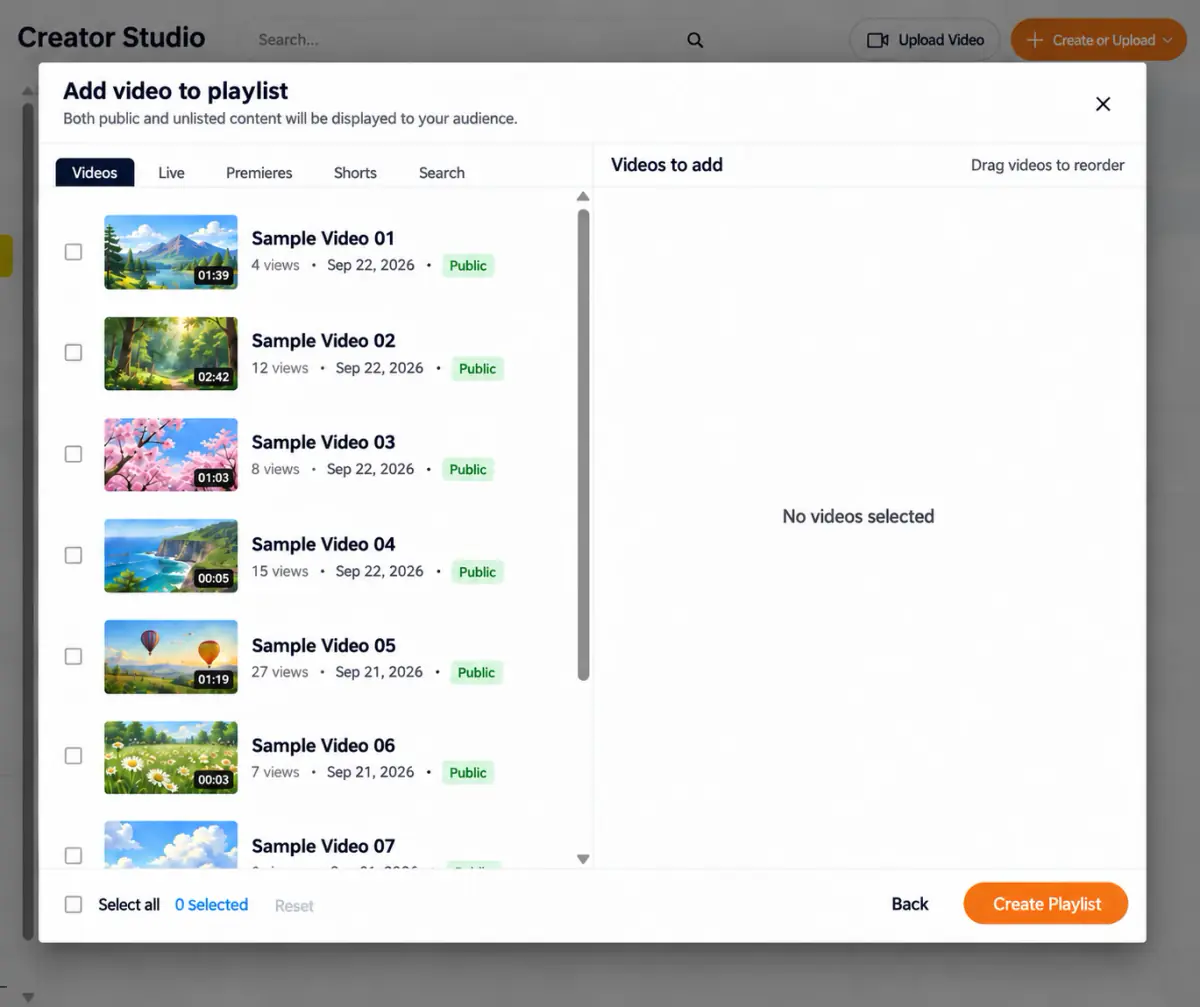
Note the on-screen reminder The selection dialog says Public and Unlisted content can be shown to viewers. An Unlisted video may therefore be discovered through a public playlist. Adding content to a playlist does not remove its other access restrictions.
Other ways to add content#
Besides selecting content during creation, you can add it in two other ways:
- During video upload, choose a playlist in Details (see Upload and manage videos).
- Open an existing playlist and select Add Videos to add more content (see Manage playlists below).
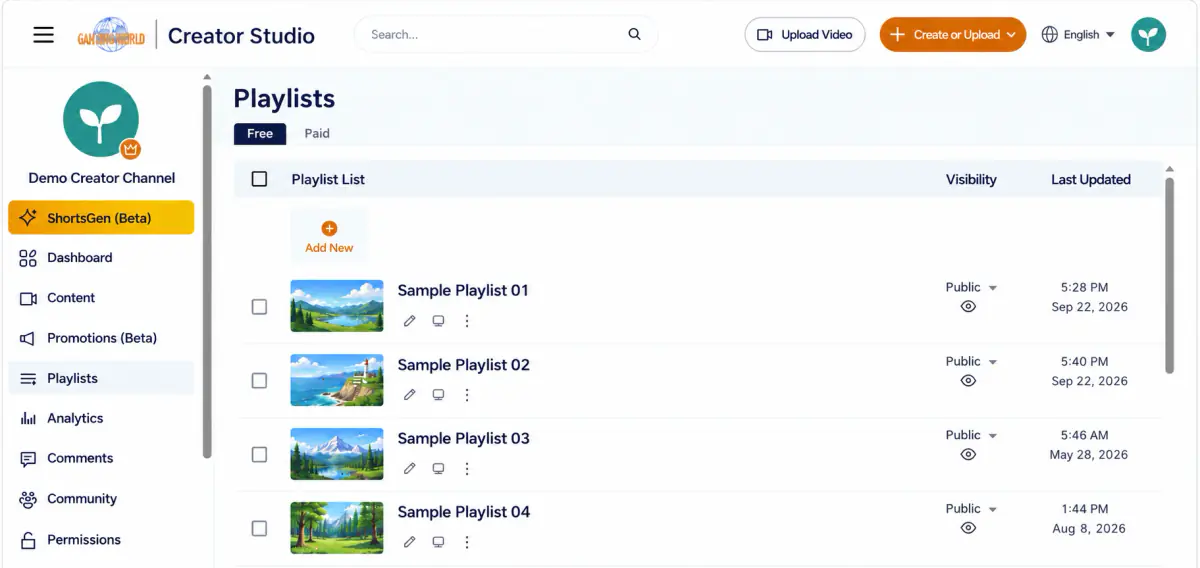
After creation Return to Playlists to see the new playlist with its thumbnail, title, visibility, and last-updated time.
Manage playlists#
Select the title, thumbnail, or pencil icon to open Edit playlist. Change its details, rearrange content, or delete the playlist.
Edit playlist information#
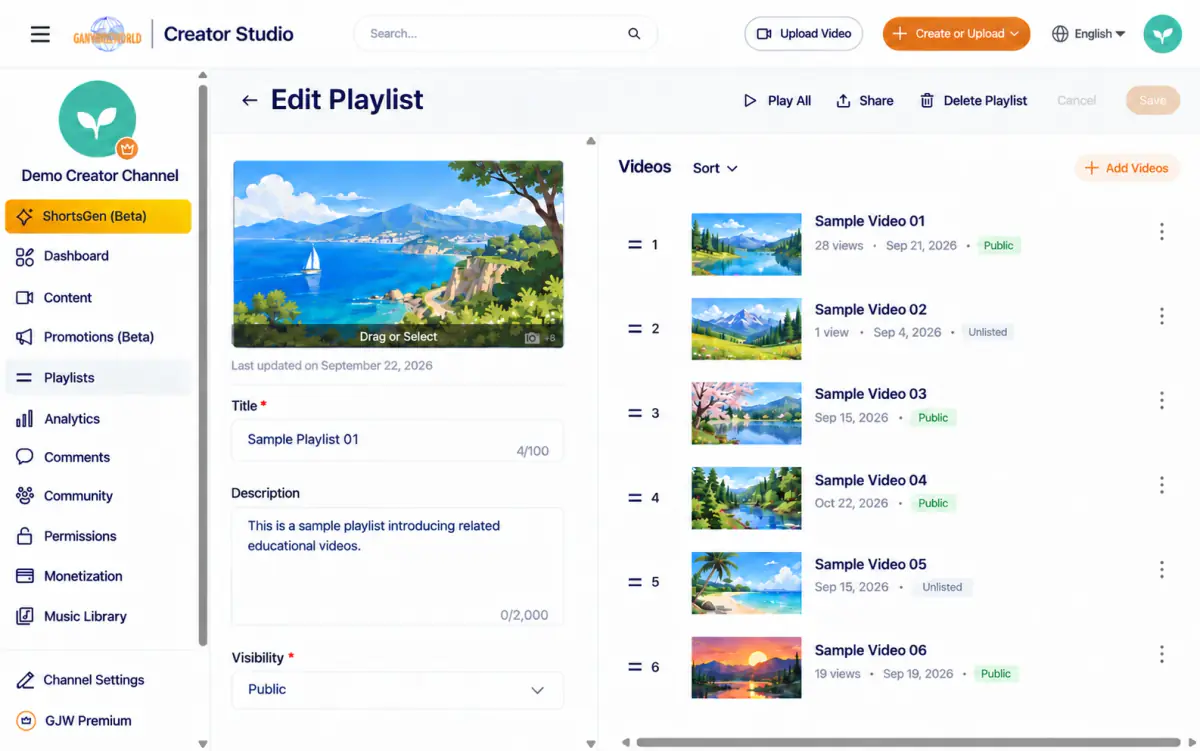
| Item | Description |
|---|---|
| Cover image | Drag an image into the top-left area or select Choose file to upload one. A new playlist automatically uses the first public video in its order as the cover; non-public items are not used for this automatic cover. |
| Play all | Play the whole playlist in order, starting with the first item |
| Share | Share the playlist’s own link |
Sort#
Use the Sort menu at the top right of the content list to choose an order:
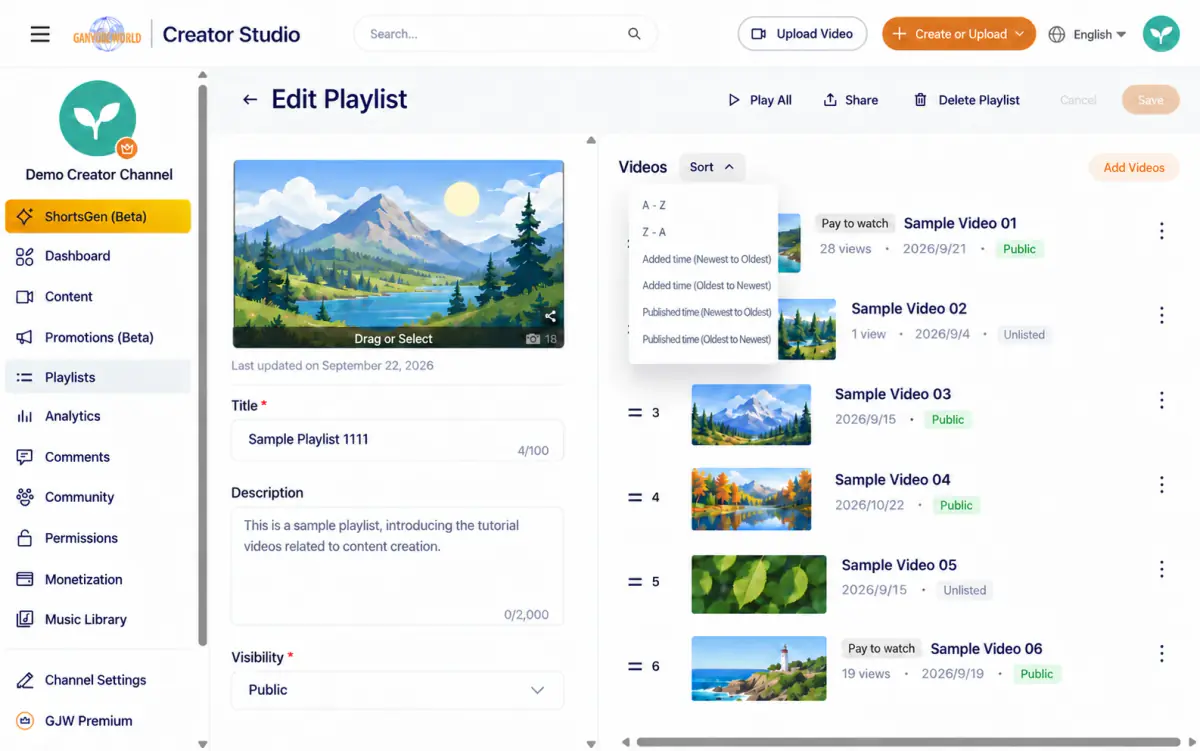
Reorder and remove content#
Drag the ≡ handle at the far left of an item to change its position.
Open ⋮ on an item to see its actions:
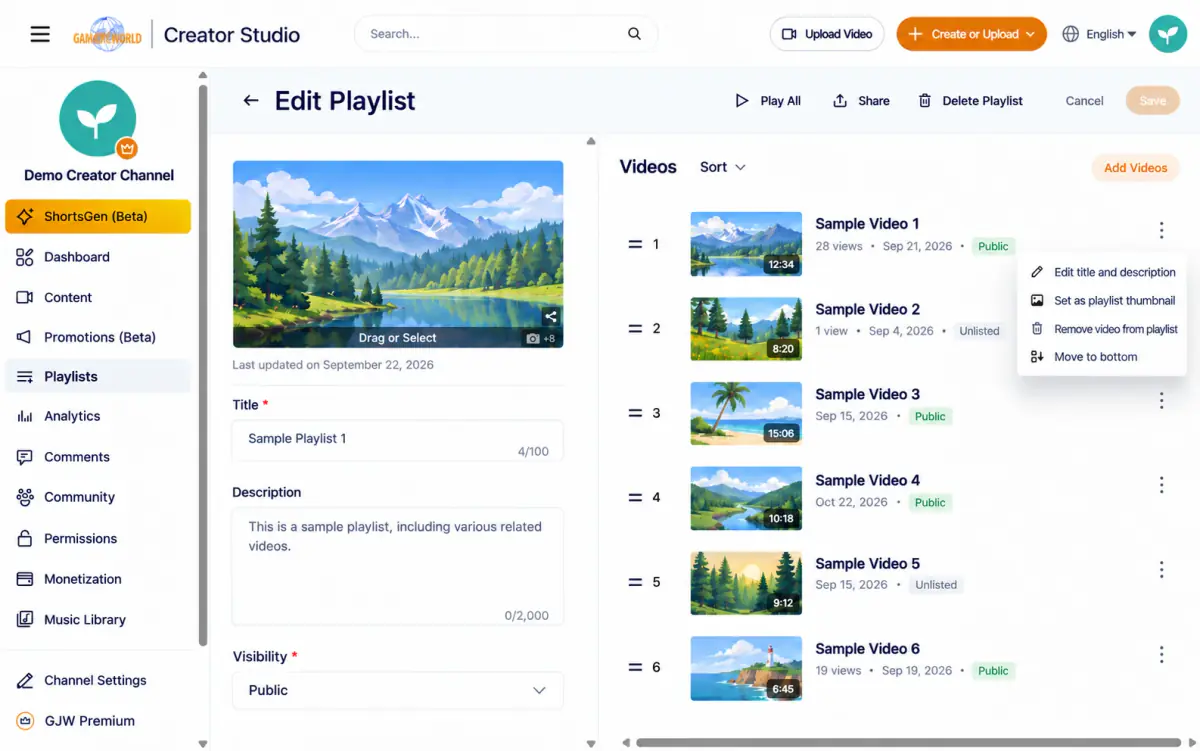
| Option | Description |
|---|---|
| Edit title and description | Change the content’s own title and description, using the same feature as in video management |
| Set as playlist thumbnail | Use this item’s image as the playlist cover rather than the automatically selected public item |
| Remove video from playlist | Remove it from this playlist without deleting the content itself; it remains available in Content |
| Move to bottom | Move the item to the end of the playlist without dragging |
Delete a playlist#
Select playlists in the main list and choose Delete, or select Delete playlist in the editor. A confirmation dialog appears:
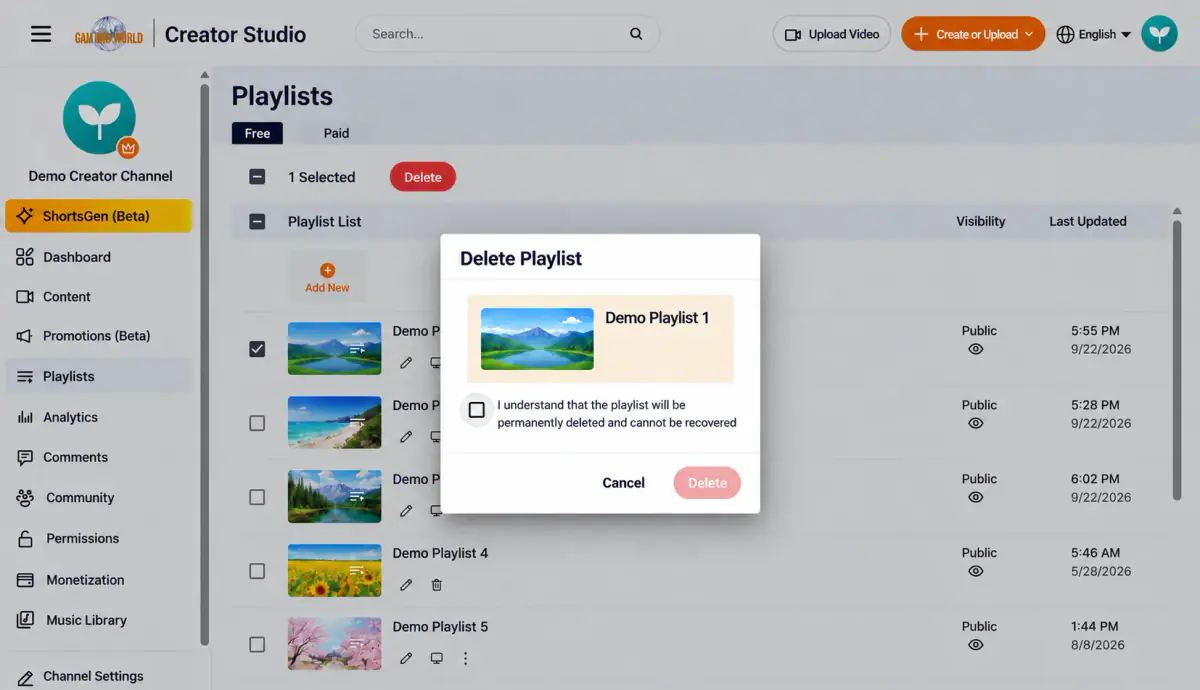
Deleting a playlist does not delete its content Only the playlist container is removed. Its videos remain in Content.
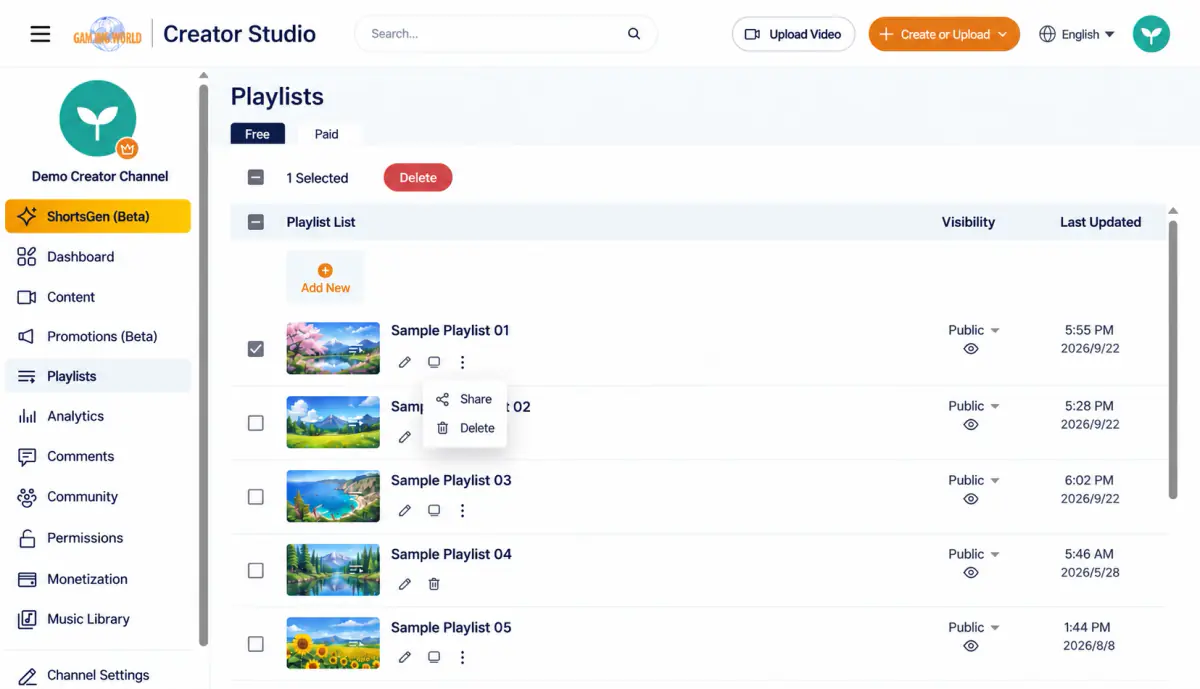
You can also use ⋮ in the playlist list:
How much content can a playlist hold? A playlist currently holds up to approximately 5,000 items, which is unlikely to limit typical use.