
Publish your first creation
Account, channel, content, and payment details in screenshots are fictional examples. Enter your own information when using the product.
Choose Videos, Shorts, or Articles and follow just that route. Each route covers visibility and publishing. Use the next task to check viewer access afterward.
Videos: upload, choose visibility, and schedule publication#
Want viewers to see your video at a future time? Set Visibility to Public, turn on Schedule, choose a future publication date and time, and check the time zone. Submit the schedule for the video to go public at that time. Setting a time alone does not automatically change a Private or Unlisted video to Public.
The upload flow is Details → Video elements → Visibility. Prepare the video, title, and thumbnail, then choose the audience and publication time.
Step 1: Select your video file
Select Upload video at the top. Drag the video into the dashed area or select Select files. Videos remain private before publication. You can enter details while the file uploads.
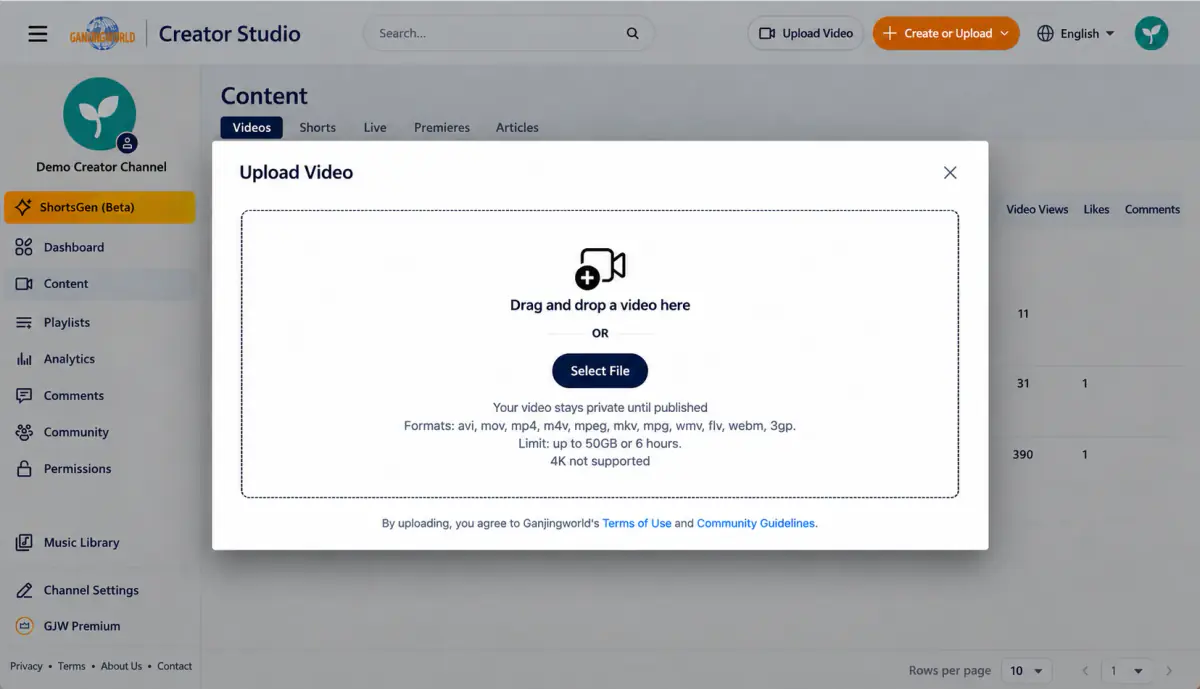
The screenshot lists avi, mov, mp4, m4v, mpeg, mkv, mpg, wmv, flv, webm, and 3gp; a maximum of 50 GB or 6 hours; and no 4K support. Check the current on-screen specifications before uploading.
Step 2: Complete Details
Complete fields marked with an asterisk first. Adjust descriptions, playlists, comments, and subtitles as needed; you do not need to use every feature to publish.
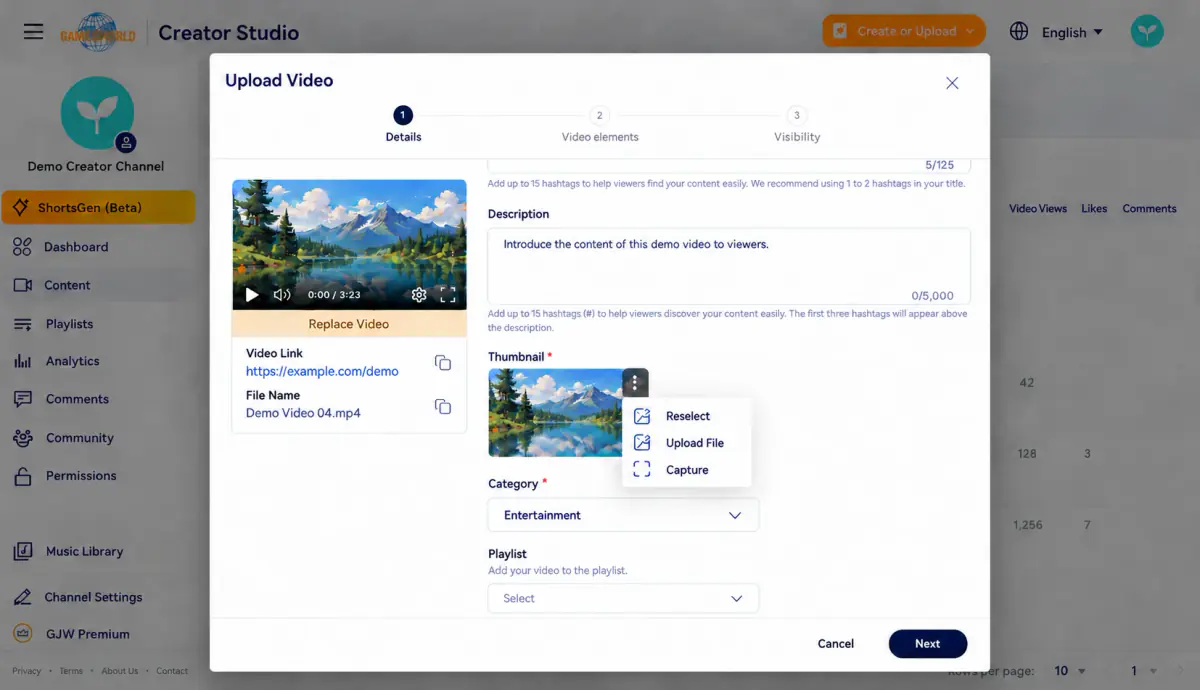
Complete required fields such as title, thumbnail, and category. The left panel shows upload progress, the video link, and filename. A link appearing does not mean the video is published or playable yet.
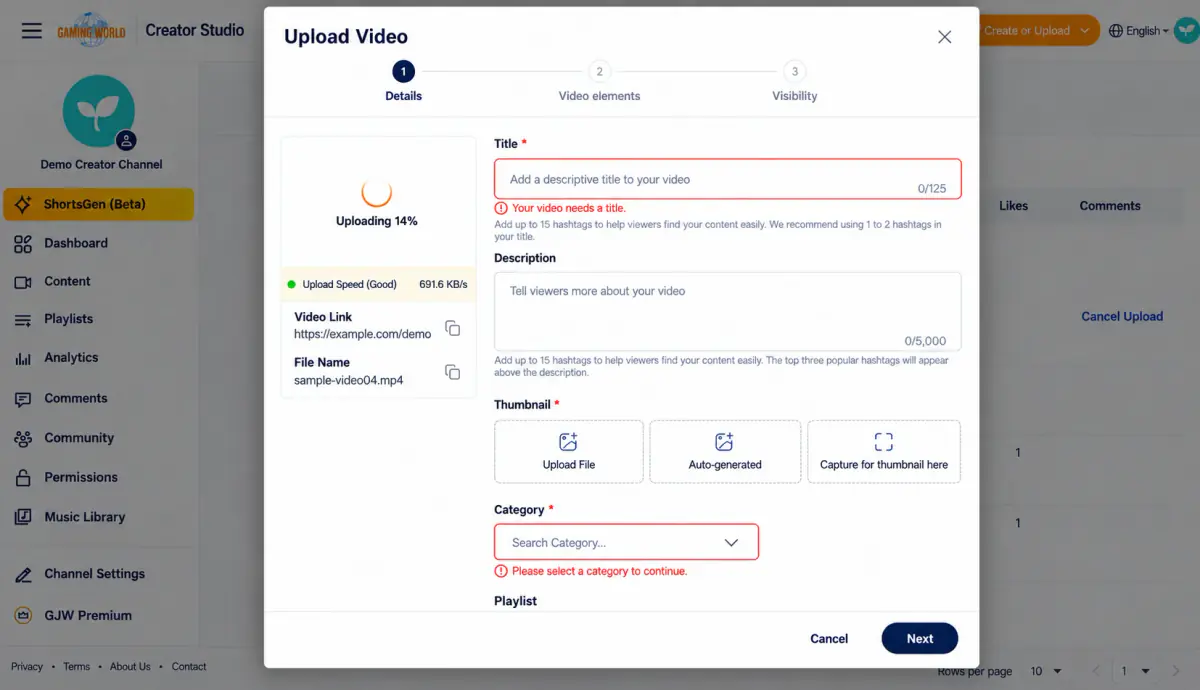
| Field | How to set it |
|---|---|
| Title * | Clearly describe the topic, within 125 characters. The interface suggests 1–2 hashtags in the title. |
| Description | Add an introduction and relevant information, within 5,000 characters. |
| Thumbnail * | Choose Upload file, Auto-generate, or Capture thumbnail here. Features that use video frames depend on processing progress and availability. |
| Category * | Choose the category that matches your video. |
| Playlists | Add it to an existing playlist if needed. You can organize playlists later. |
Add a thumbnail: choose one of three methods
Location: Upload video → Details → Thumbnail
A thumbnail represents your video while viewers browse. Choose any one of the following methods in Thumbnail *; you do not need to use all three.
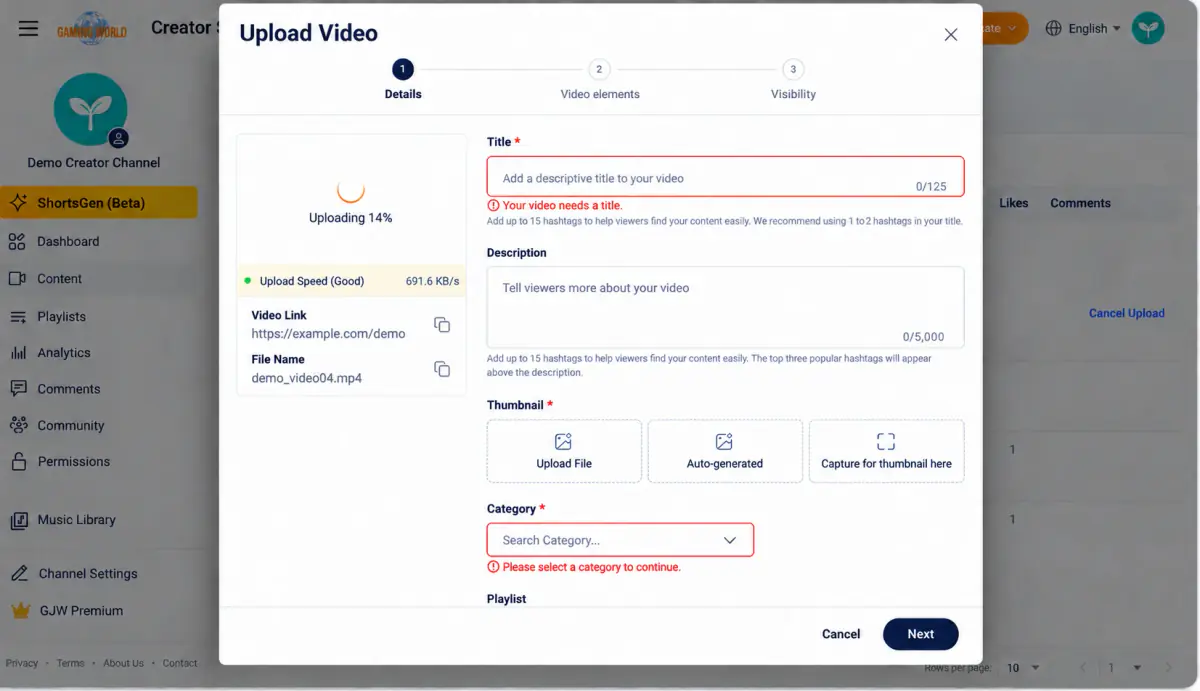
| Method | When to use it |
|---|---|
| Upload file | You have a custom thumbnail image ready. |
| Auto-generate / Reselect | Quickly choose from video frames suggested by the system. |
| Capture thumbnail here / Capture frame | Use a specific frame you choose from the video. |
Method 1: Upload your own image
- 1
In the Thumbnail area, select Upload file.
- 2
Choose your prepared image from your computer. Check the upload interface for supported formats and file size.
- 3
Back in Details, confirm the thumbnail preview shows your chosen image.
Useful for adding a title or logo, or keeping a consistent visual style across a series.
Method 2: Choose an automatically generated option
- 1
Select Auto-generate. If a thumbnail is already set, open ⋮ at its top right and select Reselect.
- 2
In Auto-generate thumbnail, choose a frame that clearly represents the video.
- 3
Confirm your choice, then select Done and check the preview in Details.
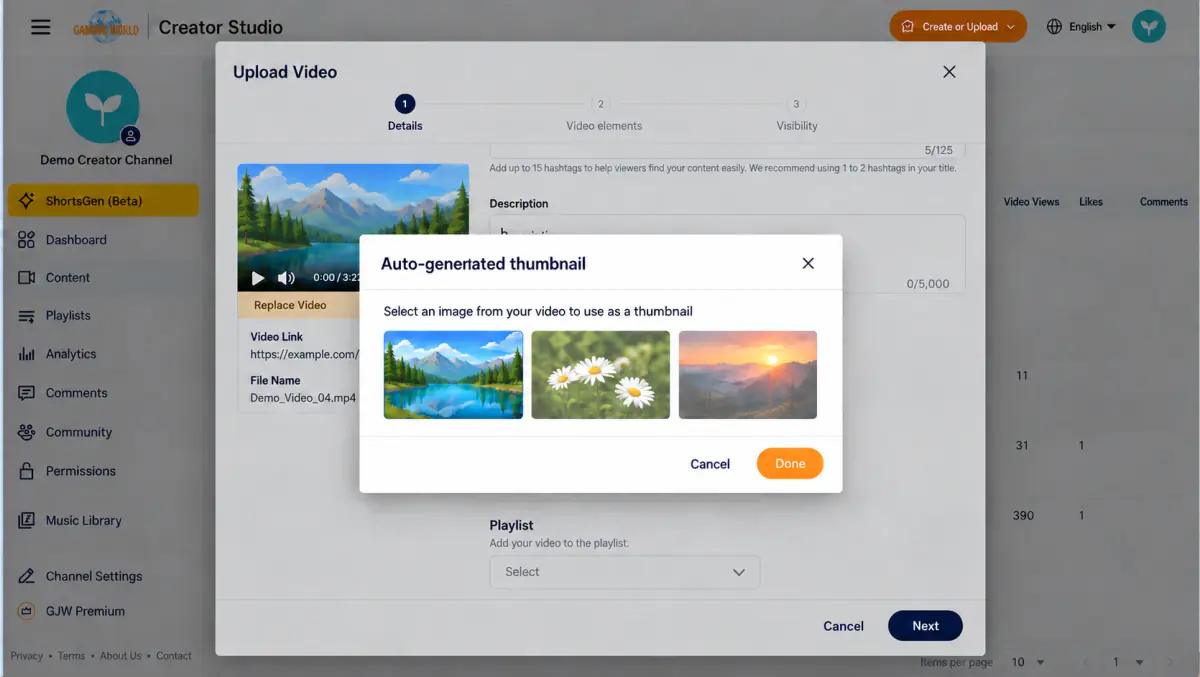
This feature provides frames from your video. Choose one with a clear subject, natural expression, and a good representation of the content.
Method 3: Capture a specific video frame
- 1
Once the preview is playable, play the video in the left player or seek to the desired moment.
- 2
Pause on a clear frame, avoiding blur or a transition.
- 3
In the thumbnail area, select Capture thumbnail here; if a thumbnail already exists, open ⋮ and select Capture frame to use the current video frame.
- 4
Check the thumbnail preview. If needed, seek to another moment and capture again.
While a video is uploading or processing Auto-generation and frame capture require available video frames. If the suggestions or player are not ready, wait for processing or choose Upload file to use an image you already have.
How do I replace an existing thumbnail?
Select the thumbnail’s top-right⋮ menu to access Reselect, Upload file, and Capture frame. These let you choose another suggested frame, upload your own image, or capture the current video frame.
Continue down: audience, comments, and keywords
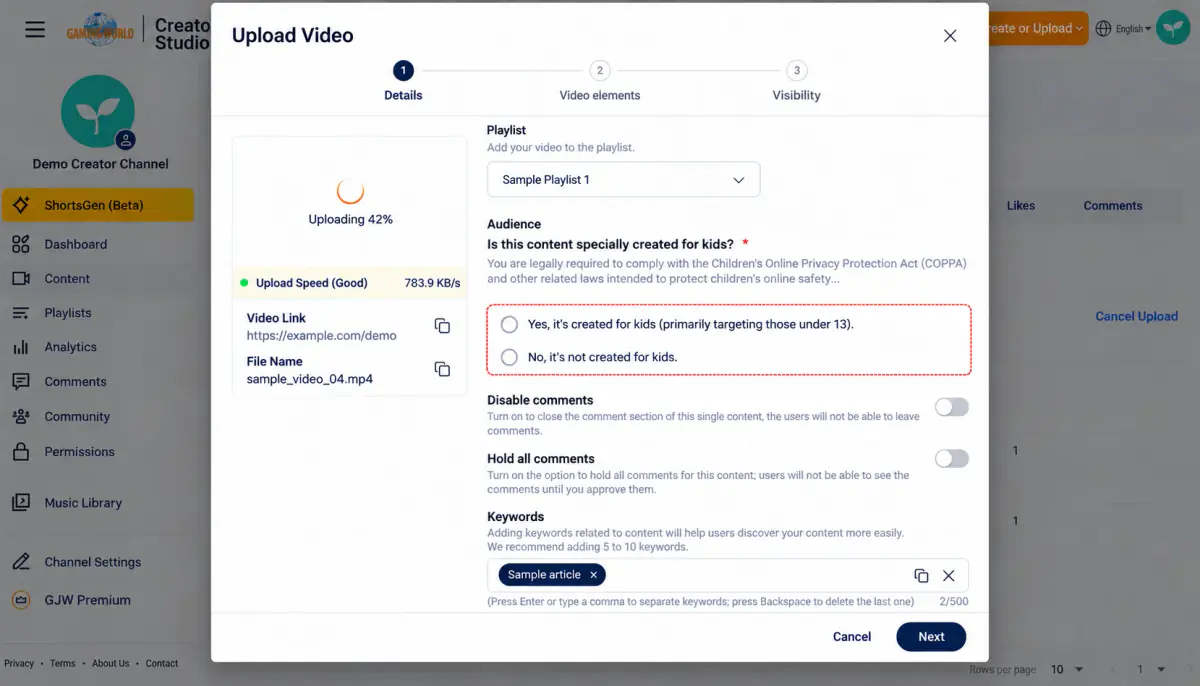
- Audience: Choose whether the content is made for children based on its intended audience. This describes the content and is separate from visibility in the final step.
- Disable comments: Turn this on to close the comment section.
- Hold all comments: Turn this on to keep comments hidden until you approve them.
- Keywords: The interface suggests 5–10 keywords, with a total limit of 500 characters. Separate them with Enter or commas.
Complete the required fields, then select Next at the bottom right.
Step 3: Configure Video elements if needed
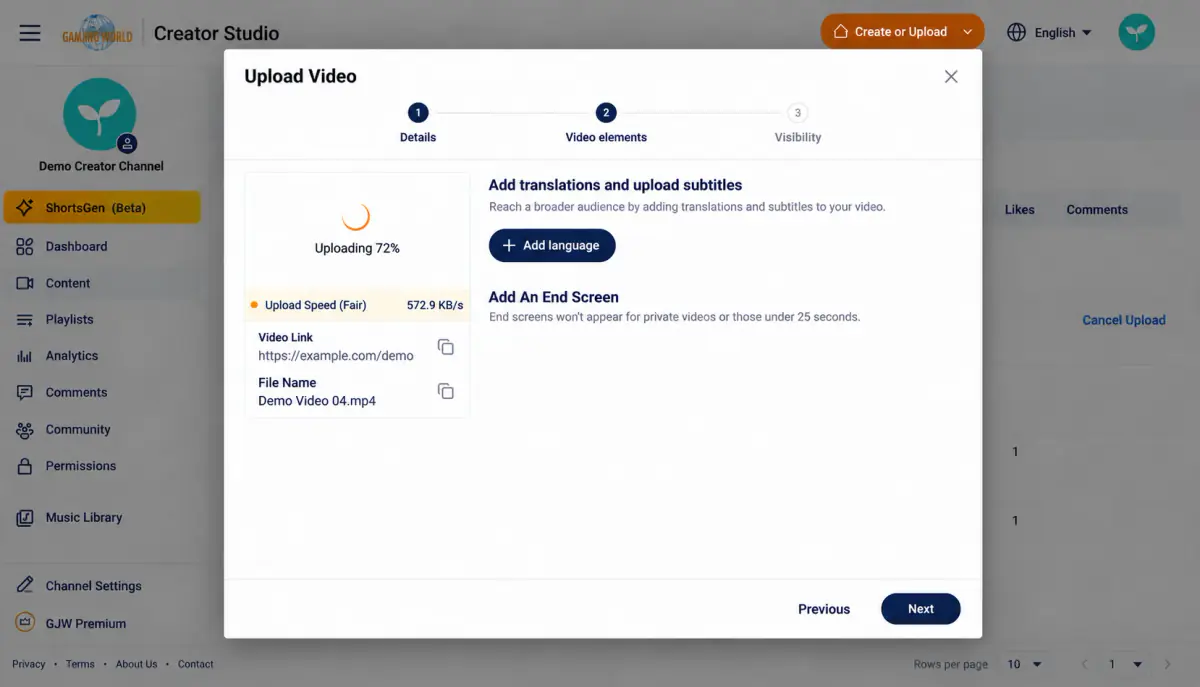
For translations or subtitles, select Add language. See Language versions and subtitles for detailed steps. The interface also notes that end screens do not appear on private videos or videos shorter than 25 seconds. If you do not need additional video elements, select Next to continue to Visibility.
Step 4: Use Visibility to choose who can watch
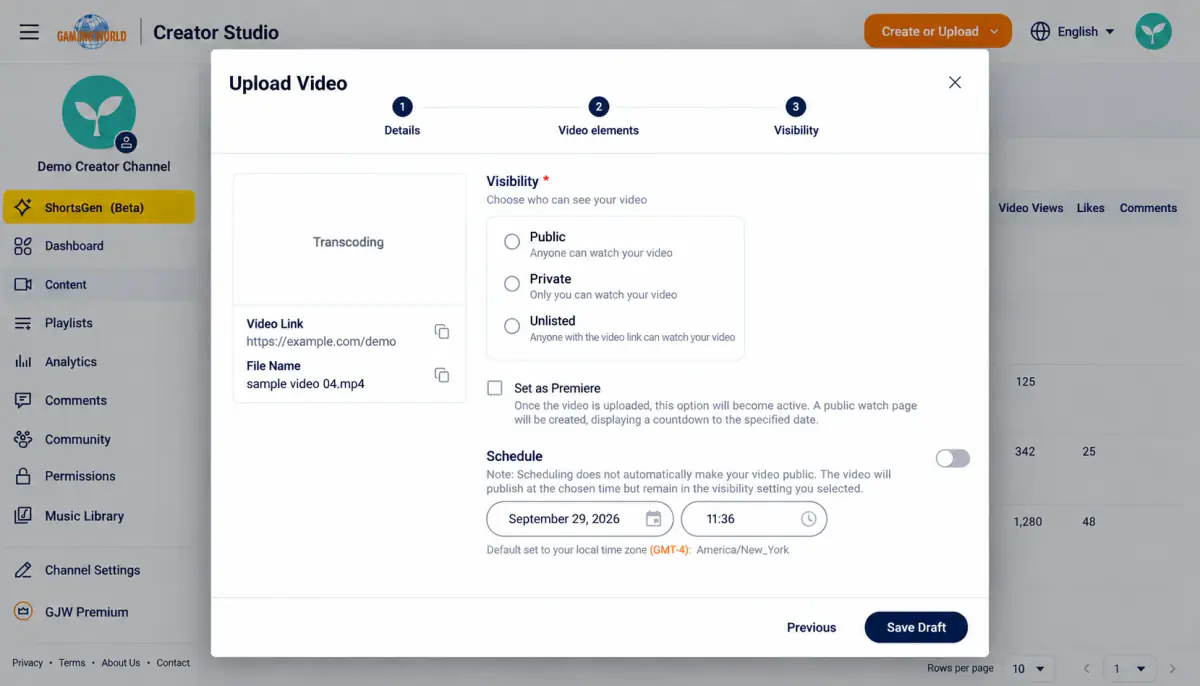
| Visibility option | Who can watch | When to use it |
|---|---|---|
| Public | Open to general viewers after publication. | Publish publicly now, or use Schedule to publish publicly later. |
| Private | The interface states that only you can watch; authorized channel team members can access it according to their permissions. | Review it yourself or with your management team before opening it to general viewers. |
| Unlisted | Anyone with the link can watch. | Share a link for review. It can be forwarded and may also be discoverable through a public playlist. |
These screenshots show three options. Membership-only or other options depend on the features available to the account.
Step 5: Turn on Schedule only when you want to publish later
Visibility controls who can watch; Schedule controls when you publish. Check both settings. Scheduled publication keeps your chosen visibility; it does not automatically switch to Public.
| Your goal | Visibility | Schedule |
|---|---|---|
| Publish to general viewers immediately when ready | Public | Off; submit for publication |
| Make the video available to general viewers at a future time | Public | On; set a future date and time, then submit the schedule |
| Provide a review link for now | Unlisted | Off if delayed publication is not needed |
| Review only yourself or with authorized team members | Private | Off if scheduling is not needed |
Example: publish publicly at a specific time tomorrow
- 1
Under Visibility, select Public.
- 2
Turn on Schedule.
- 3
Choose the intended future date and time.
- 4
Check the time zone shown below the date and time to confirm it matches your intended publication time.
- 5
Complete all required fields and scheduling settings, select Schedule at the bottom right, then confirm the result in the content list.
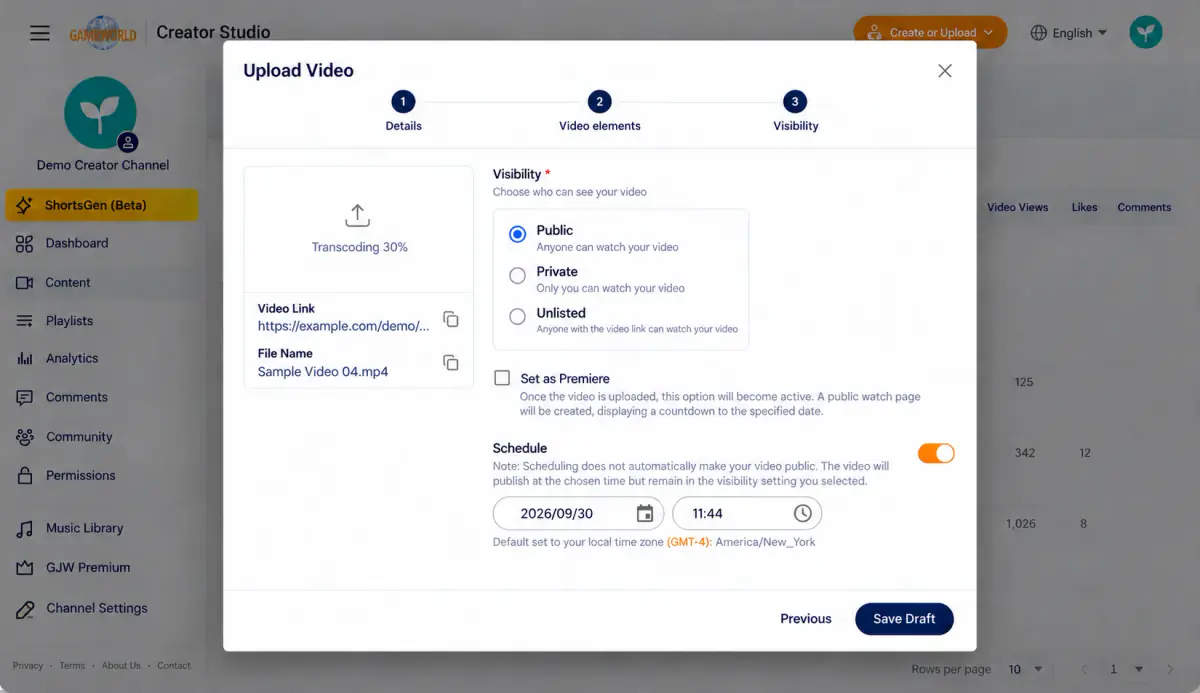
The date, time, and time zone are examples. Use your own intended publication time. A regular scheduled video does not require Set as premiere. For a premiere countdown page and related features, see the premiere guide.
Two common setup mistakes Private + a future time: It remains private at the scheduled time; it does not become public automatically. Unlisted + a future time: It remains unlisted and does not become publicly available to general viewers. To publish publicly later, use Public + Schedule. Publishing as Unlisted and later changing it manually to Public is not the scheduling workflow.
Step 6: Publish now or schedule for later
After completing the required fields, submit using your chosen publication timing. Check upload and processing status and any system messages first. A video link alone does not mean the video is published.
Make the video public now
- 1
Select Public and leave Schedule off.
- 2
Submit using the publishing button at the bottom right. If it still says Save Draft, complete the missing information and follow the system prompts.
- 3
After successful submission, return to Content → Videos, check the status, and open the video to confirm playback.
Make the video public at a future time
- 1
Select Public, turn on Schedule, choose a future date and time, and check the time zone.
- 2
Once all required fields and scheduling settings are complete, the bottom-right button changes to Schedule. Select it to submit.
- 3
Return to Content → Videos and check the scheduled status, date, time, and visibility. If it is still a draft, reopen it and complete submission.
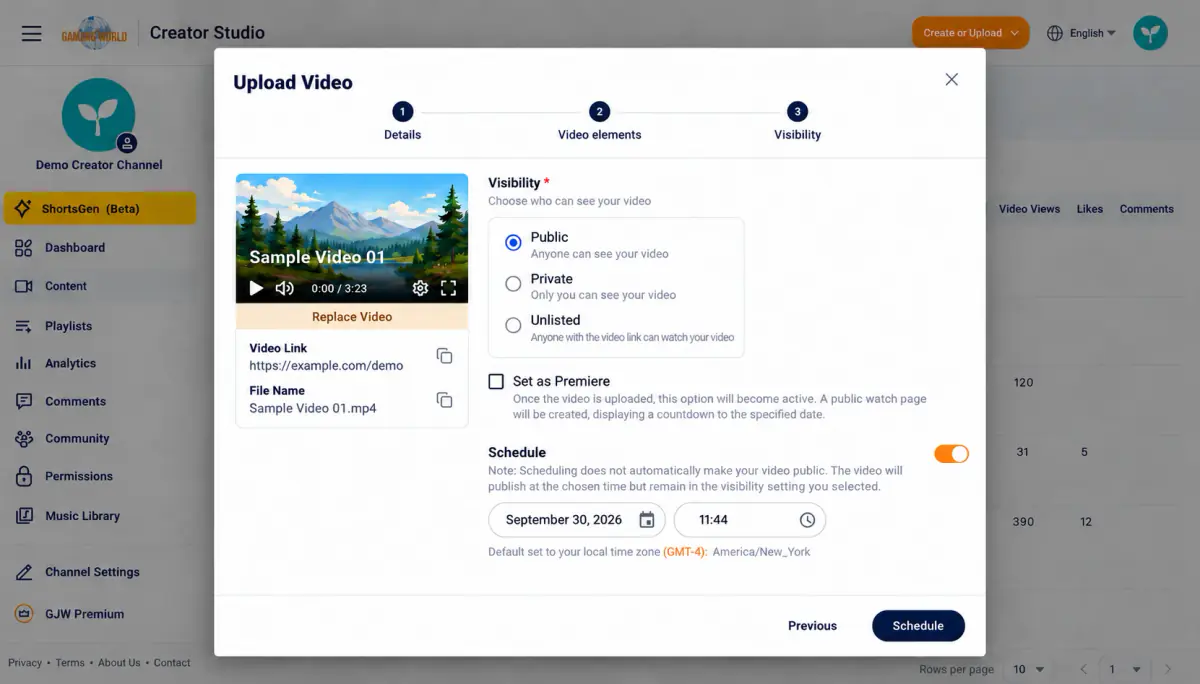
This screenshot shows scheduling submission. Before the scheduled time, the video being unavailable to general viewers does not mean publication failed. Check viewer access when that time arrives. Save Draft only keeps your settings; it does not complete publication or scheduling.
Five video tools
The details page has five tabs on the left:
| Tab | Purpose |
|---|---|
| Details | The main editing page described above |
| Analytics | Analytics for this individual video |
| Trim and edit | Make basic edits online |
| Comments | Comments on this video only |
| Subtitles | Language versions and subtitle files (see Language versions and subtitles) |
Additional note Available livestream tools vary by status. For a completed livestream, open Trim and edit from the list. See the livestream guide.
Shorts: from upload to publication#
Step 1 Choose a short to upload
Location: Content → Shorts → Add, or use the top-right Create or upload → Upload short option.
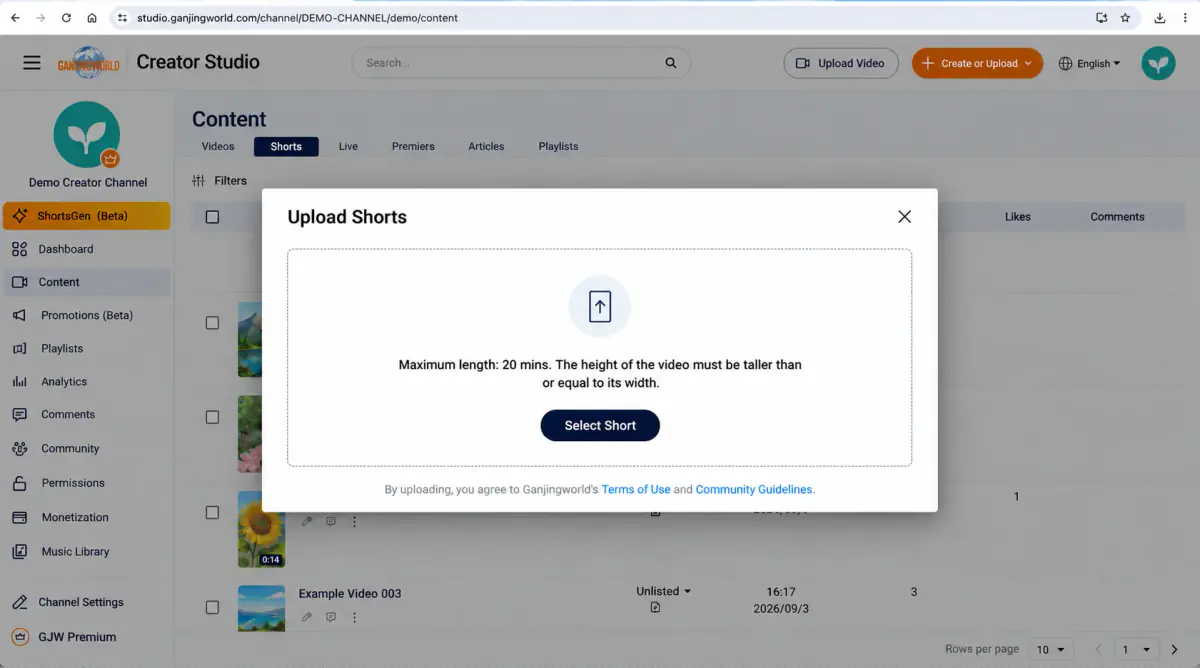
| On-screen item | Purpose and setup |
|---|---|
| Select a short to upload | Choose a short video file from your computer. Uploading and processing begin, followed by the Details step. |
| Maximum duration: 20 minutes | The interface specifies a maximum of 20 minutes for a short. Keep your file within this limit. |
| Video height must be greater than or equal to its width | Use portrait or square video. A file that is wider than it is tall does not meet this upload option’s requirements. |
For first-time users: Check orientation and duration before selecting the file to avoid starting again with the wrong video.
Step 2 Complete Details
While the system processes the video, you can enter its details. The left panel shows processing progress, the short’s link, and filename.
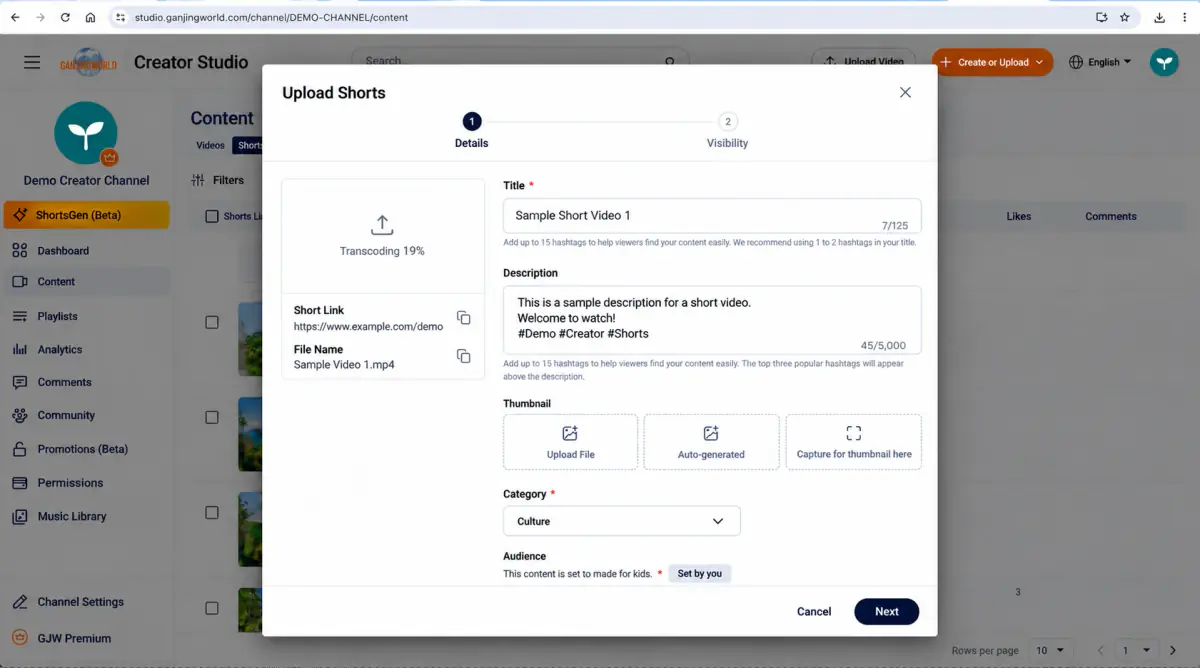
| Option | What it does | How to configure it |
|---|---|---|
| Title * | The short’s main name helps viewers understand its content and is required. | Enter a title that directly describes the video. The displayed limit is 125 characters, and the interface allows up to 15 hashtags (#). |
| Description | Provide additional context, background, or related information. | Add a fuller description. The displayed limit is 5,000 characters. The interface notes that the top three popular hashtags appear above the description. As a writing tip, put important information first so readers can understand it quickly. |
| Thumbnail | The representative image helps viewers recognize your short. | Choose Upload file, Auto-generate, or Capture thumbnail here. You can capture a frame after video processing finishes. |
| Category * | Assign the content to a suitable topic category. | Choose the best-matching category from the menu. The example shows Culture. |
Thumbnails: which of the three methods should you use?
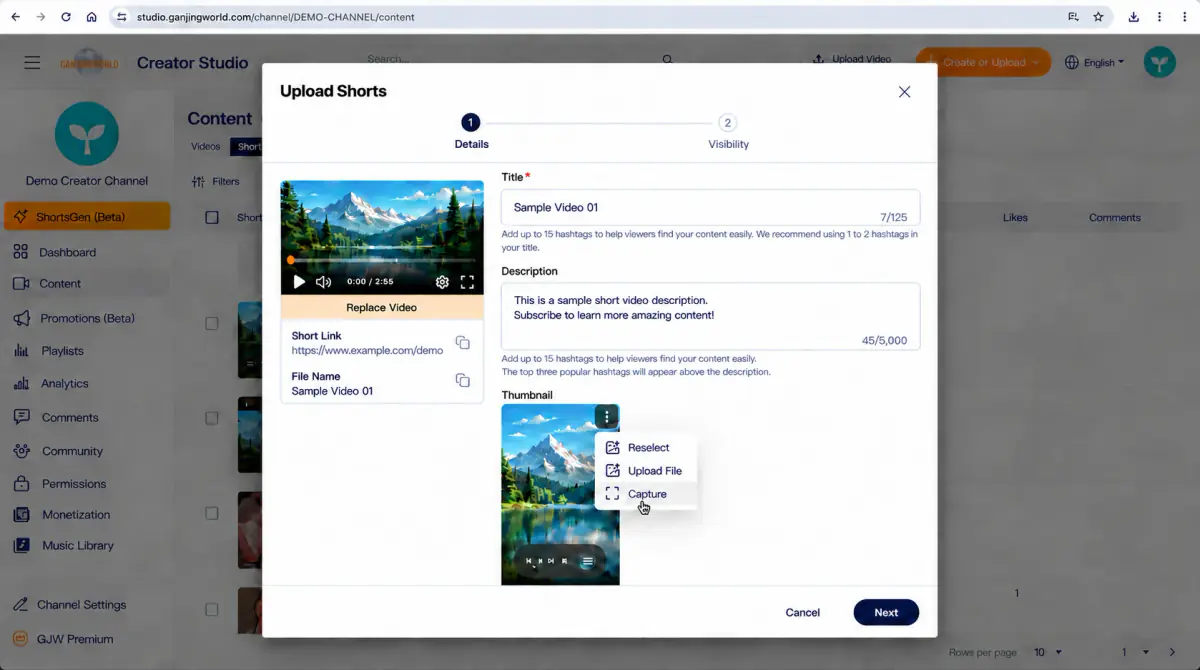
| Method | When to use it |
|---|---|
| Upload file | Use this when you have a designed thumbnail ready. |
| Auto-generate / Reselect | Use this to choose from frames suggested by the system. |
| Capture frame | Find a suitable video frame and use the current frame as the thumbnail. |
Step 3 Set audience, comments, and keywords
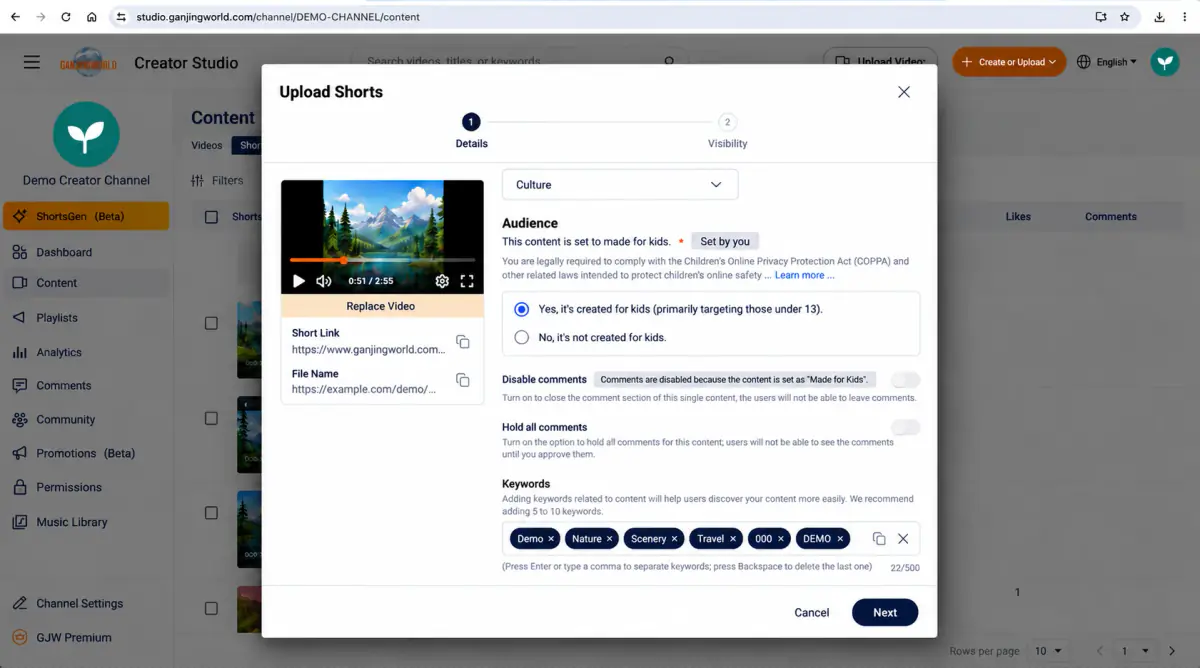
Audience: is it made for children?
This is a required setting. Choose based on the actual content and intended audience.
| Option | When to choose it | On-screen effect |
|---|---|---|
| Yes, this is made for children | Choose this when children are the main audience. The interface specifies under 13. | The recording shows Disable comments as disabled after this selection, indicating that the audience setting affects some interaction features. |
| No, this is not made for children | Choose this when the content is not specifically made for children. | You can then configure comment options as needed. |
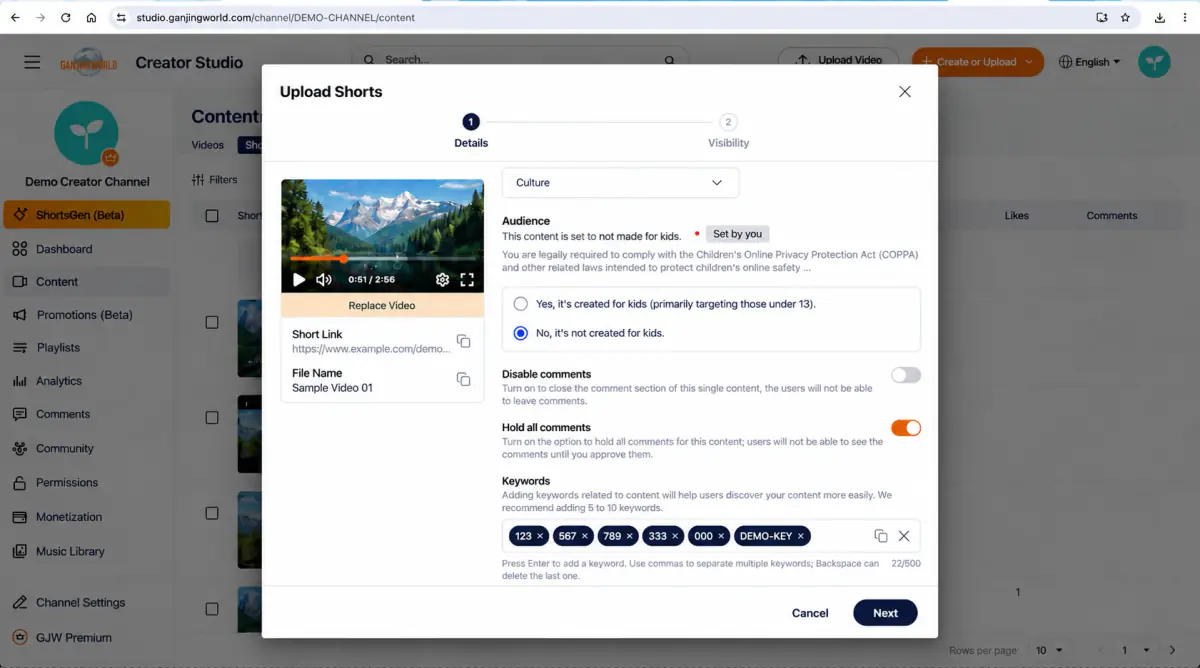
Comment settings
| Item | Purpose |
|---|---|
| Disable comments | Controls whether comments are turned off for this short. Availability may depend on the made-for-children setting. |
| Hold all comments | When enabled, all comments are held and remain hidden until approved. Use this if you want to review comments before making them public. |
Keywords
Add relevant keywords to help users find the content. The interface recommends 5 to 10 keywords. The total field limit is 500.
How to add them: Enter a keyword and press Enter. Backspace removes the last keyword. Use terms relevant to the video rather than unrelated trending keywords.
Step 4 Set visibility and publication time
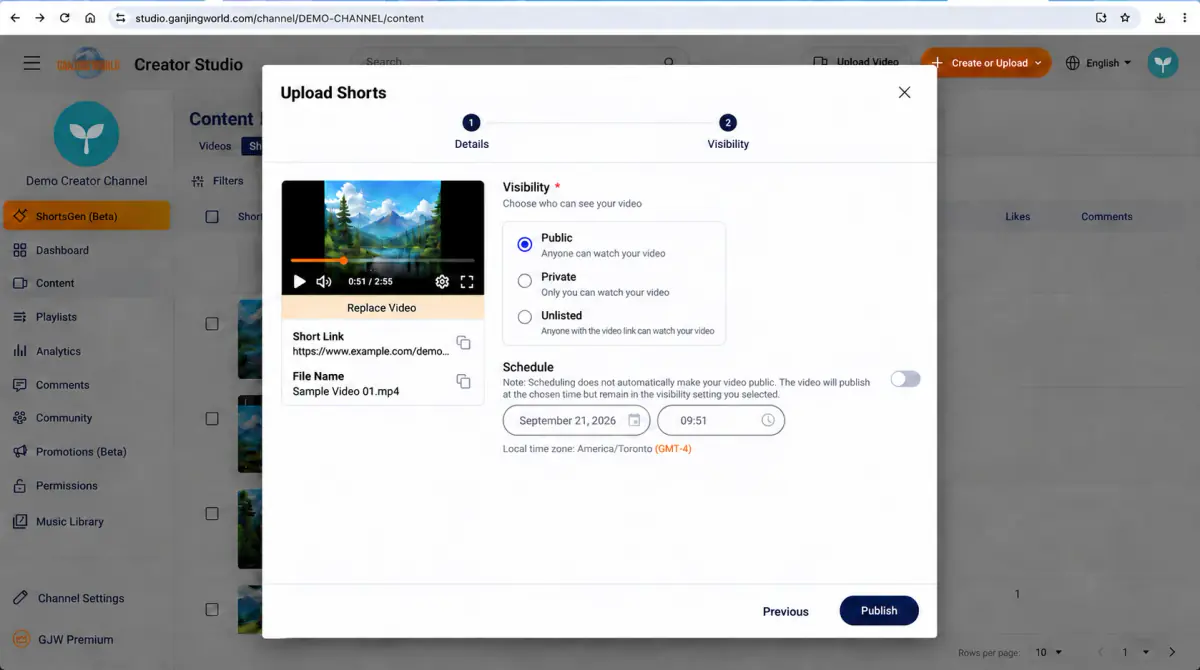
After completing Details, select Next to open step 2, Visibility. Choose who can watch and whether to publish at a scheduled time.
| Option | Who can view | Suggested use |
|---|---|---|
| Public | Anyone can watch. | Use when content is ready for general publication. |
| Private | You and members with the appropriate channel permissions can view it. | Use when you do not want others to see it yet or want to review it yourself first. |
| Unlisted | Anyone with the video link can watch. | Use when you want to share a link with specific people without public display. |
| Schedule | Publish at the specified date and time using the selected visibility. | Enable this to publish at a future time. The interface provides date and time fields and shows the time zone. |
In this screenshot, Schedule is off and the bottom-right button says Publish: it illustrates immediate publication. To make the Short public later, select Public, turn on Schedule, and set the date, time, and time zone. Scheduling alone does not change visibility.
Step 5: Submit publication or scheduling
- 1
Publish now: check visibility, leave Schedule off, then select Publish.
- 2
Publish later: complete the scheduling settings, use the scheduling submission button shown on screen, and check the system response.
- 3
Return to Content → Shorts and check the content status, visibility, and date. Saving a draft does not submit publication. For scheduled content, check viewer access at the chosen time.
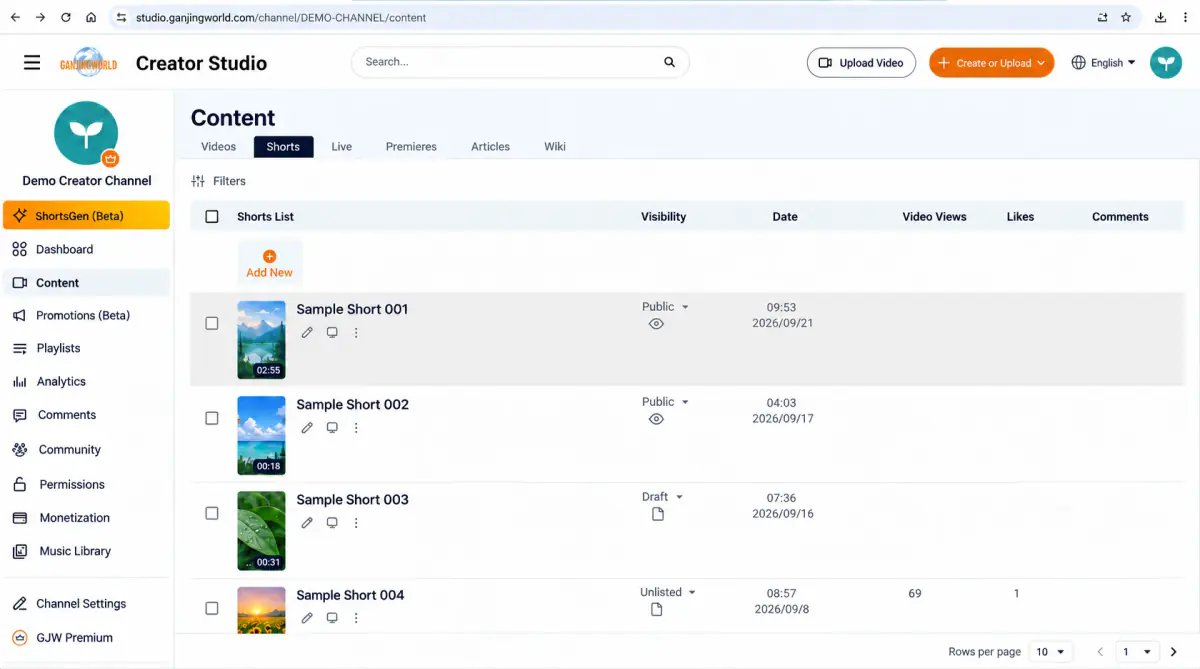
| List field / action | Purpose |
|---|---|
| Shorts | Shows the thumbnail and title so you can identify the content. |
| Visibility | Check whether the current setting is Public, Private, Unlisted, or another status. |
| Date | View the short’s date and time information. |
| Views / Likes / Comments | View basic engagement figures directly in the list after publication. |
| Pencil icon | Edit the short’s details. |
| More (⋮) | Open additional management actions for this short. |
One-minute workflow
- 1
Choose a video
Check that the short meets the orientation and duration requirements.
- 2
Enter details
Complete title, description, thumbnail, and category.
- 3
Confirm audience settings
Indicate correctly whether it is made for children, then configure comments and keywords as needed.
- 4
Set visibility
Choose Public, Private, or Unlisted first. Turn on Schedule only if you want to publish later.
- 5
Publish and review
Return to the Shorts list to check the thumbnail, title, visibility, and date.
Articles: write, publish, and manage#
Location: Content → Articles Create: Create or upload → Create article
Create an article
Select Create or upload → Create article to open Add new article. Write the title, tags, and body on the left; configure the thumbnail, status, and viewing permissions on the right.
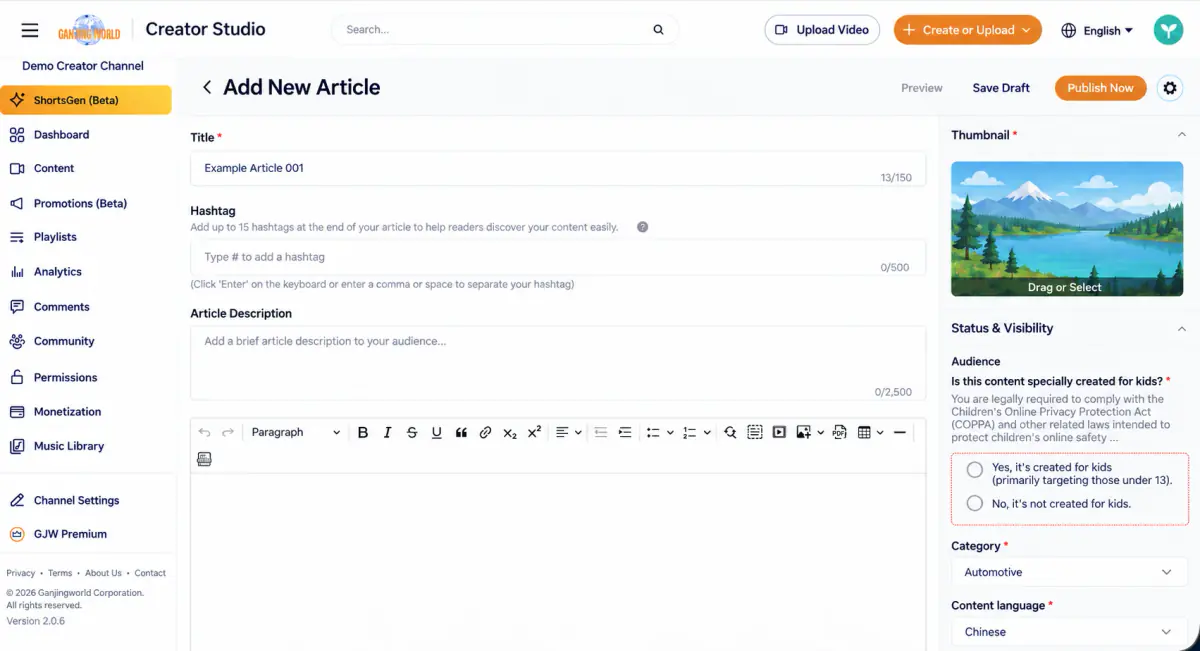
| Field | Description |
|---|---|
| Title * | Up to 150 characters |
| Hashtags (#) | Up to 15, with a total limit of 500 characters; press Enter or separate with commas |
| Article description | A short introduction for readers, up to 2,500 characters |
| Body | Use the built-in editor for bold, italic, underline, quotes, links, lists, tables, and dividers. You can also insert videos, images, and PDFs. |
| Thumbnail * | Select a file or drag it into the area |
| Audience * | Whether the content is made for children (COPPA setting) |
| Category * | Affects recommendations and search; do not leave blank |
| Content language * | Set the language used in this article |
Finish and publish the article
- 1
Complete required information, including the title, thumbnail, audience, category, and content language.
- 2
Choose the intended viewer access in the right-hand access settings, using the options available on screen. The made-for-children audience setting is separate from viewer access.
- 3
Select Preview at the top right to review the article. When ready, select Publish Now; otherwise select Save Draft.
- 4
After publication, return to Content → Articles to check the status and viewer access, then open the article from the viewer-facing page.
Article list
In the Content → Articles tab, view all articles with their visibility, date, views, likes, and comments. Change visibility directly from the list.
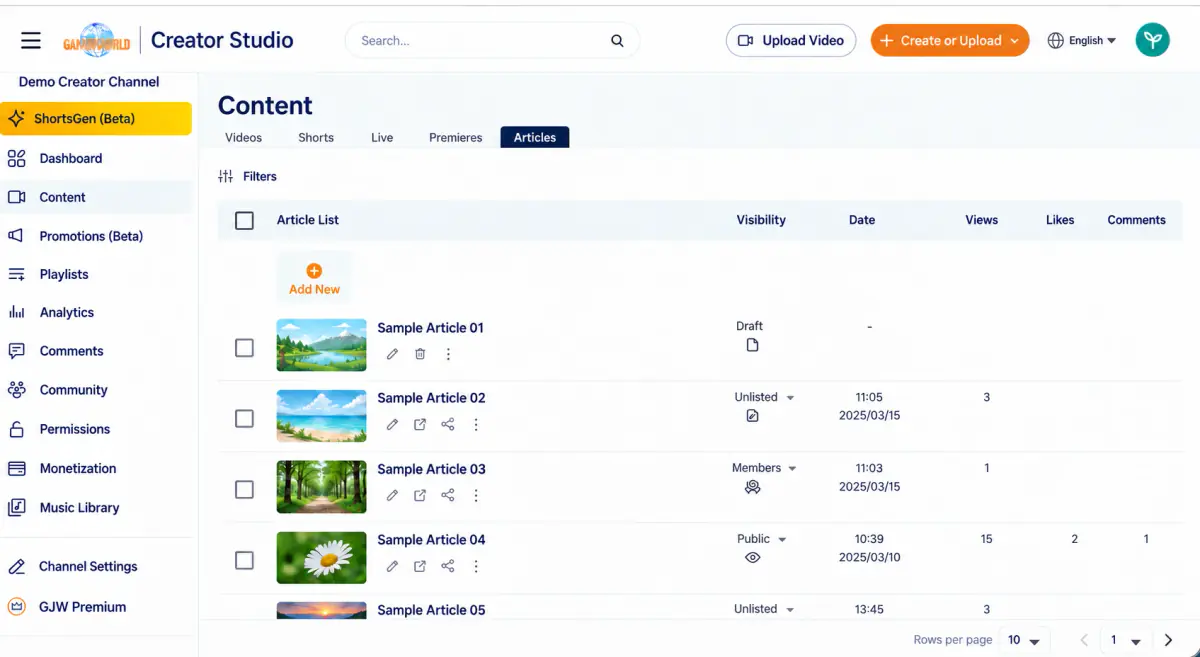
Visibility option Set viewer access using the options available for the article. Members and Followers-only are different options. Draft means the article has not been published; it is not an access level.
How articles appear on your channel
Viewers can browse published articles they have access to on the channel’s Articles tab and use the filters available there.
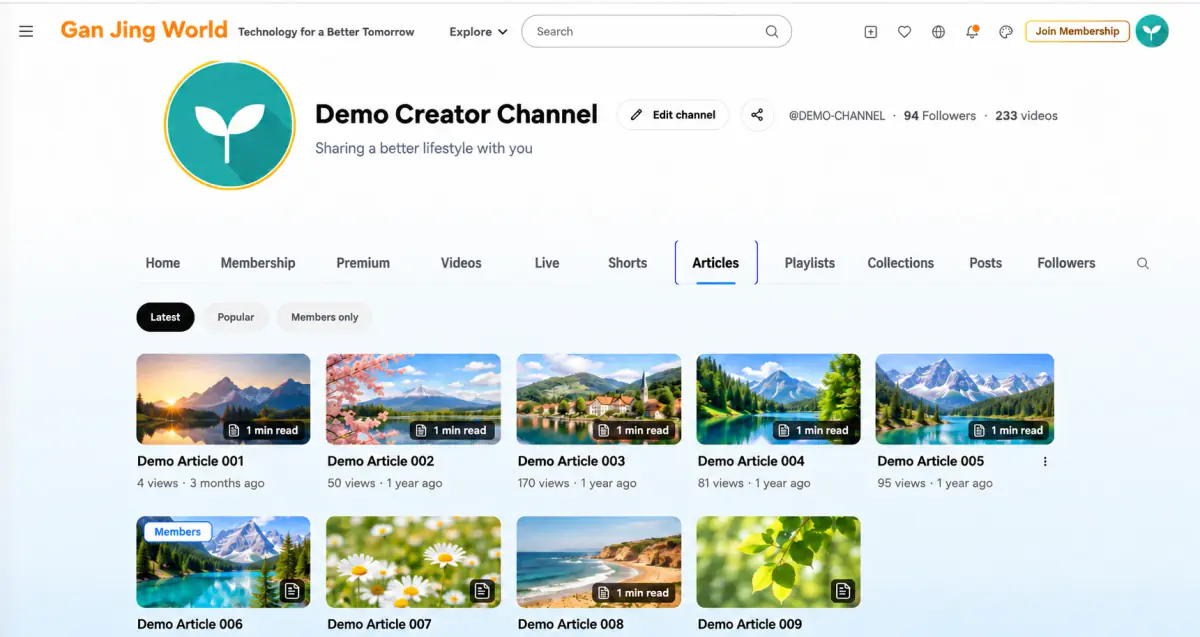
Articles can also appear on the channel Home page. Add Feature Spotlight or an Articles section in Layout to show articles there. Readers can select Show more to expand the article without switching to the Articles tab.
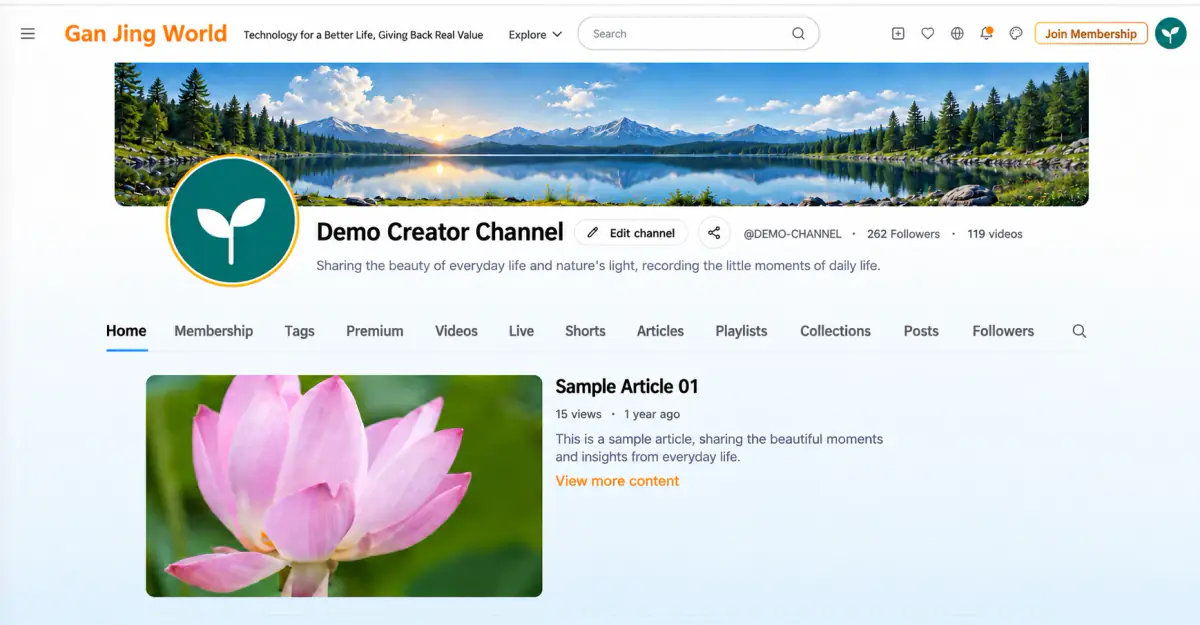
How layout and content work together The homepage Articles section says “This section will only appear when articles have been uploaded”. If you have no articles, viewers will not see the section even if you add it.