
Arrange your channel homepage
Account, channel, content, and payment details in screenshots are fictional examples. Enter your own information when using the product.
Arrange content and series on your homepage so visitors know where to start. Practice with the playlist you created in the previous task.
Location: Channel settings → Layout. Select Save after making changes.
Start with one playlist section#
Homepage sections determine what visitors see first. Start by displaying the playlist you created in the previous task so new viewers know where to begin. You do not need every section type.
- 1
Go to Channel Settings → Layout and select Add Sections.
- 2
Choose Single Playlist, select the existing playlist you want to show, and follow the dialog prompts to confirm.
- 3
Back on Layout, find the added section. Use the left-hand handle to reorder movable sections. Feature Spotlight stays at the top and Videos stays last.
- 4
Select Save at the top right, then View channel to see the viewer-facing homepage.
Adding a section arranges the display; it does not automatically change content visibility. If a section is missing, first check that you saved the layout and have relevant content to display.
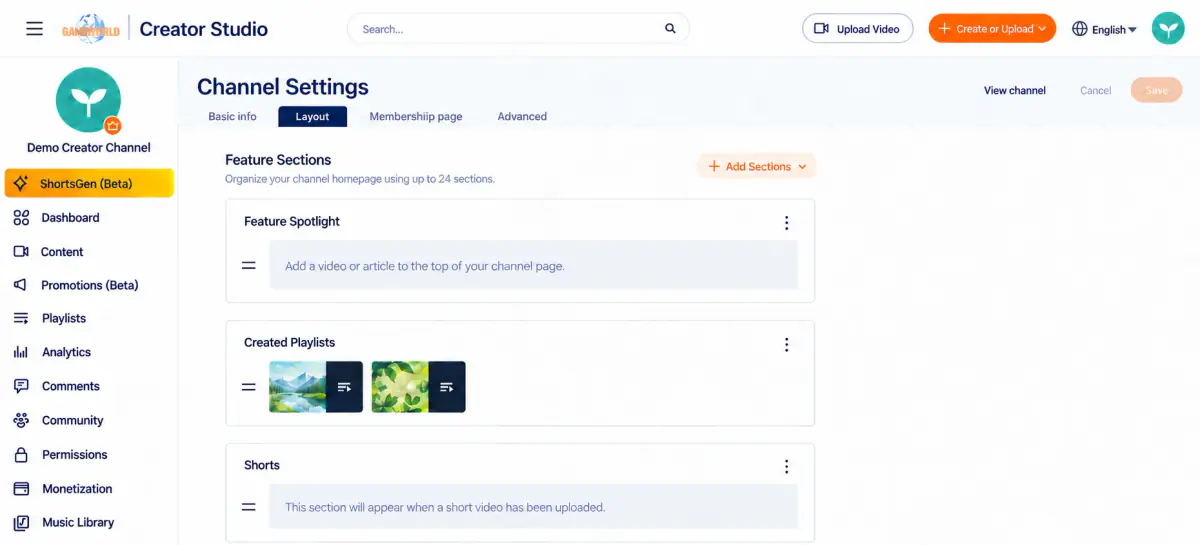
This determines what viewers see from top to bottom on your channel homepage. The interface says: “Customize your channel homepage layout. You can add up to 24 sections.”
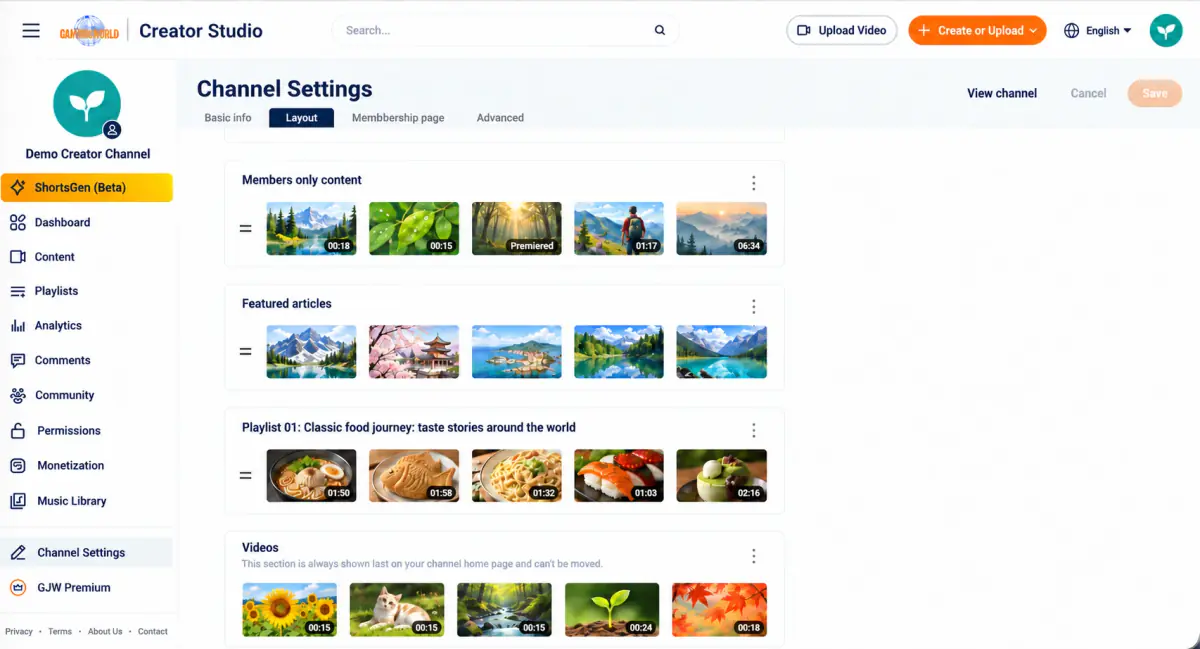
A simple homepage setup for beginners
Start with three or four populated sections: introduce yourself → help viewers choose a topic → start watching. You do not need every section type.
- Feature Spotlight: Add a channel introduction or your most representative creation.
- Single playlist: Follow with a “Start here” beginner series.
- Articles or shorts: Choose the format you mainly create, offering further reading or a quick browse.
- Videos: Keep this last so viewers can explore the rest of your work.
For live events, move relevant live sections higher. Add multiple playlists as your series grow. Refresh Feature Spotlight regularly, select Save, and use View channel to review the result.
Three layout rules to know 1. Only one featured item is allowed: choose one video or article. It stays at the top of the channel page. 2. Empty sections are not displayed. Shorts and Articles appear only when corresponding content exists. If an added section is invisible, it usually has no content yet. 3. Videos stays last and cannot be moved. The interface explicitly states that this section always appears at the bottom of the channel homepage.
Available section types
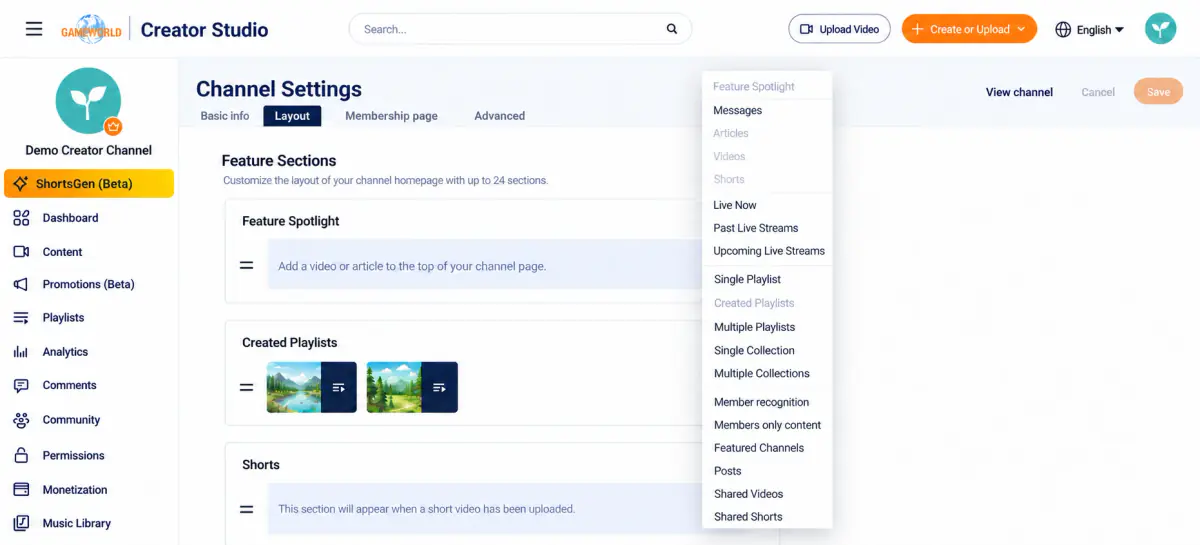
| Section | Purpose | When to use it |
|---|---|---|
| Feature Spotlight | Place one video or article at the top as the first viewing entry point. | Choose an introduction, representative work, or current highlight to help new visitors get to know you. |
| Messages | Provide additional channel information. | Briefly explain your topics, intended audience, and posting schedule. |
| Videos | Display the channel’s videos together for easy browsing. | Use as the full video library; this section stays at the bottom. |
| Shorts | Display shorts together. | Introduce your style through short content; add this when you have ongoing updates. |
| Articles | Display articles together. | Use for teaching notes, background stories, or further reading that supports your videos. |
| Live Now | Display ongoing livestreams. | Help visitors find the viewing entry point while you are live. |
| Upcoming Live Streams | Display scheduled livestreams. | Let viewers know about upcoming events or regular broadcasts. |
| Past Live Streams | Display past livestreams. | Help viewers who missed a stream find the replay. |
| Single Playlist | Display one selected series. | Prioritize a beginner course, main series, or content best watched in order. |
| Created Playlists | Provide an entry point to the channel’s existing playlists. | Let viewers choose topics when you have several series. |
| Multiple Playlists | Display several selected playlists in one section. | Group related series, such as Getting started, Practice, and Further learning. |
| Member recognition | A membership-related display section. | If you offer channel membership, decide whether to add it based on your membership settings and preview. |
| Members only content | Display content provided to members. | Help members find exclusive content; access still depends on the content’s own settings. |
| Featured Channels | Display channels you recommend. | Introduce collaborators or channels covering related topics. |
| Posts | Display posts together. | Share updates, event notices, or prompts for audience interaction. |
| Shared Videos / Shared Shorts | Display videos or shorts you have shared. | Curate related recommendations that complement your own content. |