
Apply for and manage monetization
Account, channel, content, and payment details in screenshots are fictional examples. Enter your own information when using the product.
Monetization brings together the revenue features available to your channel. The tabs at the top include Overview, Ads, Channel subscriptions, Affiliate, Exclusive video sales, and Live donations. Each tab manages a different revenue source, status, or setting.
Location: Creator Studio → Sidebar → Monetization
What this chapter covers Learn where to find Monetization, what each tab does, how to view ads and channel subscription information, where to access Affiliate and Exclusive video sales, and how to turn live donations on or off. Key actions are marked with red boxes in the screenshots.
Open Monetization#
- 1
Sign in to Creator Studio.
- 2
In the sidebar, click “Monetization”.
- 3
Use the tabs at the top to switch between monetization features.
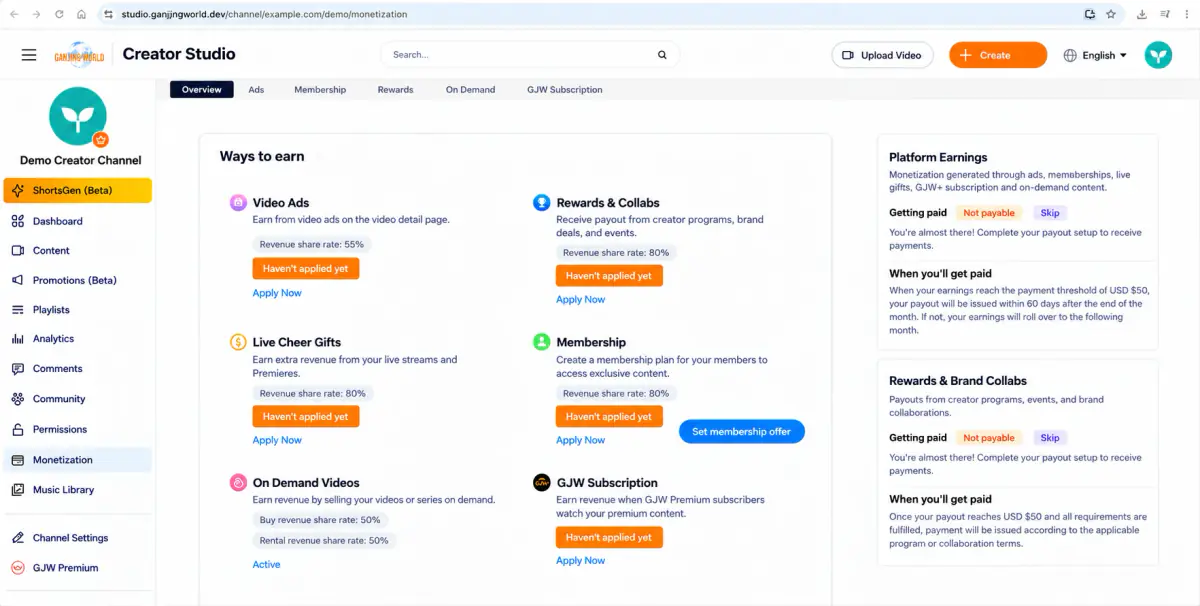
Key entry point: Open Monetization in the sidebar, then confirm the selected tab before changing settings.
Apply for monetization after access is enabled#
Application prerequisite The platform must enable monetization access before your channel can begin the application process. Without this access, you cannot complete the following steps. Once enabled, follow the prompts for agreements, eligibility, and payout setup.
- ① Accept the monetization agreement
- ② Confirm eligibility
- ③ Set up payouts
- ④ Two-step verification
- ⑤ Address details
- ⑥ Bank details
- ⑦ Tax forms
- ⑧ Finish
Step 1: Read and accept the monetization agreement
Once access is enabled, the application first displays GJW Monetization Agreements. Read the terms and select each required agreement checkbox, then click “I accept”.
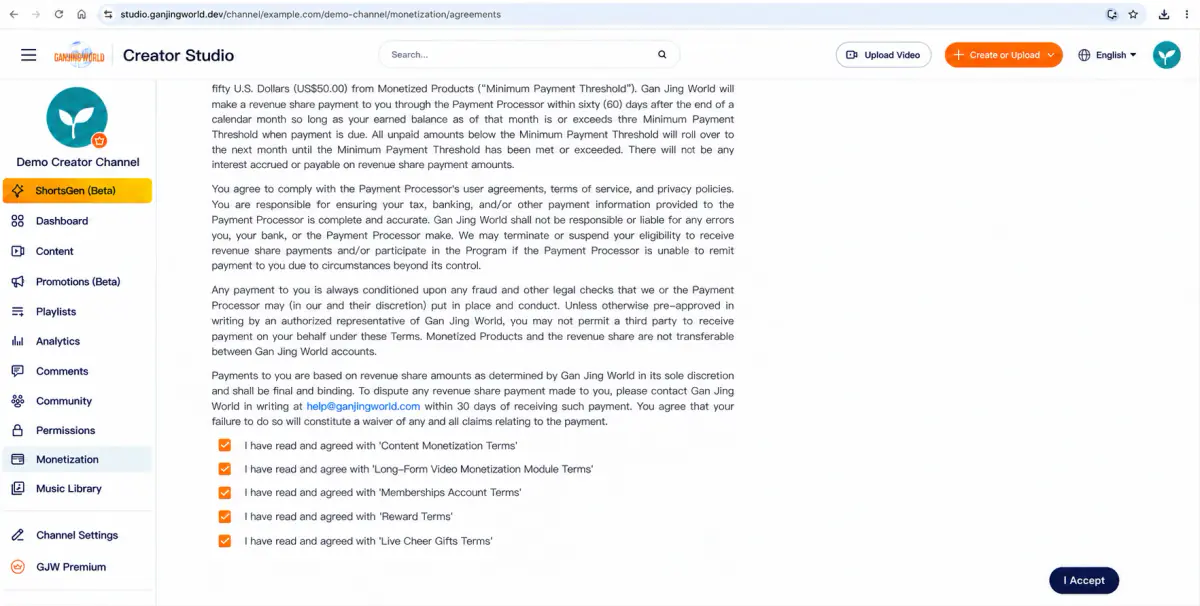
🔴 Key action: Read and understand the required terms before accepting and continuing.
Step 2: Confirm eligibility
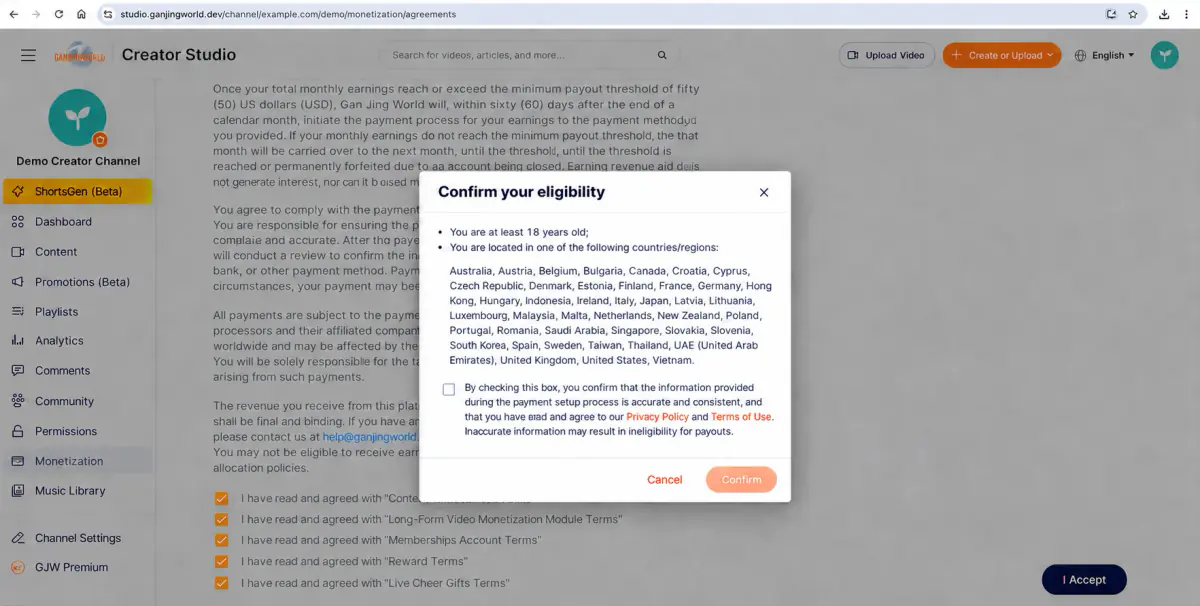
Next, confirm your eligibility, including age and country/region. Confirm that payment details match your actual circumstances. If eligible and the information is correct, click “Yes” to continue.
Step 3: Start payout setup
After eligibility confirmation, add a payment method to receive payouts. Prepare personal or company information, bank account details, and tax information. Check the contact email shown, then click “Set up payments”.
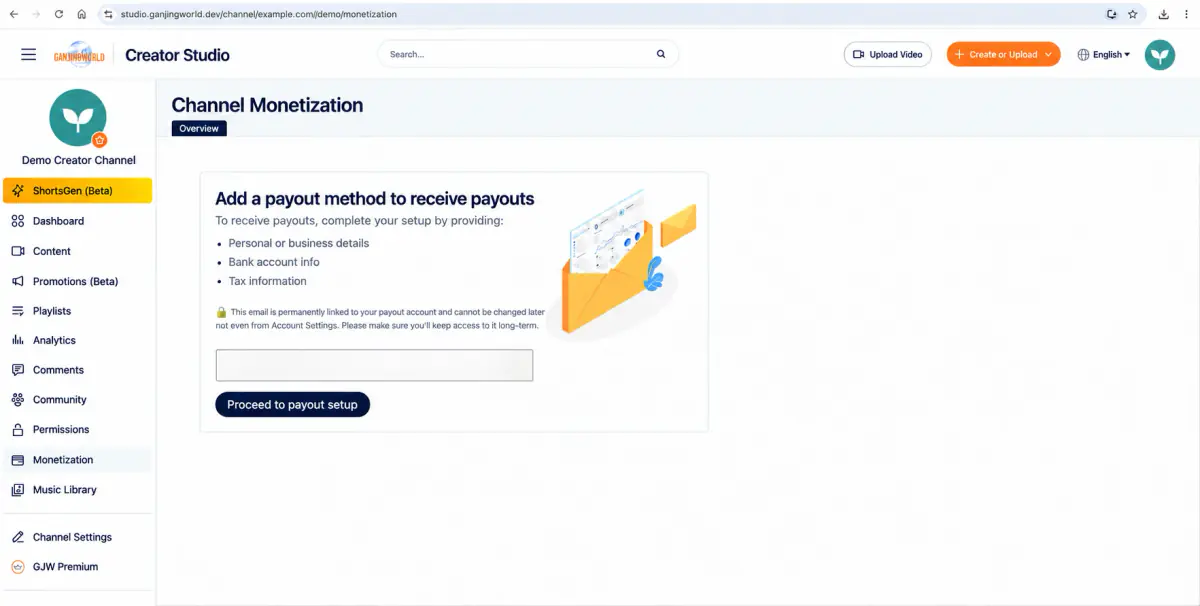
🔒 Privacy reminder: The application screens involve phone numbers, verification codes, names, addresses, birth dates, bank accounts, and tax information. This guide uses fictional example data. Hide sensitive information when creating screenshots or sharing a problem.
Step 4: Complete two-step verification
Payout setup requires 2-step verification. Enter a phone number that can receive the verification code, request the code, enter it, and click Submit. Do not share verification codes.
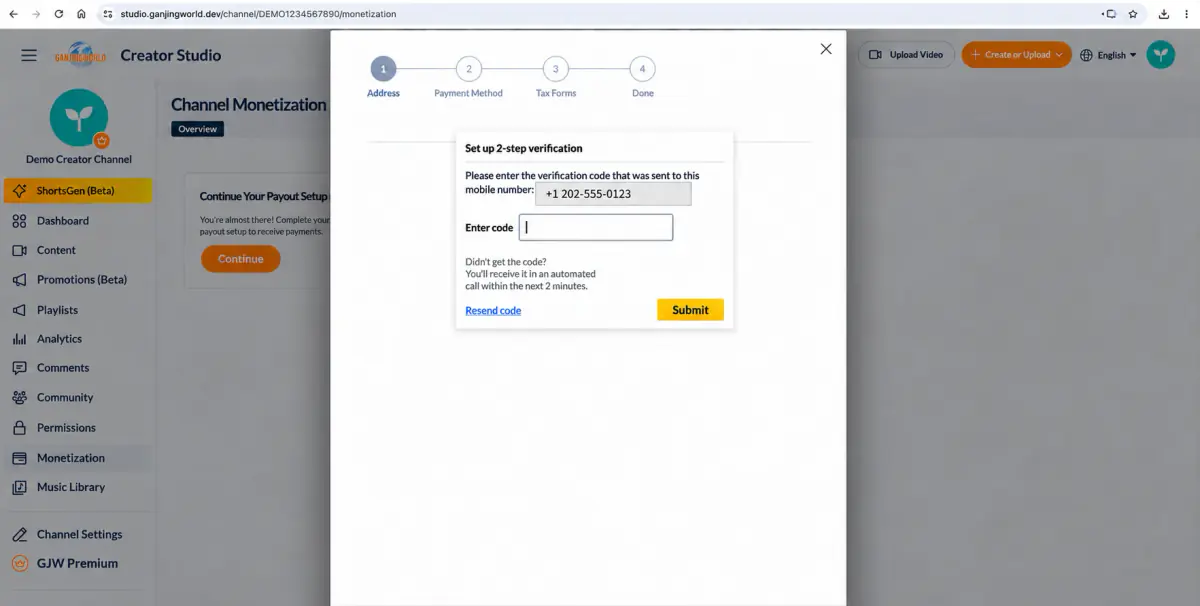
Step 5: Enter address and payee information
After verification, the first payout setup step is Address. Choose Individual or Company, then enter the required contact details, name, country, address, city/state, postal code, birth date, and country of birth. Complete the required fields and click Next.
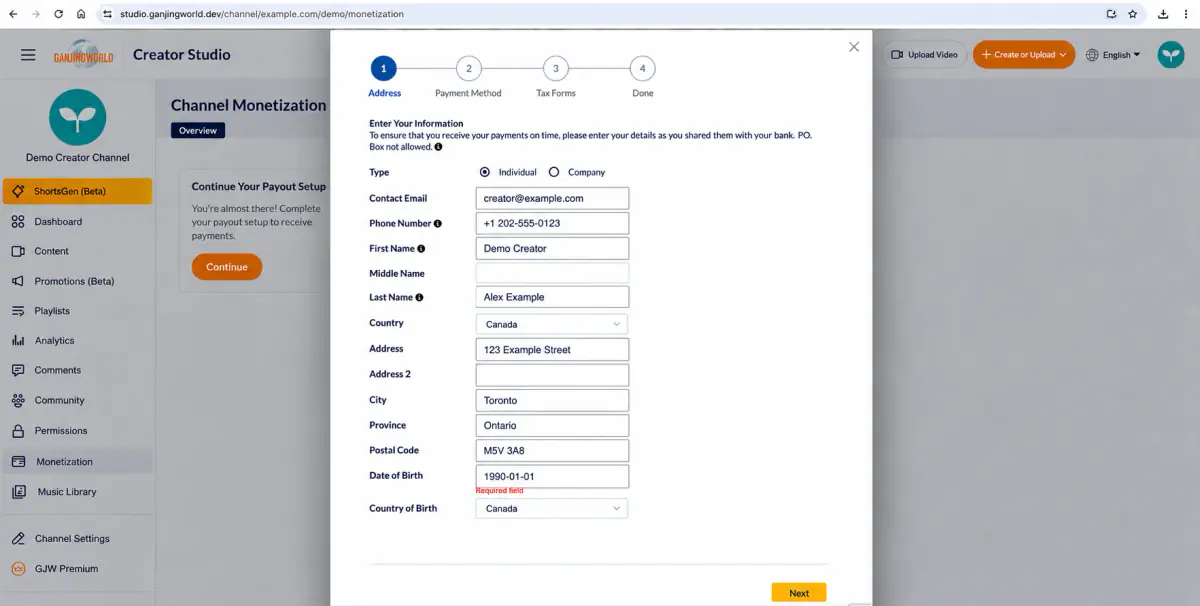
Use accurate, consistent information Payment details must match your bank/payment information. Enter your actual personal or company details. A Required field message means a required field is incomplete.
Step 6: Set up a payment method and bank details
Next is Payment Method. The example uses Local Bank Transfer and allows selection of a payment currency. Enter the required account name, bank name, bank location, institution number, branch routing number, account number, and account type. Review and accept the payment service terms, then click Next.
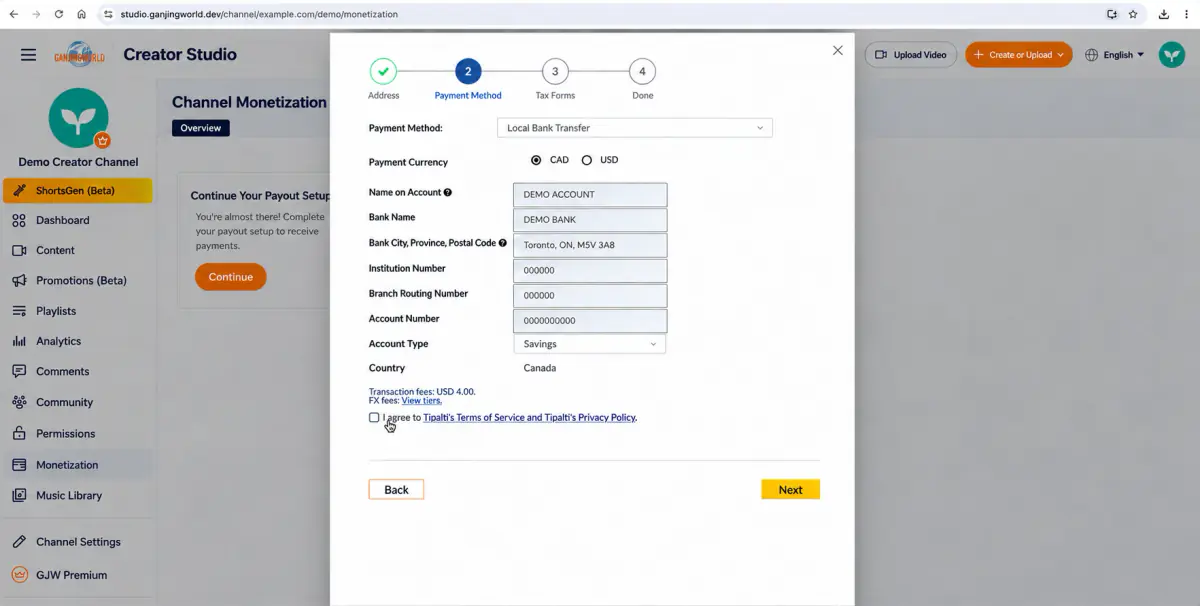
🔒 Financial information: Do not include real bank account, routing, branch, or institution numbers in public guides, group screenshots, or bug attachments. Use dedicated test data.
Step 7: Complete tax forms
After bank details, continue to Tax Forms. Provide the required beneficial owner, nationality/tax residence, permanent address, and tax ID information, then complete Review and Certification.
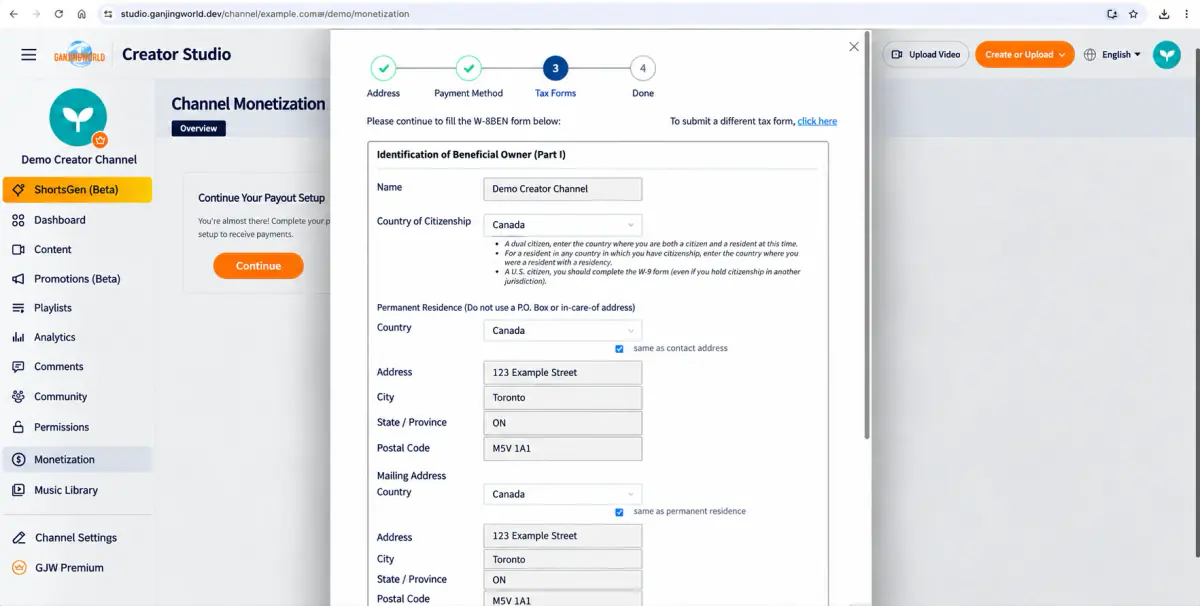
Use your actual tax status Tax forms are official personal or company records. These screenshots show the interface, not answers that every user should copy. Complete the form for your circumstances; consult a qualified tax professional if unsure.
Step 8: Finish payout setup
The progress indicator shows Address → Payment Method → Tax Forms → Done. Complete all required information, tax review/certification, and system requirements to reach Done. Return to Monetization and check that payout setup and monetization status have updated.
After submitting your application Wait for approval after completing the basic application and payout setup. Once approved, return to “Monetization → Overview” to check available applications and their status.
Step 9: Apply for individual revenue features after approval
Basic monetization approval does not automatically enable every revenue feature. Access to each individual revenue feature must also be enabled before you can apply for it.
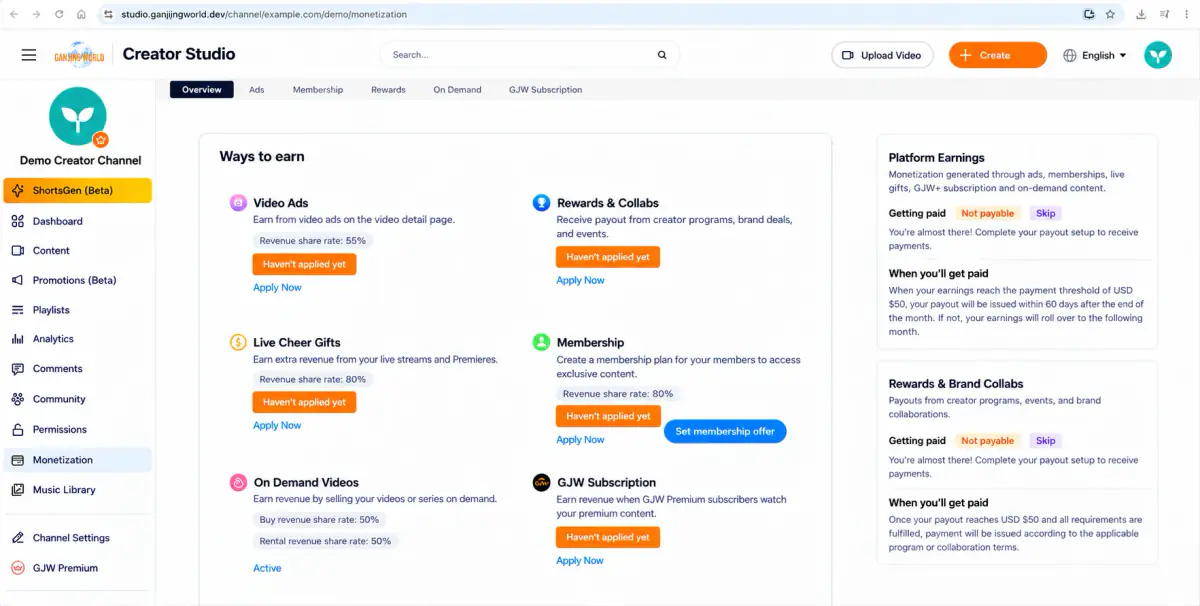
| Status / Action | What it means | Next |
|---|---|---|
| Not applied | You have not completed the application for this revenue feature. | Check whether access to this feature has been enabled, then use its application action. |
| Apply now | You can begin applying for this revenue feature. | Click Apply now, read the relevant terms, and follow the application steps. |
| Enabled | The revenue feature has been activated. | Continue with the settings or actions for that feature. |
Understand the two levels of access First: Your channel needs general Monetization access to begin the basic application. Second: After the basic application is approved, revenue features such as video ads, live donations, memberships, rewards and partnerships, and GJW+ subscription revenue still require individual access before you can apply. An unavailable application for one feature does not mean the entire monetization application failed.
Step 10: Apply and accept the feature-specific terms
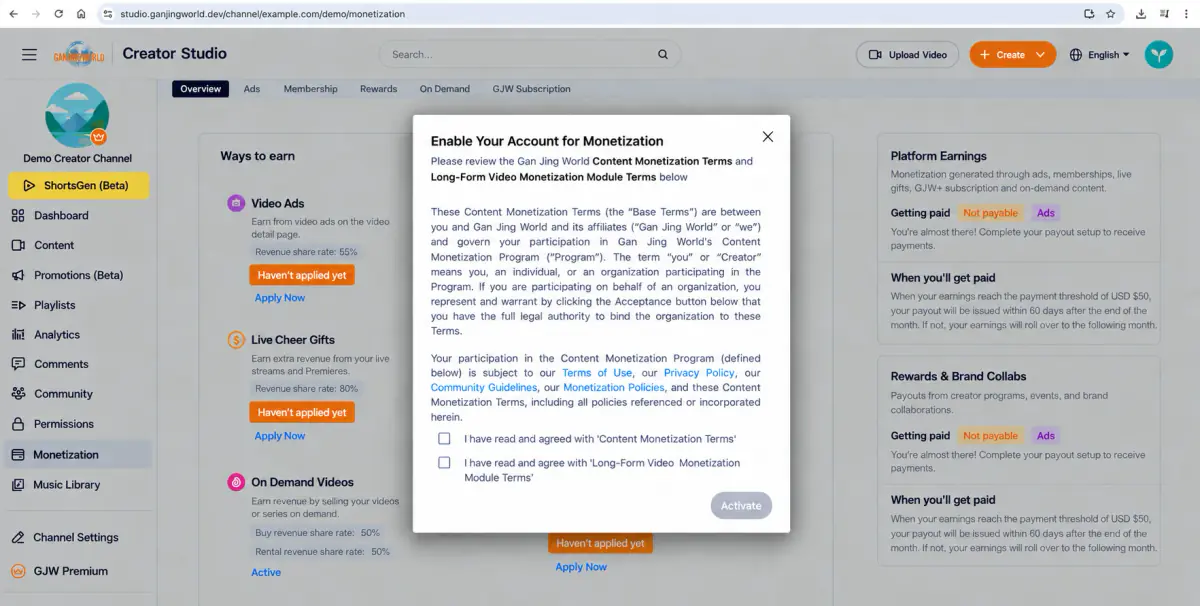
Once access to a revenue feature is enabled, click its “Apply now” action in Overview. In the video ads example, this opens the feature's terms.
- 1
In Monetization → Overview, find a feature open for applications.
- 2
Click its “Apply now”.
- 3
Read the agreement/terms for that feature.
- 4
Select the required agreement checkboxes.
- 5
Click the Enable/Submit button provided.
- 6
Return to Overview and check that the status has updated.
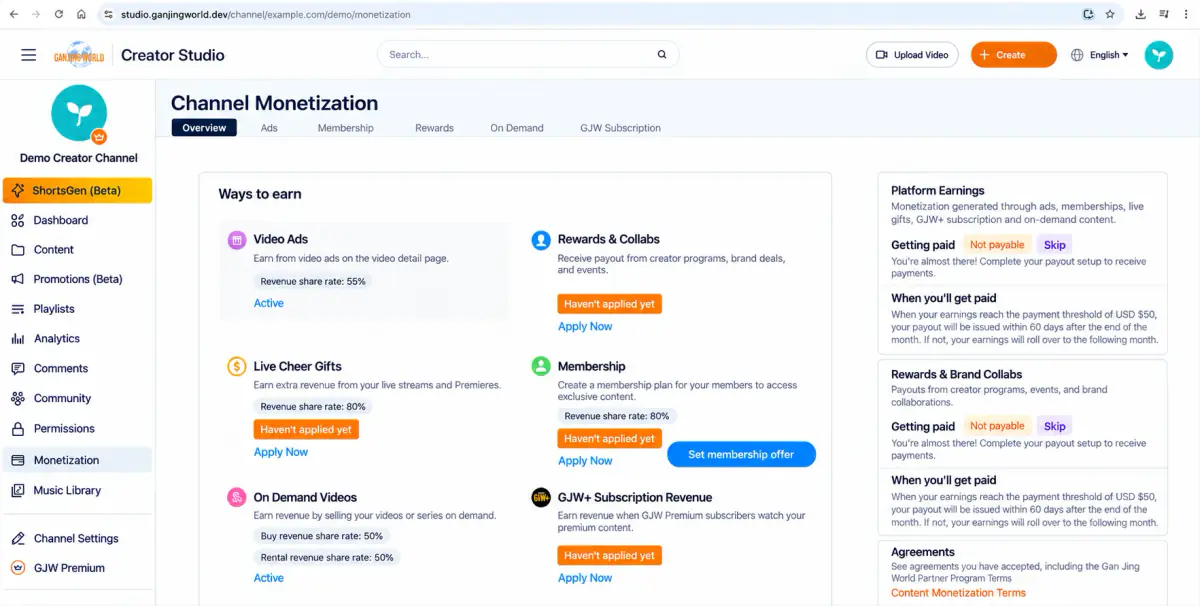
🔴 Key distinction: Basic monetization approval and activation of an individual revenue feature are separate stages. Complete the basic application, wait for each feature's application access, then apply for each feature separately.
Overview: check your channel's monetization status#
Start by opening “Overview”. It brings together available revenue features, revenue shares, and payout status so you can see what is enabled and whether payout setup is complete.
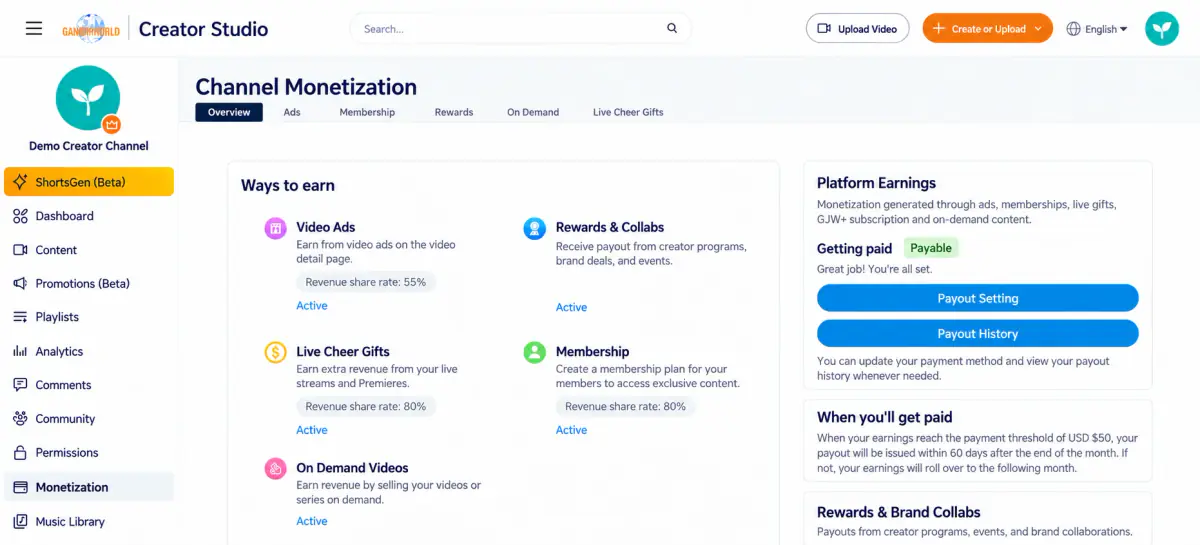
| Overview area | Description |
|---|---|
| Video ads | The source screenshot shows a 55% revenue share for ads on long-form video watch pages. |
| Live donations | The source screenshot shows an 80% revenue share for viewer donations during livestreams and premieres. |
| Membership subscriptions | The source screenshot shows an 80% revenue share for channel memberships. |
| Video sales | The source screenshot shows a 50% revenue share for both purchases and rentals. |
| Rewards and partnership revenue | Revenue from creator programs, brand partnerships, and events. |
| Payout status | The right side shows payout status for platform revenue and rewards/partnership revenue separately. Complete payment setup if prompted. |
Payout threshold and timing The source Overview explains that when earnings reach the US$50 payout threshold, payment is issued within 60 days after that month's end. Below-threshold earnings roll over to the next month. Rewards and partnership revenue also depend on the relevant program or agreement.
Start with Overview If unsure which feature to set up next, check enabled features and payout status in Overview, then open the relevant tab.
Understand the monetization tabs#
| Tab | Purpose | What to keep in mind |
|---|---|---|
| Overview | View overall channel monetization information and status. | A useful starting point when first opening Monetization. |
| Ads | View ad revenue information and access View analytics. | Use View analytics for more detailed performance information. |
| Channel subscriptions | View total subscribers, active members, new subscriptions, cancellations, and membership plans. | Monthly and annual plans and their Edit actions appear on the right. |
| Affiliate | The example shows affiliate program earnings and a View analytics action. | Use this page to check affiliate monetization status and access further data. |
| Exclusive video sales | Create exclusive video content to sell. | Start with Create exclusive video and check pricing in the creation flow. |
| Live donations | Turn live donations on or off and view donation history. | After changing the switch, check the success message to confirm the change took effect. |
Ads: view ad revenue information#
Click the “Ads” tab to view ad revenue information. For more detailed viewing and performance data, click “View analytics”.
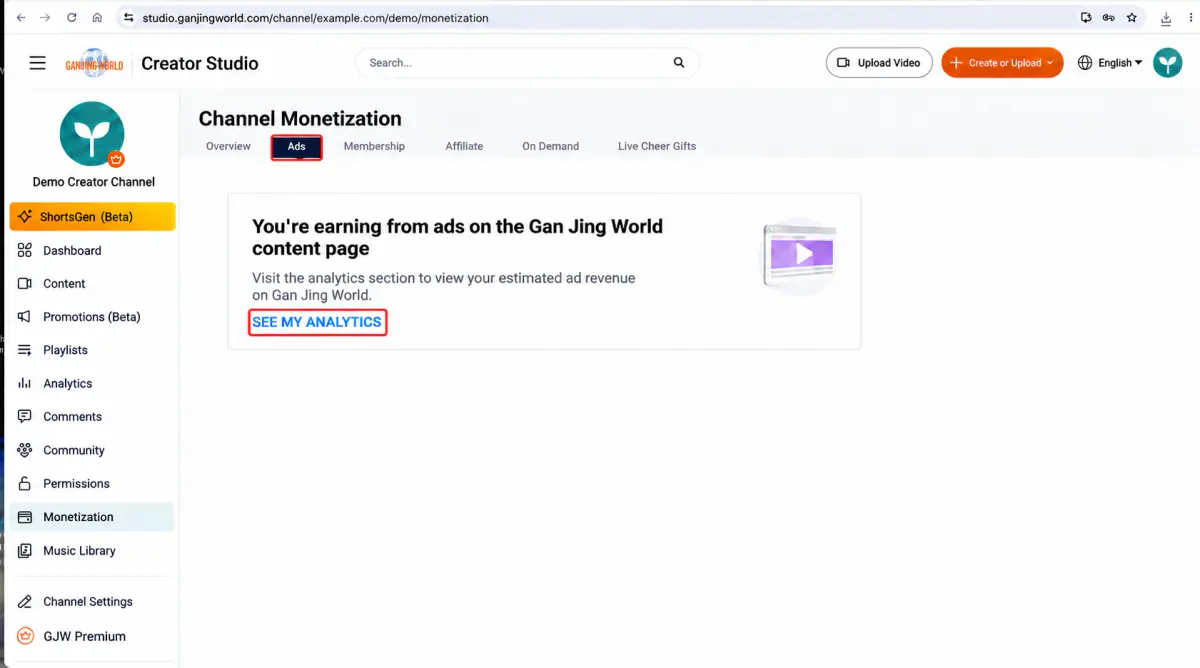
🔴 After clicking View analytics: You leave Monetization and go to Creator Studio's “Analytics” page; the data does not expand within Monetization.
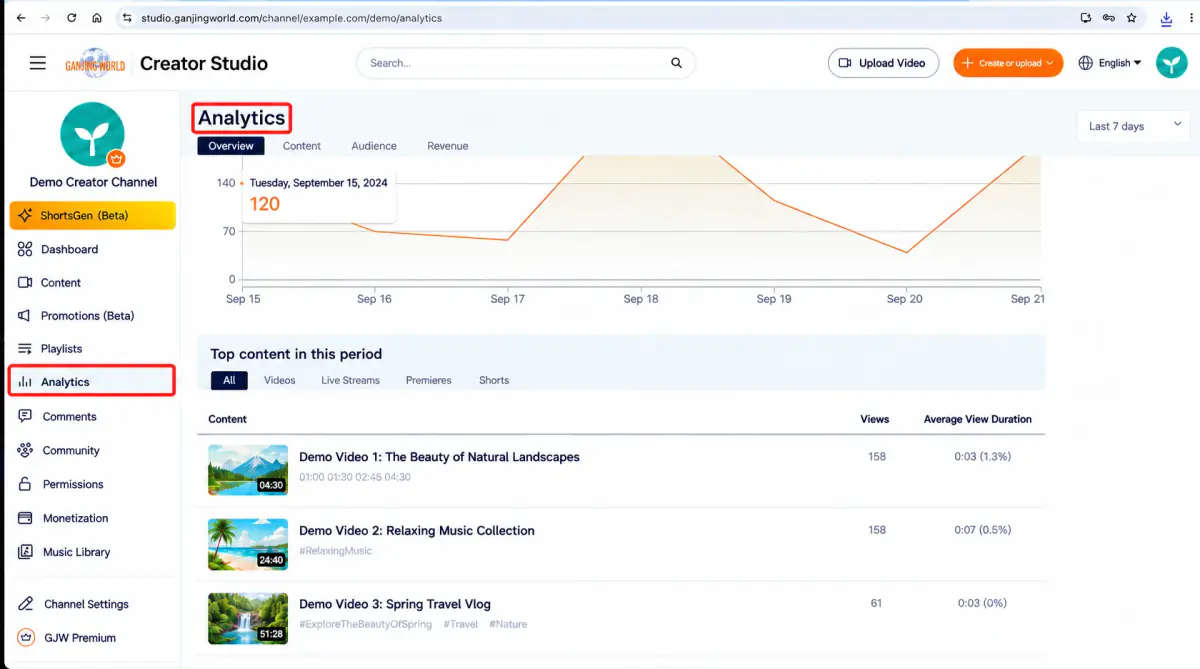
Use the tabs and date range in Analytics to explore performance. The interface includes Overview, content, audience, and revenue tabs. Switch to the relevant analytics tab for revenue information.
How to confirm the page changed You do not need to inspect the URL. When “Analytics” is selected in the sidebar and the page heading says Analytics, you have reached the right page.
Channel subscriptions: view members and plans#
Channel subscriptions brings member activity and plans together. It shows total subscribers, active members, new subscriptions, and cancellations, along with recent subscriber activity.
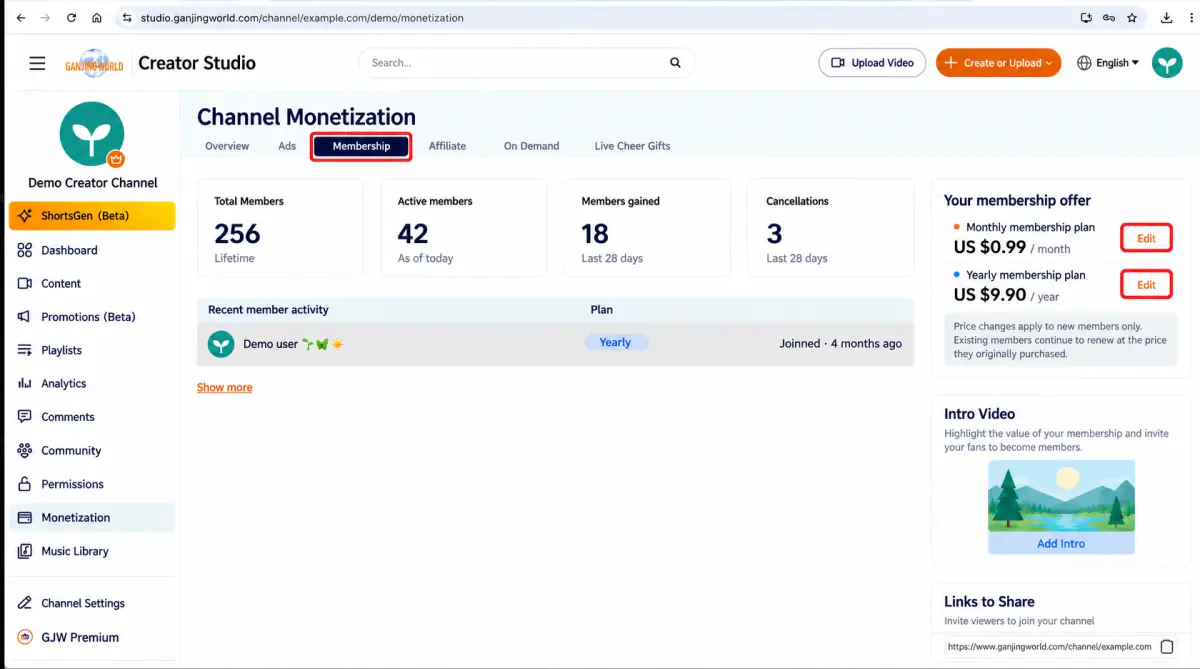
| Item | Description |
|---|---|
| Total subscribers | The cumulative number of channel subscribers. |
| Active members | The number of currently active members. |
| New subscriptions | Subscriptions added during the selected period. |
| Cancellations | Subscriptions canceled during the selected period. |
| Your membership plans | Current monthly/annual plans and prices, with an Edit button. |
| Introduction video | Use this area to explain the value of your membership plans. |
| Share link | Share the subscription link to invite viewers to join. |
Before changing prices Plan pricing affects new subscribers. The interface explains: Price changes apply only to new members. Existing members continue renewing at their original purchase price. Before clicking Edit, confirm whether you are changing the monthly or annual plan and verify the new price.
Affiliate: check program status#
Switch to “Affiliate” to check affiliate earnings status and access “View analytics”.
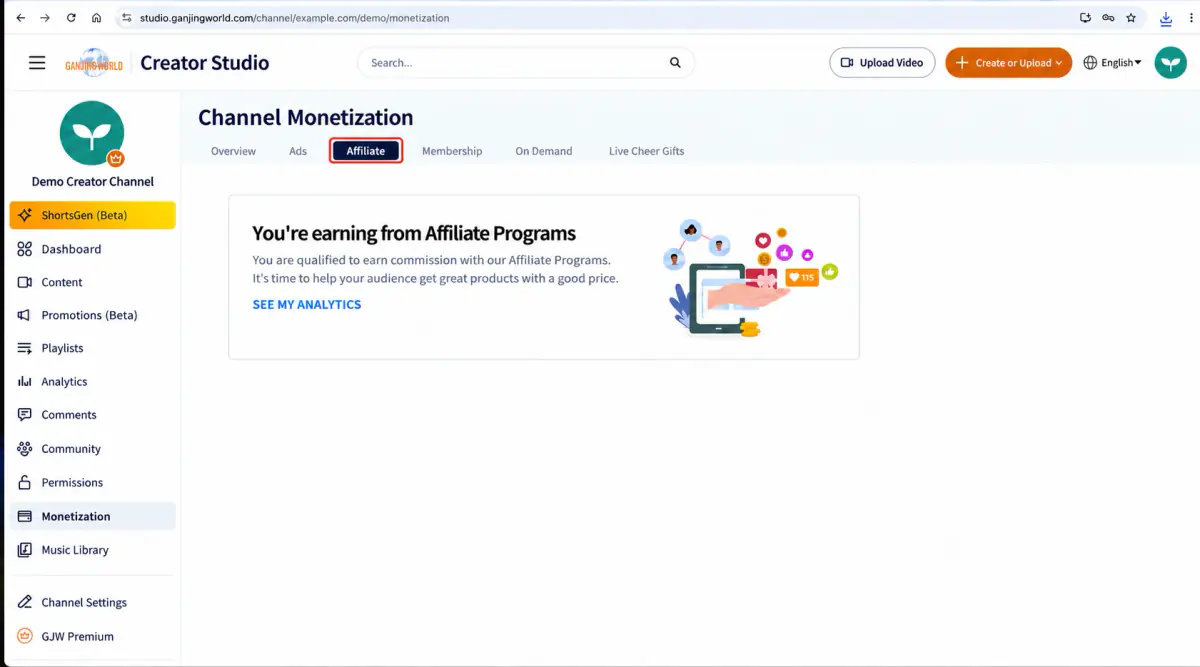
Suggested approach Check the status on this page first. Select SEE MY ANALYTICS to view more data. Use the current page for eligibility requirements and available features.
Exclusive video sales: create content to sell#
Use Exclusive video sales to create content viewers can buy. Start with “Create exclusive video”.
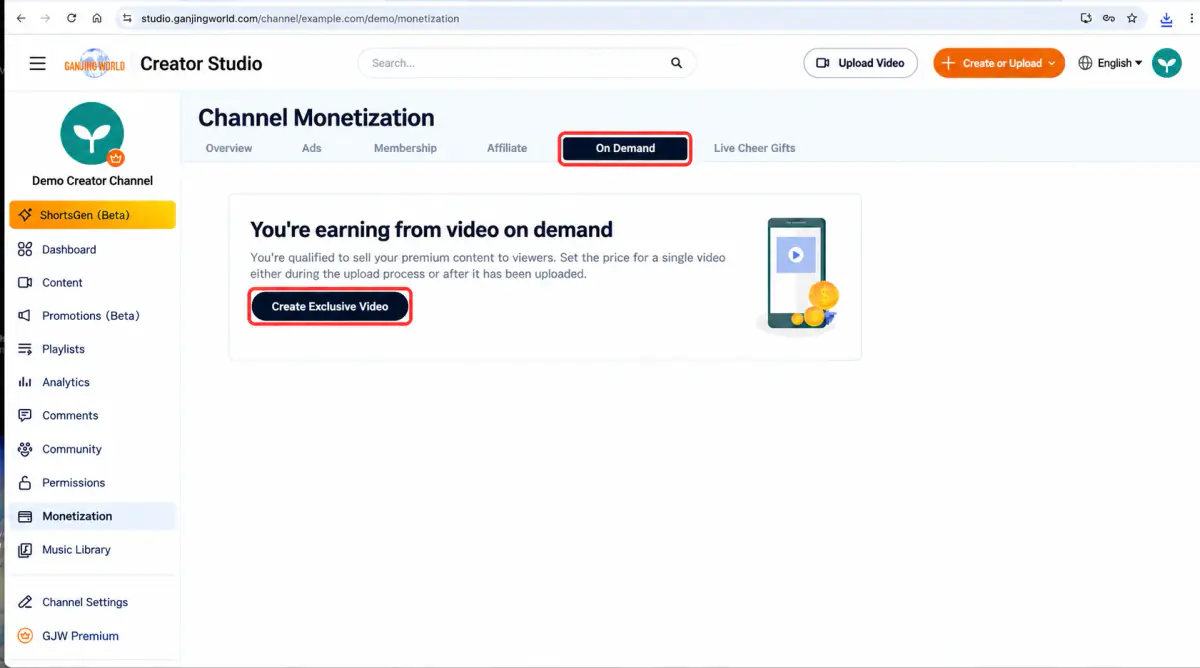
- 1
Click the “Exclusive video sales”.
- 2
Confirm that the page indicates video sales are available.
- 3
Select “Create exclusive video”.
- 4
Follow the creation flow to set up the video and sales details.
When setting prices Pricing affects purchases directly. Confirm the amount, content, and viewer access before creating the offer. After selecting Create Exclusive Video, fill in the creation page and confirm its pricing.
Live donations: enable, disable, and view history#
Open “Live donations” to find the donations switch at the top and “Your live donation history” below. The table includes contributor, amount, associated livestream, and publication time.
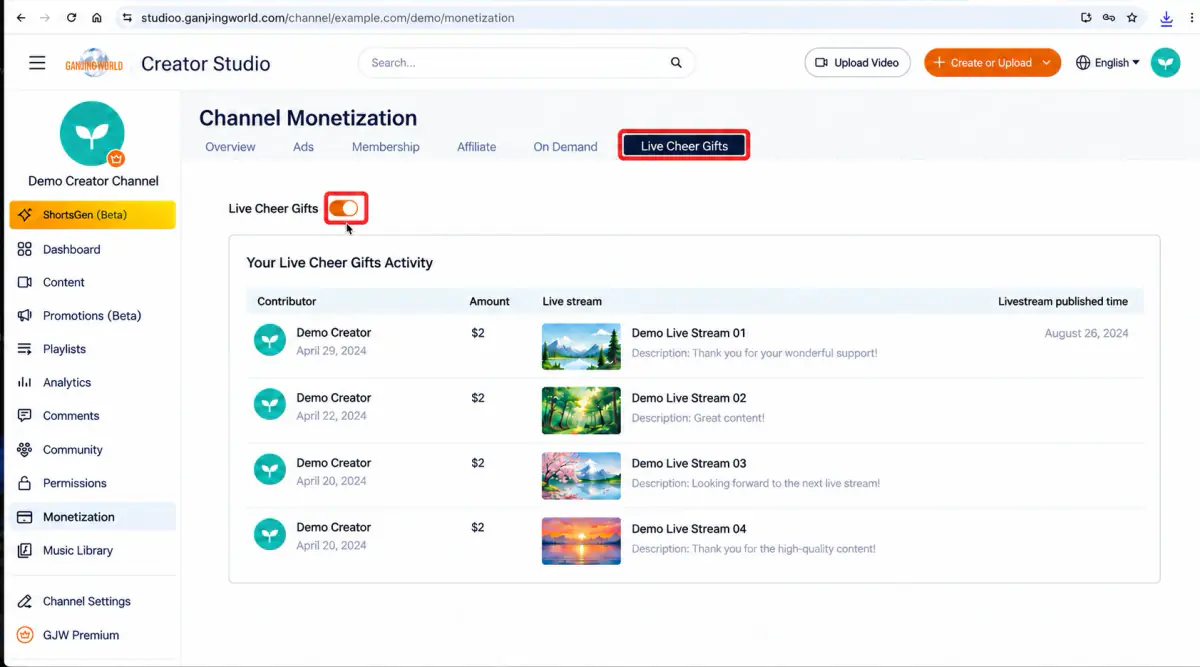
- 1
Click the “Live donations” tab.
- 2
Find the Live donations switch.
- 3
Click the switch to change the setting.
- 4
Check the system message at the bottom right to confirm success.
- 5
Use Your live donation history to review past donations.
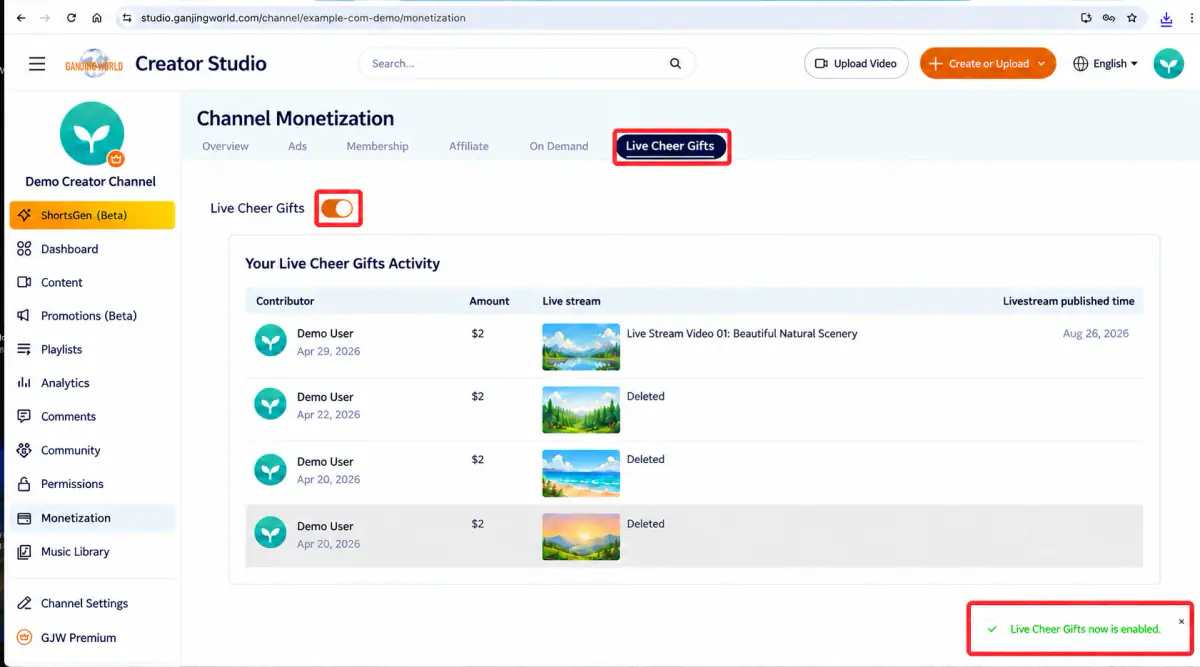
🔴 Confirm the result: Check the success message as well as the switch's appearance to ensure the change was accepted.
Payout setup and status#
Overview shows payout status by revenue type. If it says payment is unavailable or asks you to complete payment setup, finish that setup first. Payouts follow the conditions displayed for your account.
Important For payout thresholds, timing, and eligibility, use the current conditions shown on your account's Monetization page. Complete any requested payment setup, then check the updated status.
One-minute workflow#
- 1
In the Creator Studio sidebar, click Monetization. If you have not completed the basic monetization application, finish it and wait for approval first.
- 2
Choose the revenue feature to manage from the tabs above.
- 3
Review its current status and data.
- 4
To change membership plans, open Channel subscriptions and click Edit for the relevant plan.
- 5
To sell a video, open Exclusive video sales and click Create exclusive video.
- 6
To use live donations, open Live donations, change the switch, and confirm the success message.
Done You can now identify each monetization feature, find its information, and understand which settings affect memberships, sales, and livestream revenue.
Paid playlists: creation, pricing, and management#
Location: Sidebar → Playlists → Paid
Paid playlists require viewers to pay to watch their content. Creation is similar to a regular playlist, with an additional pricing step and price fields when editing.
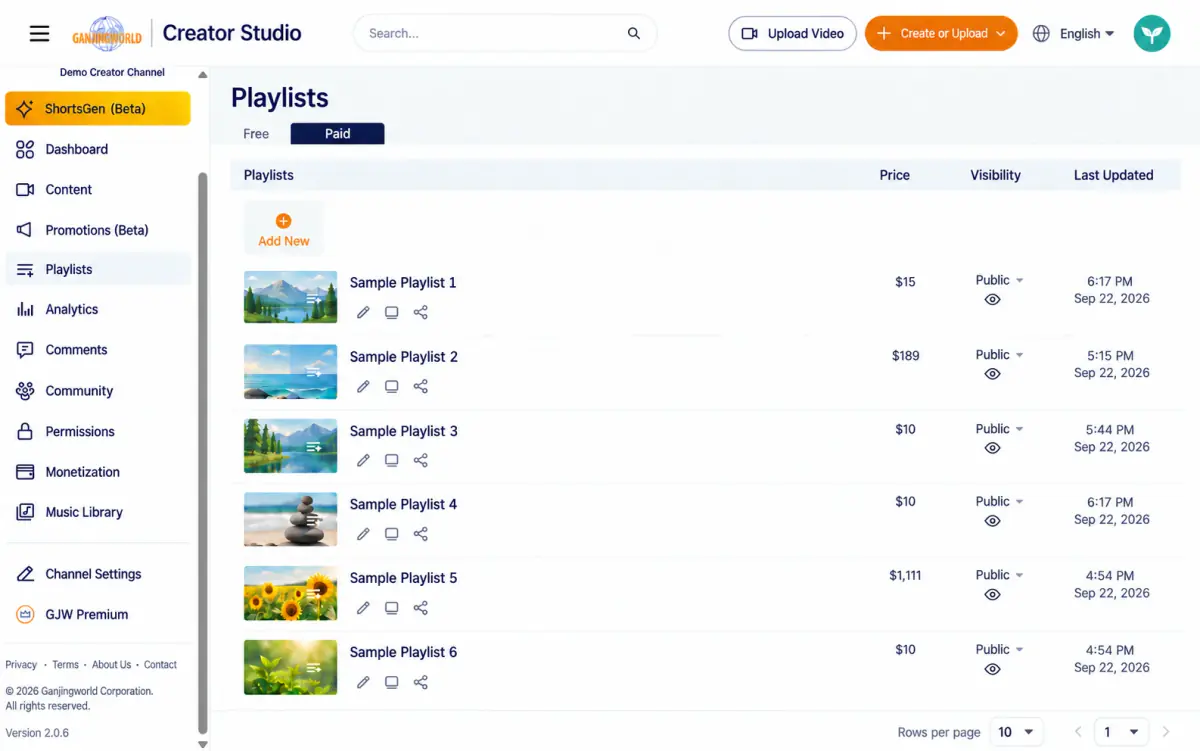
The Paid tab is not available to every channel Only channels with Exclusive video sales enabled (under Monetization; see Monetization application and management) can see the Paid tab and create or edit paid playlists. Other channels see only the Free tab.
Create a paid playlist#
Open the Paid tab on the Playlists page to see your existing paid playlists:
Click Add to open the Create new playlist form. It includes a “Set as paid playlist” switch below Visibility:
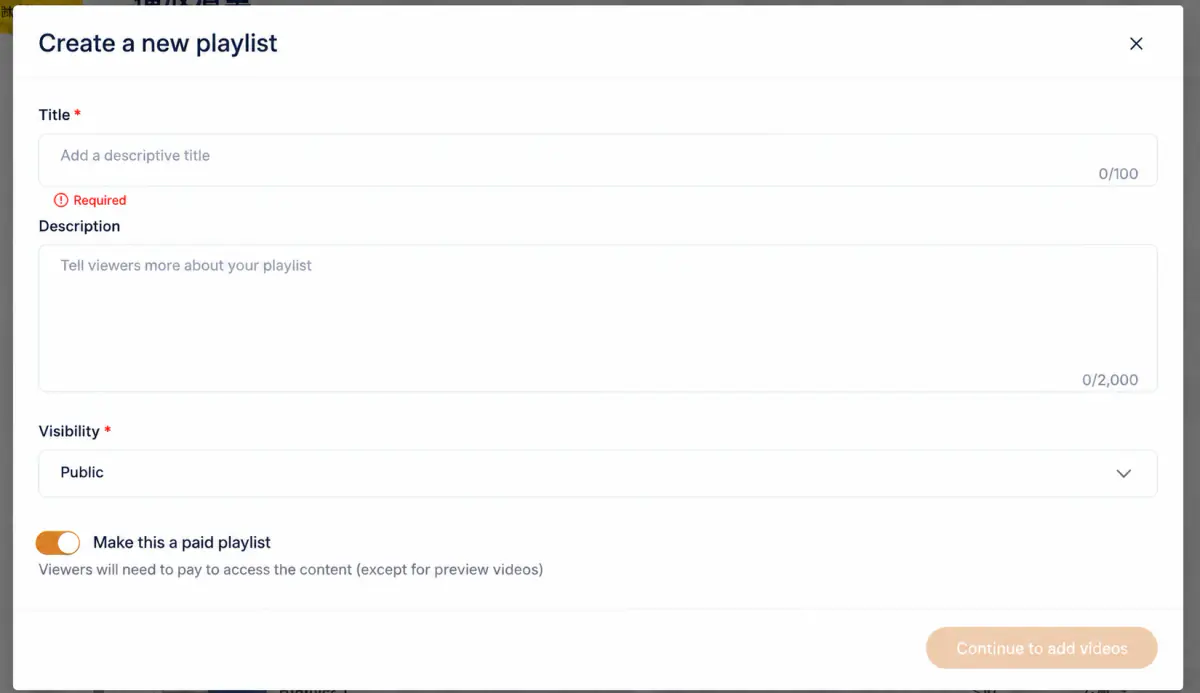
Enter a title and click Continue adding videos. The selection screen resembles the regular playlist video picker (Figure 9-3), with an additional paid/free switch beside each selected item:
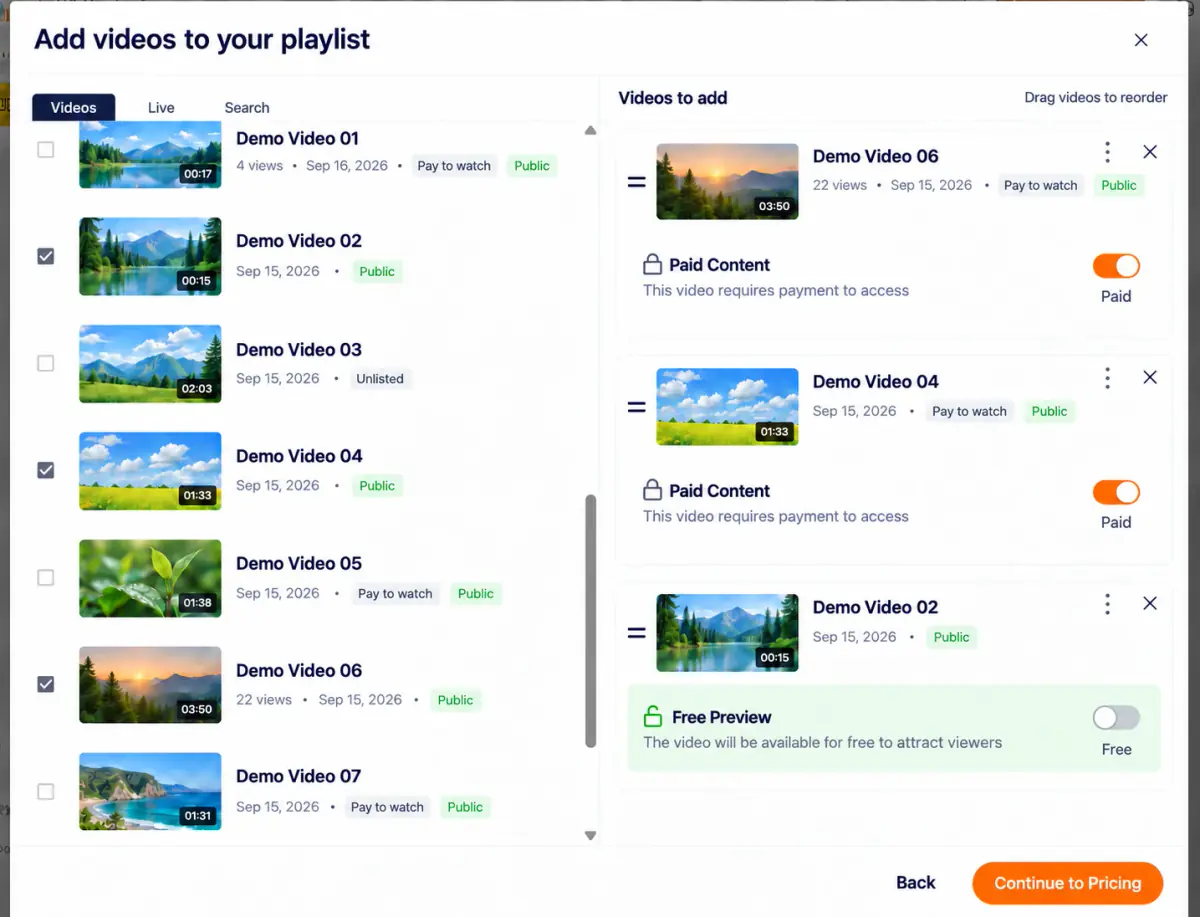
Why offer a free preview? Free preview content lets viewers sample the series before buying the full playlist. You can switch an item back to paid at any time.
Set prices#
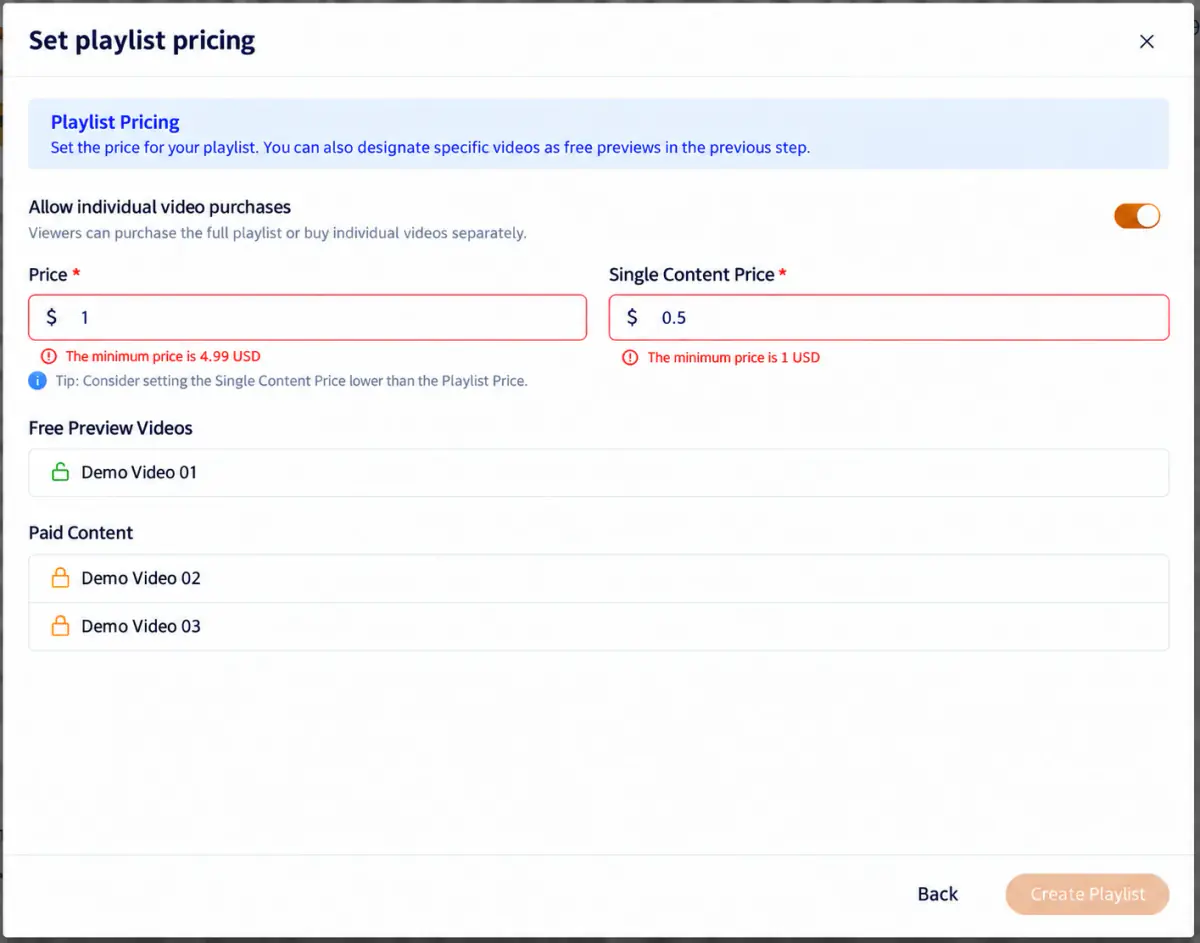
After selecting content, click Set prices to open pricing:
| Item | Description |
|---|---|
| Allow individual video purchases | This switch lets viewers buy the whole playlist or individual videos. |
| Price * | The price for the entire playlist, with a US$4.99 minimum. A lower price triggers the minimum-price warning. |
| Individual content price * | When individual purchases are enabled, this is the price for one item, with a US$1 minimum. A lower price triggers a warning. The interface recommends a price below the playlist price. Turning individual purchases off retains this value for when you re-enable them; see Manage paid playlists below. |
Once the required prices meet the minimums, Create playlist becomes available. A success dialog appears after creation:
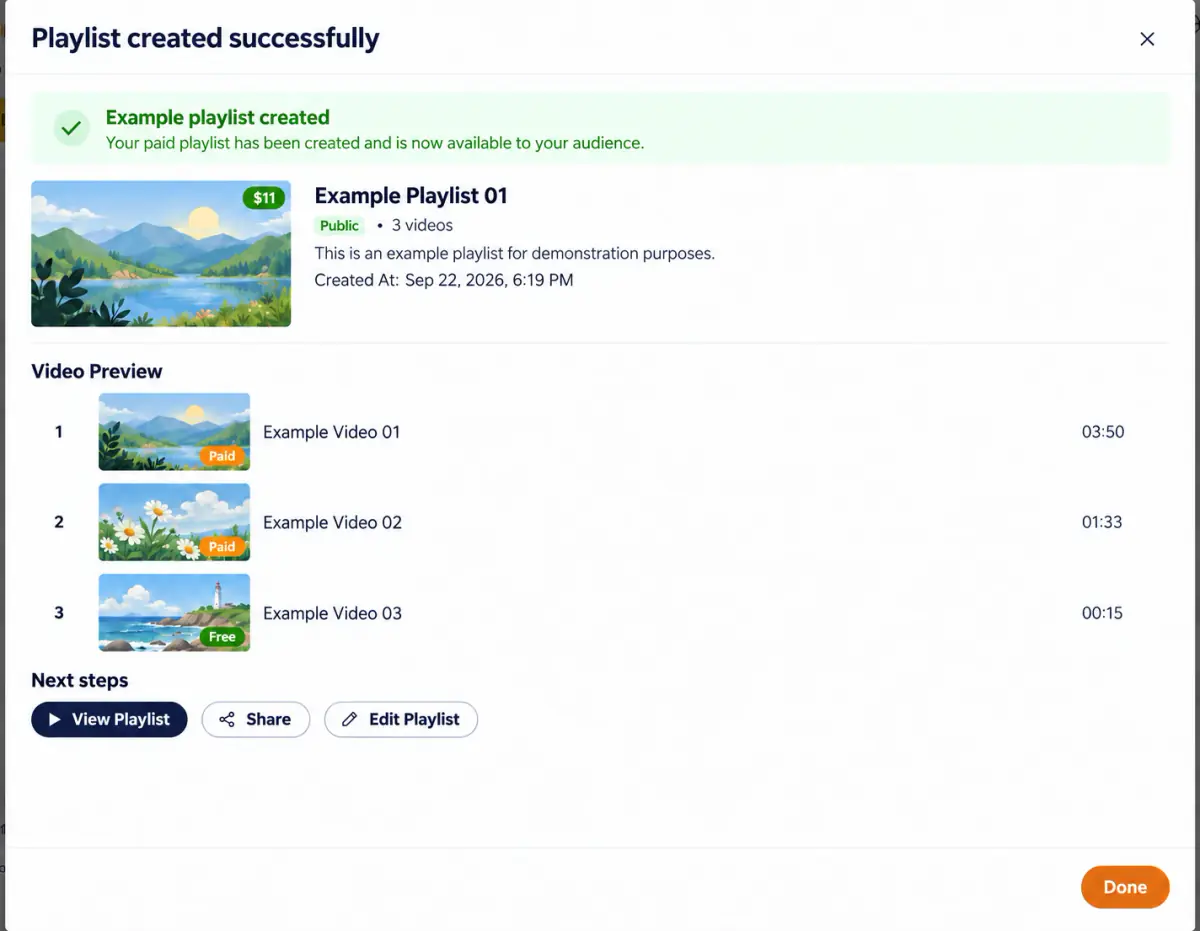
Manage paid playlists#
The paid playlist editor resembles the regular playlist editor (Figure 9-5), with additional price fields and a paid/free switch for each item:
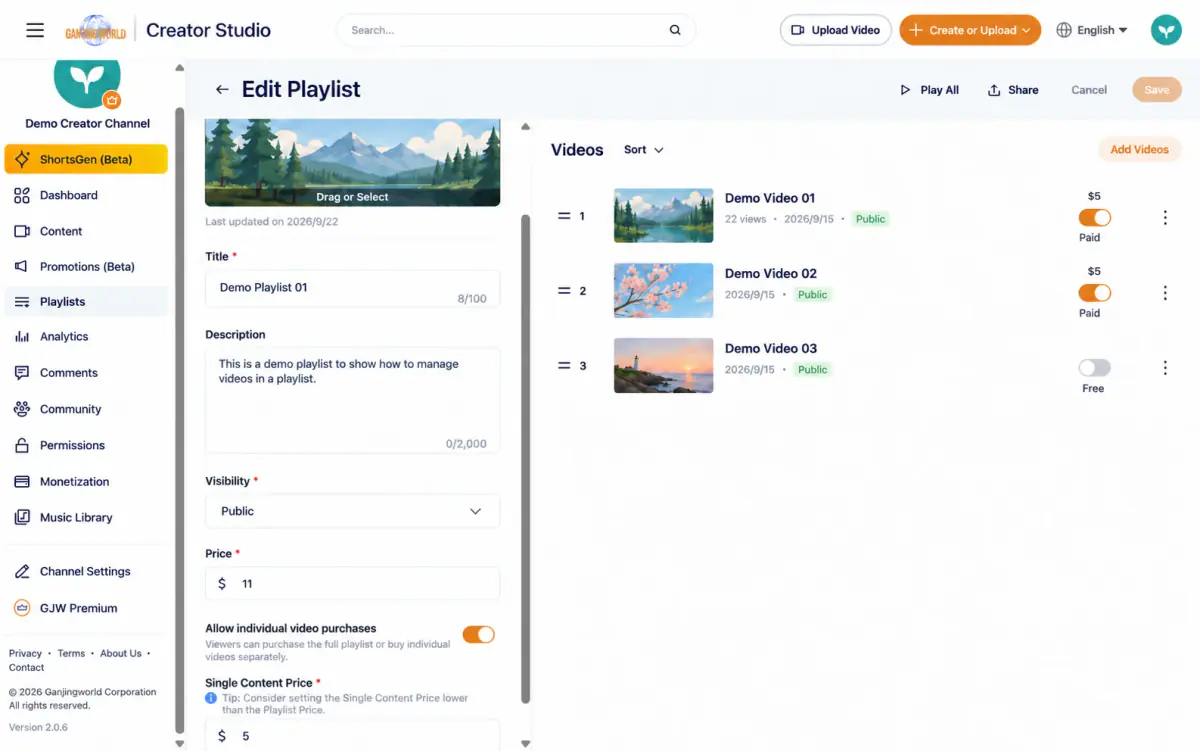
Turning off individual purchases opens a confirmation dialog first:
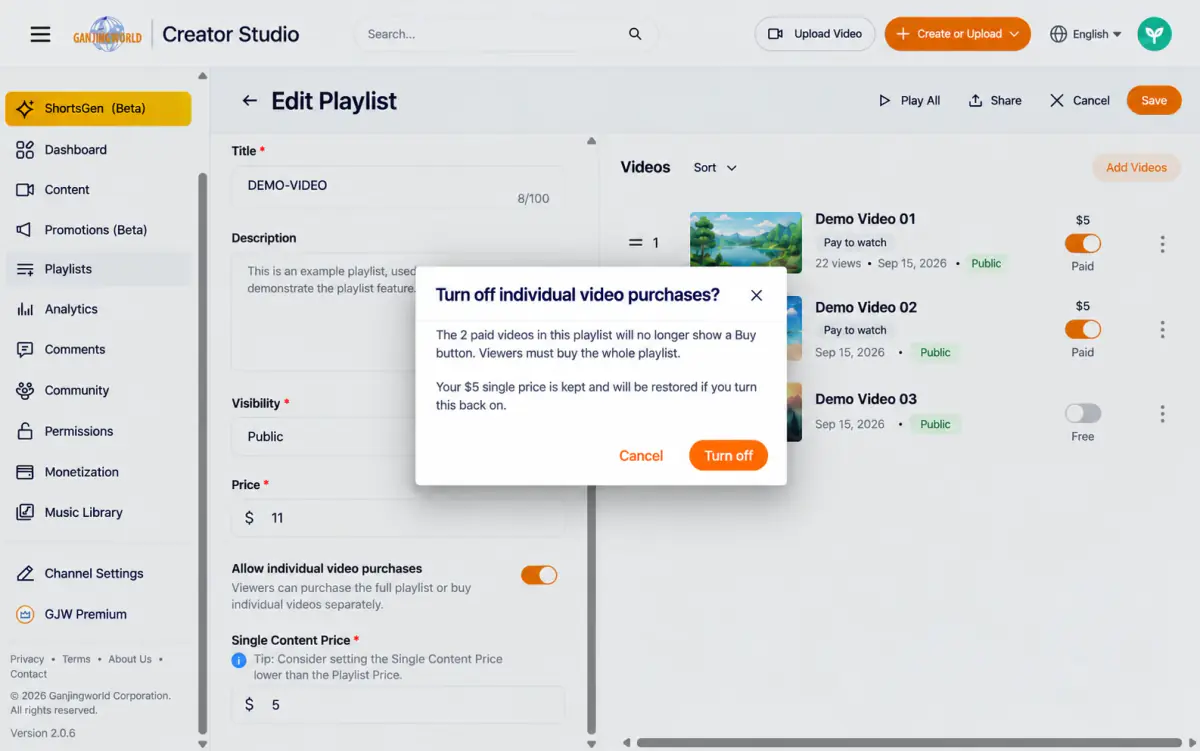
What changes when individual purchases are turned off? The explanation changes to say viewers must buy the whole playlist. Individual prices beside items, such as $5, become “Bundle only.” Existing unit prices are retained and restored when you re-enable individual purchases.
Related to content management and video uploads The Paid viewing label on individual items is the same label described in content management and video uploads. Adding a video to a paid playlist produces this label, regardless of whether the video itself has a purchase or rental price.