
DJI Neo - The Best 4K Self-Flying Drone for Vloggers!
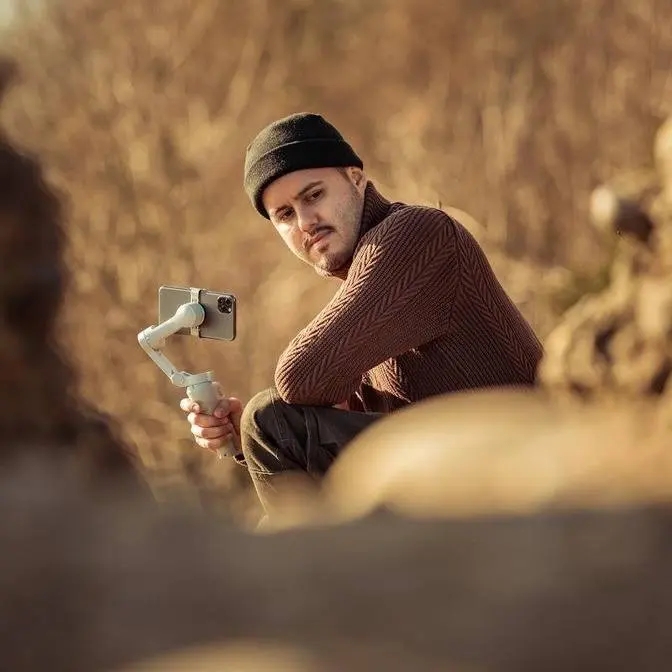
163 Video Views·Sep 5, 2024
as a solo video creator I always look
for ways to streamline my content
creation process whether I'm Vlogging or
filming on the go and one key piece of
equipment is the DJI Neo this right here
is a self-flying 4K vlogging drone that
captures unique aial shots with little
effort and I got to test it out in
different terrains while traveling
across Canada last month and I can say
it was overall a really great experience
in this video I will share with you my
thoughts on the DJI Neo and how it can
level up your vlogging and content
creation process so let me first give
you a brief overview of what I will
cover in this video I'll start with an
unboxing talk about the Drone anatomy
and then talk about the built and design
then we will move over to the key
features we'll also dive into the DJI
fly app and how to use it lastly I will
talk about the price and different
packages and highlight who benefits most
from from this drone now be sure to
check out the time stamp below if you
wish to jump to a specific section and
don't forget the product links are
available in the video
description let's unbox
this so this is what you get in the
combo package you get the DJI Neo you
get an RC remote controller you get the
charging Hub with a total of three
batteries batteries two batteries are
here and another battery is attached to
the Drone and you get a lightning to
USBC and a USBC to USBC cable you also
get two additional propellers a
screwdriver in case you need to remove
the propellers and that's about it all
right let's now look at the Drone
Anatomy to the front we have the 4k
camera then you have the four propellers
which are protected by propeller guards
to the back you have a power on off
button a quick shot smoke mode button
two sensors at the bottom and a USBC
port to the back moving over to the buil
and design the drone's design is similar
to that of the DJI Avada but it's
smaller in lightweight at just
135 G I believe this is dji's most
lightweight drone that they have ever
produced and what's great about this
drone is that it can easily fit in your
palm making it incredibly portable and
easy to take with you wherever you go
plus it comes with a detachable full
coverage propeller guards and this keeps
the propeller safe from bumping during
flights and protects them from
accidental contact now during my testing
I did crash the Drone a few times but
never had any damage thanks to the
propeller guards which is a huge plus
also for beginners who are still
learning to fly drones and it also has a
max fly distance of 7 km now the Drone
also has a palm takeoff and Landing
feature which we will explore in the
feature section but to give you an idea
you can perform at least 20 palm
takeoffs and landings with one battery
and this to me is more than enough for
capturing short clips as well as doing
longer flights now here's a pro tip if
you have extra batteries you can charge
one with a power bank while flying with
the DJI Neo allowing you for even
greater fly time now the Drone also
comes with 22 GB of internal storage
which is actually way more what you
usually get with most camera drones now
keep in mind you can't insert any
external SD memory card but what's great
is that you can quickly connect it to
the DJI fly app preview your footage and
then download it directly to your photo
album or connect it to the computer
directly and offload the footage that
way let's now dive into the most
exciting part the key features of the
DJI Neo so I'll start with my favorite
one the Palm takeoff and Landing now
when you use a traditional drone you can
really take off immediately you have to
unfold the Drone connected to the
controller and find a suitable spot to
take off with the DJI Neo you have
everything ready to go flying is really
as easy as pressing a few buttons so let
me just quickly demonstrate it to you so
the first thing you want to do is power
on the DJI Neo then position the DJI Neo
on your palm with the camera facing you
then choose one of the intelligent
shooting modes by pressing the quick
shot button by default it's set to
follow mode you'll then hear a voice as
you choose your desired quick shot mode
then to initiate takeoff long press the
quick shot button it will then count
down from three and make sure to hold it
up so the camera can recognize your face
it will then take off from your palm and
do the action to safely land the Drone
back in your palm position your hand
underneath it now here here's a helpful
tip if you want to cancel your flight
before takeoff just press the quick shot
button again okay so let's get into the
fun part the quick shots the DJI Neo
offers six quick shot modes allowing you
to capture those perfect moments with
ease the first and most popular one is
follow this one uses AI subject tracking
keeping the subject in the center of the
frame no matter where the subject moves
and this makes it great for activities
like cycling hiking and running I tested
it out in different environments and it
followed me very accurately even in the
most challenging situations it can take
on winds up to level four capable of
withstanding speeds up to 30
kmph the reason why I like this mode so
much is that I can just simply activate
it and the Drone will follow me this way
I don't have to think about it and can
really enjoy the moment while having
these cool shots now follow mode is also
an excellent mode for vlogging allowing
you to Showcase your surroundings while
your drone follows you and you can
actually record audio through the DJI
fly app while having the Drone follow
you but we'll look at that feature in
just a bit the next quick shot mode is
my second most used one droney in this
mode the Drone flies away from you it's
a great way to show your surroundings or
also take a selfie shot so not only can
you take 4K videos but also capture 12
megapixel photos now especially while
traveling I love to use this mode to
Showcase my surroundings and I've
captured some of the most beautiful
shots of Landscapes and cities using
this mode so next up is circle this is
where the DJI Neo circles around you a
great way to Showcase your surroundings
now in this mode you do have to be
stationary to have the Drone circle
around you if you start moving this
won't work if you want to have the Drone
circle around you while you move you can
also connect your phone to the control
ER and use the active track along with
the rotation feature to walk and have
the Drone Circle you and that creates
even more of a dynamic shot then we have
a rocket where the DJ Neo shoots
straight up into the sky also a great
perspective for breathtaking aerial
shots for example this shot where I
walked through a maze looked really
amazing from the top now just a quick
note in this mode the djo captures Two
Shots one while ascending and the other
while descending then we have the custom
mode where you can select Helix
Boomerang or Direction track and you can
choose those preferred custom modes
inside the DJI fly app with Helix the
Drone circles you and ascends in a
spiral while moving backwards with
Boomerang the djo circles you in an
elliptical pattern then we have
Direction track unlike follow mode where
the Drone follows you from behind
Direction track allows the Drone to
follow you from the front now
Additionally you can customize the
settings for each mode directly within
the DJI fly app which we will explore in
Greater detail later and this includes
options like follow distance follow
height and camera mode another awesome
feature for vloggers is that you can
capture audio using the DJI fly app
while you're recording with your DJI Neo
the Drone uses the phone's microphone to
synchronize the audio with the video and
cancels out the noise from the
propellers now to enable audio recording
through your phone you can activate the
microphone in the app under the controls
option now important note do not turn
off the screen or switch to another app
when recording what's also great is that
you can connect the DJI mic 2 and use
the noise cancelling feature for a more
convenient handsfree recording option so
let me now show you how it sounds like
recording audio through the phone using
the DJI fly app but let me first show
you how loud this drone actually is so
I've set it to follow mode Let's Start
the flight 3 2
1 so the flight noise is at 79 DB it's
actually lower than the DJI Avada 2 but
when I now switch over to the phone's
microphone you'll notice that it cancels
out all of the uh propeller noise what's
really cool is that I can walk around
and the Drone follows me and this is
especially great for vloggers now we're
also going to test the tracking on the
djo so let's just run around a little
bit it lost me but it red detects me and
we can get back into running what also
makes the DJI Neo great as a vlogging
drone is that I can also hold it and
Vlog with it by using the DJI fly app
and setting the mode to manual control I
can simply press the record button and
start recording the video this way while
capturing the audio through my phone so
that is also a cool feature and this
also allows me to get another different
perspective and I don't necessarily have
to use another camera to shoot my Vlog
handheld another fantastic feature of
the DJ Neo is its versatile control
options now first as mentioned earlier
you can use quick shots without the need
of a controller Additionally you can
connect the DJI Neo to your phone via
the DJI fly app allowing you to use the
virtual joysticks and this method is
excellent for achieving more controlled
shots and it's also something I used
regularly to operate the Drone it lets
me take quick shots while manually
controlling the Drone especially when I
need to fly through things now here's
another Pro tip if you're using quick
shot modes in tricky spots like taking
off a suspension bridge I recommend
connecting the DJI fly app to the Drone
that way you can quickly stop the action
if the DJI Neo loses track of you or
flies into something now what's truly
impressive is that you have up to 30 m
of HD video transmission directly from
the Drone to your phone providing a
clear view of what you're filming you
can connect your phone to the remote
controller for even greater control over
your aerial shots which is by the way
the third way you can operate the DJI
Neo allowing you to use it like a a
traditional drone now if you're into fpv
you can also grab the RC motion 3 or the
fpv remote controller with the DJI
goggles 3 this way you can fly manually
and hone your fpv skills and I totally
suck at fpv so this to me is a great way
to get started so you can really see how
the DJ Neo offers a lot of control
options that way you can choose what
works best for you depending on the
situation so let's talk about the video
quality the DJI Neo is quite impressive
it can can shoot up to 4K at 30 frames
per second and 1080p at 60 50 and 30
frames per second now with its single
access gimbal stabilization including
electronic stabilization it does a great
job of keeping the footage smooth even
when it's windy outside now for social
media content like Instagram YouTube Tik
Tok the image quality is great I mostly
use the quick shot modes but if you're
looking for more control over your image
you can connect the DJI Neo to the r r c
remote controller with the DJI fly app
you can easily switch to manual settings
and tweak things like ISO shutter speed
and white balance to get the look you
want now currently there aren't any ND
filters available I'm sure companies
will start producing these ND filters so
that you can use them on the DJI Neo to
achieve a more cinematic look in your
video so let me walk you through the DJI
fly app I have the DJI Neo turned on and
I'm inside the DJI fly app and you can
see that it has already been detected I
can either select connect here or I can
head over to connection guide and then
select the DJI Neo and then we get
different connection options so you can
connect it to your mobile phone RC or RC
with goggles 3 but for now I'm going to
keep it simple and connect it to my
mobile device and that is also what I
use most often so select
that and you can see the DJ Neo appears
I'm going to tap on
it and we're now inside the camera
shooting page so starting at the top we
have the arrow which leads us back to
the homepage and I can select goly to
head back again then we have the takeoff
information so right now it's permitted
then we have the battery life of the
Drone which is
79% the recording time and the Wi-Fi
connection then we have a real-time view
of what the camera is seeing and there's
actually almost no delay right now it's
connected to the home Wi-Fi network then
to the right we have a slider which
controls the tilt of the Gimbal and you
can see it's really smooth then we can
choose between the quick shots as well
as manual control so when I select
manual control you will see that the
image gets darker and that is because it
will use the manual settings that I
dialed in when I connected my phone to
the RC remote controller now something
else I want to show you when you're in
manual mode you can switch between video
and photo I can also tap hold to take
off and then you get these virtual
controls and then I can tap this button
and then long press on
land select
okay and it will land back safely and
you can actually start and stop
recording even if the Drone isn't flying
this allows you to hold the Drone and
you know Vlog handheld with it when I
now select one of the quick shots the
camera settings will be set back to Auto
then we have the mic icon so when I
disable and enable it it tells me that I
can now use my mobile device or an
external microphone to record audio for
aerial videos and important is during
the recording do not turn screen off or
switch to another app so this is
especially cool for those who want to
use the DJ Neo for vlogging let's now
head over to album this is where all the
files are stored internally I can also
download it straight to the photos app
by selecting the clips and then
selecting this download button there's
also a quick transfer option if you
connect the phone to the RC remote
controller and if you head over to the
saved you can see all the clips that you
have saved to your photos app when you
head over to the three dots you get your
preferences so I usually disable skin
effect and body effect so let's now head
to the settings so in here we have our
smart shots so when I tap on one of
these quick shots let's select follow
for example we can adjust additional
settings such as the follow distance
ranging from close medium to far and
then the follow height ranging from low
flat to high and the camera mode you can
switch between the video and picture
depending on the camera mode you also
get a nice preview of what this mode
will do as well as a description then we
also have custom where we can choose one
of these three quick shots I prefer
Direction track where the Drone follows
me from the front then we also have
camera settings for the highest
resolution I recommend you choose 4K for
the frame rate 30 frames per second the
color profile only normal is available
and for the encoding format h.265 to
save on storage space then below you can
also format the internal storage let's
now head back let's now choose more
settings in here you have some
calibration options uh the battery cycle
count in the control section you can
select the unit uh calibrate the gimbal
as well as reenter the gimbal if you
want
then we have the about page where we
have additional information so yeah as
you can see the interface is pretty
simple and straight forward making it
really easy to operate the DJI Neo via
the DJI fly app regarding pricing you've
got a few options based on what you need
the DJI Standalone package gives you a
drone and one battery for just $211 us
if you're looking for a bit more the DJ
Neil fly more combo includes the Drone
three batteries a charging Hub and the
standard DJI rcn3 remote controller all
for
378 us and if you're thinking about
expanding your setup you can also grab
the DJI goggles 3 the DJI RC motion 3 or
the DJI fpv remote controller 3
separately so who is the DJI Neo 4 I
think it's perfect for beginners diving
into the world of drone flying and for
vloggers and content creators looking to
capture everyday moments easily really
ideal for those who film on the go a lot
like I do as well as for spontaneous
shoots like when you're traveling and
want to capture those special moments
what I especially like to use the DJI
neo4 is to grab different b-rolls of
myself without needing a camera operator
this way I have different shots from
different perspectives making my content
more engaging for my viewers what I find
super nice is the Palm takeoff and
Landing feature which makes capturing
shots so easy and quick it also doesn't
get as much attention it is still loud
but compared to the other drones it is
quieter the Neo really feels like your
personal videographer packed with a
bunch of intelligent features like AI
subject tracking and quick shots to
capture these Dynamic footage hasslefree
now let me know what you guys think
about the DJ Neo and if it would be
something you would consider using in
your content creation process I hope
this video was helpful if you have any
questions be sure to leave a comment
below thank you so much for watching and
I'll see you in the next one