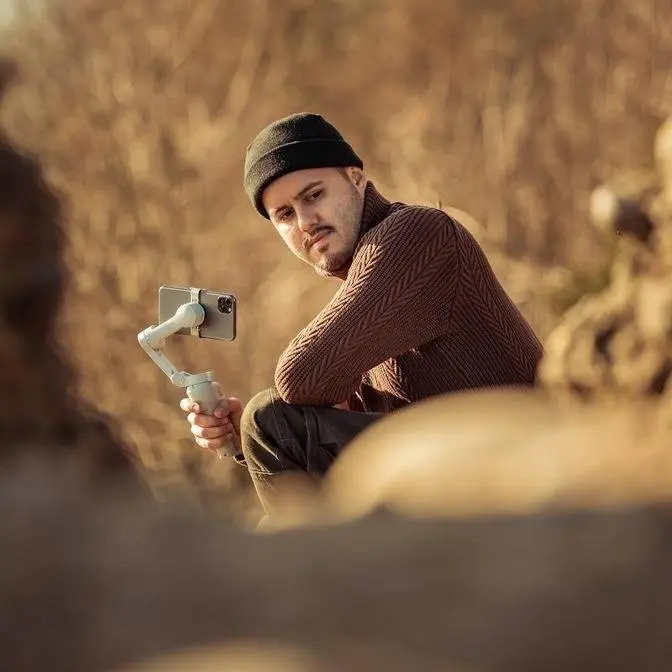
Everything you need to know about the DJI Osmo Pocket 4 for vlogging, including setup, settings, features, and real-world use. I also compare it to the Pocket 3 so you can decide if the upgrade is worth it.
DISCLAIMER Some links are affiliate links, where I earn a small commission if you click on the link and purchase an item. You are not obligated to do so, but it does help support this YouTube channel and allow me to continue making videos for you. I appreciate your support!
So, DJI has finally released the Osmo Pocket 4, and in this video, I'll break down everything
you need to know to get started with it vlogging.
I'll cover the new features, compare it to the Pocket 3, and show you exactly how
I use it, my go-to camera settings, button functions, shooting modes, accessories, and
much more.
We'll also discuss who the Pocket 4 is really for, and whether it's worth upgrading if
you already have a Pocket 3.
There are also timestamps below, so you can skip ahead or jump back any time.
So why would you even think about using a DJI Osmo Pocket for vlogging?
It's no wonder this little camera, the Pocket 3, has been a favorite amongst vloggers, myself
included.
When you're creating content regularly, you need something that's easy to use, but still
delivers great-looking footage.
And that's exactly what the Osmo Pocket does.
It's small, lightweight, and ready to start shooting in seconds with a flip of the screen.
The 3-axis gimbal keeps your shots steady, so your videos look smooth and professional,
even if you're on the move.
For vloggers, it's basically the ultimate go-to camera.
Before we dive into the details, let's take a close look at the Pocket 4 as a whole and
see what makes it stand out.
At the top is the new camera with a new 1-inch sensor on a built-in 3-axis gimbal.
There's a rotatable touchscreen that turns the camera on when flipped.
Just below the screen, you'll find a new zoom button and a customizable button, along with
a status LED, a new 5D joystick, and a shutter record button.
On the side is a microSD card slot with a cover, and at the bottom, a USB-C port.
With the layout covered, let's dive into the new features of the Pocket 4 and the improvements
it brings over the Pocket 3.
So looking at the build and design, the Pocket 3 and Pocket 4 look almost identical side-by-side.
The Pocket 4 has a slightly rougher texture and comes in a gray finish.
Its back features wider spaced lines, making it less slippery than the Pocket 3.
The Pocket 4 is also slightly longer, wider, and a bit heavier, weighing 190 grams compared
to the 183 grams for the Pocket 3.
Now the difference is barely noticeable, and I actually like the slightly larger size since
it better fits in my palm.
One new addition is the magnetic gimbal clamp that's easy to mount and keeps the gimbal
protected.
The main button layout remains minimal, but the Pocket 4 adds two new buttons under the
touchscreen.
A zoom button and a customizable button, which we'll cover later.
It also features a new analog joystick for more precise control and a redesigned SD card
slot cover for better protection.
I also noticed that the screen on the Pocket 4 provides more richer colors and deeper contrast
than on the Pocket 3.
Now I noticed when turning off the Pocket 4, it is faster than the Pocket 3.
When it comes to battery and storage, the Pocket 4 has a larger 1545 mAh battery compared
to 1300 mAh in the Pocket 3.
That gives you longer recording times.
DJI claims up to 135 minutes at 4K 60fps or 240 minutes at 1080p 24fps, while the Pocket
3 gets 116 minutes at 4K 60fps and 166 minutes at 1080p 24fps.
In everyday use, recording, reviewing clips, and moving through menus, the Pocket 3 lasts
roughly 2 to 2.5 hours, while the Pocket 4 can reach 2.5 to 3 hours.
Both cameras support fast charging using a 65W power delivery, reaching 80% in around
18 minutes and fully charging in 32 minutes.
This is perfect for a quick top-up before heading out.
While you cannot swap the battery like on the DJI Action cameras, the Creator Combo
includes a battery handle that can extend the runtime, which is great for long days
of filming.
While the Pocket 3 lasts long enough for most shoots, the Pocket 4's bigger battery is
a welcome upgrade for creators on the go.
A new upgrade on the Pocket 4 is the built-in 107GB storage.
This means you can still record, store, and transfer footage even if you forgot your microSD
card at home.
The Pocket 4 uses USB 3.1 with speeds up to 800MBps, making file transfer much faster.
The Pocket 3 has a USB 2.0 at around 480MBps, which is still reasonably fast for casual
use.
The difference is most noticeable when moving lots of large files, and this is where the
Pocket 4's faster transfer really helps.
Now let's go over the basic button functions.
Understanding them helps you capture shots faster and keeps your shots smooth.
Previously, I mentioned the new joystick and buttons on the Pocket 4, so here's how to
use them effectively.
The joystick lets you control direction of the camera, moving it up, down, left, and
right.
The new analog stick on the Pocket 4 gives you more precise control.
The further you push it, the faster the gimbal moves.
Just like on the Pocket 3, press the center to go back in the menu, double press to recenter
the gimbal, and triple press to switch between the front and back camera.
Alternatively, you can use the icon on the lower right to rotate the camera.
Press and hold the joystick to lock the gimbal.
This keeps the camera pointing in the same direction no matter how you move it.
Now let's look at the two new buttons.
The dedicated zoom button means you don't have to use the touchscreen, making zooming
faster and more precise.
The 2x luscious zoom lets you zoom in without any drop-in quality, which is especially useful
for capturing distant subjects when you can't physically get closer.
It also helps create more dynamic shots and gives you greater flexibility with framing.
The Pocket 4 also supports up to 4x digital zoom.
At 4K, using the full zoom range will reduce image quality, but it's still useful when
you need extra reach.
Like the Pocket 3, the Pocket 4 allows zoom while recording, even in D-Log.
To use the zoom button, single tap to switch between 1x and 2x, double tap to go to 4x,
and a single tap from there returns you to 1x.
For a gradual zoom, you can use the on-screen zoom control together with the joystick for
smoother adjustments.
The custom button is a great addition, letting you assign a function that fits your shooting
style.
You can set it up in the menu however you like.
For example, I use a single press to switch between C1 and C2, C1 for 25 frames per second
and C2 for 50 frames per second slow motion.
This makes it easy to move between talking head shots and b-rolls without changing settings
every time.
Later in this video, I'll show you my go-to vlogging camera settings and how I save them
as a preset.
A double press rotates the gimbal so I can quickly switch from filming myself to capturing
what's in front of me.
Triple press locks or unlocks the gimbal, which is handy for certain camera moves.
The record button works the same on both models, letting you start and stop recording.
I highly recommend enabling the press and hold to cancel recording feature.
I use it all the time because it lets you stop and discard a clip with a long press
so you don't have to delete unwanted footage manually.
There's also the screen rotate and capture option.
When toggled on, flipping the screen automatically starts recording.
Both Osmo Pockets support Active Track, keeping your subject locked and in focus.
This is especially useful for creators filming themselves for demos or vlogs so you don't
have to worry about moving out of the frame.
Active Track works with people, vehicles, pets, and other objects with a tracking range
of up to 10 meters.
To activate it, double tap the subject on the screen.
To stop tracking, tap anywhere on the screen or press the center of the joystick.
You can also enable Face Tracking in Selfie mode, so the camera automatically detects
and follows your face.
Both models support Face Auto Detect, which tracks the face closest to the center of the
screen.
Keep in mind that tracking only starts once recording begins.
On the Pocket 4, you can additionally prioritize pre-registered faces, ensuring your chosen
subject always stays in focus.
Dynamic Framing is supported on both models, letting you position your subject according
to the golden spiral or rule of thirds.
You can adjust the framing with the joystick.
Press the joystick to start tracking while keeping the subject in the selected position.
The Pocket 4 supports Active Track 7.0, offering more advanced tracking than the Pocket 3's
6.0.
In 7.0, 2x zoom works while tracking, which the Pocket 3 doesn't support.
Gesture control is exclusive to the Pocket 4, letting you start or stop recording with
a V gesture, and activate tracking with a palm gesture.
So we're now going to test Active Track on the DJI Osmo Pocket 4.
So by holding up my palm, it will identify my face, and now when I start moving, it will
track me no matter where I go.
And also if a person comes in, it still identifies me no matter where I move.
It does a pretty good job.
Gesture control works from 0.5 to 5 meters without zoom, and from 1 to 7 meters with
2x zoom.
Now what's really cool is that I can lock focus and exposure just like I would on my
iPhone.
Just tap and hold to lock it.
This lets me set everything before filming so nothing shifts during the shot.
For example, when doing a tilt-up while push-in, I won't get any exposure changes.
This is a feature that's not available on the Pocket 3.
You can also use the DJI Mimo app to control your Osmo Pocket with your smartphone, and
it works with both the Pocket 3 and the 4.
The app gives you a live preview so you can monitor your shots and control the camera
from a distance.
You can change settings, adjust camera direction, switch between gimbal modes, activate tracking
by drawing a box around your subject, and much more.
Moving on to audio, both Pocket cameras are part of the Osmo Audio ecosystem, meaning
you can connect DJI Mic devices like the DJI Mic 2, DJI Mic 3, or DJI Mic Mini directly
without needing a separate receiver.
The Pocket 4 supports connecting up to two transmitters at the same time and records
a total of four audio channels.
This means you get separate audio from each microphone along with the built-in mic, giving
you more control to adjust or isolate each sound source in editing.
So we currently have a two mic setup.
I'm using the DJI Mic 3 and I have the DJI Mic 2.
This way I can record audio of me and Swen, which is great when you're vlogging and have
another person in your video.
What's also really cool is that it also records internally.
This way I have a backup.
This is our path.
So this is the icy path that we just crossed.
We are the only people here.
Yeah, dude.
Oh, I feel like an old man.
This feels good.
To pair the DJI Mic, in my case, the DJI Mic 3, simply press and hold the power button
for about two seconds.
It should connect automatically and you'll know it's paired when you see the audio levels
on the screen.
What's great about all the DJI Mic series is that you can start and stop recording directly
from the mic by pressing the link button.
Both the Pocket 3 and 4 deliver impressive image quality.
They share a 20mm field of view with a f2.0 aperture, but the Pocket 4 steps up with a
new 1-inch CMOS sensor with 14 stops of dynamic range.
This means it captures more detail, more accurate colors, and preserves highlights and shadows
better.
Like the Pocket 3, it also supports 10-bit color depth, letting you shoot in standard
color mode while capturing richer tones.
Here's a side-by-side comparison so you can judge the image quality for yourself.
For advanced color grading, the Pocket 4 offers D-Log, a full flat profile that keeps all
the dynamic range for maximum flexibility in post.
The Pocket 3 uses D-Log M, a slightly modified flat profile that gently compresses highlights
and lifts shadows, making it easier to grade quickly.
In short, D-Log M gives a balanced look with room to grade, while D-Log is fully flexible
and ideal for professional projects.
So we're now doing a low-light test between the Pocket 4 and the Pocket 3.
And I'm using low-light mode on both with the same camera settings, recording in 4K,
25 frames per second.
Now what I notice immediately is that active track is available in low-light mode on the
Pocket 4, whereas on the Pocket 3, it's not.
So when I move my head, you can see that the Pocket 4 follows me, which is convenient.
Now let me know which one looks better to you.
When it comes to slow motion, the Pocket 4 can shoot 4K at 240 frames per second, while
the Pocket 3 tops out at 4K 120 frames per second.
This means the Pocket 4 can capture even smoother and more detailed slow-motion footage.
Both support photo mode.
The Pocket 4 shoots 37 megapixel and supports live photo, while the Pocket 3 has 9.4 megapixel.
And that's still more than enough for social media and casual photos.
But the Pocket 4 gives you more detail and flexibility, especially for cropping and editing.
DJI introduces a new accessory for the Pocket 4, the fill light, included in the Creator
Combo.
It attaches magnetically to the roll motor using the contact points, so it draws power
directly from the camera and doesn't need separate charging.
This is especially useful for vlogging at night, helping to properly light your face.
Let's now test the fill light on the Osmo Pocket 4.
Right now I have it turned off, but when I press this button up here, you can see now
it's turned on.
And there are three levels of brightness.
This is the strongest, but I'm going to keep it at the lowest.
And you can also adjust the temperature, going from cool, warm, and mixed.
Mixed looks good to me.
Yeah, and I think this looks really nice compared to having it off.
It also folds down nicely, making it easy to carry in the included case.
Next we have DJI's magnetic ND filters that snap on easily and work with both the Pocket
3 and 4.
They help you follow the 180-degree shutter rule for smooth, natural motion blur and come
in three strengths, ND16, ND64, and ND256.
The Pocket 4 also has slow shutter mode, which creates even stronger motion blur.
For example, at 25 frames per second, you can drop the shutter speed to 1 over 10th
of a second or lower.
The lower you go, the more dramatic the effect.
And you can use the ND filter to prevent overexposure.
Then there's also the wide-angle lens, which is included in the Creator Combo, which is
also available on both Pocket cameras.
It attaches magnetically and gives you a wider field of view.
This is especially useful for vloggers, allowing you to fit more in the frame and show more
of your surroundings.
So let's now get into the camera settings.
Vlogging is all about capturing the moment and telling your story while still keeping
your videos looking great.
And these are the settings that give me the best results every time.
First, make sure your camera mode is set to video.
Then swipe up to choose your resolution and frame rate.
For talking to the camera vlogs, I use 4K for a higher resolution and set the frame
rate to 25 frames per second.
If you're in the US, you can set it to 24 frames per second for standard speed.
For slow motion, I usually go with 50 or 60 frames per second.
Next, I set the bitrate to high.
Yes, the file sizes are bigger, but it gives you the best video quality.
Moving on to the gimbal modes, it's important to know what each one does so you can create
the right shots.
Follow mode is the one I use most, especially for vlogs or b-rolls.
In this mode, the gimbal follows your hand movement when you pan left or right and tilt
up or down.
Tilt lock locks the tilt so the camera only moves left or right but stays leveled vertically.
This is great for push-ins, pull-outs, or smooth pans.
If your hands are steady, you can achieve similar results also in follow mode.
FPV mode unlocks all axes, including roll, letting the camera follow every movement of
your hand.
This is perfect for dynamic shots like spins.
You can also create an automatic spin shot by selecting this icon and choosing 90 or
180 degree.
Then press the center of the joystick or the yellow circle on the screen and the camera
will spin.
But keep in mind, it won't start recording automatically.
For rotation speed, I usually keep it in slow, which gives smoother results when vlogging
or filming b-roll.
The default speed works well too, and I suggest experimenting between the two to see what
feels best.
The fast option makes the gimbal react more quickly to your hand movement, which is ideal
for capturing fast-moving subjects.
For orientation, I set it to landscape since I'm uploading these vlogs as long-form content
on YouTube.
If you're doing short-form content, you can switch to portrait.
Or if you create both, you can use auto rotation.
It will match your screen orientation, shooting in landscape when your screen is horizontal
and portrait when it's in vertical.
By swiping right, I turn on the grid option.
This shows the rule of thirds, which makes it much easier to compose my shots accurately.
Next, swipe from left and enable pro mode, which gives you access to advanced settings.
I leave exposure on auto because it adjusts automatically, especially when vlogging and
moving between different lighting conditions.
I also skip ND filters here, keeping it simple since I'm not concerned with motion blur.
The ISO, I set the range from 400 to 6400.
Exposure value, I set to negative 0.3 to slightly underexpose my shots and protect the highlights.
White balance is set to auto.
It does a good job adjusting for different lighting as I move around.
For color profile, I use D-Log 10-bit, which gives the most flexibility for color grading
in post.
DJI provides a LUT to convert D-Log to normal colors, and I usually layer my own creative
LUT on top to achieve a cinematic look.
If you're interested, I'll leave a link below and will make a separate video showing how
I color grade my D-Log footage.
I'll also make sure color recovery is on, which helps me judge the image and exposure
more accurately.
Now, by the way, if you don't want to color grade your footage, you can also set it to
the normal 10-bit color profile and use the natural colors straight out of the Pocket 4.
Or you can enable the film tone, only available on the Pocket 4, to bake in a unique stylized
look where you can choose from a variety of film tones.
For focus mode, I select continuous for vlogs since I'm moving around and need the focus
to adjust automatically.
There's also showcase mode, which focuses on subjects in the foreground, great for products
or objects close to the camera.
I leave breathing compensation on to prevent the slight zoom effect when focus shifts between
the subjects.
And when turned on, you don't have that zoom shift.
For image adjustment, I set texture to negative 2 and noise reduction to negative 2.
This gives my video a more natural, unprocessed look.
For audio, when using the internal mic, I set it to stereo.
If it's windy outside, I turn on wind noise reduction.
I also make sure directional audio is set to front for vlogging and I leave vocal boost
off.
If I'm using a DJI mic, I set the level to negative 12db to avoid distortion.
Finally, let's save these settings as a custom profile.
To do that, swipe down, select the icon at the top left, and choose custom to save it
as a preset.
I already have mine set up, 25 frames per second saved as C1 and 50 frames per second
as C2.
I also assigned them to the custom button so I can switch between the two with a single
press.
Congratulations if you made it till the end.
I think the Pocket 3 and the 4 are great cameras for vlogging on the go, with the Pocket 4
offering many upgraded features that make it even more versatile and powerful.
If you're coming from the Pocket 3 and are thinking about upgrading, the Pocket 4 is
worth it if longer battery life matters, better photo capabilities, advanced tracking, and
improved image quality, especially if you use it for professional purposes as well as
vlogging.
The Osmo Pocket 4's standard combo is priced at 499 euros, the creator combo at 619 euros,
and the essential combo for 479 euros.
For casual, everyday vloggers, the Pocket 3 is still an excellent choice and offers
great value.
If you're on a budget, the Pocket 3 is a solid option.
But if you want the ultimate, most capable pocket camera today, the Pocket 4 is the way
to go.
If you want to learn how I color grade my D-Log M footage, that video is already up.
I'll also leave a video for D-Log once it's ready, so be sure to check it out right here.
Other than that, thank you so much for watching, take care, and I'll see you in the next one.