

How to Import Mac Outlook Archives Into Windows (OLM to PST Guide)
IntroductionIf you're switching from a Mac to a Windows computer, you might run into a problem with Outlook. Outlook for Mac and Outlook for Windo

Introduction
If you're switching from a Mac to a Windows computer, you might run into a problem with Outlook. Outlook for Mac and Outlook for Windows use different data file formats. Mac Outlook archives are typically saved in OLM files, while Windows Outlook uses PST files.
You can't just open an OLM archive as a PST file in Windows Outlook. In most cases, the mailbox data must be transformed into a Windows-compatible format before it can be used from the archive.
There are several options to manage this migration. For users with a small amount of email, manual approaches may be an option, but larger archives may need a dedicated conversion application. Which is the right way depends on the amount of data, the availability of both Outlook versions, privacy requirements and the level of control needed during migration.
What Is an Outlook for Mac (OLM) File?
OLM is the data file format used by Outlook for Mac. It can hold various types of mailbox information such as e-mail messages, contacts, calendars, notes, appointments, journals and other Outlook data.
If you are using Outlook on macOS, an OLM file can be very helpful. Windows Outlook does not support an OLM file directly as a regular data file. Therefore, users who are currently working on migrating their Outlook archive from Mac to Windows need to consider how the OLM data will be transferred.
What Is a Windows Outlook (PST) File?
PST is short for Personal Storage Table. An Outlook data file used by the Windows versions of Microsoft Outlook to store mailbox information locally.
PST file can contain email, attachments, contacts, calendar items, tasks, notes and other Outlook data. Once the OLM archive is converted into PST format, the output file can be imported into compatible versions of Windows Outlook.
Why Convert and Import OLM Files to Windows Outlook?
OLM to PST conversion is useful in some scenarios:
- Migrating from Mac computer to Windows PC.
- Opening an old Outlook archive from a Mac in Windows Outlook.
- Transfer of historic business correspondence.
- Switching platforms, but still keeping contacts, calendars and other Outlook items.
- Moving an Outlook archive without requiring the original Mac computer.
- Consolidating Mac Outlook data to Windows Outlook environment.
The big plus is its compatibility. Rather than trying to get Windows Outlook to read an OLM file directly, the data is converted to the PST structure used by Windows Outlook.
Proven Methods to Transfer Mac Outlook Files to Windows
The three types of common approaches are:
- Manually Migrate
- Cloud or online transfer
- OLM to PST Converter
Each method has its own limitations.
Method 1: Transfer Outlook Data Manually
The manual way involves exporting or copying emails from Outlook for Mac to Windows Outlook. Users can also synchronize messages between the two systems through an email account or intermediate format, depending on the Outlook version and the type of data being moved.
Steps:
- Open Outlook for Mac.
- Identify the emails/folders that need to be moved.
- Export or copy the mailbox data you need using any method.
- Transfer the exported data to the Windows PC.
- Open Outlook on Windows.
- Import the transferred messages or synchronize the same email account.
- If data is available in Windows Outlook, export data as a PST file whenever needed.
A Gmail or other IMAP account can be used as an intermediate route for synchronizing email between Mac and Windows. But it relies on the mail server, available storage, account configuration and synchronization behaviour.
Advantages:
- No need for a particular converter.
- Can work for a little amount of email.
- Useful if the same mailbox is still accessible online.
Disadvantages:
- There may be several stages in the process.
- Huge archives can be very slow.
- Attachments and folder structures need to be reviewed carefully.
- Not all Outlook data items may be transferred in a similar fashion.
- Dealing with an offline OLM archive can make the process complicated.
- Thus for a large standalone archive OLM, the manual method is less convenient.
Method 2: Use an Online Converter
You can also try uploading the OLM file to an online conversion service and downloading the resulting PST file.
Steps:
- Select an online OLM to PST conversion service.
- Upload the OLM file.
- Choose PST as an output format.
- Begin the conversion.
- Wait for the archive to be processed by the service.
- Save the PST file that you just got.
- Transfer it to the Windows computer.
- Open or Import the PST using Windows Outlook.
- Review emails, folders, contacts, calendars and attachments.
Advantages:
- A desktop converter may not be required.
- This can be a useful process for smaller files.
- A browser could be enough.
Disadvantages:
- The OLM file should be uploaded to an external server.
- There may be file size restrictions.
- Speed of upload and download depends on internet connection.
- Review privacy and retention policies.
- It may not be appropriate to upload sensitive business correspondence.
Before selecting an online service for sensitive or large Outlook archives, these restrictions should be considered.
Method 3: By Using a Dedicated OLM to PST Converter Tool
A dedicated desktop application could be another option for users having a large OLM archive or wanting more control over the conversion.
For instance, GainTools OLM to PST Converter is designed to export Mac Outlook OLM data to PST format for Windows Outlook. Its product information says it can migrate emails, contacts, calendars, notes, journals, appointments and attachments. It also gives a preview of OLM data before export and does not require Microsoft Outlook to be installed for conversion.
Steps:
Download and Install: Download and install the software on your Windows computer.
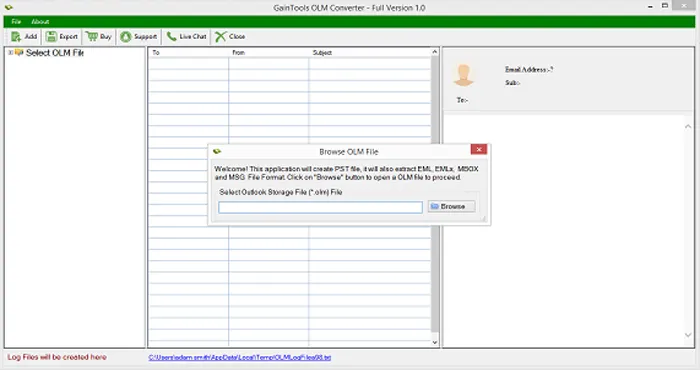
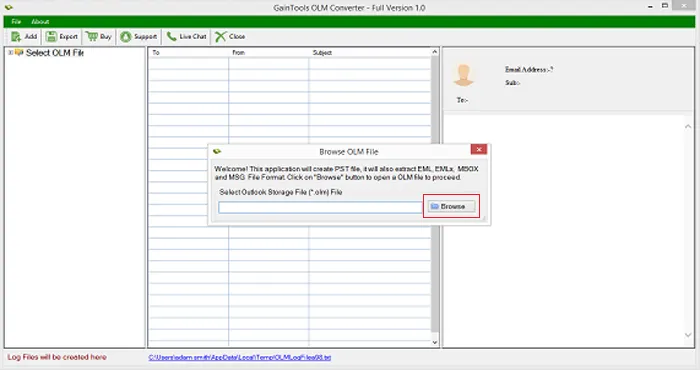
Add OLM File: Browse your system drives using the browse/select option to add the target Mac Outlook OLM archive.
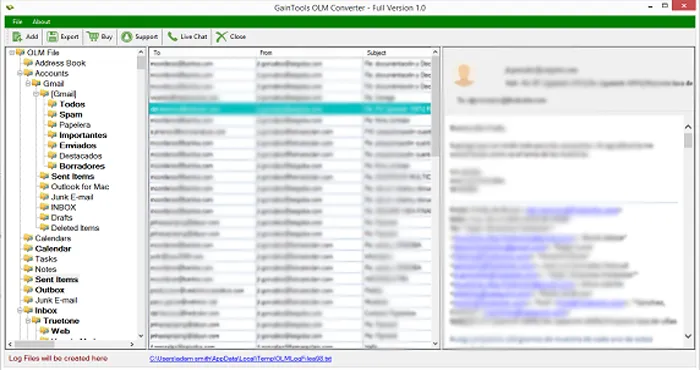
Preview Mailbox Data: The software will scan and display a clean preview of the contents of the OLM file, including emails, contacts, calendars, notes, journals, and attachments.
Select Output Format: Choose PST as your desired export/output format.
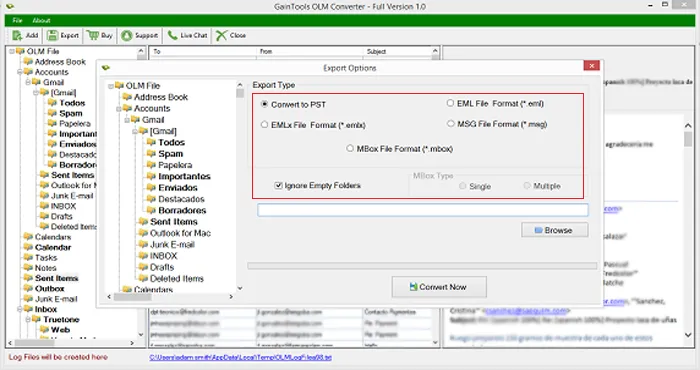
Choose Destination Path: Select a folder path on your computer where you want to save the converted PST file.
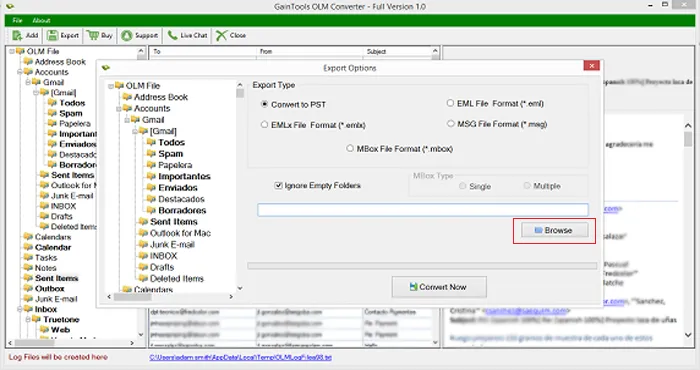
Start Conversion: Click the Convert Now button to begin the OLM to PST conversion process.
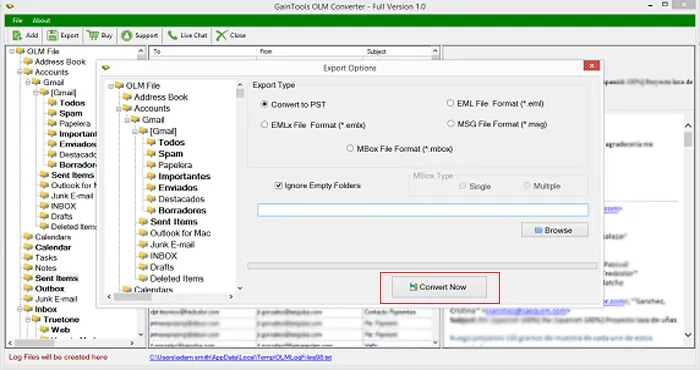
Verify Output: Once completed, open the resultant PST file in Windows Outlook to verify your migrated data.
As stated on the product page, the utility supports Outlook for Mac (2019, 2016 and 2011) and Windows Outlook (2019, 2016, 2013, 2007 and 2003).
Advantages:
- Suitable for larger OLM archives.
- Can convert selected data rather than necessarily process everything.
- Gives a preview before conversion.
- No need to have Outlook installed to perform the conversion.
- Supports various Outlook data items.
- Separates the original OLM file from the conversion process.
Disadvantages:
- Requires installation on a Windows PC.
- Unrestricted conversion may require a paid license.
- Users should confirm the converted PST before relying on it as the only copy of their archive.
Choosing the Right OLM to PST Migration Method
There is no one way to do all migrations.
| Requirement | Suitable Approach |
|---|---|
| Some e-mails | Manual migration |
| Same mailbox out there on the web | IMAP Sync |
| OLM small, non-sensitive | Online Services |
| OLM archive, large | Converter on desktop |
| Mac Outlook offline archive | Dedicated convertor |
| Business email address | Local Desktop Conversions |
| Selected folders/ items | Dedicated conversion |
A desktop conversion method is generally more practical for a large stand-alone OLM archive as it avoids the need for repeated movement of individual messages or uploading of a full archive to an external website.
Best Practices Before Converting OLM to PST
Before you begin the migration be aware of these points:
Backup: Do not modify the original OLM file.
Verify the source: Ensure that the OLM file is accessible and not corrupted.
Storage check: Leave enough free space for the converted PST.
Do some test runs before you run an entire archive.
Verify attachments: Open a few migrated messages and check important attachments.
Check folders: Check Inbox, Sent Items, contacts, calendars and any other required data.
Use the correct version of Outlook: Check that the final PST can be opened by the version of Windows Outlook being used.
Keep original: Do not delete OLM archive immediately after conversion.
FAQs
Can I open OLM file directly in Outlook for Windows?
OLM is not the native Outlook data file format of Windows Outlook. One method to make Mac Outlook data compatible with Windows Outlook is to convert the archive to PST.
How to convert OLM to PST without Outlook installed?
Yes. You can convert OLM to PST using specialized conversion software without installing Microsoft Outlook. The product documentation for the above desktop tool states that you do not need to have Outlook installed.
Is there any option to convert only selected folders in OLM file?
The dedicated converters are equipped with preview and selection options to select the required mailbox data instead of converting the entire archive.
How safe is OLM to PST converter online?
This is dependent on the provider’s security, privacy, processing and retention policies. By keeping the conversion local, the OLM file does not need to be uploaded to an external server for confidential business archives.
How to Convert OLM File to PST?
Copy the PST to the Windows machine, open or import the PST into Windows Outlook, and verify that all the folders, messages, attachments, contacts, and calendar data are safely transferred before archiving your original files.
Conclusion
Since OLM and PST belong to different Outlook data formats, some planning is required to import a Mac Outlook archive into Windows. For small amounts of email, manual transfer or synchronization is possible, but large standalone archives can become complicated.
Online conversion is convenient for smaller, non-sensitive files, but think about privacy, file-size, and upload limitations. For larger archives or important business data, a local desktop conversion approach gives more control over the migration process.
GainTools OLM to PST Converter is a dedicated route to convert OLM data into PST. It supports mailbox items such as emails, contacts, calendars, notes, journals and attachments.
Whatever way you choose, create a copy of the original OLM file, test the converted PST and verify important mailbox items before you complete the migration.