

How to Transfer Emails from Outlook to Thunderbird via PST to EML (Complete Guide)

The most popular email clients are Microsoft Outlook and Mozilla Thunderbird. Businesses like Outlook for its advanced features and Microsoft integration, while users like Thunderbird for a free, open-source, and flexible email management solution. Many users prefer to migrate from Outlook to Thunderbird due to licensing cost, platform flexibility or personal choice. But transferring emails from one to the other is not an easy task as Outlook uses PST files to store data and Thunderbird supports EML files and MBOX based storage. Hence, users often require a reliable way to import Outlook emails to Thunderbird without losing crucial data. One of the most effective ways to perform this migration is to convert PST files into EML format and then import the EML files into Thunderbird. This guide covers the entire process, its benefits, challenges and best practices for a successful migration.
Understanding PST and EML File Formats
Before kicking off the migration, you should know about the two file formats you’ll be working with.
What Is a PST File? (Outlook Data File)
PST (Personal Storage Table) is a proprietary file format used by Microsoft Outlook to store:
- Emails
- Contacts
- Calendar
- Notes
- Tasks
- Attachments
PST files are often used to store emails locally and for backups.
What Is an EML File? (Thunderbird Format)
EML is an email file format that is supported by many email clients such as:
- Thunderbird (Mozilla)
- Windows Live Mail
- Mail on Apple
- eM Client
- SeaMonkey
Each EML file contains a single email message with formatting, metadata, attachments and headers. The conversion of PST data to EML is a viable migration approach as EML files are easily imported into Thunderbird.
Why Migrate Emails from Outlook to Thunderbird?
Users choose to move from Outlook to Thunderbird for a variety of reasons.
Savings: Thunderbird is free and open-source, which makes it a great alternative to Outlook.
Cross-Platform Compatibility: Thunderbird supports Windows, macOS and Linux systems for greater flexibility.
More Control Over Email Data: Users retain control over their email data, independent of any Microsoft services or subscriptions.
Easy Backup & Storage: Thunderbird has flexible options for local email archives and backups.
Open System: Users can customize Thunderbird with a large selection of add-ons and extensions.
Common Challenges of Outlook to Thunderbird Migration
Despite the advantages, users often face various difficulties during the migration process.
- Different File Types Outlook uses PST files and Thunderbird does not support PST import directly.
- Big Mailboxes Migrating large PST files can be a time-consuming task if done manually.
- Dangers of Data Loss Manual conversion may result in the loss of attachments, formatting issues, or partial email migration.
- Folder Structure Maintenance Using manual methods, it is often difficult to retain the original hierarchy of the mailbox during migration. Users often prefer automated conversion solutions due to these difficulties.
How to Export Outlook Emails to Thunderbird Manually
One method is to convert Outlook emails one by one and then import them in Thunderbird.
Step 1: Backup Outlook Email: If the drag and drop methods are available, open Outlook and save the individual messages as EML files.
Step 2: Configure Thunderbird: Install Mozilla Thunderbird on your computer by downloading it.
Step 3: Import EML Files: Import the EML files into Thunderbird folders using the import feature of Thunderbird or an import add-on.
Disadvantages of Manual Method
Consumes much time for large mailboxes
- Not for mass migration
- Need for repeated actions
- Greater risk of losing emails
- Difficult to maintain folder hierarchy For organizations and users who manage thousands of emails, a professional solution can offer a more efficient alternative.
The Best Way to Convert PST to EML Without Data Loss
A special conversion utility is also available to facilitate migration by converting whole PST files to EML format and preserving email properties. GainTools PST to EML Converter is an efficient solution to convert Outlook PST emails into EML files that can be imported in Thunderbird. The software is capable of converting both small and large PST files without losing any data during the conversion process.
Key Features of Professional PST to EML Converters
Bulk Conversion: Convert Thousands of Outlook Emails to EML Format in a Single Operation.
Retains Email Properties: The conversion process conserves:
- Email Subjects
- Host information
- Body of email formatting
- Enclosures
- Images in-line
- Links
- Subject line
- Metadata
Preserves Folder Structure: The original mail box folders are preserved after conversion.
Supports Large Size PST files: No performance issues for users when processing large size Outlook data files.
Easy to use interface: Non-technical users can do the migration without any special knowledge.
Step-by-Step Guide: How to Convert PST Files to EML
Migration is a simple process.
Step 1: Start the Software: Install the conversion application and open it.
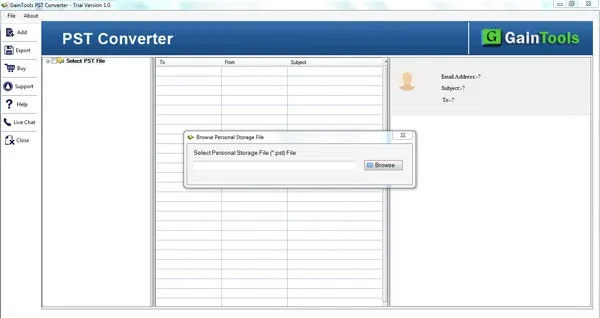
Step 2: Import PST Files: Browse and select the Outlook PST file having the emails which you want to migrate.
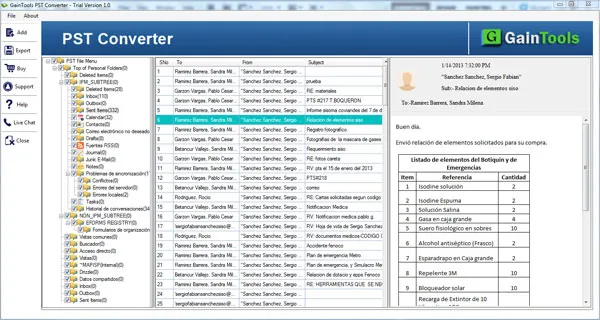
Step 3: Preview Data of Mailbox: Check folder and email contents before starting conversion.
Step 4: Choose EML as Output Format: Select EML as the saving format you want.
Step 5: Select Destination Folder: Select a location to save the converted EML files.
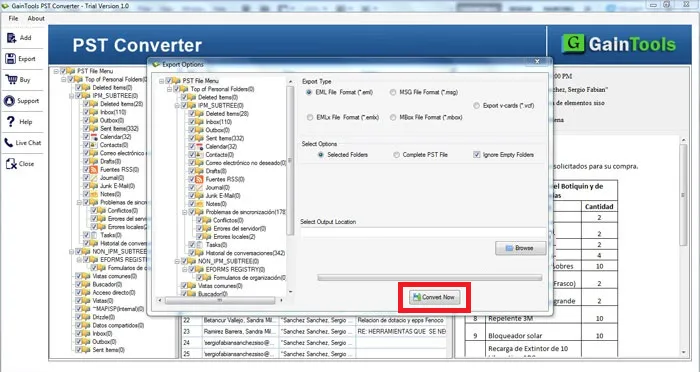
Step 6: Begin Conversion: Initiate the conversion and wait for it to complete.
Once done, all Outlook emails will be saved in EML files.
Best Practices for a Successful Email Migration
Here are some recommendations to help you ensure a smooth transfer process:
Backup PST File First: Always make a backup before you begin the migration process.
Check Converted E-mails: Review some converted messages to verify formatting and attachments are maintained.
Manage Folders in Mailbox: Before conversion, remove unnecessary folders to simplify migration.
Keep Original Data: Keep the original PST file until you’ve fully verified the migration.
Test Conversion Run: Test a small sample of emails before processing large mailboxes.
Conclusion: Transitioning from Outlook to Thunderbird Easily
Migrating emails from Outlook to Thunderbird can be a bit complicated because of the difference between PST and EML file formats. But converting PST files to EML format provides a reliable bridge between the two email clients. Manual methods can be okay for small migrations but are generally inefficient for larger mailboxes, and can increase the risk of data loss. With a professional solution like GainTools PST to EML Converter, users can easily transfer Outlook emails and attachments with formatting, metadata, and folder hierarchy. Users can easily transfer their Outlook email data to Thunderbird and continue managing their communications without any disruption by applying the right migration approach.
Frequently Asked Questions (FAQs)
Can Thunderbird import PST files on its own?
No. Thunderbird does not support PST files natively. First, the PST data must be converted into a compatible format such as EML.
Why EML for Thunderbird Migration Recommended?
Thunderbird widely supports EML. It preserves individual e-mail messages with attachments and metadata.
Are attachments retained in PST to EML conversion?
Yes. Professional conversion tools can maintain the attachments, email headers, formatting, and other email properties.
Can I convert multiple PST files simultaneously?
Yes. Most of the professional PST to EML converters support bulk conversion, which helps you migrate faster.
Do I have to keep Outlook open while the conversion is running?
That depends on what software you use. The majority of professional PST to EML converter tools are capable of handling PST files independently without the need to install Outlook.
Comments