

Step-by-Step Guide to Recovering Inaccessible Outlook OST Files and Exporting Them to PST
OverviewAn inaccessible Outlook OST file can soon become a nightmare especially when it contains years of critical business emails, customer conversat

Overview
An inaccessible Outlook OST file can soon become a nightmare especially when it contains years of critical business emails, customer conversations, contacts, calendars and attachments. Typically, the problem is discovered by users after either a crash of Exchange Server, deletion of an account, corruption of an Outlook profile, system crash or sync problem.
The challenge is that OST file is not designed to work as a single portable archive. Copying an OST file to another computer and trying to open it in Outlook will not work at all because OST files are encrypted and locked to their original Windows user profile.
In this guide, we will explain what OST and PST files are, why is OST to PST conversion important, how the manual method works, where it lacks and how a dedicated conversion tool can help in recovering inaccessible mailbox data safely.
Understanding Outlook Data Files: OST vs. PST
What is an Outlook OST File?
OST is short for Offline Storage Table. It is generated by Microsoft Outlook for Exchange, Microsoft 365, Outlook.com and some other synced accounts. The file is a synchronized offline copy of the mailbox information and allows users to access previously downloaded emails and other mailbox items even in the absence of internet connection.
An OST file can contain:
- E-mail and attachments
- Contacts
- Calendar
- Tasks
- Note
- Journal
- Folder structure
The major problem is that OST files are usually locked to the original Outlook profile and mailbox settings. Break that link and it can be difficult to get to the stored information.
What is a PST File?
Personal Storage Table. PST file, unlike OST, is a popular portable Outlook data file that is used to store, archive, backup and transfer mailbox data. It may contain e-mail messages, contacts, appointments, tasks, notes, and other Outlook items.
PST is a portable format which is excellent for users who wish to store mailbox data outside the original Exchange or Outlook profile.
Why You Need to Convert OST to PST
The OST to PST conversion is quite helpful when the actual mailbox environment is not available anymore.
Common examples include:
- Exchange Server is offline or permanently turned off
- The original Outlook account has been removed
- An employee has left the organization
- Outlook profile is corrupted and blocks access to mailbox
- System crash corrupts existing configuration
- Store old business emails
- Transferring mailbox data to another computer
Let’s take a small consulting company with 42 employees moving to a new Microsoft 365 environment. During the migration 11 old Exchange accounts are deleted before several employees export their historical emails. Each of the affected OST files contain around 4-12 GB of business correspondence, including contracts, project discussions, and customer attachments.
If the original mailbox cannot be reconnected, it will be difficult to manually recover those files. You can convert the accessible or recoverable OST data into PST to have a separate copy that can be stored and opened later.
How to Export OST to PST Manually (Using Outlook)
The manual method works best when the OST file is still linked to a working Outlook profile and mailbox data is still accessible.
Microsoft Outlook has an export feature to make PST copies of mailbox data.
Step-by-Step Manual Export Process
Step 1: Launch Microsoft Outlook
Open the legacy desktop version of Outlook and verify that the account associated with the OST file is properly configured.
Step 2: Make Sure All Data Is Available
Make sure that you have synchronized all the required folders and emails before you export.
This is important because Outlook may only store a portion of the mailbox locally. Note: Older emails may not be included in the export if you haven’t downloaded them.
Step 3: Start the Import/Export Wizard
See: File > Open & Export > Import/Export
Step 4: Click on Export to a File
Make your choice:
- Export To File
Step 5: Select Outlook Data File (.pst)
Choose:
- Outlook Data File (.pst)
Step 6: Choose the Needed Mailbox or Folder
Select the mailbox or individual folder to export.
If you want to export the whole folder structure, turn on Include subfolders.
Step 7: Select Destination
Click Browse to select a safe place on your computer for the new PST file.
Step 8: Begin Exporting
Click Finish and let Outlook finish the process.
The exported PST file can be opened in the supported versions of Outlook to access and manage the information saved into it.
Pros of the manual method
The Outlook export method can be helpful, in the right situation.
- No conversion software needed
- For accessible and properly synchronized mailboxes - possibility to select a folder
- Generates a standard PST file
- Good for routine backups and mailbox archiving
When the Manual Method Fails (Orphaned & Corrupted Files)
The major limitation of the manual export method is that it relies on Outlook being able to access the mailbox.
Not suitable when:
- Orphaned OST file
- Removed the Exchange account
- Outlook cannot open the associated profile
- Server is permanently unavailable
- The OST file is severely corrupted
- Important data of mailbox is not accessible
Microsoft’s Inbox Repair Tool can detect and repair some errors in Outlook data files, but it can’t always recover items that are badly corrupted or permanently deleted.
Therefore, manual methods can be best regarded as a first preference when the mailbox is still functional and not as a solution to all inaccessible OST cases.
How to Restore Unreachable OST Files Using a Recovery Tool
In the event that Outlook is unable to access the original mailbox or the manual export option is not provided, a dedicated OST recovery and conversion application can offer an alternative solution.
A specialized tool like GainTools OST to PST Converter is designed to scan OST files, view available mailbox content and export selected or entire data into PST format. The software page says it supports previewing OST content, selecting needed folders, retaining folder structure, and saving output to a preferred location.
Step-by-Step Guide to Using an OST to PST Converter
Step 1: Download and Launch the Application
Download and install the app on a suitable Windows machine.
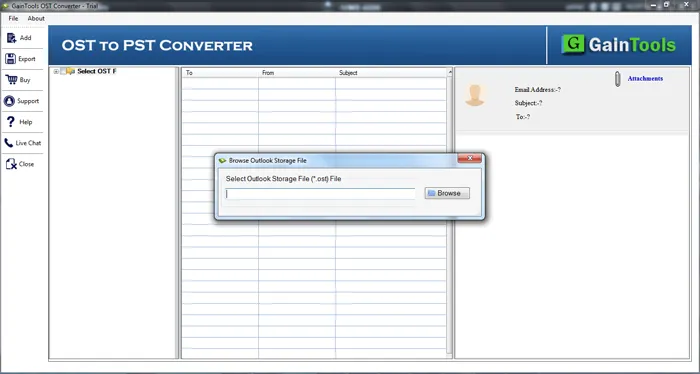
Step 2: Import OST file into
Go to the Browse option and choose the inaccessible or needed OST file. (It is a good idea to make a separate backup copy of the original file before processing it.)
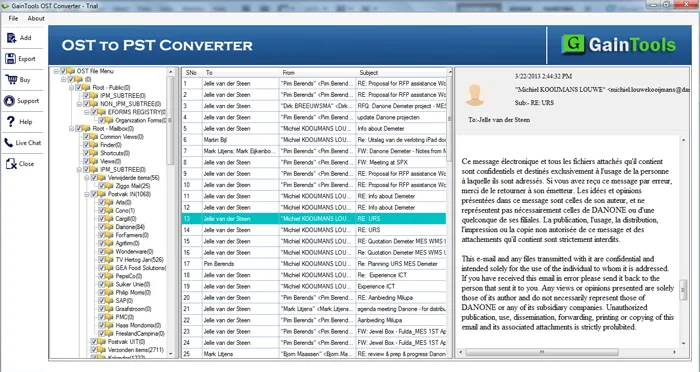
Step 3: Scan & Preview the Mailbox
Let the software scan the OST file. Check folders and mailbox items available carefully. This preview phase makes sure that you have chosen the right file.
Step 4: Choose the Data You Want
Select either the entire mailbox or specific folders. For instance, a legal department may only require.
Step 5: Choose Output Format as PST
Select PST as the format to export.
Step 6: Select an Output Location
Save the generated PST file in a location with enough free disk space.
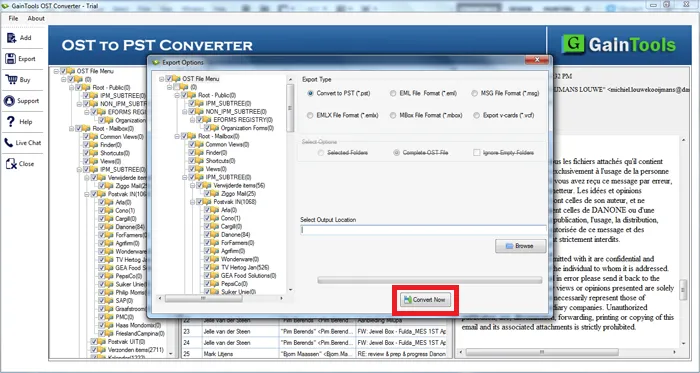
Step 7: Start the Convert
Wait for the process to complete and start the conversion. Then open the resultant PST file and check important folders, message counts, attachments and calendar entries.
Key Benefits of a Tool-Based Approach
Useful for scenarios with inaccessible mailboxes: A specialized tool may come to the rescue if there is no original Outlook profile or Exchange connection.
Preview Before Exporting: The preview feature allows users to see the contents of the mailbox before the conversion process.
Select Export Folder: Users can export just the folders they need, rather than creating bulky PST files.
Increased control over output: The output file can be saved to a location of the user’s choosing for easier backup and organization.
Manages Complex Mailbox Data: Business mailboxes are not only for emails. Contacts, calendar, tasks, notes and folder organization are all important parts of a good conversion workflow.
Real-World Scenario: Recovering an 8.6 GB OST File
An accounting firm of 18 people that keeps its project correspondence in Outlook locally. The hardware fails in a senior accountant’s laptop and the Exchange account linked to the profile is disabled.
The recovered hard drive has an 8.6 GB OST file with approximately 31,000 emails over five years.
Without the original profile and active mailbox connection, a manual export is no longer an easy option.
The practical recovery workflow in this situation would be:
- Make a backup copy of the OST file.
- Do not modify the original file.
- Scan the file with an OST recovery tool.
- Preview key project folders.
- Export recovered mailbox data to PST.
- Open the PST separately and check the critical records.
This method is especially helpful for companies whose historical email communication might contain financial discussions, customer approvals, or project documentation.
System Requirements
Before choosing the OST conversion solution, users should verify whether the OST conversion tool is compatible with their operating system and Outlook environment.
Its product information says the tool supports Windows-based systems – Windows 11, 10, 8.1, 8, and 7, both 32-bit and 64-bit environments. It also notes on the product page that it supports multiple versions of Outlook.
Before you install, make sure you check the most current system requirements, especially for legacy Outlook environments.
Best Practices for Secure OST Recovery
To reduce the risk of additional data loss, apply these practices:
First make a copy: Do not test directly on the only OST file you have.
Check disk space available: Make sure the destination drive has enough space for the resulting PST file.
Do not interrupt the process: During conversion Don’t Force close Outlook, don’t restart system, don’t disconnect storage devices etc.
Check important data: Check after conversion:
- Incoming and Outgoing mail
- Personal folder
- Attachments
- Contacts
- Calendar appointments
- Tasks
Create Multiple Backups: For important business records, keep backup copies in separate, secure locations.
Don’t Assume an OST Is the Whole Story: OST files are synchronized copies. The content locally cached can be dependent on Outlook Synchronization settings. Before any manual export, you should always verify that the historical data you need is already available locally.
Frequently Asked Questions
Can I open an OST file directly on another computer?
No. An OST file is encrypted and locked to its original Outlook profile and mailbox environment. Simply copying it to another computer will not allow you to open it directly; you must convert it to a portable PST file first.
Can I convert OST to PST manually?
Yes, but only if you can still access the active mailbox and profile in Outlook. Export mailbox content into the PST format using the Import/Export wizard.
What if I can’t open my OST file?
First, determine whether the issue is with Outlook profile problems, sync issues, file corruption or if the original Exchange connection is lost. In case of failure to export manually, a specific recovery strategy may be needed.
Does PST have attachments?
Yes. When Outlook exports e-mail to PST it exports e-mail attachments with the messages.
Do I need to delete the original OST file after conversion?
No. Please keep the original file until you have fully verified the converted PST and verified that all the required information is available.
Conclusion
An inaccessible OST file does not always mean that the important Outlook data is lost for good. The right recovery method can be chosen based on the availability of the original mailbox and the Outlook profile.
The safest way is to take the backup of the original file, find out the reason of inaccessibility, check the data available and finally check the PST file after conversion. If users follow a structured recovery process they will be able to improve their chances of preserving years of important business correspondence, contacts, calendars and other Outlook records.
Comments