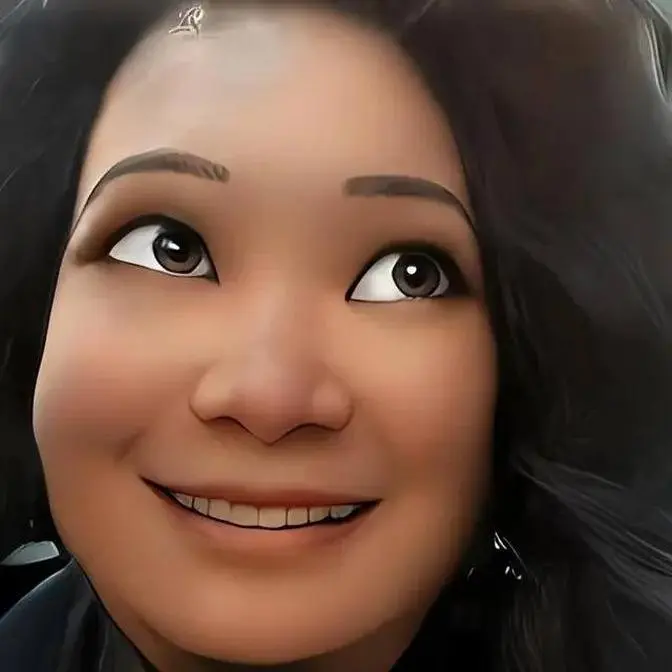
Time to bring your ideas to life — visually! In Part 3 of this AI content creation series, you’ll learn how to: ✅ Create effective video prompts using ChatGPT ✅ Use those prompts in Sora AI and Pixverse AI to generate stunning videos ✅ Speed up your visual storytelling process using AI tools
This is where your words become visuals — perfect for creators, educators, and storytellers who want cinematic content without a big team.
💬 Have a topic or tool you want me to cover next? Drop it in the comments — I’m here to help!
Welcome back. Today, I'm going to show you something fun on ChatGPT, that is how to create a video on ChatGPT, and it's free as well.
So, last time we already learned how to start using ChatGPT, right? Now, we're going to use a tool in ChatGPT called Sora.
Let's click on Sora. So, Sora, it turns your ideas into image or video, right?
So, what I want to do is I want to create an introduction to the tutorial using Sora.
So, what we do is we go back to ChatGPT.
I want ChatGPT to help me create a prompt using Sora to make a horizontal video at the intro of my tutorial video.
So, what I will say is I want to create a prompt for the beginning short video.
I want to create a prompt for a short video before my tutorial video.
So, I'm just asking ChatGPT to help me create a prompt for Sora.
So, what I say is, please help me create Sora prompt for a short video, 16 by 9 size, that's only specific.
It's a video before my tutorial video.
Using my image, I upload, make it fun, engaging, and interesting, and bring smile to people's face.
So, now it asks me to upload the image.
So, what I'm going to do, I'm going to click add, add photo.
So, I'm going to add my photo here and then just put it up.
Now, ChatGPT just gave me a Sora prompt, so I'm going to see if I like it.
So, let's pretend I like it.
So, I'm just going to make a copy and then go to Sora, which is over here.
We already clicked a tab and there you go.
So, explore Sora.
So, what I'm doing is, I just want to make a video, so I click on the video and then type over here.
And then, look at the size that I want.
I want 3 by 2 and then click start.
So, now Sora is working.
It takes a little while, so you just need to wait.
When this is ready, it will show a prompt.
So, as you can see here, there's two variations that we ask for.
You can ask for four images or just one image.
Now, it was prompting.
I noticed that there was a prompt that is ready, so you just go have a look.
So, I just want to create a video from this image.
So, I just click yes if I'm happy with this image.
So, I just create a video, this size, and then ta-da.
Oh, don't have enough active subscription to buy plan.
So, unfortunately, you just have to be a member to get this, but that's okay.
So, now you see how this is.
So, let's download it, and it's just an image.
So, unfortunately, to use Sora, you just have to be a member to be able to create it.
But, you know, at least you know how to do it, and then you can use it as an image.
There's very interesting image, and you can learn how to use different kind of prompt as well.
Like for me, I like this kind of cartoonist prompt.
So, you can see how people prompt.
Yeah, anyway, so that's it.
That's how to create an image or video using prompt on Sora.
Another platform I would recommend to create a video is using Pixverse AI.
You can Google key in Pixverse AI.
Go to your Google and key in Pixverse AI and click enter.
This platform is pretty safe.
It's not made in China.
I already checked it out.
So, it's safe for you to use.
And it has some credit, like a free credit per day, like free login credit as well.
So, you can just create login, and then if you don't have an account, you go to sign in with Google.
This platform is pretty amazing.
Okay, so it will say sign in using Pixverse AI.
So, continue as good food, good life.
Okay, the strength of Pixverse AI is they can convert image into a really nice video.
So, what I'm going to do, I'm going to find my...
Now, there we go.
So, it has a catch, like it's trying to attract us.
But it's not a bad thing because just 60 credit, it can get you some distance.
And they have a very interesting video creation as well.
So, with Pixverse AI, you can see here, you can put down image or text and it will create video for you.
So, with Pixverse AI, if you want to convert from text to image, I found you need to be very, very specific.
So, for example, I wanted to create a similar thing.
So, I want to ask TabGPT for the same thing.
So, I just say, please help me create Pixverse AI for a short video size.
It's a video before my tutorial, video using Disney cartoon style character.
Okay, so now I'm asking TabGPT to help me create Pixverse AI prompt that is fun and engaging.
So, let's see what it comes up with.
So, let's say that I'm happy with what they're suggesting.
I just put all this one here, see how it goes.
So, you go to image to text and then you click on.
And then, see over here, you just need to look at like different sizes, right?
So, if you want to use a higher resolution, you need to be a member.
So, now we want the free account.
So, let's see what it comes up with.
We just create.
There you go.
Pretty good.
So, I'm just going to download this and use it.
So, if you are a member, you have no watermark.
But if you are not a member, there's a watermark of Pixverse AI.
So, let's have a look at the video.
There you go.
There you have it.
I don't know what that language is.
Sometimes, it comes up with quite weird things as well.
There you go.
Now, you know how to create a video using Sora, which didn't work out.
So, now we're using Pixverse AI.
And tomorrow, if you come back to Pixverse AI, you will get another credit.
So, there's different ways to earn credit.
So, you can just download the app or can download the app.
But you need to download on your phone, and then you'll get the extra credit.
And if you want to earn another app credit, you can just get another 30 credits.
So, in each day, if you want to have a short video, it's just like 20 credits.
And you have longer video, 8 seconds, it takes like 40 credits.
So, that will be all for today.
Yeah, that's it.
Now, you have it.
Well, go explore and have fun.
I'll see you in the next video.