
Create a Looping Turntable Animation in Blender
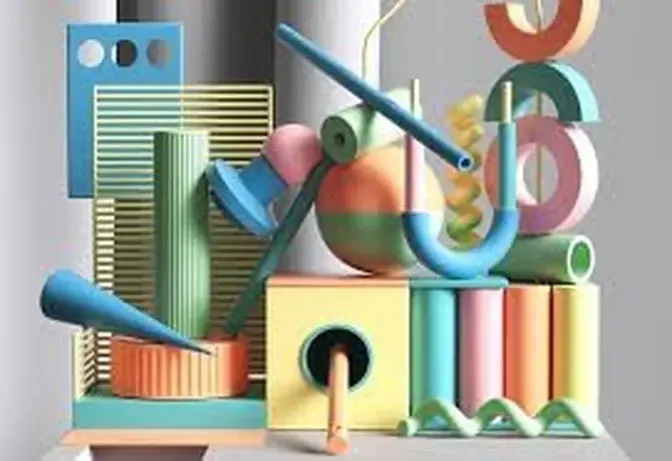
#gjwarts #drawing #art #digitalart #3dmax #sketch #interior #creative3D #howtodraw #3ddraw #3Dobject
AI GeneratedMay contain errors
Video Summary
AI GeneratedThis tutorial explains how to create a seamless looping turntable animation in Blender using keyframes and an Empty object to control rotation.
How do you make a looping turntable animation like this one?
It's actually pretty easy. Here, we'll cover three methods using keyframe animations.
First, select the item that you want to show off.
Hit Shift-A for the Add menu, and add an Empty.
Select your item again, hit Shift-click on the Empty, and Control-P for Parent.
Select Object.
Now that they are parented, select the Empty.
Make sure that you are on Frame 1.
Find the rotation in the side menu.
Under Z, hit I for Insert.
That inserts a keyframe here.
Move the scrub head all the way to the end, plus 1.
You want to be one frame further than your last frame.
Change the Z rotation here to 360.
Hit I again with your cursor over that number.
Now, when you move the scrub head back and forth, it's rotating.
However, you'll see that by default, it starts out slow, speeds up, and then slows down toward the end.
The way to fix that is to change the Interpolation Type.
By default, it's a Bezier Curve.
With your cursor over the timeline, hit T.
Change Interpolation to Linear.
Now you have a constant speed.
Click the Render menu, and hit Render Animation.
Alternatively, Control-F12 will start an animation render.
What if you have more than one object you want in your turntable animation?
Well, that's easy too.
Select all of the objects, and parent them to the same Empty.
What if you don't want any objects in your scene to turn?
Parent your camera to that same Empty object, making sure that nothing else is parented to it.
Here you can see that only the camera is moving.
And as usual, if you found this video helpful, please like, comment, and subscribe.
Until next time, I'm Carl with Blenderforge.
Happy Blending!