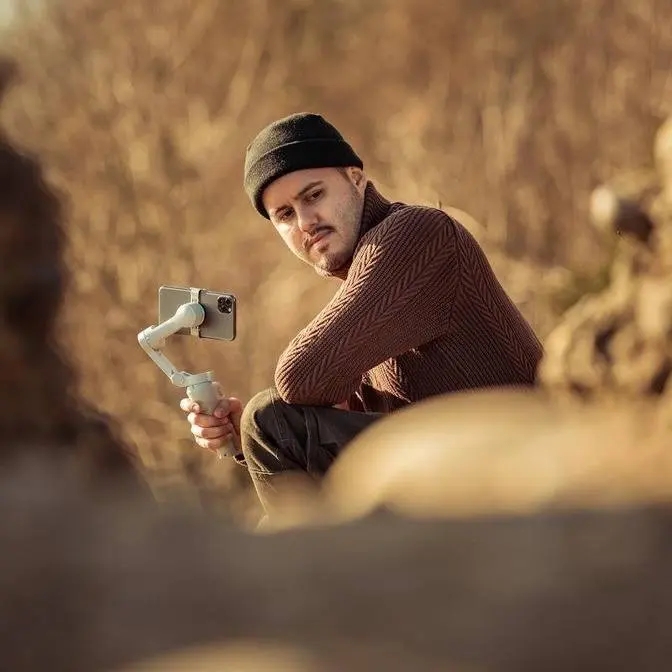
I Made My Boring Life Look Cinematic with an iPhone. Think your life is too boring to film? Think again. In this video, I show you how to make everyday moments look like a movie — using just your smartphone.
🎬 Join the Cinematic Everyday Challenge! Film a 30–60 second cinematic video of an everyday moment using just your smartphone. Upload it to your YouTube channel and send the link to: [email protected] 🏆 Win a 1-year Motion Array subscription + full access to my Smartphone Filmmaking Course. 🗓️ Deadline: May 12, 2025
DISCLAIMER Some links are affiliate links, where I earn a small commission if you click on the link and purchase an item. You are not obligated to do so, but it does help support this YouTube channel and allow me to continue making videos for you. I appreciate your support!
TIMESTAMPS: 00:00 - Introduction & Cinematic Example 01:22 - Camera Settings 03:44 - Accessories 06:54 - Create a Shot List 08:47 - Add a Voiceover 10:31 - Get Creative 11:25 - Cinematic Everyday Challenge
[Music]
most of us think our lives are too
boring to film but what if I told you
that your everyday life could actually
look like a movie babe please stop
filming the fridge also wash a dish just
one and I love you but still do the dish
[Music]
yes folks the video you saw at the
beginning was shot entirely on the
iPhone using a few simple tools and you
can do the same your life doesn't have
to be exciting to create an engaging
video you don't need epic adventures
crazy locations or expensive gear what
you need is a little creativity some
smart shooting techniques and the
confidence to hit record so in this
video folks I'm going to show you
exactly how you can make your everyday
life look cinematic using just your
smartphone and if you're up for it I've
got a challenge at the end of this video
where you can submit your own short film
and even win a one-year subscription to
Motionary which by the way they're
sponsoring this video
if you're just starting out you can
totally use the default camera app on
your iPhone it's fast simple and it can
get you some really solid results but if
you want to take full creative control
and really make your everyday life feel
like a movie I recommend using a pro app
and for this video I used the Blackmagic
camera app it's free and it gives you
full manual control over how your
footage looks and here's how I set it up
the resolution I set to 4K for the
highest quality the frame rate I set to
25 frames per second for a real-time
playback the codec I set to H.265 which
is a smaller file size but still retains
good quality as for the color profile I
set it to Apple log this gives me a much
more natural look and also offers
flexibility when color grading later now
since Apple log is a flat color profile
I'll also enable L preview to better see
what I'm shooting also I recorded
everything internally on my iPhone i
didn't need an SSD as I had enough space
and what's cool about using the
Blackmagic camera app is that you can
store your footage inside the app itself
instead of cluttering up your photo app
when using the default camera app next
up is shutter speed to achieve a smooth
natural motion blur the way we see it
with our own eyes I set my shutter to a
180° angle if you can't see it go to
settings camera shutter measurements and
set it to shutter angle this
automatically keeps my shutter speed at
double the frame rate which is ideal for
that filmic look also make sure to lock
it so it doesn't accidentally shift your
exposure when you tap on the screen by
locking it tapping will only affect
focus allowing you to set autofocus
easily now I also used manual focus
whenever I needed precise control or
when I didn't want the focus to shift
when it comes to ISO I tried to keep it
as low as possible to avoid noise
regarding white balance simply enable
lock white balance on record and this
will lock your white balance once you
start recording for better framing I
also enable the rule of thirds and the
leveler in the app settings that helps
me compose my shots more intentionally
and keeps everything straight lastly
let's talk about audio i set it to
stereo which records a wider sound field
and I actually used it in the video to
immerse my audience even more and the
iPhone's built-in mic does a
surprisingly good job of picking up
ambient
sound next up we have accessories using
the right accessories can simplify the
filming process especially when you're
filming yourself and the right tools not
only speed up things but also help you
get more professionallook results with
less effort so let's start with one of
the most important tools for achieving
that cinematic look the V&D filter now
when you keep your shutter speed locked
at double your frame rate like 1 over 50
for 25 frames per second in our case
it's done that automatically by setting
the shutter angle to 180 you'll let in
more light and you'll most likely end up
with an overexposed image when shooting
outdoors on a sunny day when shooting
indoors you might get away without a V&D
filter depending on the shot anyway when
you have an overexposed image that is
where a V&D filter comes in i just
recently got Moment's quick lock filter
system as I was really curious to test
it out especially because of its
minimalistic design and high quality V&D
glass and what's cool about this one is
that I can quickly mount it onto the
case this is a 227 stop V&D and on top
over here I can adjust the amount of
light entering the sensor i love that
nothing is sticking out of the case as
other V&D filters do making it really
easy to put it in my pocket now here's
how it works once you've set and locked
your shutter speed angle to 180 and dial
in your lowest ISO you can then use the
V&D to fine-tune your exposure for
exposure accuracy I like to use zebras a
tool you'll find inside the Blackmagic
camera app i typically set it to 80% and
the stripes indicate overexposed areas
so you want to make sure that none of
these stripes appear in your shot next
up is tripod when filming yourself a
solid tripod is a must i use the
Oolanszi MT44 it's lightweight and has
an extension pole and comes with a foam
clamp which makes mounting super easy
now what I also used is this mini tripod
by Joby and this was especially handy
for placing the camera inside of tight
spaces such as inside a refrigerator now
the biggest challenge when it comes to
filming yourself is being able to see
what you're shooting and there are a
couple of options that can help with
monitoring your shots if you have an
iPad or a second iPhone you can connect
the Blackmagic camera app to monitor and
remotely control your camera in my case
I connected it to my iPad and this is
probably the most convenient option as
you can also hit record from that second
device as well as control all of the
settings another option is using the
Shimble CP5 phone vlog monitor this also
gives you a real-time view of your shot
the only trade-off is that unlike using
a second device with the Blackmagic
camera app you can't control or trigger
the record button it's strictly for
monitoring but you can use it with any
other video app as well such as the
default camera app now to me these tools
are the most essential for anyone
filming themselves and wanting to get
cinematic results i also used other
accessories to be more creative with my
shots and I'll cover those later in this
video i know that filming yourself can
initially feel overwhelming especially
when you don't know what to shoot or
where to start and that's why I
recommend creating a simple shot list
for the day nothing complicated just a
shot list of the moment or action you
want to capture think about what you
usually do throughout the day and pick a
routine to film by writing it down you
avoid overshooting you bring structure
to your process and you're not just
randomly filming things without
direction i usually write my shot list
down in the notes app so here's an
example of what I've written down we
start off with a wide shot of me opening
the fridge camera is placed inside the
fridge then we have a close-up of my
hand taking the note off the fridge a
medium shot of me reading the note a
wide shot of dirty dishes in the
sink a low angle shot of turning on the
faucet a medium shot of grabbing the
sponge a POV shot of scrubbing the pan
with the sponge a top- down shot of
placing clean dish on
towel and a close-up of opening the
dishwasher and we get a wide shot of
placing the glass inside the
dishwasher finally a medium shot of
tossing the towel towards the camera
another benefit of having a shot list is
that it lets you start visualizing the
edit in your head you can begin to
imagine how the shots will cut together
which makes things much easier once
you're in the edit and you can go as
detailed as you like with the shot list
but I like to keep it simple and also
leave some room for creativity you can
even take it further by importing your
clips into a pro editing app like Lumaf
Fusion it lets you access footage
directly from the Blackmagic Camera apps
library so you can drop your shots into
the timeline that way you'll quickly
know if anything is missing or if you
need to go back and grab an extra angle
or two
now a cool way to spice up your videos
is to add a voice over the great thing
about this style of film making is that
once you've written a script for your
voice over it actually helps guide the
rest of your shots here I am walking
like I've got somewhere important to be
i don't but the camera's rolling so
let's pretend when it comes to recording
your voice over you've got a few options
you can record your voice straight into
the iPhone's Voice Mimo app or directly
into your editing software or app or
maybe you don't want to use your voice
in that case you can use an AI voice
over to narrate your story or even add
other characters like I did with my
girlfriend's note also wash a dish and
that's where our sponsor of today's
video Motionary comes in they provide a
wide variety of highquality media assets
all in one place including AI voiceovers
and you can start by exploring the many
voice types available filtering your
search by genre or video category you
can listen to the voices to find the
perfect match before choosing not
everyone's heart is all sugar and
flowers and once you've picked the voice
enter your text and hit generate and the
tool will convert it into the AI voice
over also wash a dish just one if you
need more customization you can adjust
accent speed and even emotion to match
the tone of your project you can even
choose between different languages and
once you're happy you can download and
use it in your projects beyond
voiceovers Motion also gives you access
to royality free music sound effects
templates and everything else you need
to bring your edits to life i've been
using it for years and it's been a huge
part of streamlining my creative process
if you want to try it out use the link
below to get $50 off Motion's annual
plan
one of the best ways to make your shots
more interesting is to get creative with
your shots and I used different tools
for that for example I used the suction
cup to mount it onto the kitchen wall to
get a top-down field of view this would
have otherwise been more difficult to
achieve with a traditional tripod
another example is placing your phone
inside the sink which makes it a unique
perspective because it's not something
you would usually see another creative
shot I took is using the clamp which
I've secured onto the pan and this again
gave a unique POV perspective from the
pan i also placed my iPhone inside the
dishwasher which also looked really cool
and you can really play around with your
shot and try to find angles that look
interesting by the way I will leave
links to all the products that I used in
the video description below
so now that you've seen the full process
I want to invite you to take part in the
cinematic everyday challenge and here's
how it works create a short cinematic
video 30 to 60 seconds long it must be
shot entirely on a smartphone the video
must be newly filmed so no old videos
guys capture a simple moment from your
everyday life something you do regularly
like making coffee going for a walk
working at your desk or doing chores
doesn't need to be exciting the goal is
to use cinematic techniques to make an
ordinary moment feel like they belong in
a movie then upload your video to your
own YouTube channel unless it is totally
fine then send the link to
[email protected] i'll be selecting a
few of my favorite submission to feature
and review right here on my YouTube
channel the top video will win a free
one-year subscription to Motion and a
full lifetime pass to my smartphone
filmmaking course everything you need to
level up your mobile videos the deadline
is May 12th 2025 so you've got about 3
weeks to plan shoot and edit your entry
you'll also find all details in the
video description below good luck and I
can't wait to see what you create so
that is how you take your so-called
boring life and turn it into something
cinematic by doing this you'll also
practice your film making skills which
will improve over time just have fun
with the process and try out different
techniques and styles if you have any
questions feel free to reach out if you
want to take things a step further check
out this video right here where I show
you how to make your videos look more
cinematic using just your iPhone and a
few key tools with that said thanks for
watching and see you in the next one
[Applause]
[Music]