
New Tesla Model 3 Highland Steering Wheel Shortcut Buttons Upgrade! #tesla
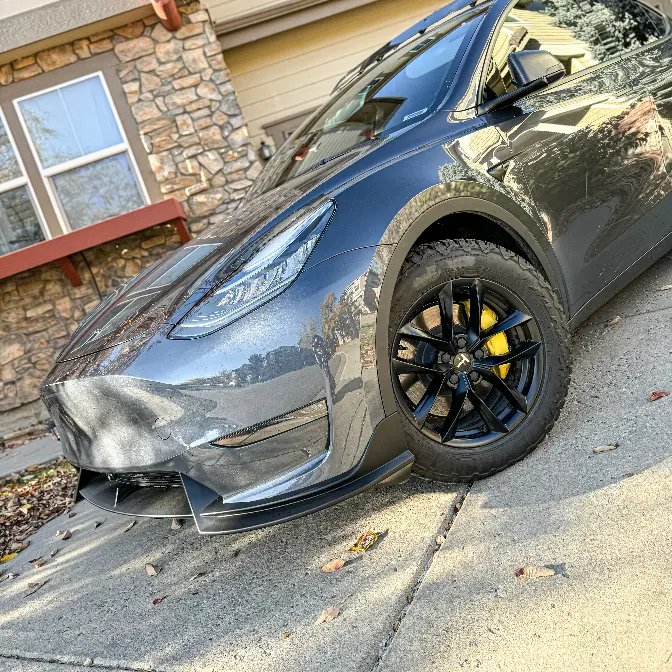
Tesla Referral Program is back!
Use referral link here: http://ts.la/paul79872
and get $2,000 off on your new Tesla.
Here is the link for Steering Wheel Shortcut Buttons / Use Code: DAD
https://hansshow.biz/3X2VNyU
Here is the link for trims removel tools:
https://amzn.to/3z6mllZ
Enjoy the Video?
Support the channel by buying me a COFFEE to fuel my creativity ☕️https://www.buymeacoffee.com/dadstoyscars
Thank you for your awesome support! ❤️
#thenewaero #tesla #teslamodel3 #model3accessories #modelyaccessories #teslamodely
Thank you for watching!
Facebook: Dad's Toys & Cars
Follow me on Instagram: dadstoys_cars
Please LIKE, SUBSCRIBE & SHARE :)
Hey guys, Paul here. Welcome back to the channel. Today I have something
really convenient to share with you. This is shortcut buttons
for your Tesla Model 3 Highland steering wheel. So this will fit
right on the bottom of your steering wheels.
Just pop it right in. So these shortcut buttons will help you
to navigate and use a lot of functions. So you'll have to go through a few steps
on your main display in your Tesla Model 3 Highland.
This is for only Tesla Model 3 Highland which fits right
underneath the steering wheel. So in today's video I'll show you what comes
in the box and then step-by-step installation.
Super quick and easy to install. Shouldn't take more than 15 minutes to
install and then we'll test it out and see how it works in the Tesla Model
3 Highland. Now let's go. Let's see what comes in the box of
this new steering wheel shortcut buttons for your
new Model 3 Highland. And here's what came
in the box. Let's take a closer look at the button itself. So you
will install this on the bottom part of your steering wheel. It just slots in
and then it has this locking clip in the back.
It should be really simple to install this part. There's no screw at all. You
don't have to do anything with your steering wheel at
all. And a transmitter or a commander. So you
install this and connect to your OBD port in the
front right side passenger seat. This is the
wire harness that connects OBD port to your wireless commander.
Also a plastic plier tool. So the installation should be really
simple to install and the product comes with the app
just like this. So you can add a lot of products to
the app. So this one is I believe this is the dock.
We'll test it later in the video. I think you can
change the function on what it does on the buttons.
I think they shouldn't label the button if you can reprogram it. We'll see it
later in the video after I install it. And it also
has this dashboard that comes with
the app for this product. So you have the instrument cluster display
for your car too because this communicates
with the commander and the car. Alright now we saw everything
that came in the box. Let me show you where you can get
this new steering wheel buttons for your Tesla Model 3 Highland. You can get this
new steering wheel shortcut buttons for Tesla Model 3 Highland
from handshow or handshow.com as you can see here.
It's really easy to install. You will see in the video.
And if you are interested you can use my special discount code
DADDAD for extra discount. So this is the price
after the discount. Now let's go and install it in the Model 3 Highland.
Now let's start with the installation. First you have to remove
a rubber seal on the passenger door first. Then
use the included plastic plier tool to open up
this panel right here. So we have to remove this panel.
Okay this panel there's no screw at all. You just
use this plastic plier tool to pry it out. There are a few clips
on the back of the panel. Next step here just use the same
plastic plier tool on this side and then remove
a locking clip as you can see this one right here.
So just one locking clip. This one. So keep this. Now we can
remove this whole door seal panel. Make sure you remove the rubber seal
first. And again the same thing door seal panel
doesn't have any screw just a lot of plastic clips.
As you can see the whole panel just came out.
Before we plug in the commander make sure you turn off the car first.
So let's go to the main menu and then go to safety.
All the way down. Power off. Now it's safe to remove the power
connector right here. So just remove that part.
Now just plug in the pass-through power from
the commander. There you go. And then connect the power from the car
back into the pass-through right here. And then this is the open port so
you can just plug it in to your OBD port that is open
right over here. Last but not least just connect
the commander to the wire harness. There you go. So you can see it's blinking
green right now so it's communicating with the car.
Now we just have to put all the panels back on.
Now the easiest part of the installation is to install
this button on the steering wheel just right
over here and make sure you remove this tab first. So this is the locking tab
that you'll be locking the back of it. One more thing before you
install it on the steering wheel. Make sure you remove the back
of the the button. There's like a battery tab right here. Just move this
piece out. Just slide out and then make sure you
remove a plastic tab that's blocking the battery from
contacting and operating. As you can see now. Now it should be
working and then now we can install on the steering wheel.
So place it in here like so. You can see it fits
right in and then just put the locking tab
in the back of the steering wheel. So after you're done installing the
buttons on your steering wheel and make sure to
download the apps right here. TESTSTARS and then select on the app.
Make sure you connect the app to your Tesla app so the app
has access to your car and then it has a lot of shortcut functions
on the phone and also have instrument cluster display which
they call it dashboard from the app here.
So you can put the phone mount on top of your steering wheel column and you can use
it as the instrument cluster display which is
pretty cool. Extra function on the app and just
select dock on the app here so it's
communicating with the commander. Make sure you
have to activate the button. So let's activate the button.
So let's add the first one. I'll put on the left
right here and then you just click then it's activated. You can see
after I clicked it's activated. Now let me unfold the mirror.
One click unfold the mirror and then activate the second one.
Let's do the middle. Confirm the middle should be
this one right here. As you can see that is the middle. So it has the preset
for you follow this one. So it has one click,
double click and then long press. Same thing here.
So just have to activate the one on the right. Last one.
There you go. Now the one on the right. So the one on the right
one click to open the glove box. Let me show you again.
Okay let's show you all the functions first. I change
the lights function on the middle one because I don't think it's make any
sense to do the light functions there. So I just changed to
standard two spot mode. So that's a lot more useful.
So you have to go through all the menus on the main screen
to change from standard two spot mode or you know from
chill to sport that is. So let's test out
the functions on the left first. So one press
it should unfold and fold the side view mirror.
There you go. So it does on both sides and select again.
It will unfold and then press and hold to open the rear
left passenger door.
As you can see the passenger door open so it's totally unlatched.
You can pull it out just like so. It's convenient for
you know for kids or for uber driver for sure.
And again double click to adjust the front seat.
There you go. And then you double click again to stop.
And same on this button right here too. So one click to open the glove box.
There you go. So it's magnetic. Put it back in.
And then double click to open the rear passenger door. So that door over there.
So hold I mean press and hold. As you can hear that door will just open.
There you go. So the rear passenger door open. Double click
on the right button to move the front passenger seat
backward. As you can see double click again to stop.
There you go. And last but not least one click
to change from standard to sport. I can't show that
while the car is parked. But press and hold
to open the front passenger door.
There you go. As you can see the door will just open.
That's it. So the door openings function is really good for uber driver.
And now it's so close to steering wheel that it's easy
to just use it. And last but not least double click to preheat your battery.
So that's it for all the functions. But again
because of the app you can change to whatever functions you like.
Doesn't have to be the one that labeling here. So you can press here
and then you can customize to a lot of things
that you can change for the buttons to do for you.
So all these shortcuts that you can do and make the buttons do.
Which is really cool. That's why I said they shouldn't put the labels on here.
They could have just labeled it you know square, circle
or triangle. So at least you don't have to follow all of these
for all the functions. Alright as you can see in the video
these buttons are really easy to use. Really easy to install.
Like I mentioned before take less than 15 minutes to install.
And they are programmable. So you can program it to do
a lot of things in your car. So each buttons can do three different
things. So all of them would be nine different functions on the steering
wheel button. Like I mentioned before I wish they
label it what it does. Just have it symbol so you know exactly
which buttons does what in the app. Because the
app is really useful. So you can reprogram it to do a lot of
functions in the car. Let me know in the comment down below what you
think about the steering wheel button. I think it's really
good idea and a good location to use right on the steering wheel. And make
sure to put the link of these shortcut buttons for your Tesla
Model 3 Highline steering wheel in the description down below. And special
discount code for you too. Thank you so much guys for watching
today's video. Make sure to click like if you like the
video. Make sure to subscribe for more awesome content like this. We'll see you
on the next video. Peace!
please say any negative thoughts i pop off when i hear people say i cannot i
get off to the thought of proving everyone wrong i won't stop to the top
so you better back off and get lost i'ma stay last stay proud never running
now never heading south i'll be spreading out