
Design architectural sketches on your iPad | 3D design webinar
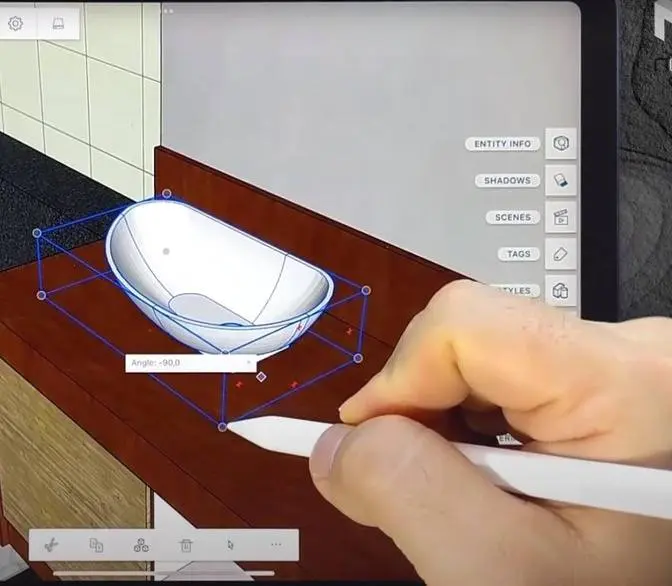
Hello everybody to today's webinar in which I will talk to you about an actual course project
I'm doing right now with my students. We're using Shapr3D to do some architectural modeling.
This is part of an interior design course and we're helping a client remodeling actually
the house she purchased and doing some of the modifications. In this workshop I would like to
also talk to you a little bit about best practice how for example you start creating the different
sketches and then step by step adding all the details. So for example if I'm going to hide
all the objects there you see all the floor plan first and second floor, some elevation views for
the windows and also for the roof parts and some of the sketch tips the way how I utilize
Shapr3D and the sketch engine to very precisely create the positioning of doors and the windows.
So before we go back to this model I would like to make a new file, double tap, go into the top view
I will go add and import an image. I just took a screenshot of one file and I will
rotate this and actually I was told this is not supposed to be the correct way.
There we'll move actually this point to there so I can reposition the sketch
and get it somewhat to that corner. Now let's rotate the view.
So what I would like to do now is actually very quickly recreate the sketch. This is the first
floor this is actually 45 inches off the ground so what's the best practice to start actually
creating this floor plan then adding all the walls in it etc and then what we also have to move it up.
So in most programs we would define for example like what the first floor height weight is
and create a sketch plane and start drawing on it. In Shapr3D we can actually just start sketching
so on the right side I will just do a very primitive basic sketch and as you might have
noticed for those who are familiar with Shapr3D no constraints actually right now were added.
I have this auto constraint turned off. First thing I will do after I created the lines I will select
each line and then add the correct horizontal and vertical constraint. I prefer actually working
with vertical horizontal instead of perpendicular. This way I always know exactly how a line should
be. Very good. The model is a little bit dirty with it so let's try to clean this up a little bit.
The right edge is 290 inches so we can select this one and then type in 290. It's going to be
really long and let's move this to the right. The top one is 673. Let's select that edge.
673 inches. Very good. Now you can see that the sketch is really big or actually our image
is very tiny so I will move this one to there. This I will actually move to here. This edge I
move down and what I will do now is I will select this point and then move everything
to the sketch center. Very good. With this I positioned the sketch with one corner
at the zero point. I could if I want for example lock this. This point cannot move anymore which
means I can now go ahead and this is 243 inches. 243 and the last one is let's say 503 inches.
The other two lines I don't really need to dimension because basically
they are given by the rest of the sketch already. Very good. So let's say you have a hand sketch.
In my case it's just a screenshot and we would like to get this nicely positioned over this
basic outline we have. So I can go to transform and then move and scale. I select the image
and move it to somewhere else. Scale this up. Then I can with the pencil move the
widget center to where somewhat these two lines meet and then this I will actually move close to
my sketch. There. Okay one more time and there. Very good. So the the sketch doesn't have the
correct scale yet but because I moved the 3D widget center point to that upper left corner
I can now use the scale command. You can see I just drag it and scale this image up.
Very good. Nice. And let's go to groups and I select this image and make this less
opaque and maybe for the moment I hide it. Okay. So with one finger I will rotate and there now
we have the floor plan of the house and this has to go 45 inches up. So I can select everything
with the move command. Simply move this one up 45 inches of the ground. Very nice. Okay.
Click okay. Then with the pencil you can select the plane or in the profile and then with a finger
double tap. That actually will as you can see rotate the camera perpendicular to the sketch
and if I now rotate you see that the grid adjusted to there. Very nice. So let's assume
we are dealing with an, this is actually an older house, so we work with two by four and
interior drywall maybe four and a half inches material thickness. We select one edge with the
pencil. You see then there we have the offset command and we could select the edges and then
with the offset command type in 4.5 and create my interior, sorry the exterior wall. Really nice.
And when I bring actually the sketch back I can plus minus see where the interior walls are.
Also where the doors are. So everything in that house is a little bit uneven so we're actually
trying to bring a little bit of order to it. So for example we can just decide on one type of door
width wise and that's going to be inserted into everywhere which makes it cheaper for the client.
Which actually is now a good point to maybe also talk about how do we continue. So the exterior
walls we have. We can see now the interior walls. We can easily draw all these lines.
So let's say I will start here to there, draw a line and from there to there draw a line. At this
point I might actually turn auto constraint on if I want to. So I always have the horizontal or
vertical elements added. Also here again very important that this is set and let's draw a line
from there to there. And I will draw this line down to there.
And I will draw one line up to there, down, over and over. And
for the moment I just keep those where they are. So how do we deal with material thickness?
This line is actually connected to this line. It should be flush which is correct.
And the distance between these two lines should be 4.5 inches. So I can do this actually via
dimension or I can also try to, oh hold on one second, something moved. So let's lock this line
so this actually cannot move. I actually noticed that some of these horizontal vertical constraints
moved. So I will update actually these constraints. And so that these edge points also don't move
I lock it. Very good. So back where we are before. Let's do a horizontal line there.
Very nice. And this distance slightly changed so I can re-modify this 4.5. And you see it moves
Let's try to do the same here. And I have to change this one being vertical to there and 4.5
there. This is horizontal. And where's my dimension tool?
Somewhere else. Okay. In case something like this happens, we can do another nice trick.
We simply draw ourself a line. This line should be perpendicular. There again. And then we can,
for example, dimension. This is good. And then this interior point I will lock. So here I will
lock actually these points. What's the distance between here? This is too big. 4.5. And let's lock
this point. Very good. Let's go to here. 4.5. This is correct. So then this point I lock.
And this point I lock. So this way via the locking of these points you can, for example,
prevent certain elements to move once we add more constraints to them, kind of like dimension-wise
or edges. Because keep in mind with Shapr3D having a smart sketch solver-based engine,
based on what we do it might always deform the sketch by guessing it the way, imagining what
you want to do. And sometimes you have to help these engines a little bit by constraining the
So before we continue, this upper edge here, which I created, we can delete. This was just a helper.
And let's go back to where we were before. So this line and this line, they are, as you can see,
180 degrees. So they are tangent. This line to here should be 4.5. But I can also say this line
to this line be actually tangent. That means they're actually collinear in this case.
So they flow perfectly into each other, which also means this line and this line,
we make tangent too. And this line and that line, tangent. We see it just, it moved everything
to each other. Very good. Then this should be 4.5 and this one should be 4.52. Very good.
So that the sketch engine creates for me complete closed sketches. I'm going to
close actually the wall section there, because at this point now, I would like to talk a little bit
about the walls and the doors. So there are multiple ways how we can create, for example,
the doors. We can draft up the walls. That means I select, for example, this fill, then I
draw up or sketch up the wall. And then I select this face, move to it, draw the outline of the
door, and then cut it out. That's one way. I use that actually primarily for windows and for doors.
I find that's a lot easier when we simply follow standard architectural drafting practice,
the doors we also put into the floor plan. So for example, here, there is one door.
There it snapped to midpoint to midpoint. So then we have to be careful about it. Again,
this can be vertical and vertical. The door, as we can see based on the image behind it,
should be 36 inches. And I just move this right into there, so it somewhat lines up
with what I have inside the design before. I can do another door here too. So horizontal
and horizontal and 56.
Then I select my point and drag it to where I need it. So the reason why
we can work this way, let me for the moment turn this off, is we can select all these fragments
of a wall, and then we draft them up. Let's say, I'm just typing in a number, 120 inches.
And now we want to cut the space for the doors, and we rotate our view, look from below,
and figure out where are actually the openings for the doors. Let's say like there. And then
with the pencil, we just move downwards. And as you see, we just cut the space out.
So this was very, very easy to create this opening for the door. And even later,
if we have to move the door, we can select this edge and the opposite edge. Very nice.
Go to transform, go to move, and then we can, as you see, slide them around as needed.
So we're not stuck to just the way how we build it originally. The sketch is only a
suggestive part. We can later nicely modify everything. And then for a window, if I select
this wall, and with a finger, I double tap on it, and you see it then projected the grid
right onto that face. Pencil, I tap somewhere else. I can with the pencil, draw a line and make
it touch the bottom and the left edge. And the reason why I did this is if I hide now the
geometry, you see it copied out actually the left and the right edge. So this is the left wall
and the bottom edge. These lines I can delete. And then I could draw a window, let's say 70 by
40. Very nice. And either via a dimension or simply via a line, I can then specify
how high, for example, that window should be. A little tip also, if we want to have multiples,
let's do a little quick extra exercise here of drawing just various rectangles.
I could say 25, or what I will do is I will draw a line and a line. And then this line I
will specify with 25. Here I could specify this with 40. And this should now be 40. I could put
in 40, which is not really what I want. I want to be creative. So let's say that means the window
on the left, I later want to adjust in the sketch. And then I have all the other windows
adjusted kind of like an array. So check this out. Instead of using the dimension, I select this edge
and this edge of my sketch and then say, just be equal. And you and you be equal.
How do we do the height? We could actually do the same with the height too. So this edge and this
edge is equal. Or in that case, I could say this edge and this edge should be tangent. This edge
and this edge is tangent. Because essentially the height of these lines is given by this dimension.
And then the position of those bottom top lines are given by the tangent constraints to this line.
So let's do the same here too. Tangent and tangent. And let's add one more line. Sorry,
one more window. You, you, tangent, you, you also be equal, tangent.
And now this line and this line be equal. This line and this line be equal. Look at that. Isn't
awesome? So if we type in now 35, hold on, I might have made a mistake somewhere. You and you be
equal. You and you be equal there. Obviously, you have to be careful with your
structure there. 30. You see how everything updates. Pretty awesome. So this way you can
very quickly create a different layout for the window. So you see this one actually
deformed incorrectly, not the way how I wanted to. And for those who are new to it, the reason for
that is this line can actually rotate. It has no vertical constraint added. So now I edit it.
And if I adjust the height, this moves up. Okay. So let's go back to our test piece.
Now I can select the four openings, move the pencil, drag it out, and then it cuts automatically
the opening. So let's say before we move on, two weeks later, you realize these windows actually
have to be repositioned. They all have to go five inches to the right or, and they are not
really as wide. So the sketch we can easily adjust. The windows right now are not as easily
adjustable all at once, but what we can do since we are working in Shapr3D with amazing
direct modeling, we can select the four edges. And then all we do is just simply delete
the last comment we did. And as you can see, we get back the original geometry there.
And then we could go ahead, adjust the sketch. Maybe we want them to be 30 and 30 there. And
then let's recut this. Very easy. Okay. So that was a quick tip about how I start approaching
and drafting up the walls and then creating the doors and the windows. And then even afterwards,
how we can adjust multiple window variations. Obviously you could also use the groups and make
multiple models of the floor plan. So you could have one group is the first floor with the
design A of windows and another group would be the same first floor walls with a different
window design. So let's go back to here. So the way how I created then the second floor
pretty much was the same. I selected part of the first floor and then we add the
move comment and copy. You can copy an element to somewhere else. And just
extracted actually this out. So I selected all the other parameters of the first floor wall,
move them up. Then I did an offset again. And then I continued with designing the upper space.
But what's interesting about this project, maybe for a moment, we could go to the way how this
actually looks. These are no photos of the current situation. So here I helped the client to figure
out how we could cut out the space into the second floor. So they open everything a little
bit more. And there's kind of like a different view. And my students are currently working on
and designing the washer and dryer room, including the bathroom. It's actually a really nice house
in Detroit. They bought this one for a very cheap amount and were since two years renovating it.
Okay, let's go back. So since we were in the second floor, this might now be a good
moment to also talk about how do we deal with the roof actually. This is a not very complicated
geometry, but in other programs, this can be a quite challenging task in Shapr3D with the
solid modeling tools it has. It is actually very, very easy to do. So let me hide all
the not necessary drawings. And I need this one and I need this drawing too.
Okay. In this drawing, you see that I have the inside wall. I also have a representation
of the roof line, which is currently not architecturally correct. But because this
was in an existing space and we only needed to create a somewhat accurate visualization,
we simplified the details a little bit. So please excuse that the roof is a little bit thin
and we have also positioned for the windows. Now to create actually the roof geometry,
I created a sketch just as this triangular shape I have selected here. And then
afterwards, later, I started adding all the additional elements to it.
So let me maybe visualize this by deleting those parts. So you see what I was talking about
there and delete that one too. So that was the original triangle from which I created the
roof body. And then we shelled it. And then later, actually, we added the additional elements to it.
So similar to the first floor, try to approach drawing the sketches based on how you have to
model first. And don't spend too much time drafting the sketches and then start modeling.
Add details on the fly as necessary. So in this case here, I will leave this one actually as is.
So you see what I was talking about and this face to create the roof. Then with the pencil,
we can extrude out. This was around 400 inches. Then I selected all those elements
and extrude it in. And you see once it starts to intersect, it subtracts. And we can click
on that icon and instead of subtract, we say union. It joins it together. And let's select
all those elements there. And here with the pencil, push and pull. We will do the same
so it's nicely inside. I might need more inches there. And also there, we say do a union.
Very nice. Okay. Now, how do we from this calculate the roof shell? This is actually
very easy in Shapr3D to do. All we need to call is the shell command. The shell command,
we can select all the vertical walls we do not want. And then we can select the bottom face,
click next. And I think in this case, it was 3.25 inches. And there you see it creates
the geometry, the complete roof line and all the other walls are removed. Very nice.
Okay. This one I will delete and just go back to the roof so you see where I have it.
Let's also show the second floor and the second floor walls and two. Now, I might actually have
to hide those for a moment. Okay. I will have to create a new second floor so it's easier to follow.
So, I select this and then I can drag this one up. And you see here they start meeting. So,
if I know exactly the height of a new body, I can just extrude it as needed. But let's say
we don't know the height. So, how do we get this actually not to match?
This face, we can actually also move. So, extrude this a little bit. Then I go to the move command.
Sorry, go to the translate command, select this face, make sure it really has selected everything
as needed. Yeah. So, the whole upper face is selected. Click next. And then with the pencil,
I start dragging from where it should start matching to where it should end matching. So,
corner to corner and select done. And you see it moves then actually that complete face up.
And the walls have exactly the height that I need. Awesome. Now, I would like to
see actually the correct, was it the east window? Yeah, the east window. Okay, good.
And we'll hide actually these two elements because there is something I would like to continue
to show. So, this has actually a 90 degree. Let's say we do not have this 90 degree at first. And
this is somewhere to the right. So, how do I make sure this is 90 degree and is also perfectly
centered? This was a question the students actually had a lot. The nice thing about the
sketch engine in Shapr3D is when we work with basic geometric shapes like a line,
it has a midpoint and the roof is 90 degree. So, essentially this point has to be 90 degree
or perpendicular above this midpoint, this one. So, I could connect actually this midpoint to the
tip. Then I say, hey, this one should be vertical. And then I could say this should be 90 degrees.
Perfect. So, this is actually also establishing the height. I cannot move this point up or down
anymore. So, that's the way how I created the roof line. I would like to have actually the roof
inner edges back inside the sketch. I could now, as I did before with the pencil,
I'll select this face and then with a finger double tap. So, I move the grid to it and then
tap somewhere else and I draw a line till it hits actually this edge. And I do the same there.
You see, I projected it and actually these two inner edges, this now I can delete.
And now I could go ahead and start drawing in the windows I need.
Let's say like this, either use the grid or more dimensions to specify exactly
where they should be. Also from here, I could create a line down
to specify the height or vertical position of the windows.
And with a 4.5 wall thickness, I'll select all this and with the pencil drag 4.5
and join these two together. Union, U, U, there. Okay. So, that's kind of like the way how I
created the second floor walls, including, as you can see, the individual window openings.
We have like 10 minutes left before we go into the question and answer session. This might be a
good moment to talk about the windows. How did I build all these windows? If we then have time,
I will go and talk about how I positioned everything inside the roof. So, the windows,
obviously, you just don't design the windows. You go to a company that has actually the windows
manufactured, but inside your CAD model, you want to as closely capture the basic proportions of the
window and the positioning. And when you move around, you see I have the windows all positioned
inside their respective frame, even on the roof. And this is the way how I created
the window. I drew myself a very basic profile window frame. There it is.
And this, then I just extruded up. Now, this object, I'll just move to the side.
And let's go to the first floor wall. This profile, I will position now onto an edge
inside an open frame. For here, I will use the translate command. Let's zoom in, select the
by double tapping. And you see it select everything. Select next. We could go copy
and then drag from this corner to somewhere else. Zoom out a little bit, reposition my view,
and then the target point or the end point, I precisely position to that corner.
If I want, I can also move this a little bit more on the edge,
then select done. Now you see it positioned that frame onto there. And I did this simply
because I wanted this profile to be perpendicular and flush to this face.
So I can then go to the tools and sweep, select this face, select next. And with the pencil,
I select all the needed edges. And you see, then it creates the window frame.
Done. Perfect. Double tap, double tap, and sometimes the triple tap.
There. This one we select and delete it. And with the same command, transform, translate,
double tap next. Now we turn on copy. I say from this corner, make me a copy and move it to
that corner. Very good. So you see, not actually very complicated. So you built yourself ideally
a masterpiece. And like in a space like here, because windows are expensive, you want to more
or less have exactly the same window, ideally everywhere. So you can drive the cost down.
So you have to cut the openings being all the same. And then all we need to do is copy and paste
and move them in there. So how do we actually move that window to the 90 degree rotated wall?
It's also very easy. So I will go to translate again, double tap next, turn copy on. And then I
say this point to zoom out a little bit and move the end point to there. Click done. There we have
the window nicely open, just 90 degree incorrect. And we have to rotate it. So transform, rotate
around the axis, double tap the object, next. Then we select the axis, which is this edge, both edges
of the window and the window opening line up. Select next, type in 90, oops, minus 90. There we are.
Very good. And how do we now fix this problem? Also here, this is a nice case to show you
the power of the direct modeling. Our window opening is a little bit bad. So let's say this
is part of the initial dirty modeling. Not everything is perfected yet. And now we in the
CAD model, we make everything tidy. This edge, sorry, this face, I will select with the pencil
and then drag to the right side. And I could select this face and select this face. And it
tells me exactly the distance, lower mid part. And that is the amount, so 5.869 inches.
I have to move this face to the left, but I rather like Shapr3D to do the work for me. So I go
that face selected, translate, go next, and then say U to U and done.
Let's do this one more time. Okay. Maybe I gave it an unfortunate
selection. So there, corner to corner. Oh, okay. Now it should work. I don't know,
maybe I made somewhere a mistake or the geometry is not clean, but it should actually perfectly
move this one. So there to there. Okay. Sorry. One last test just to see. Maybe down here.
So yeah, there it worked. So I'm not sure why this didn't work. It could also be that actually
the geometry I have there is not very clean. The sketches initially actually had some
uneven edges that maybe could be the case for it. But then if one way doesn't work,
now we know 5.869 inches. So just move this one over and you see actually this is the width.
This is not what I want. So dragging in that case does not work really well. 5.369, 5.369,
and then via the move command, 5.369. There, flush. Very nice. Okay. Very good.
10 minutes left. Let's maybe take a look at the roof. So I turn this one on. I turn everything
off and maybe have this roof window sketch turned on. So there you see, I did basically the same
before I selected this face and then I double tapped on it and it adjusts the grid and then
draw a line until it hits the edge. You can see I can project actually these edges into
my sketch. And then that helped me to establish the height dimension and then create the opening
for the windows. So the window up here, I actually add a rotated position. This might
look complicated, but pretty much is exactly the same very easy process as before. So let's go to
the window element. There we have it. Move and translate. There, this one too.
Go to somewhere else, make a copy. I will just delete this one for the moment.
There. And let's do one more. Rotate again. And this corner to this corner.
Very good. So now we see how we position it. We have to rotate it 90 degrees.
Go to transform, rotate, select everything next. Then we select
this axis and minus 90. Very good. Click done. And then we have to do one more rotation
and we select this axis this time. Minus 45. Okay, very good. There we are. So you see,
we just lined this one up. Obviously, to do this, it's required that you understand or know
what angle the roof is. In this case, it was just 45 degree. And then we can use again
the sweep command to... Sweep command there. Click. Select spline and curve. There and there.
Maybe I move this one up a little bit.
Tools, sweep, this face along this edge. I just didn't show the preview.
Okay. There. Next, along you, you, you and there. And done. Very good. Let's delete this one.
So the window is nicely set. And the last element that maybe might be good to point out,
this is something we didn't do yet. So let's say this window, we would slightly to move
inwards. So we have a small gap from the inside and also the outside. I know this object is
rotated at 45 degrees. If it's vertical, it's just moving it along one direction. But if it's
rotated, how do we do this? And I did something similar already in the previous step. I don't
know if people noticed this. Let's go to transform and move. Double-click the object.
And you see, when I move this 3D widget around, it has the auto-rotate turned on.
And when I go to edges or faces, you see how it auto-rotates. Now this is a perfectly flat face
at an angle of 45 degrees, which means we use this as our auto-rotation reference. And then
we have exactly the correct 45 degree vector to move the window in by half an inch. Perfect.
Okay. So let's go to the top view. And I think this pretty much sums everything up. Maybe the
last element to talk about is, as you can see here with my groups, try to work very
smart with the way how you use groups. Don't put everything into one group.
So I have a group for the foundation, the first floor, which has actually the whole construction,
including the plywood. It basically is under the floor. Then I have the first floor,
and the second floor, second floor walls, and the roof, and the windows, et cetera.
Because in this way, it makes it very easy to hide and show. And for example, here I could now
easily go in and navigate around by just showing and hiding the roof. So I could talk to the client
about what my students would like to do on the second floor. And if we would like to go to the
first floor, then I can hide all these elements. I was a little sloppy here. I did not add another
group for the second floor windows. So they're kind of like floating in space and might be a
little bit distracting. So you see here in this case, it makes more sense than actually
have the windows also broken up into kind of like first floor or second floor.