
Want to upload new photos or review ones you've already posted to your album? Follow these simple steps to learn how!
Desktop Version
Once you are on the GJW homepage, select the photo icon located to the right of the search bar as shown below.

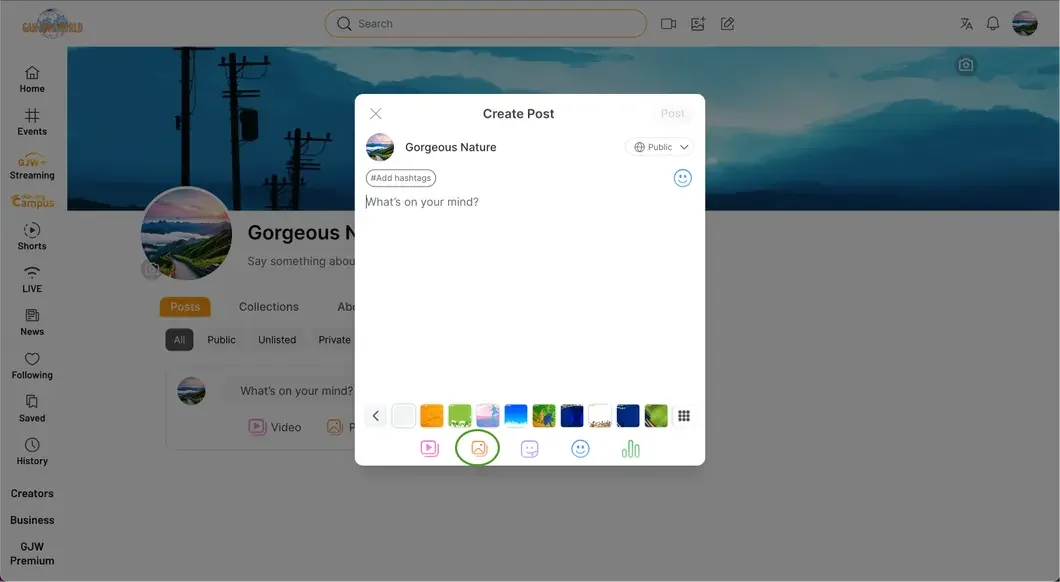
After selecting the icon, you will automatically be redirected to the “Create Post” page, as shown below. A single post can contain up to 9 images. Select the image icon (circled in the below image example) to access your computer files and select your image content. Once your images are selected, they will appear at the bottom of your draft. You can add more images if desired.
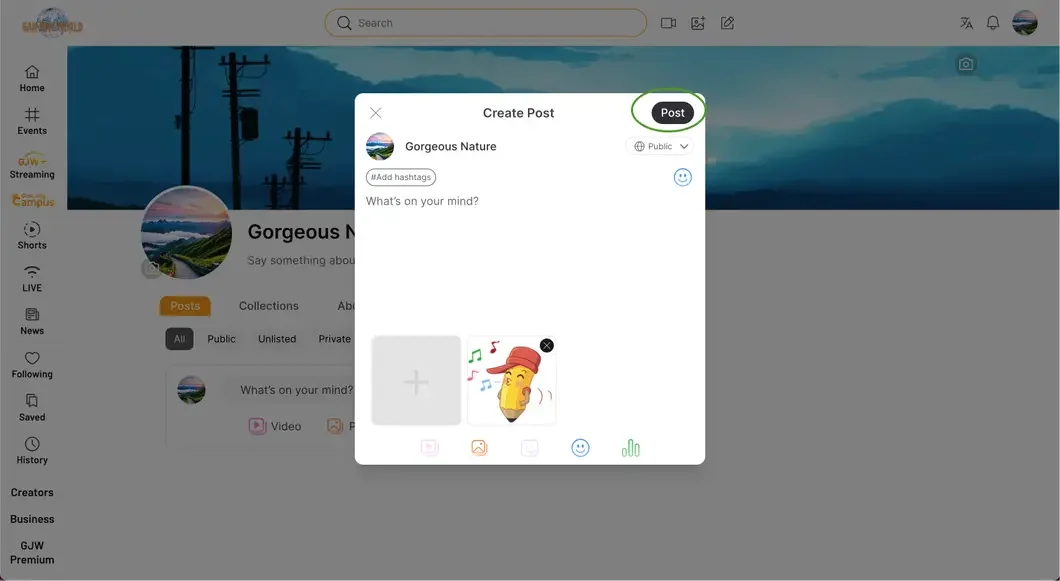
When you are ready to post your photo(s), select “Post”.
After your post is created, you will be automatically redirected back to your channel's “Posts” page, where you can see all the posts you have previously created. (Note: The “Posts” page is different from your channel homepage). If you would like to see all the pictures you have posted, you can view them from your album by selecting your channel icon at the top-right corner and then selecting “My Channel”.
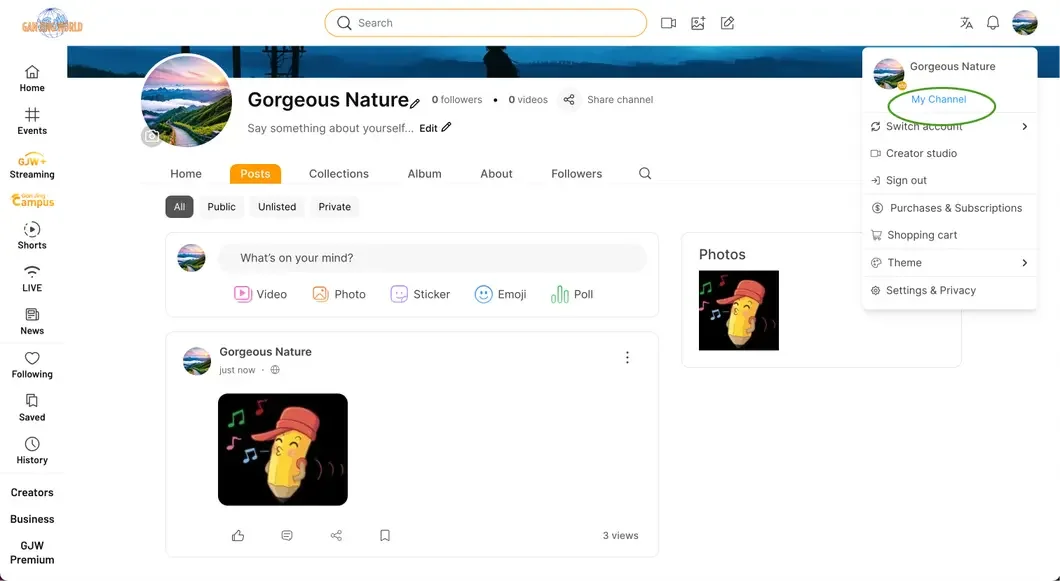
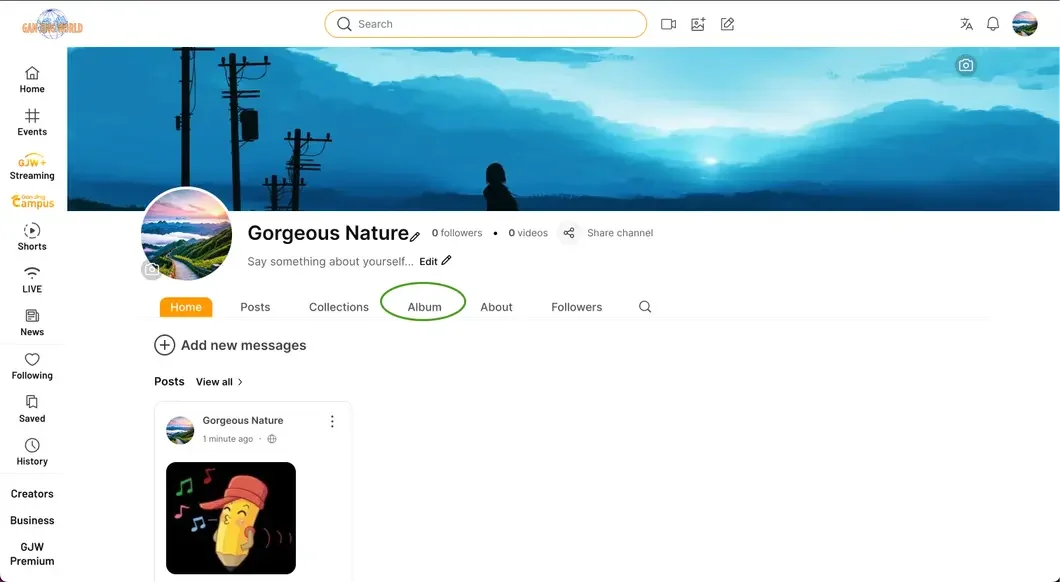
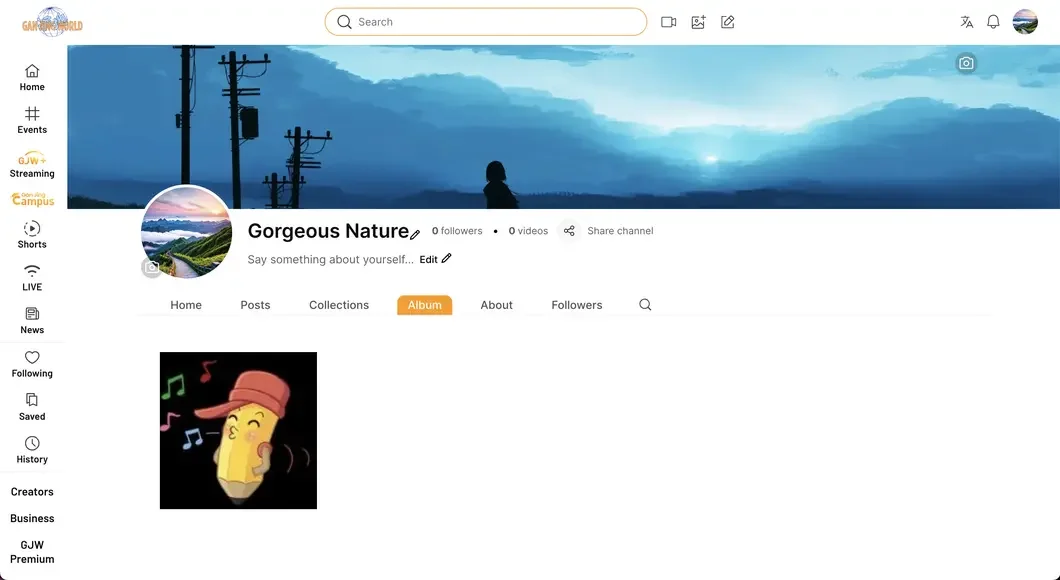
After you reach your channel homepage, simply select “Album” under your channel description and take a look at all the photos you've uploaded!
Mobile Version
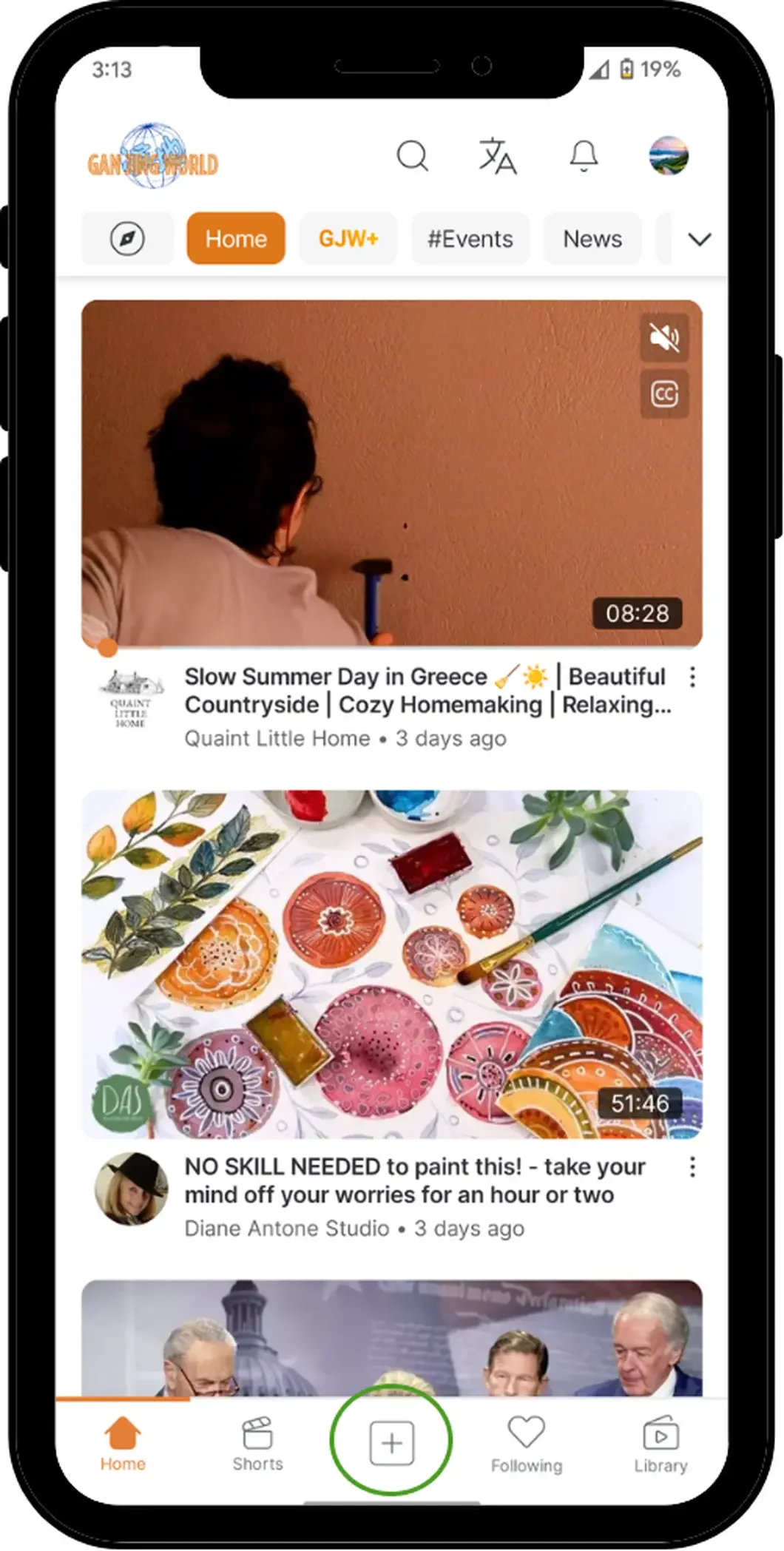
Open up the GJW app. Select the “+” icon located at the bottom center of the homepage.
Select “Create a post”.
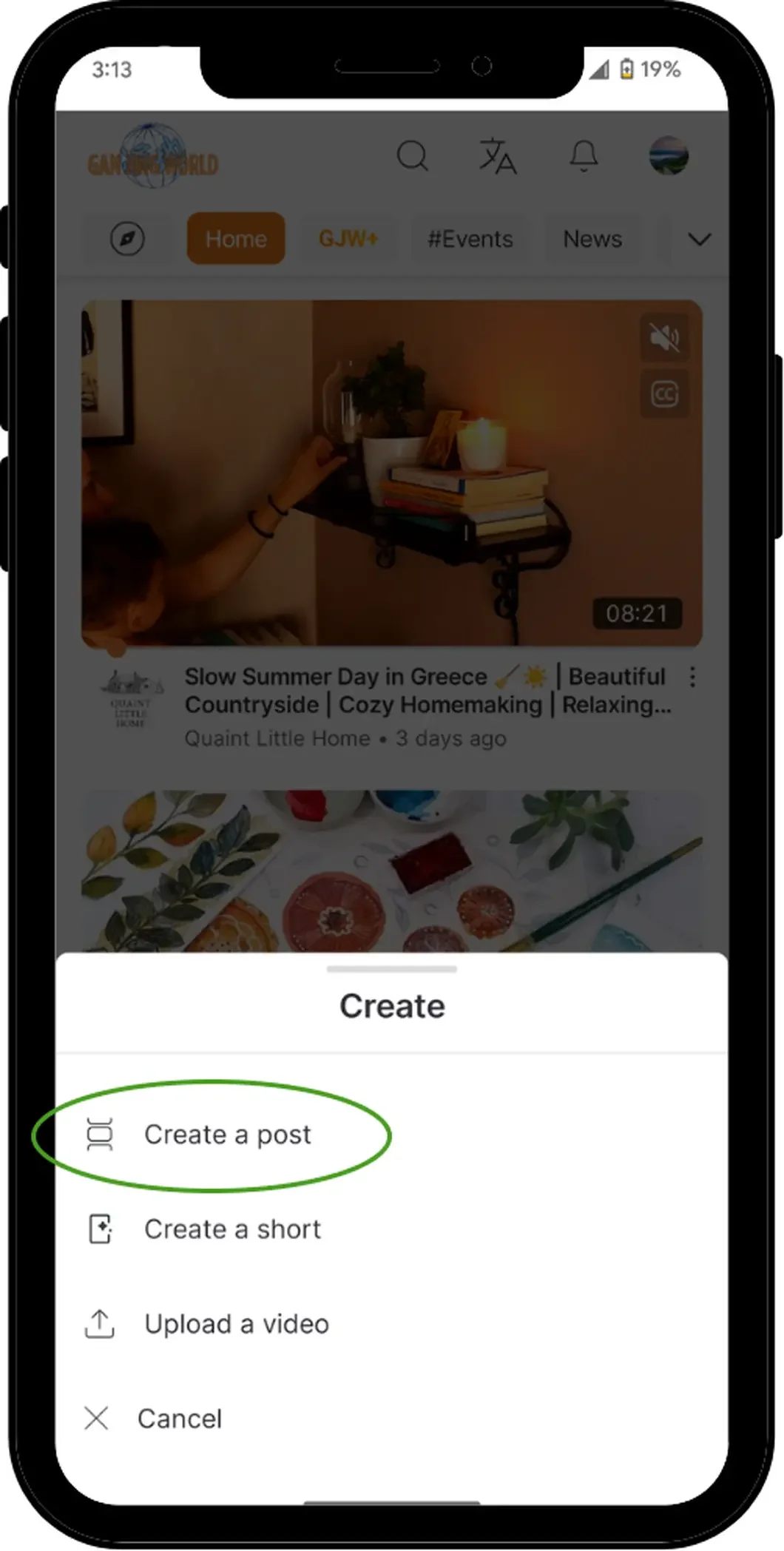
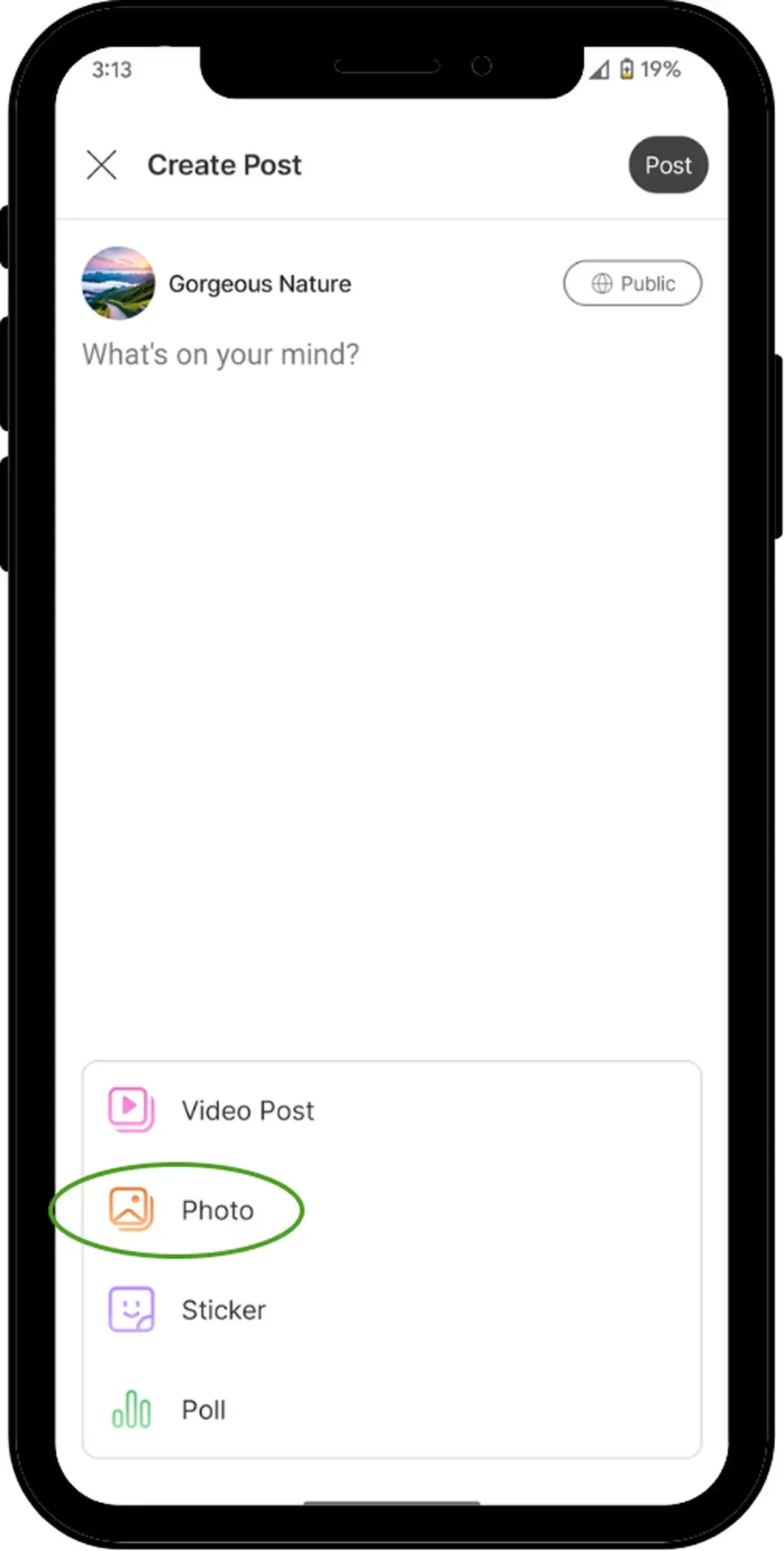
Posts may contain up to 9 images. Select “Photo” to select your photos and add them onto your post.
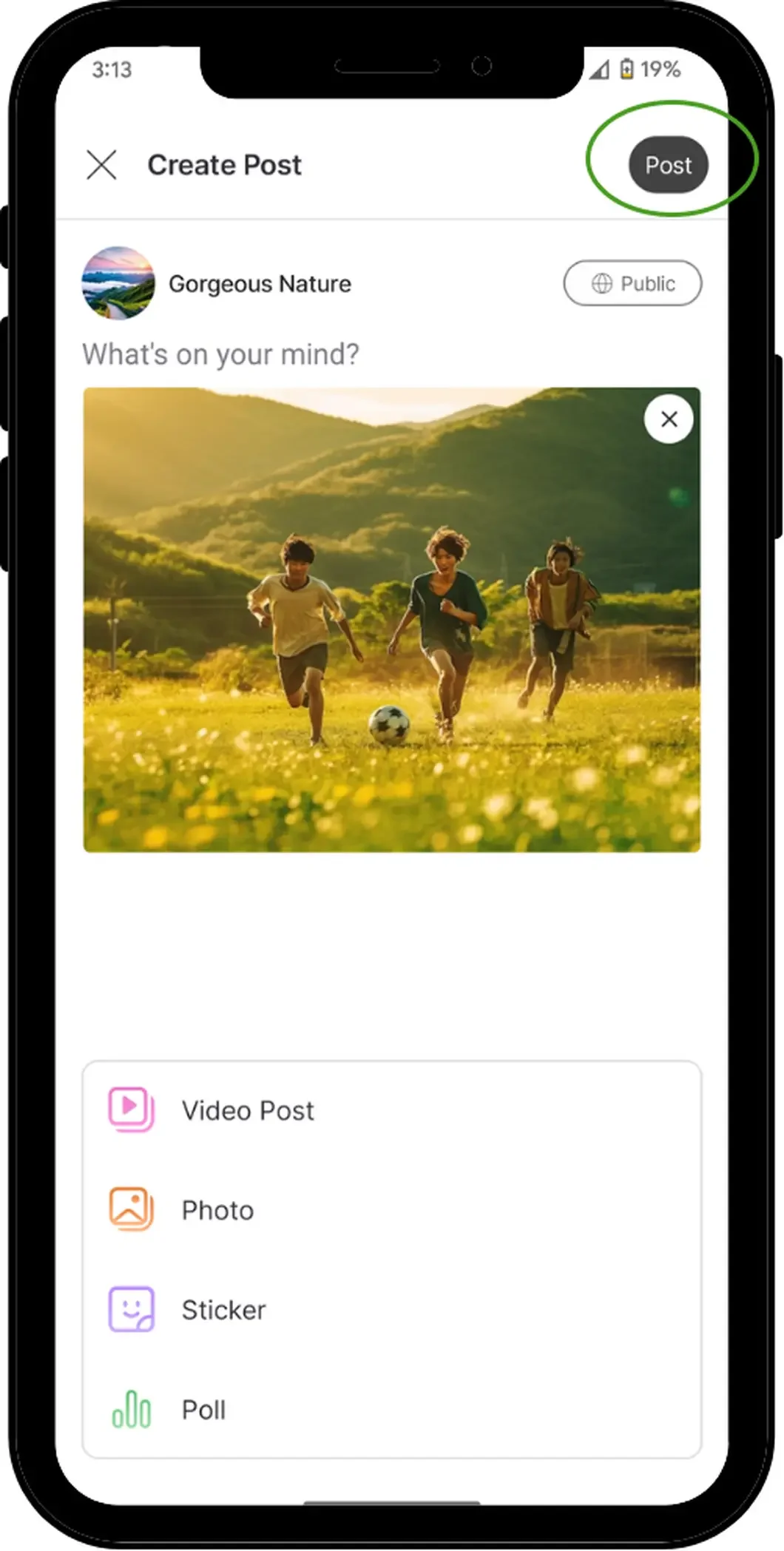
Once you are finished selecting your photos and customizing your post, select “Post”.
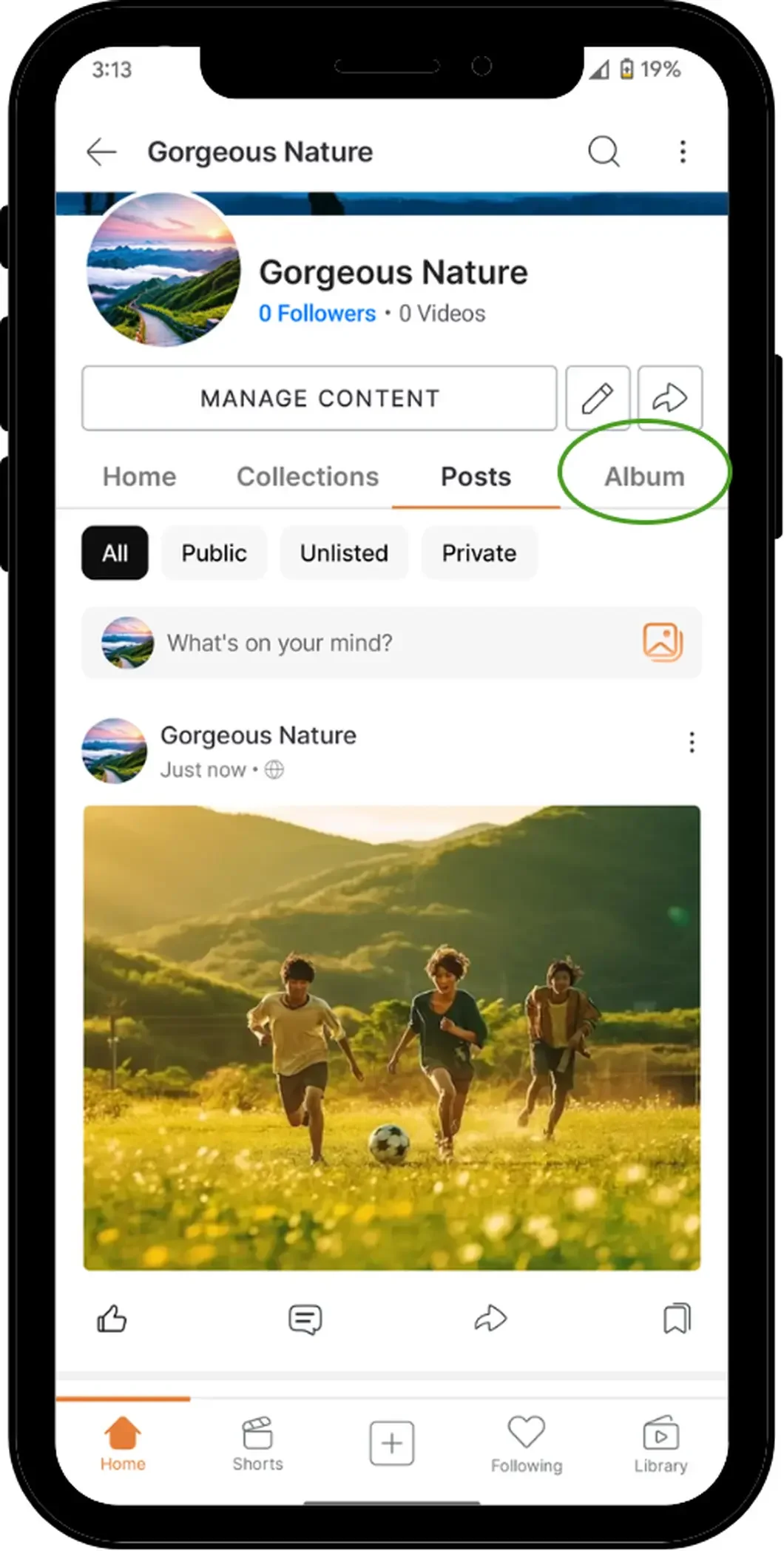
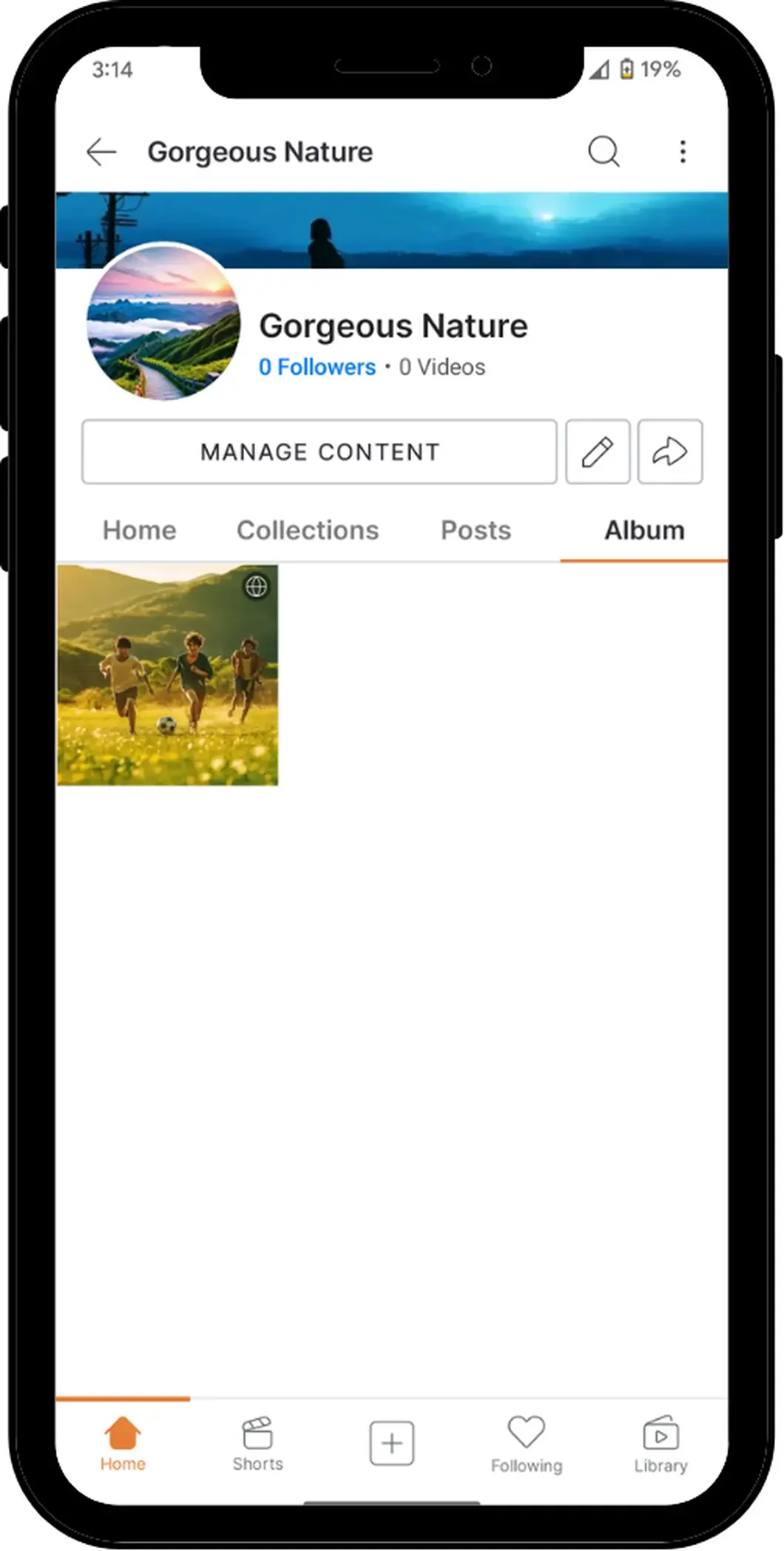
After posting you will be redirected to your “Posts” page on your channel, and from there, if you want to see photos uploaded/posted in the past, simply select “Album”.